
Managing your contacts effectively is essential for staying connected with family, friends, colleagues, and service providers. Wiko smartphones, known for their user-friendly interface and affordability, run on Android and offer intuitive tools for contact management. Whether you're setting up a new device or organizing an existing list, knowing how to add, edit, group, and back up your contacts ensures seamless communication. This guide walks you through every stage of contact management on your Wiko phone—clearly, thoroughly, and without unnecessary jargon.
Adding New Contacts to Your Wiko Phone
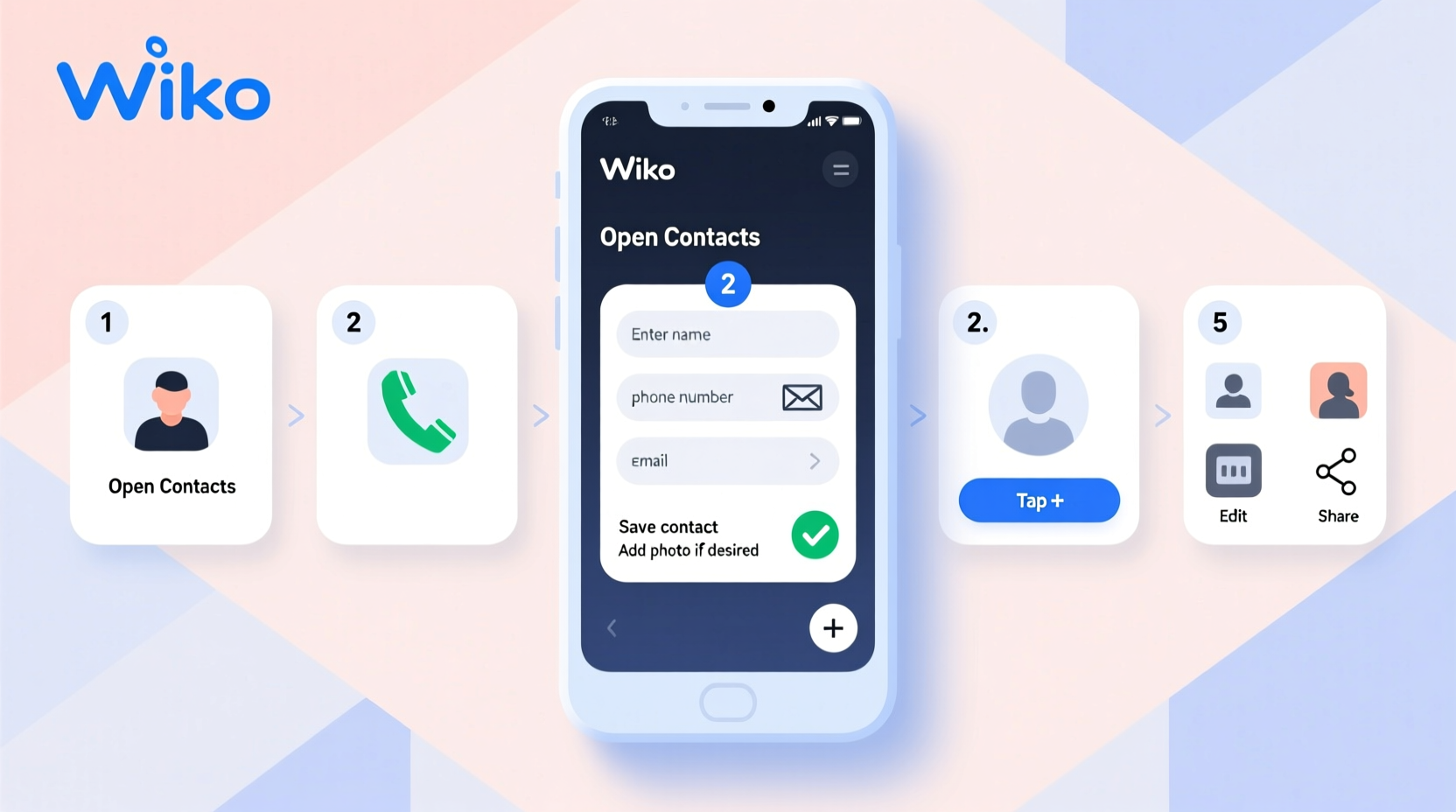
The first step in building your digital address book is adding new contacts. Wiko phones use the standard Android Contacts app, which supports saving entries directly to the device, SIM card, or synced accounts like Google. To add a new contact:
- Open the Phone or Contacts app from your home screen.
- Tap the + (plus) icon, usually located at the bottom-right corner.
- Select where you'd like to save the contact: Device, Google Account, or SIM.
- Enter the person’s name, phone number, and additional details such as email, address, or birthday.
- Tap Save in the top-right corner.
When choosing where to save a contact, consider long-term accessibility. Saving to your Google account enables syncing across devices, while saving to the SIM offers portability but limited storage and fewer fields.
Editing and Updating Existing Contacts
People change numbers, emails, or jobs. Keeping your contacts current avoids misdirected calls and outdated information. To edit a contact:
- Open the Contacts app.
- Find and tap the contact you want to update.
- Tap the Edit icon (usually a pencil).
- Modify any field—number, email, photo, notes, etc.
- If the contact is linked to multiple accounts (e.g., Google and Facebook), you can manage these links under “Link” options.
- Tap Save when finished.
You can also merge duplicate entries. If the same person appears twice, open one entry, tap the three-dot menu, and select Join or Merge. Choose the other duplicate and confirm.
Best Practices for Contact Details
- Add a profile photo to recognize callers quickly.
- Use nicknames if preferred (e.g., “Mom – Home” vs. “Jane Smith”).
- Include secondary numbers labeled appropriately (e.g., “Work,” “Mobile”).
- Set birthdays to receive calendar reminders.
Organizing Contacts with Groups and Labels
Sorting contacts into groups improves navigation, especially if you have over 100 entries. Wiko phones allow you to create custom labels using your Google account.
- In the Contacts app, tap the three-line menu icon and go to Groups.
- Select Create new group.
- Name the group (e.g., “Family,” “Colleagues,” “Emergency Contacts”).
- Add members by searching their names and selecting them.
- Tap Done.
Once created, you can filter your contact list by group or send mass messages via messaging apps that support group selection.
| Group Type | Purpose | Recommended Use Case |
|---|---|---|
| Family | Immediate relatives and close kin | Quick access during emergencies |
| Work | Colleagues, managers, clients | Professional communication only |
| Friends | Social circle | Event invites and casual calls |
| Emergency | Hospital, police, roadside assistance | Lock screen visibility (if supported) |
“A well-organized contact list reduces stress and saves time—especially in urgent situations.” — Lena Patel, Digital Lifestyle Consultant
Syncing and Backing Up Contacts
One of the most overlooked yet critical aspects of contact management is backup. Without it, losing your phone means losing all personal connections unless manually restored.
Wiko phones integrate with Google Sync by default. To ensure your contacts are backed up:
- Go to Settings > Accounts (or Google).
- Select your Google account.
- Ensure the Contacts toggle is enabled.
- Tap Sync now to force an immediate backup.
Your contacts will automatically sync whenever you make changes, provided Wi-Fi or mobile data is active. You can verify this by visiting contacts.google.com from any browser.
Alternative Backup Options
- Export to SIM: Limited capacity (~250 contacts), useful for basic transfers.
- Export to .vcf file: Full backup saved to internal storage or microSD card. Can be imported later.
- Third-party apps: Apps like Copy My Data assist in transferring contacts between phones via Wi-Fi Direct.
Mini Case Study: Recovering After a Phone Loss
Sophie, a freelance designer from Lyon, accidentally dropped her Wiko View5 into water. After replacing it with a new model, she feared losing her client list. However, because she had previously enabled Google sync, she simply signed into her Google account on the new device and restored all 187 contacts within minutes. She even used her pre-created “Clients” group to prioritize follow-ups. This experience reinforced the importance of automatic backups—a habit she now recommends to all her peers.
Essential Checklist for Contact Management
Use this checklist monthly to keep your contact list efficient and reliable:
- ✅ Verify that Google sync is active
- ✅ Remove outdated or spam entries
- ✅ Merge duplicate contacts
- ✅ Update job titles and numbers as needed
- ✅ Review and refine contact groups
- ✅ Export a .vcf backup file to external storage
- ✅ Add missing profile photos for key contacts
Frequently Asked Questions
Can I transfer contacts from an iPhone to my Wiko phone?
Yes. First, export contacts from the iPhone as a vCard (.vcf) file via iCloud or Mail. Then, transfer the file to your Wiko phone via email or cloud storage and import it through the Contacts app under “Import/Export” settings.
Why aren’t my contacts showing up after switching SIM cards?
If contacts were saved to the old SIM, they won’t auto-appear on the new one. You must manually import them via the Contacts app > Menu > Import from SIM. For long-term reliability, move them to your Google account.
How do I block unwanted contacts on my Wiko phone?
Open the contact, tap the three-dot menu, and select Block number. Alternatively, go to the Phone app > Recent calls > Long-press the number > Block. Blocked contacts won’t be able to call or message you.
Conclusion: Take Control of Your Connections
Your contact list is more than just names and numbers—it's a vital part of your daily digital life. By mastering how to add, edit, group, and back up contacts on your Wiko phone, you ensure that staying in touch remains effortless, even during transitions like device upgrades or unexpected losses. The small time investment in regular maintenance pays off in reliability, clarity, and peace of mind.




 浙公网安备
33010002000092号
浙公网安备
33010002000092号 浙B2-20120091-4
Comments
No comments yet. Why don't you start the discussion?