
For millions of coffee lovers, the Starbucks app has become more than just a way to order drinks—it’s a digital wallet, loyalty tracker, and payment hub rolled into one. Central to this experience is the ability to add, manage, and use gift cards effortlessly. Whether you’ve received a holiday gift card, want to preload funds for convenience, or are managing multiple balances, knowing how to navigate the app’s gift card features can save time and enhance your daily routine.
This guide walks through every aspect of adding and managing Starbucks gift cards directly from your smartphone. From troubleshooting common issues to maximizing card security, you’ll gain full control over your digital Starbucks balance—without ever needing to carry a physical card.
How to Add a Starbucks Gift Card to Your App
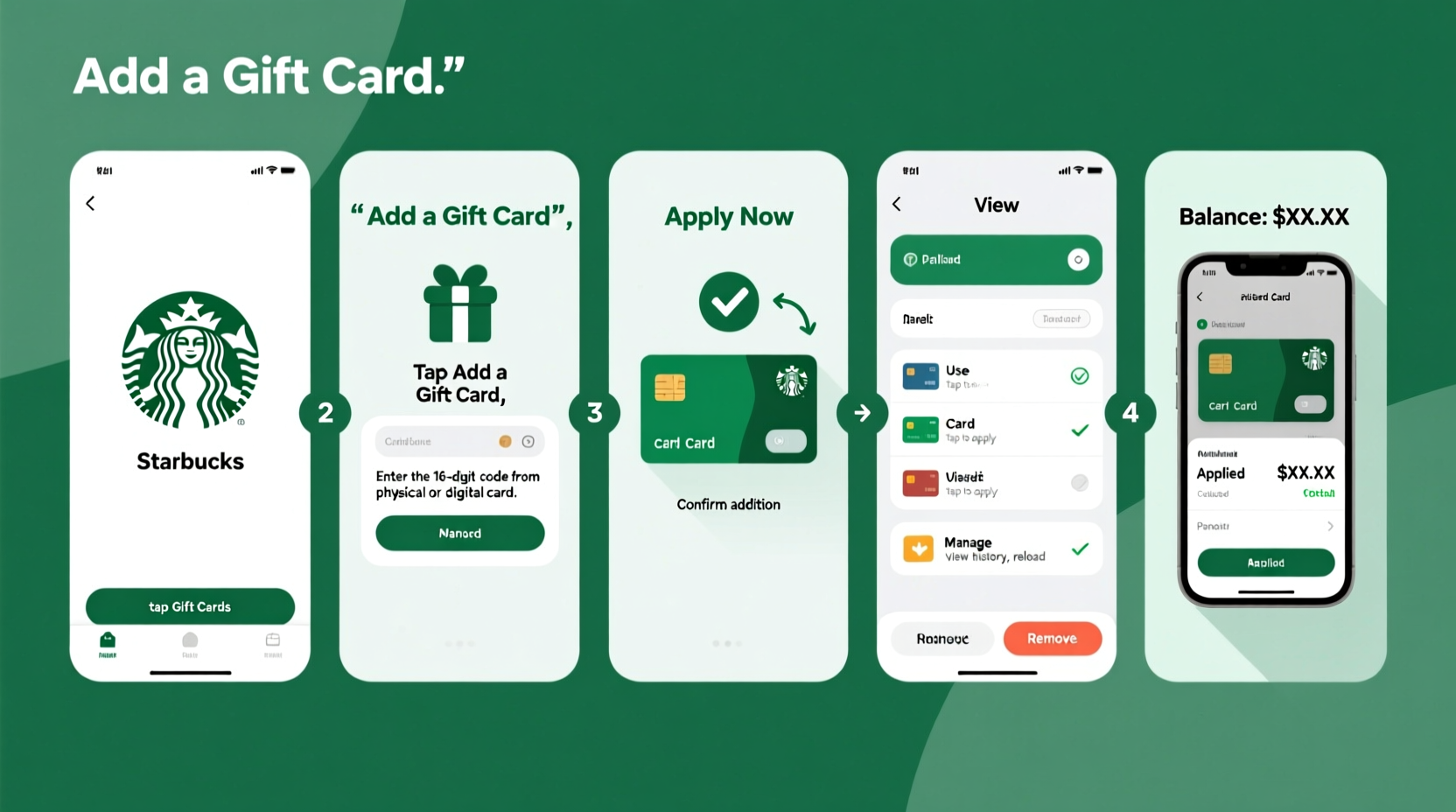
Adding a gift card to your Starbucks app is quick and secure. Whether it's a digital eGift or a physical card with a scratch-off code, the process takes less than a minute.
- Open the Starbucks app on your iOS or Android device. Ensure you’re logged into your account.
- Navigate to the “Pay” tab at the bottom of the screen. This displays your current card balance and scan-to-pay barcode.
- Tap the “+” icon in the top-right corner labeled “Add money” or “Manage” (depending on your interface).
- Select “Add a gift card” from the menu.
- Enter the 16-digit card number and the 4-digit PIN found on the back of the physical card or within the eGift email.
- Tap “Done” or “Add Card” to complete the process.
The card will now appear in your wallet under the “Gift Cards” section. You can view its balance instantly and choose whether to set it as your default payment method.
Managing Multiple Gift Cards and Balances
If you frequently receive Starbucks gift cards—whether from friends, promotions, or holiday bonuses—you may end up with several active balances. The app allows you to store up to 30 gift cards simultaneously, but organizing them effectively ensures smooth transactions.
To manage your cards:
- Go to the “Pay” tab and tap your current card image.
- You’ll see a list of all linked gift cards with their respective balances.
- Tap any card to view transaction history, reload options, or remove it from your wallet.
- To set a default card, select the one you want to use most often and tap “Set as Default.”
When making purchases, the app automatically draws from your default card. If that balance is insufficient, it will prompt you to choose another card or use a linked credit/debit card for the remainder.
| Action | Location in App | Notes |
|---|---|---|
| Add new gift card | Pay tab → + icon → Add a gift card | Supports both physical and digital cards |
| View all cards | Pay tab → Tap current card image | Swipe left to delete (not recommended) |
| Reload a card | Card details → “Add Money” | Requires linked payment method |
| Check balance | Any card in wallet | Updated in real-time after each purchase |
Using Your Gift Card for Payments In-Store and Online
Once added, your digital gift card functions exactly like a physical one. At checkout, simply open the app, go to the “Pay” tab, and scan the barcode displayed on your screen. The amount will be deducted directly from your selected card.
For mobile orders via the app:
- Your default payment method (including gift cards) is used unless changed during checkout.
- If your gift card doesn’t cover the full amount, the app will ask which backup method to use.
- You can split payments manually by selecting a different card before confirming your order.
“We designed the Starbucks wallet to make gifting and spending frictionless. Customers should be able to use their balance anywhere, anytime—without digging through emails or wallets.” — Lisa Jones, Director of Digital Experience, Starbucks
Troubleshooting Common Gift Card Issues
While the system is generally reliable, users occasionally encounter problems when adding or using gift cards. Here are solutions to the most frequent issues:
- Card not accepted: Verify the number and PIN. Some third-party retailers sell expired or already-redeemed cards. Contact Starbucks customer service if the issue persists.
- Balance not updating: Wait a few minutes and refresh the app. Pull down on the Pay screen to force a sync. Restarting the app often resolves display delays.
- Can’t remove a card: You cannot delete a card with a positive balance. To archive it, spend the balance or transfer it to another card (see below).
- eGift not redeemable: Ensure the email was sent to the same account linked to your app. Forwarding eGifts to another person requires manual forwarding through the Starbucks website.
Transferring Balances Between Cards and Security Tips
Starbucks allows you to consolidate balances across multiple cards—a useful feature when cleaning up your wallet or sharing value with family members.
To transfer funds:
- Open the “Pay” tab and tap your card image.
- Select the card you want to send money from.
- Tap “Transfer” (available only if you have more than one card).
- Choose the recipient card and enter the amount.
- Confirm the transfer. No fees apply.
Funds transfer instantly and cannot be reversed. This feature is ideal for combining small balances into one usable card.
For security:
- Enable two-factor authentication in your account settings.
- Avoid sharing your login credentials, even with family.
- Regularly review your transaction history for unauthorized activity.
- Log out of shared devices after use.
Real-World Example: Managing Holiday Gift Cards Efficiently
Sarah receives five Starbucks gift cards during the holidays—three physical ones from coworkers and two digital ones from relatives. Instead of juggling multiple cards, she opens her Starbucks app and adds each one using the 16-digit code and PIN. She sets the largest balance as her default payment method and uses the transfer feature to combine the smaller cards into one. Over the next month, she uses the app to pay for her morning latte and mobile orders, watching her balance update in real time. When one card reaches zero, she removes it from view without losing access to her remaining funds.
By centralizing her gift cards digitally, Sarah avoids carrying physical cards, reduces clutter, and maximizes convenience—all while earning Stars toward free drinks.
FAQ
Can I use multiple gift cards for a single purchase?
No, the app only allows one gift card per transaction. However, if your selected card doesn’t cover the full amount, you can use a linked credit or debit card to pay the difference.
What happens if my phone dies at checkout?
If you’re unable to scan your barcode, inform the barista that you have a registered card. They can look up your account using your phone number or email and apply the payment manually.
Do Starbucks gift cards expire?
In the U.S., Starbucks gift cards do not expire and have no dormancy fees. Balances remain active indefinitely, though terms may vary in other countries.
Final Checklist: Mastering Gift Card Management
- ✔️ Download and log in to the Starbucks app
- ✔️ Add all gift cards using the 16-digit number and PIN
- ✔️ Set a default card for automatic payments
- ✔️ Transfer balances to consolidate small amounts
- ✔️ Monitor transactions and enable app notifications
- ✔️ Use the barcode at checkout—no cash or card needed
Start Using Your Starbucks Gift Cards Seamlessly Today
With just a few taps, your Starbucks gift cards transform from static paper slips into dynamic tools for everyday convenience. By mastering the app’s features—from adding balances to transferring funds—you gain full control over your spending, earn rewards consistently, and streamline your coffee runs. Whether you're a daily visitor or an occasional treat-seeker, integrating your gift cards into the digital ecosystem enhances both security and simplicity. Take charge of your Starbucks experience now: open the app, add your cards, and enjoy the ease of tapping to pay with confidence.




 浙公网安备
33010002000092号
浙公网安备
33010002000092号 浙B2-20120091-4
Comments
No comments yet. Why don't you start the discussion?