
Managing multiple user accounts on an Xbox console is essential for households with more than one gamer. Whether it’s for parents, children, roommates, or guests, setting up individual profiles ensures personalized experiences, proper parental controls, and seamless game progress across users. With the right approach, adding and managing these accounts becomes intuitive and efficient. This guide walks through every stage—from initial setup to troubleshooting common issues—so your Xbox works smoothly for everyone in the household.
Why Use Multiple Accounts on Xbox?
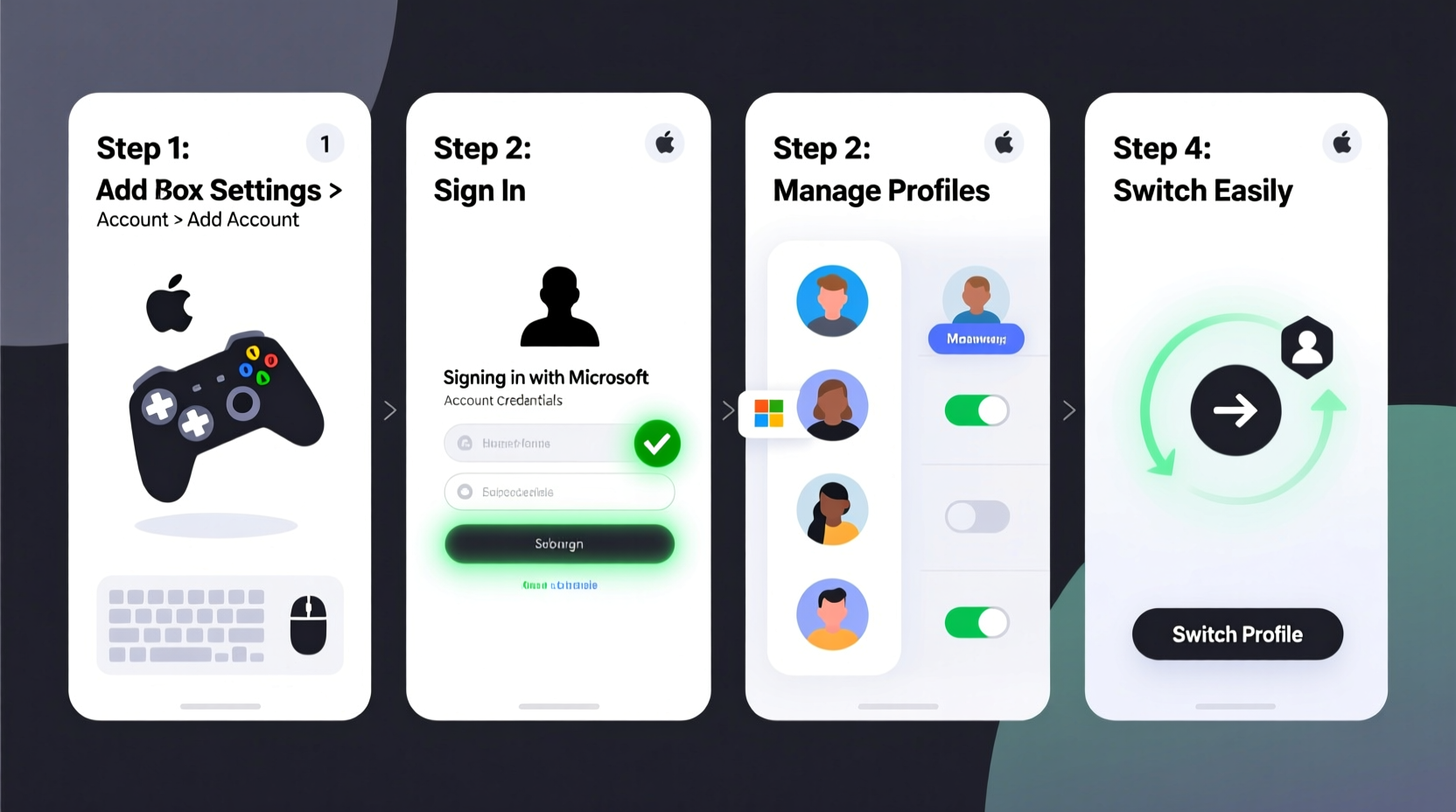
Xbox consoles are designed to support multiple user profiles, each with unique settings, achievements, saved games, and preferences. Using separate accounts prevents confusion between players, maintains privacy, and allows tailored content filtering through parental controls. For families, this means kids can play age-appropriate games while adults retain access to their full libraries. Gamers who share a console with friends or partners also benefit from automatic sign-in features and cloud-synced progress.
“Separate Xbox profiles aren’t just convenient—they’re crucial for maintaining digital safety, especially for younger players.” — Marcus Reed, Senior Console Support Analyst at Microsoft Partner Services
How to Add a New Account to Your Xbox Console
Adding a new account is straightforward and can be done directly on the console. Follow this step-by-step process:
- Turn on your Xbox and navigate to the home screen.
- Select your current profile icon in the top-left corner.
- Choose Add new from the menu.
- You’ll be prompted to either sign in with an existing Microsoft account or create a new one.
- To create a new account, select “Create one!” and follow the prompts to enter a valid email (or phone number), set a password, and verify identity.
- Complete the registration by entering birth date, country, and preferred language.
- Once created, the new profile will appear on the login screen.
If you're adding a child account, ensure you link it under Family Settings for appropriate supervision. The system will prompt you to confirm whether the user is under 18 during setup.
Managing Multiple Profiles: Best Practices
With several accounts active, organization becomes key. Here’s how to keep everything running smoothly:
- Set up Home Console Access: Designate your primary Xbox as the “home” console so all linked accounts can access your Game Pass and purchased titles.
- Enable Auto-Sign In: After logging in once, enable auto-sign in for returning users. Go to Profile & system → Settings → Account → Sign-in, security → Easy sign-in to activate.
- Sync Game Saves to the Cloud: Ensure all users have Xbox Live Gold or Game Pass Ultimate to sync saves via the cloud, preserving progress across devices.
- Customize Avatars and Themes: Let each user personalize their interface to avoid confusion when switching profiles.
Switching Between Accounts Efficiently
To switch users without restarting the console:
- Press the Xbox button on your controller to open the guide.
- Navigate to your profile icon in the upper-left.
- Select Switch profile.
- Choose the desired account and enter the password if required.
For frequently used profiles, pin them to the front of the list by going into Settings → General → Personalization → Show profile on startup.
Family Management and Parental Controls
If children use the console, leveraging Microsoft’s Family Safety tools is critical. These allow time limits, content restrictions, spending controls, and activity reporting.
Setting Up a Child Account
- From your main account, go to Settings → Account → Family.
- Select Add a family member.
- Enter the child’s email or phone number, or create a new account.
- Confirm the relationship and send the invitation.
- Accept the request from the child’s side (if over 13) or manage it directly from your dashboard.
Once added, configure rules such as:
- Daily screen time limits (e.g., 2 hours on weekdays)
- Allowed apps and games by age rating
- Online communication permissions
- Spending limits or purchase approval requirements
| Control Type | What It Does | Recommended Setting |
|---|---|---|
| Content Filters | Limits games and media by ESRB/Microsoft rating | Allow only age-appropriate content |
| Screen Time | Sets daily usage caps | 2 hours/day, paused after bedtime |
| Purchases & Subscriptions | Requires approval for downloads or spending | Require parent approval |
| Online Connections | Controls who they can message or play with | Friends only, no messaging |
Real Example: The Thompson Household Setup
The Thompsons—a family of four—recently upgraded to an Xbox Series X. They wanted a system that allowed both freedom and oversight. Dad, Mark, set himself and his wife as adult members with full access. Their two kids, ages 9 and 12, received supervised child accounts.
Using the Microsoft Family app on his phone, Mark scheduled playtime between 4 PM and 8 PM on weekdays, blocked M-rated games, and enabled spending alerts. He also made the Xbox their home console so everyone could enjoy his Game Pass library within safe boundaries. Within a week, the kids learned to sign in independently, and conflicts over game choices dropped significantly.
This balanced approach gave the children autonomy while ensuring peace of mind for the parents.
Troubleshooting Common Multi-Account Issues
Even with careful setup, problems may arise. Here are frequent issues and how to resolve them:
- Profile Not Loading: Restart the console and check internet connectivity. If persistent, remove and re-add the profile.
- Password Prompts Too Frequent: Enable \"Stay signed in\" under sign-in settings. Note: This should be avoided on shared public consoles.
- Saved Games Not Syncing: Confirm cloud saving is turned on (Settings → System → Backup & transfer → Upload my saved games). Also, verify Xbox Live membership status.
- Guest Can’t Access Purchased Games: Only accounts on the home Xbox can access the owner’s library. Make sure the correct console is designated as home under Settings → General → Personalization → My home Xbox.
Frequently Asked Questions
Can I have more than five accounts on one Xbox?
Yes, there’s no hard limit on the number of profiles that can be stored on a single console. However, performance remains optimal with fewer than 10 active users. Unused profiles can be removed to free up space.
Do all users need an Xbox Live Gold subscription?
No. Only the person playing online multiplayer needs an active subscription. If you have Game Pass Ultimate, all family members on the home console can use online multiplayer benefits.
How do I remove an old account from my Xbox?
Go to Settings → Accounts → Remove accounts. Select the profile you want to delete. Note: This removes local data unless saved to the cloud. Always back up saves first.
Essential Checklist for Managing Multiple Xbox Accounts
- ✅ Set One Primary Account:
- Designate an admin profile to manage others and assign home console privileges.
- ✅ Create Individual Profiles:
- Each user gets their own Microsoft account, even children.
- ✅ Link Family Members:
- Use the Family Safety portal to supervise minors.
- ✅ Enable Cloud Saving:
- Ensure all users sync progress automatically.
- ✅ Assign Home Console:
- Maximize access to subscriptions and purchases.
- ✅ Customize Privacy Settings:
- Adjust chat, broadcast, and friend request permissions per profile.
Final Thoughts
Effectively managing multiple accounts on Xbox transforms a single console into a versatile hub for diverse gaming experiences. From seamless switching between users to enforcing healthy digital habits for kids, the built-in tools offer robust solutions. By following structured setup steps and maintaining regular oversight, households can enjoy shared entertainment without compromise.




 浙公网安备
33010002000092号
浙公网安备
33010002000092号 浙B2-20120091-4
Comments
No comments yet. Why don't you start the discussion?