
Apple Maps is more than just a navigation tool—it’s a powerful platform for personal organization and business visibility. Whether you're saving your favorite coffee shop, marking a remote work location, or ensuring your business appears accurately for customers, knowing how to add locations effectively enhances both convenience and reach. Unlike some platforms, Apple Maps doesn’t allow direct user submissions for new business listings in the same way Google does, but there are reliable methods to ensure your information is accurate and discoverable. This guide walks through every essential step for adding both personal and business locations, backed by practical insights and structured workflows.
Adding Personal Locations to Apple Maps
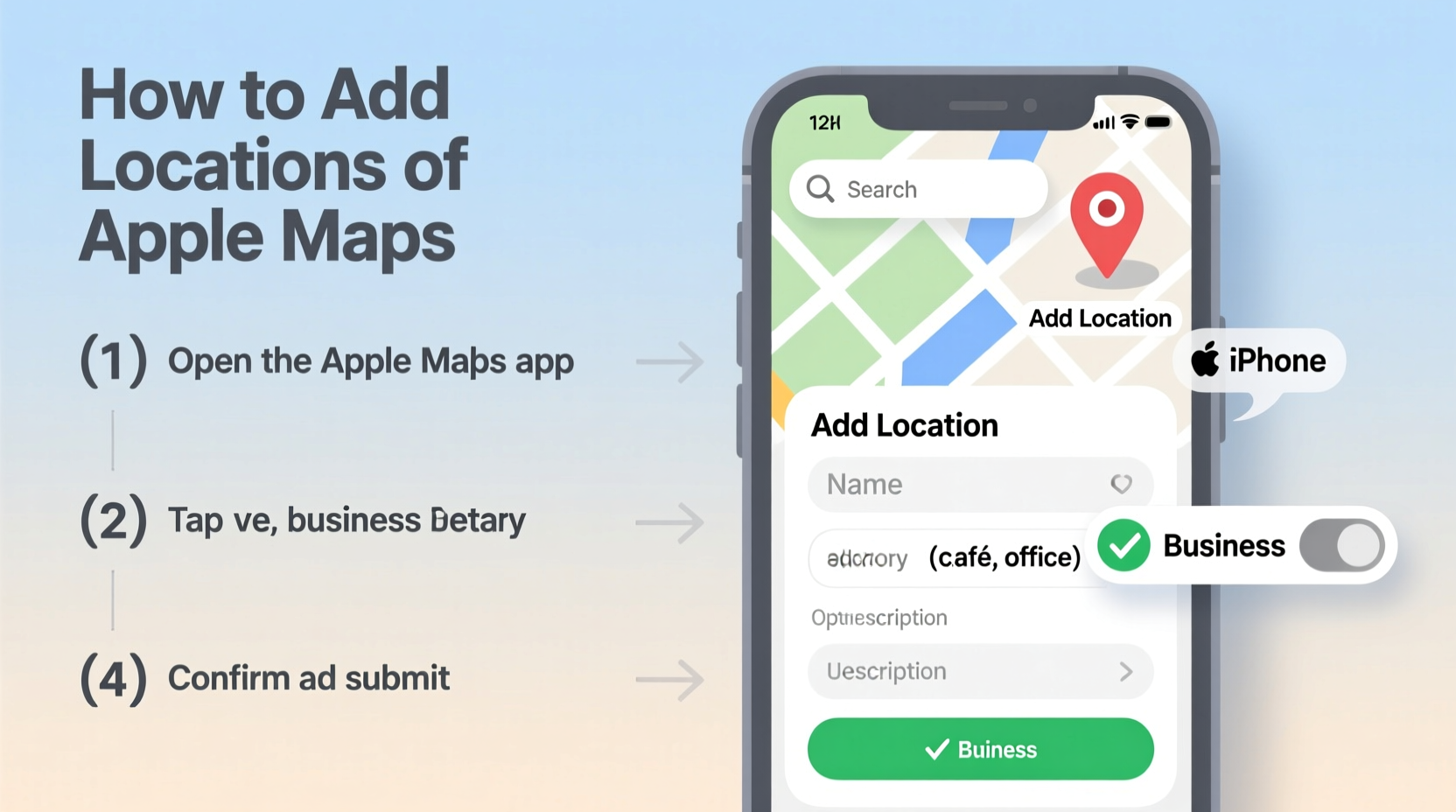
Saving personal spots—like your gym, a friend’s house, or a weekend hiking trailhead—streamlines daily navigation and reduces search time. Apple Maps makes this simple using built-in labeling features and Favorites.
- Open the Apple Maps app on your iPhone or iPad.
- Navigate to the location by searching or panning the map.
- Tap and hold the exact spot until a pin drops.
- Tap the pin to open the location card.
- Select “Add to Favorites” or tap the share icon and choose “Label.”
- Choose from preset labels (e.g., Home, Work) or create a custom label like “Yoga Studio” or “Vacation Cabin.”
Favorites appear at the top of your search results and can be accessed quickly from the app’s sidebar. These saved locations sync across all your Apple devices via iCloud, so your labeled spots are available on your iPhone, iPad, and Mac without re-entry.
Submitting a Business Location to Apple Maps
Unlike personal locations, businesses cannot be directly added by users through a public submission form. Instead, Apple relies on data partnerships, user corrections, and its own verification systems. However, business owners and representatives can still influence their presence on Apple Maps through Apple Business Register and third-party tools.
To get a business listed or corrected:
- Search for the business in Apple Maps.
- If it exists but has incorrect details, tap the listing and select “Report a Problem.”
- Choose the issue: wrong address, phone number, category, or hours.
- Submit updated information with supporting documentation if prompted.
- If the business doesn’t exist, select “Add Missing Place” and fill in verified details.
Submissions are reviewed by Apple’s mapping team, often within two to six weeks. Accuracy and consistency across directories improve approval odds.
“Apple prioritizes authoritative data sources. A consistent NAP (Name, Address, Phone) across platforms significantly increases the chances of a successful listing update.” — David Lin, Local SEO Strategist
Using Apple Business Register for Verified Listings
For businesses seeking greater control, Apple offers Apple Business Register, a free service that allows owners to claim and manage their listing directly. This is especially useful for customer engagement, offering features like messaging, updates, and product links.
Eligibility Requirements
- The business must have a physical storefront or service area.
- A valid business phone number and website are required.
- Ownership verification via official documents may be needed.
Registration Steps
- Visit register.apple.com on a desktop or mobile browser.
- Sign in with your Apple ID (preferably one associated with your business).
- Search for your business. If found, select “Claim This Business.”
- If not listed, click “Add New Business” and enter full legal details.
- Verify ownership via automated call, SMS, or document upload.
- Once approved, customize your profile: add hours, services, photos, and contact options.
Checklist: Ensuring Your Business Appears Correctly on Apple Maps
Follow this checklist to maximize visibility and accuracy:
- ✅ Confirm your business is listed in Apple Maps via a search.
- ✅ Submit corrections using “Report a Problem” if details are outdated.
- ✅ Enroll in Apple Business Register for direct management.
- ✅ Verify your listing using the provided method (call, SMS, or documents).
- ✅ Add high-quality photos and accurate service categories.
- ✅ Monitor customer messages and respond promptly.
- ✅ Keep hours updated, especially for holidays or seasonal changes.
Comparison: Apple Maps vs. Google Business Profile
| Feature | Apple Maps (via Business Register) | Google Business Profile |
|---|---|---|
| User-Friendly Setup | Simple, Apple ID-based | Requires Google account setup |
| Verification Speed | 1–2 weeks typically | Mail/postcard: 2–4 weeks |
| Customer Messaging | Yes, integrated with Messages | Yes, via Google Messages |
| Photo Upload Limits | Unlimited (curated display) | Unlimited |
| Editing Flexibility | Moderate (after verification) | High (real-time edits) |
| iOS Integration | Native, seamless | Third-party app required |
While Google still dominates in global reach and editing flexibility, Apple Maps excels in integration with iOS devices and privacy-focused interactions. For businesses targeting iPhone users, being visible and accurate on Apple Maps is non-negotiable.
Real Example: A Local Bakery’s Success Story
When “Sweet Crumb Bakery” opened in Portland, Oregon, customers struggled to find them on Apple Maps—the address was off by two blocks, and the phone number was outdated. The owner, Maria Tran, used the “Report a Problem” feature to correct the location and submitted a business claim through Apple Business Register. After a 10-day review period, her listing was verified. She uploaded interior photos, added her gluten-free menu items, and enabled messaging. Within three weeks, foot traffic increased by 25%, and several customers mentioned they “found you easily on Maps.”
This case highlights how even small businesses benefit from proactive map management. Visibility leads to trust, and trust drives visits.
Frequently Asked Questions
Can I add a business location directly in the Apple Maps app?
No, you cannot submit a brand-new business listing entirely within the Apple Maps app. You must use the “Report a Problem” feature to suggest additions or enroll via Apple Business Register online for full control.
How long does it take for a business to appear on Apple Maps after submission?
Typically 2–6 weeks. Apple reviews submissions for accuracy and may cross-reference with other data sources before publishing.
Do I need to pay to list my business on Apple Maps?
No. Apple Business Register and all listing features are completely free. Beware of third-party services charging for this—Apple does not charge for registration or verification.
Final Thoughts and Action Steps
Whether you're organizing your personal life or growing your business, mastering location management on Apple Maps is a practical skill with tangible benefits. Personal labels save time and reduce friction in daily routines. For businesses, accurate listings drive discovery, build credibility, and support customer engagement—especially among iOS users who rely on native apps.
The key is consistency: verify details, use official channels like Apple Business Register, and monitor your listing over time. Small updates—like adjusting holiday hours or responding to a message—can make a big difference in how customers perceive your professionalism.




 浙公网安备
33010002000092号
浙公网安备
33010002000092号 浙B2-20120091-4
Comments
No comments yet. Why don't you start the discussion?