
Staying connected to your work email on the go is essential in today’s fast-paced professional environment. Whether you're traveling, working remotely, or simply away from your desk, having instant access to your inbox ensures you never miss an important message, deadline, or opportunity. The good news? Adding your work email to your smartphone doesn’t require technical expertise. With a few straightforward steps, you can sync your corporate account across devices—regardless of whether you use an iPhone or Android phone.
This guide walks you through the entire process, covering different email types (Exchange, IMAP, Gmail Workspace), troubleshooting tips, and best practices for security and efficiency. By the end, you’ll be able to configure your work email confidently and securely.
Understanding Your Work Email Type
Before diving into setup, it's crucial to identify the type of work email system your company uses. This determines how you'll connect it to your phone. The three most common setups are:
- Microsoft Exchange / Outlook 365: Common in corporate environments; supports push email, calendar, contacts, and tasks.
- IMAP/SMTP: Used by many hosted email services; syncs emails only, not always calendars or contacts.
- Google Workspace (formerly G Suite): Google’s business email solution using Gmail under a custom domain.
If unsure, contact your IT department or check your email login page. Most organizations provide setup guides or configuration details upon request.
Step-by-Step Setup for Android Devices
Android phones typically use the built-in \"Email\" or \"Gmail\" app to add accounts. Here’s how to proceed:
- Open the Gmail app (or “Email” if no Gmail is installed).
- Tap your profile icon in the top-right corner and select Add another account.
- Choose Work or school email or Exchange if prompted.
- Enter your full work email address and tap Next.
- Select your account type:
- If your company uses Microsoft 365 or Exchange, choose Exchange.
- For IMAP-based systems, select IMAP.
- Enter incoming server settings (if required):
- Server: imap.yourcompany.com
- Port: 993
- Security: SSL/TLS
- Enter outgoing server settings:
- Server: smtp.yourcompany.com
- Port: 587
- Security: STARTTLS
- Input your password and tap Sign In.
- Allow permissions for mail, calendar, and contacts as needed.
- Customize sync frequency (e.g., every 15 minutes or push).
Once complete, your work inbox will appear within the app, often labeled separately for clarity.
Configuring Work Email on iPhone (iOS)
iOS offers seamless integration with both Exchange and IMAP accounts via the native Mail app.
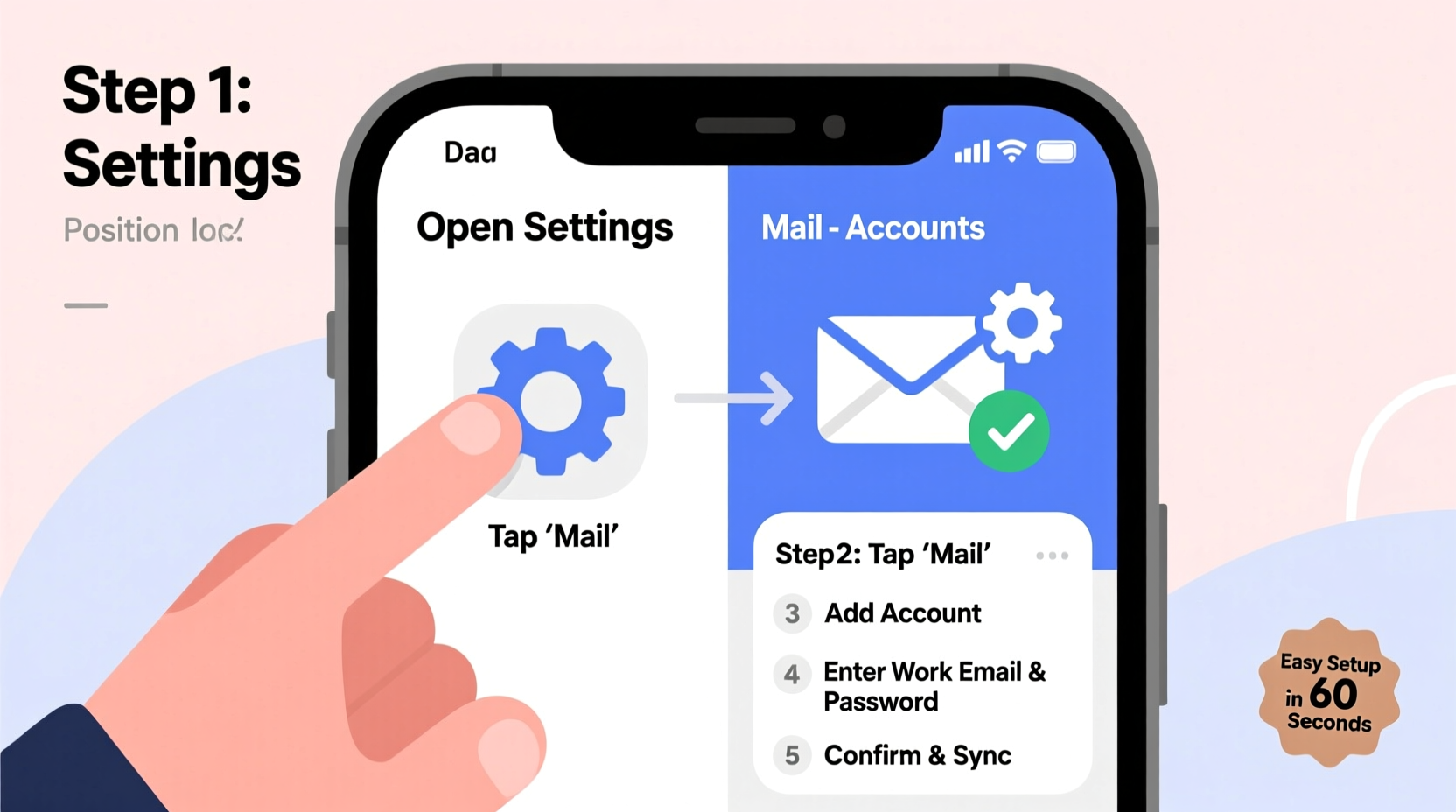
- Go to Settings > Mail > Accounts.
- Tap Add Account.
- Select Exchange for Microsoft 365 users or Other for IMAP/SMTP.
- If choosing Exchange:
- Enter your full email and password.
- Tap Next and allow auto-discovery to find server settings.
- If auto-setup fails, manually enter server: outlook.office365.com (for Microsoft 365).
- If using IMAP:
- Select Add Mail Account, then enter your name, email, password, and description.
- Tap Next, then choose IMAP.
- Enter:
- Incoming Mail Server: imap.yourcompany.com
- User Name: your full email
- Password: your email password
- Outgoing Mail Server: smtp.yourcompany.com
- Verify settings and save.
- Toggle on Mail, Calendar, or Contacts based on your needs.
Your work email will now sync automatically. You can access it through the default Mail app.
Common Configuration Settings by Provider
| Provider | Account Type | Incoming Server | Outgoing Server | Ports |
|---|---|---|---|---|
| Microsoft 365 / Exchange | Exchange | outlook.office365.com | smtp.office365.com | 993 (IMAP), 587 (SMTP) |
| Google Workspace | IMAP | imap.gmail.com | smtp.gmail.com | 993 (SSL), 587 (TLS) |
| Generic IMAP Host | IMAP | imap.yourcompany.com | smtp.yourcompany.com | 993 (SSL), 587 (STARTTLS) |
Troubleshooting Common Issues
Even with correct settings, problems can arise. Here’s how to resolve them quickly:
- “Authentication Failed”: Double-check your password. If using 2FA, ensure you’re using an app password.
- Email Not Syncing: Check your internet connection and verify sync settings under account options.
- Can’t Send Emails: Confirm SMTP settings and port number. Some networks block port 587; try Wi-Fi if on cellular.
- Certification Error: This often occurs with self-signed certificates. Contact IT to approve the certificate or install a trusted one.
“We see over 60% of mobile email issues stem from outdated passwords or misconfigured SMTP servers.” — Raj Patel, Senior IT Support Engineer at TechFlow Solutions
Security Best Practices When Adding Work Email
Your smartphone becomes an extension of your workplace network once linked to your corporate email. Protect both your device and data:
- Enable a strong passcode or biometric lock (fingerprint or face recognition).
- Ensure remote wipe is enabled in case your phone is lost or stolen.
- Avoid public Wi-Fi when accessing sensitive emails—use a company-approved VPN if necessary.
- Never share your device with others while logged into work accounts.
- Regularly update your phone’s OS and apps to patch vulnerabilities.
Mini Case Study: Remote Worker Successfully Sets Up Secure Access
Sarah, a project manager at a mid-sized marketing firm, recently transitioned to hybrid work. She needed reliable access to her Microsoft 365 email on her personal Android phone. Initially, she tried adding her account via the Gmail app but encountered an “Exchange Server Unreachable” error. After contacting IT, she learned her company had migrated to conditional access policies requiring Intune enrollment.
The solution? Sarah installed the Microsoft Company Portal app, enrolled her device, and re-added her email. Within minutes, her inbox, calendar, and contacts synced securely. Her experience highlights the importance of understanding your organization’s security policies before setup.
Quick Setup Checklist
Use this checklist to ensure a smooth setup process:
- ✅ Know your email type (Exchange, IMAP, Google Workspace)
- ✅ Have your full email address and password ready
- ✅ Obtain server settings if auto-configuration fails
- ✅ Enable two-factor authentication if required
- ✅ Install required security apps (e.g., Microsoft Intune, VMware Workspace ONE)
- ✅ Test sending and receiving a test email
- ✅ Configure notifications for urgent messages
Frequently Asked Questions
Can I add multiple work email accounts to one phone?
Yes. Both Android and iOS support multiple email accounts. Each will appear as a separate inbox within the mail app, allowing easy switching between roles or companies.
Will adding my work email give my employer access to my phone?
Only if your company enforces mobile device management (MDM) policies. In such cases, they may require app installation and limited oversight for security—such as enforcing encryption or enabling remote wipe. Personal data remains yours, but full device control may apply if company-owned devices are used.
Why isn’t my calendar syncing with my work email?
Calendar sync depends on the account type. Exchange and Google Workspace usually sync calendars automatically. For IMAP-only accounts, calendar integration may require a separate app like Outlook or third-party tools.
Stay Connected, Stay Productive
Adding your work email to your smartphone is more than a convenience—it’s a productivity necessity. With the right setup, you gain flexibility without compromising security or reliability. Whether you're on a business trip, working from home, or catching up after hours, instant access to your inbox keeps you in control.
Take a few minutes today to configure your account properly. Follow the steps outlined here, refer to your IT team when needed, and implement strong security habits. Once set up, you’ll wonder how you ever managed without it.




 浙公网安备
33010002000092号
浙公网安备
33010002000092号 浙B2-20120091-4
Comments
No comments yet. Why don't you start the discussion?