
Connecting a printer to your computer should be a straightforward process, but without clear guidance, it can quickly become frustrating. Whether you're setting up a new device or replacing an old one, understanding the correct sequence of actions ensures reliable performance and avoids unnecessary downtime. This comprehensive guide walks you through every stage—from physical connection to final configuration—so you can achieve seamless printing across documents, photos, and more.
Understanding Your Printer Connection Options
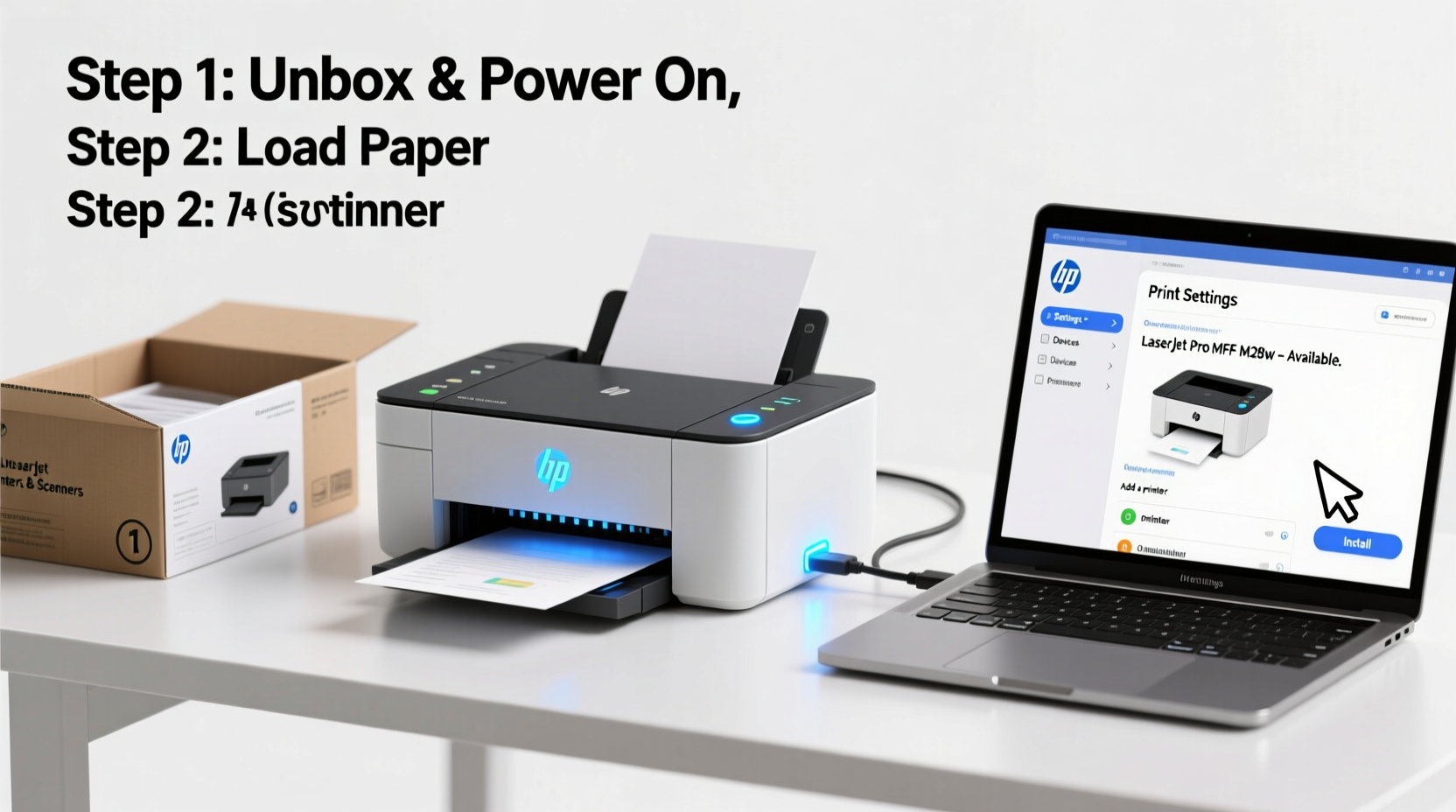
Before plugging in any cables or installing software, it's essential to know how your printer communicates with your computer. Most modern printers support one or more of the following connection types:
- USB (Wired): The most common and reliable method for direct connection between a single computer and printer.
- Wi-Fi (Wireless): Allows multiple devices on the same network to access the printer without cables.
- Ethernet (Network): Used in office environments where printers are shared over a wired local area network.
- Bluetooth: Less common, typically found on portable printers; limited range and slower speeds.
The choice of connection affects setup complexity and long-term usability. For home users, USB or Wi-Fi are usually sufficient. Office settings benefit from network-connected printers that allow team-wide access.
Step-by-Step Guide to Connecting via USB
For many users, especially those setting up a personal printer, connecting via USB remains the simplest option. Follow these steps carefully to ensure success.
- Power off both devices: Turn off your computer and printer before making connections to avoid electrical surges or misrecognition.
- Connect the USB cable: Plug one end into the printer’s USB port (usually labeled) and the other into an available USB port on your computer.
- Power on the printer: Switch on the printer first so it initializes properly.
- Turn on your computer: Boot up your system. Modern operating systems like Windows 10/11 and macOS will often detect new hardware automatically.
- Wait for driver installation: Your OS may begin downloading and installing necessary drivers from its built-in database or Microsoft/Apple servers.
- Test the connection: Open a document, go to File > Print, and select your printer. Send a test page to confirm functionality.
If no automatic prompt appears, manually check under Settings > Devices > Printers & Scanners (Windows) or System Settings > Printers & Scanners (macOS).
Setting Up a Wireless Printer
Wireless printing offers convenience and flexibility, particularly when printing from laptops, tablets, or smartphones. However, setup requires additional configuration steps.
- Power on the printer: Ensure it’s plugged in and turned on.
- Access the printer’s control panel: Navigate to the network or wireless settings menu. <3> Select your Wi-Fi network: Choose your home or office network from the list of available SSIDs.
- Enter the Wi-Fi password: Use the on-screen keyboard to input your network credentials accurately.
- Confirm connection: Wait until the printer displays a connected status, often indicated by a solid Wi-Fi icon.
- Install printer software: Insert the included CD or download the latest drivers from the manufacturer’s website (e.g., HP Smart App, Canon PRINT, Epson Connect).
- Add printer to your computer: On Windows, go to Settings > Bluetooth & Devices > Printers & Scanners > Add Device. On macOS, click the '+' button in Printers & Scanners preferences.
- Run a test print: Verify the connection by printing a test page directly from your computer.
Some printers support WPS (Wi-Fi Protected Setup), allowing you to press a button on your router and then on the printer to pair them instantly. This method simplifies setup but depends on router compatibility.
Essential Setup Checklist
To avoid missing critical steps during installation, use this checklist as a reference:
- ✅ Power cords connected and outlet functional
- ✅ Ink or toner installed and levels verified
- ✅ Paper loaded correctly in tray
- ✅ USB or Wi-Fi connection established
- ✅ Latest drivers downloaded and installed
- ✅ Printer set as default (optional but recommended)
- ✅ Test print completed successfully
Troubleshooting Common Issues
Even with careful setup, problems can arise. Here are frequent issues and their solutions:
| Issue | Possible Cause | Solution |
|---|---|---|
| Printer not detected | Loose cable, outdated driver, or disabled service | Reconnect USB, restart Print Spooler (Windows), reinstall drivers |
| Print jobs stuck in queue | Spooler error or offline status | Clear queue, restart spooler, check online status |
| Blurry or faded prints | Low ink, clogged nozzles, or incorrect paper type | Run nozzle cleaning, replace cartridges, adjust print settings |
| Cannot connect to Wi-Fi | Incorrect password, weak signal, or firewall block | Re-enter credentials, move closer to router, disable temporary firewall |
“Over 60% of printer issues stem from outdated drivers or misconfigured network settings—not hardware failure.” — James Lin, IT Support Specialist at TechFlow Solutions
Real-World Example: Home Office Setup
Sarah, a freelance graphic designer working from her apartment, recently upgraded her aging inkjet to a new all-in-one color laser printer. She wanted wireless capability to print from both her MacBook and iPad. Initially, she tried connecting via USB, which worked—but only for her laptop. After consulting the manual, she switched to Wi-Fi setup using the HP Smart app. It guided her through entering her Wi-Fi password and registering the device on her network. Within ten minutes, she was printing proofs from her tablet while reviewing client feedback. The key to her success? Using the manufacturer’s official app instead of relying solely on macOS auto-detection.
Frequently Asked Questions
Can I connect the same printer to multiple computers?
Yes. With a USB connection, only one computer can use it at a time unless you use a hardware switch. For broader access, connect the printer to your network via Wi-Fi or Ethernet, then add it to each computer individually through their respective printer settings.
Do I really need to install the manufacturer’s software?
While basic printing may work with generic OS drivers, installing the full software suite enables advanced features like scanning, duplex printing, ink level monitoring, and firmware updates. It also improves reliability and provides troubleshooting tools.
Why does my computer say the printer is 'offline'?
This usually means the system cannot communicate with the device. Check if the printer is powered on, connected properly (cable or network), and not showing any error lights. Restarting the print spooler service or re-adding the printer often resolves the issue.
Final Tips for Long-Term Reliability
Once your printer is operational, maintain consistent performance with routine care. Keep firmware updated through the manufacturer’s software. Clean print heads monthly if you print infrequently to prevent clogs. Avoid leaving paper in trays for extended periods to reduce moisture absorption and jamming risks.
Label your printer clearly in system settings—especially if multiple models are nearby—to avoid sending sensitive documents to the wrong device. And always keep spare ink or toner on hand to minimize workflow interruptions.
Conclusion: Start Printing with Confidence
Attaching your printer to a computer doesn’t have to be complicated. By following structured steps based on your connection type, verifying each phase, and applying preventive maintenance, you create a dependable printing environment tailored to your needs. Whether you're managing a busy household or running a small business, seamless printing saves time and reduces stress. Take action today—connect, configure, and print with confidence.




 浙公网安备
33010002000092号
浙公网安备
33010002000092号 浙B2-20120091-4
Comments
No comments yet. Why don't you start the discussion?