
When your Lenovo laptop fails to start Windows properly—due to corruption, malware, or a failed update—booting from a USB drive can be the fastest path to recovery. Whether you're reinstalling the operating system, running diagnostic tools, or restoring from a backup, knowing how to boot from USB is an essential troubleshooting skill. This comprehensive guide walks you through every stage, from preparing your USB to navigating Lenovo’s firmware settings, ensuring you regain control of your system with confidence.
Why Boot from USB?
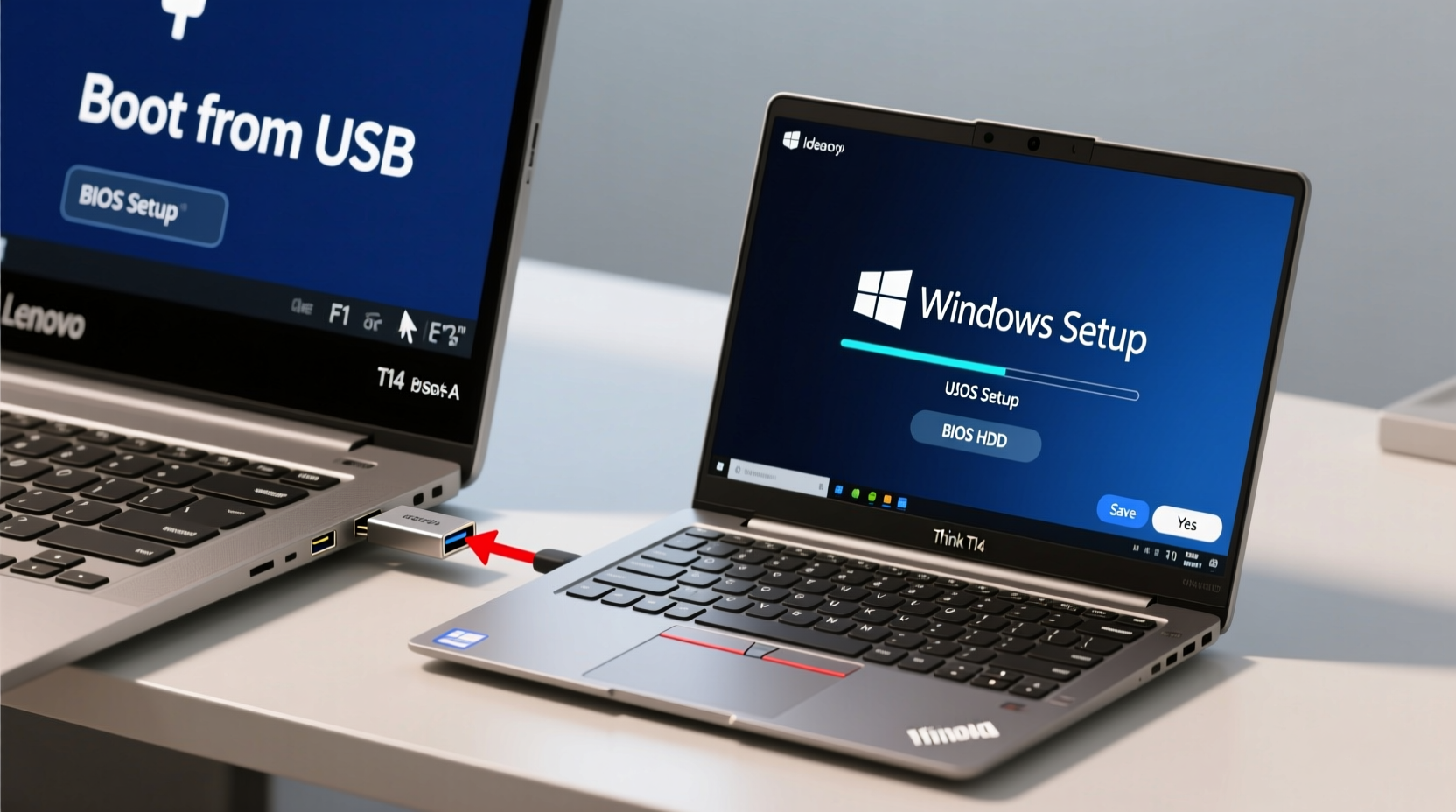
Booting from a USB allows your laptop to run an operating system or utility directly from external media, bypassing the internal hard drive. This is crucial when:
- The installed OS won’t load or crashes at startup.
- You need to perform a clean Windows installation.
- You’re using recovery tools like Windows PE, Linux Live, or antivirus rescue disks.
- Hardware diagnostics require a standalone environment.
Lenovo laptops—ranging from consumer Ideapads to business-grade ThinkPads—support USB booting, but accessing the correct boot menu and enabling legacy or UEFI options can vary slightly between models and release years.
Preparing Your Bootable USB Drive
Before adjusting BIOS settings, ensure you have a working bootable USB drive. The method depends on your goal:
- Windows Recovery or Installation: Use Microsoft’s Media Creation Tool to generate a bootable USB with the latest Windows version.
- Third-party Tools: For utilities like Hiren’s BootCD, Ubuntu Live, or antivirus rescue disks, use Rufus or BalenaEtcher to write the ISO image correctly.
- Custom Recovery Drives: Some Lenovo models allow creating recovery drives via Windows’ built-in tool (Control Panel > Recovery > Create a recovery drive).
Use a USB 3.0 flash drive (minimum 8GB) formatted as FAT32 for compatibility. Avoid NTFS unless required by specific tools. Ensure the USB is labeled clearly and contains no unnecessary files that might confuse the boot process.
Accessing the Boot Menu on Lenovo Laptops
Unlike desktops, many Lenovo laptops don’t display prompts like “Press F12 for boot menu” by default. Instead, they use silent boot sequences that require precise timing.
Step-by-Step: Entering the One-Time Boot Menu
- Shut down your Lenovo laptop completely.
- Insert the bootable USB into a USB 2.0 or 3.0 port (avoid hubs or extension cables).
- Power on the laptop and immediately begin pressing the F12 key repeatedly—about once per second.
- If successful, the “Boot Menu” will appear, listing all detected bootable devices.
- Select your USB drive using arrow keys and press Enter.
If F12 doesn’t work, try Novo Button—a small pinhole button usually located near the power button or on the side/jack panel. Use a paperclip to press it after powering off. This opens the Novo Button Menu, where you can select “Boot Menu” directly.
Configuring BIOS/UEFI Settings for USB Boot
If the USB doesn’t appear in the boot menu, it may be disabled in firmware. Access BIOS to adjust settings:
Entering BIOS Setup
- Restart the laptop.
- Press F1 or F2 repeatedly during startup (F1 is standard on ThinkPads; F2 on most others).
- Wait for the BIOS/UEFI interface to load.
Enabling USB Boot Support
Navigate using arrow keys. Common paths include:
- Boot → Boot Priority: Ensure “USB HDD” or “Removable Devices” are enabled.
- Startup → Primary Boot Sequence: Move USB to the top if needed.
- Security → Secure Boot: Disable temporarily if the USB isn’t UEFI-signed.
- Startup → CSM (Compatibility Support Module): Enable if using older MBR-based USB drives.
“Many boot failures stem not from the USB itself, but from Secure Boot blocking unsigned media. Temporarily disabling it resolves 70% of ‘missing USB’ cases.” — Raj Mehta, Senior Firmware Engineer at Lenovo Partner Labs
| Setting | Recommended Value | Notes |
|---|---|---|
| Secure Boot | Disabled (temporarily) | Required for non-Microsoft signed boot media |
| CSM Support | Enabled | Necessary for legacy BIOS-mode USB drives |
| Boot Mode | UEFI or Legacy+UEFI | Match your USB creation method |
| USB Boot | Enabled | May be under Boot or Security tabs |
Troubleshooting Common Boot Issues
Even with correct preparation, issues can arise. Here’s how to address them:
USB Not Detected in Boot Menu
- Recreate the bootable USB using a different tool (e.g., switch from Rufus to Media Creation Tool).
- Try another USB port—preferably USB 2.0, as some BIOS versions have poor USB 3.0 support.
- Check if the USB appears in BIOS under “Device List” or “Hard Drive BBS Priorities.”
Black Screen After Selecting USB
This often indicates a boot mode mismatch:
- If the USB was created in UEFI mode, ensure CSM is disabled and Secure Boot is configured correctly.
- If created in Legacy mode, enable CSM and set Boot Mode to “Legacy Only” or “Both.”
Stuck on Lenovo Logo
Force shutdown by holding the power button for 10 seconds. Power on and press F12 more aggressively. Alternatively, use the Novo Button method, which bypasses timing issues entirely.
Mini Case Study: Recovering a Frozen ThinkPad T480
Sarah, a field technician, arrived at a client site where a ThinkPad T480 wouldn’t pass the Lenovo splash screen. She suspected disk corruption. Using her pre-made Windows 10 USB, she pressed the Novo Button and accessed the boot menu. The USB didn’t appear. She entered BIOS (F1), navigated to Startup → CSM, enabled it, and rebooted. This time, the USB showed up. She launched Windows Setup, ran Startup Repair, and restored functionality within 20 minutes—without removing the drive.
Checklist: Boot from USB Successfully
- ✅ Created a bootable USB using reliable software (e.g., Media Creation Tool, Rufus)
- ✅ Used a high-quality USB drive (8GB+, USB 2.0/3.0)
- ✅ Fully powered down the laptop before restart
- ✅ Pressed F12 (or used Novo Button) immediately at power-on
- ✅ Entered BIOS (F1/F2) and verified USB boot is enabled
- ✅ Adjusted Secure Boot and CSM settings if necessary
- ✅ Selected the correct USB device from the boot menu
Frequently Asked Questions
Can I boot from USB on any Lenovo laptop?
Yes, all modern Lenovo laptops support USB booting. However, some enterprise models may have boot options disabled via administrator password or BIOS lock. In such cases, contact your IT department.
Why does my USB show up as “UEFI: [Name]” and “Legacy: [Name]”?
This indicates dual-mode support. Choose “UEFI” for GPT-partitioned drives with 64-bit OS installers. Choose “Legacy” for older MBR-formatted drives or 32-bit systems.
Do I need to change BIOS settings every time I boot from USB?
No. Once USB boot is enabled and prioritized, you can use the one-time boot menu (F12) without re-entering BIOS. Changes persist until manually reset.
Final Steps: Performing System Recovery
Once booted into the USB environment:
- Windows Installation: Follow prompts to install or repair Windows.
- System Restore: Choose “Repair your computer” > Troubleshoot > System Restore.
- Data Rescue: Use a Linux Live USB to copy files to external storage.
- Disk Check: Run
chkdsk /f /rfrom Command Prompt in Windows Recovery Environment.
After recovery, remove the USB and reboot. If the system starts normally, consider recreating a dedicated recovery drive for future use.
Conclusion: Take Control of Your Laptop’s Recovery
Mastering USB boot on your Lenovo laptop transforms you from a passive user into a capable troubleshooter. With the right tools and knowledge, you can resolve critical startup issues without costly repairs or data loss. Practice this process now—while your system is healthy—so you’re prepared when failure strikes. A few minutes today could save hours tomorrow.




 浙公网安备
33010002000092号
浙公网安备
33010002000092号 浙B2-20120091-4
Comments
No comments yet. Why don't you start the discussion?