
Modern gaming doesn’t have to require a $2,000 rig. With careful component selection and smart planning, you can build a capable gaming PC for under $700 that handles titles like Call of Duty: Modern Warfare III, Elden Ring, and Forza Horizon 5 at 1080p with smooth frame rates. The key is balancing performance, compatibility, and value—without sacrificing longevity. This guide walks through every stage of assembling a high-efficiency budget gaming PC, from choosing parts to booting up your first game.
Select Your Budget and Performance Goals
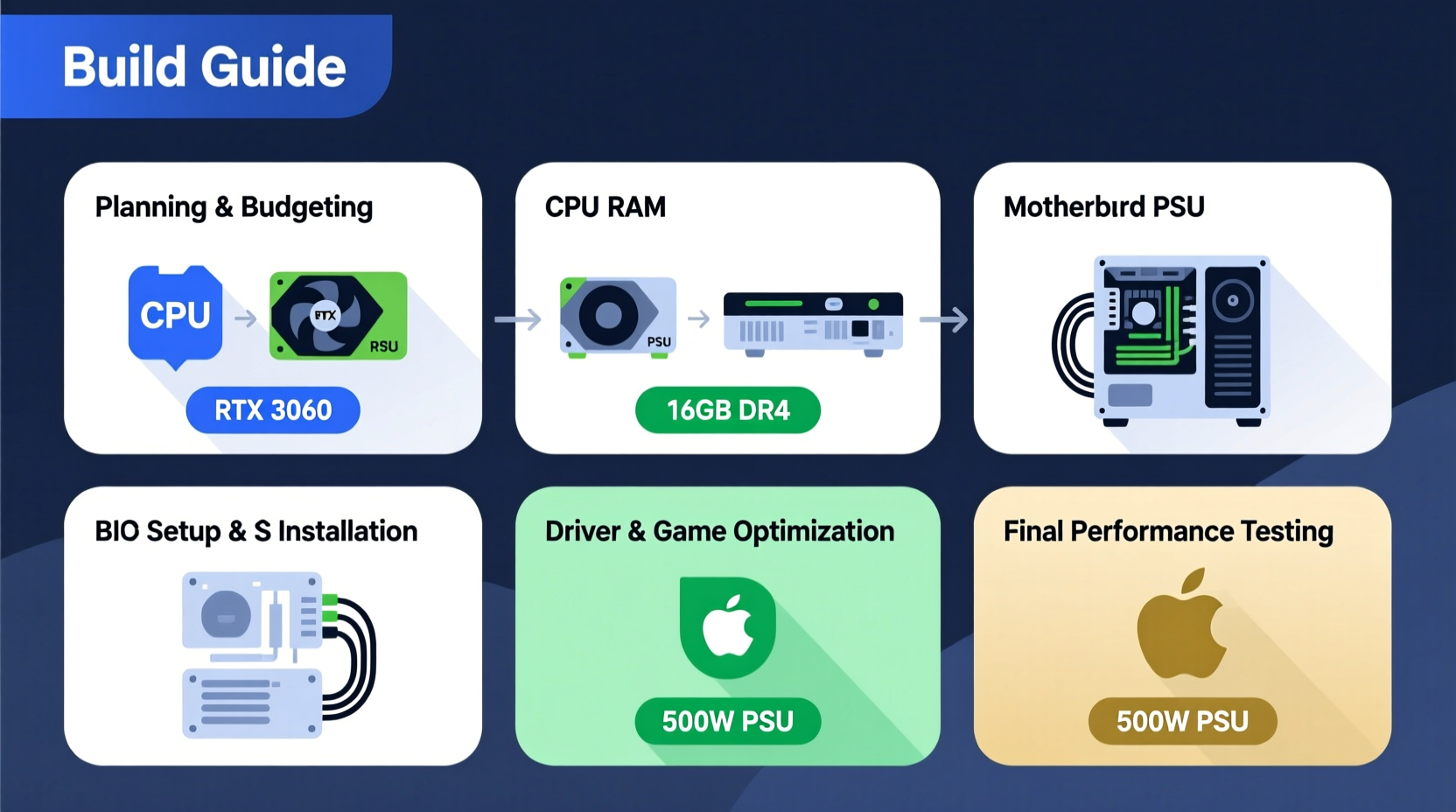
The first step isn't buying anything—it's defining what \"budget\" means to you and what kind of performance you expect. A true budget build today ranges from $600 to $800, excluding peripherals. Within this range, your goal should be consistent 1080p gameplay at medium-to-high settings with at least 60 frames per second in most AAA titles and higher in esports games like Valorant or CS2.
It’s important to resist the temptation to overspend on one component while skimping on another. A powerful GPU paired with an outdated CPU will bottleneck performance. Similarly, too little RAM or a slow storage drive undermines system responsiveness. Balance is everything.
Define What “Smoothly” Means to You
\"Smoothly\" typically means 60+ FPS in single-player games and 100+ FPS in competitive shooters. However, if you’re okay with 45–60 FPS in demanding games using optimized settings, you can save significantly. Use tools like PCGameBenchmark or CanYouRunIt to test target games against potential hardware.
“Building a budget PC isn’t about cutting corners—it’s about maximizing value per dollar. The sweet spot today is 1080p gaming, and we’ve never had better options.” — Mark Liu, Hardware Analyst at TechPulse Weekly
Choose the Right Components
Every part must earn its place in the build. Here’s a breakdown of essential components and current best-value recommendations (as of mid-2024).
1. CPU (Processor)
A modern quad-core processor with multithreading is sufficient. AMD Ryzen 5 5600 (or 5600X) offers excellent gaming performance and comes with a reliable stock cooler. Intel Core i3-12100F is a budget alternative, but pairing it with a dedicated GPU later may limit upgrade paths.
2. Motherboard
Match the motherboard socket to your CPU. For Ryzen 5 5600, a B550 chipset board like the MSI B550M PRO-VDH WiFi provides PCIe 4.0 support, solid VRMs, and built-in Wi-Fi—future-proof features at a low cost.
3. RAM
16GB DDR4 (2 x 8GB, 3200MHz or higher) is the standard. Dual-channel configuration improves integrated graphics performance during setup and boosts overall system speed. Brands like Crucial and G.Skill offer reliable kits under $50.
4. Storage
A 500GB NVMe SSD (like the Western Digital Blue SN570) delivers fast boot times and near-instant game loading. Avoid SATA SSDs unless necessary—they’re slower and offer minimal cost savings now.
5. GPU (Graphics Card)
This is where most of your budget should go—ideally 40–50%. The AMD Radeon RX 6600 or NVIDIA GeForce RTX 3050 are ideal entry points. Both deliver strong 1080p performance. The RX 6600 often outperforms the RTX 3050 at a lower price, though NVIDIA offers better drivers and DLSS in supported titles.
6. Power Supply (PSU)
Never cheap out here. A 550W 80+ Bronze certified unit from EVGA, Corsair, or Seasonic ensures stable power delivery. Look for fully modular units if cable management matters to you, but they aren’t essential at this tier.
7. Case
Pick a case with good airflow and room for future upgrades. The Montech X3 Mesh or Deepcool MATREXX 40 offer mesh fronts, multiple fan mounts, and fit a micro-ATX motherboard—all under $60.
“Spending $20 more on a quality PSU can prevent catastrophic failure down the line. It’s not glamorous, but it’s critical.” — Lena Patel, System Builder, BuildCrate Co.
Component Compatibility Checklist
- ✅ CPU socket matches motherboard (AM4 for Ryzen 5000 series)
- ✅ RAM is DDR4 and compatible with motherboard specs
- ✅ GPU fits inside the case (check length vs. case max GPU clearance)
- ✅ PSU has enough wattage and required PCIe connectors (8-pin for RX 6600)
- ✅ Case supports micro-ATX or ATX motherboard (depending on your pick)
- ✅ All parts are physically installable together (e.g., tall RAM coolers don’t block GPU)
Assembly: Step-by-Step Guide
With all parts in hand, assembly takes about 1.5 to 2 hours for beginners. Work on a clean, static-free surface with a Phillips screwdriver and zip ties handy.
- Install the CPU: Open the socket lever on the motherboard. Align the golden triangle on the Ryzen 5 6000-series CPU with the socket marker. Gently place it in—do not force it. Close the lever.
- Mount the CPU cooler: If using the stock AMD Wraith Stealth cooler, apply the pre-installed thermal paste side down. Lock the four retention arms into the motherboard holes around the socket.
- Insert RAM: Spread the clips on DIMM slots. Align notch on RAM sticks with slot, then press firmly until clips snap into place. Use slots A2 and B2 (second and fourth) for dual-channel mode.
- Mount M.2 SSD: Insert the NVMe drive at a 30-degree angle into the M.2 slot. Secure with the provided screw. Do not overtighten.
- Prepare the case: Remove both side panels. Install I/O shield (included with motherboard) into the rear opening. Screw in standoffs if not pre-installed.
- Install motherboard: Carefully align ports with I/O shield. Lower the board and secure with screws. Don’t over-tighten.
- Install PSU: Place the power supply in its shroud (if applicable), fan-down for optimal cooling. Secure with four screws.
- Connect front panel cables: Attach power switch, reset, HDD LED, and USB/audio headers using the motherboard manual as a reference.
- Install GPU: Remove case and motherboard PCIe slot covers. Insert GPU into top PCIe x16 slot. Press until it clicks. Secure with screws.
- Connect power cables: Plug 24-pin ATX to motherboard, 8-pin EPS to CPU power, and PCIe 8-pin to GPU. Route cables through case cutouts for clean airflow.
- Install storage (if SATA): Not needed for NVMe, but if adding a SATA SSD/HDD, connect data and power cables.
- Add case fans: Mount intake (front) and exhaust (rear/top) fans. Connect to motherboard fan headers.
Double-check all connections before powering on. Ensure no stray screws are left inside the chassis.
Benchmarks and Real-World Performance
To illustrate what this build delivers, consider a real-world example.
Mini Case Study: Alex’s $680 Gaming Build
Alex, a college student, built a PC using:
- AMD Ryzen 5 5600 – $120
- MSI B550M PRO-VDH WiFi – $95
- G.Skill Ripjaws V 16GB DDR4 3200MHz – $38
- WD Blue SN570 500GB NVMe – $35
- XFX Speedster SW Black Edition RX 6600 – $180
- Corsair CV550 80+ Bronze – $60
- Montech X3 Mesh – $52
Total: $680 (before tax). After installing Windows 10/11 and updating drivers, Alex tested several games at 1080p:
| Game | Settings | Average FPS |
|---|---|---|
| God of War (2022) | High | 62 |
| Spider-Man: Miles Morales | High + FSR Balanced | 78 |
| Fortnite | Epic (with DLSS Quality) | 95 |
| DOOM Eternal | Ultra | 110 |
| Red Dead Redemption 2 | High | 58 |
Results were consistently playable. In RDR2, dropping shadows to Medium boosted average FPS to 68. For competitive play, CS2 averages 220+ FPS at High settings. The system also handles streaming via OBS with minimal impact using Ryzen’s efficient core architecture.
Optimization Tips After Assembly
Once the OS is installed, fine-tune your system for maximum stability and performance.
- Update motherboard BIOS to the latest version for improved CPU compatibility and security patches.
- Install GPU drivers directly from AMD or NVIDIA—avoid third-party bundles.
- Use Windows 11 for better scheduler efficiency with Ryzen CPUs, though Windows 10 remains fully viable.
- Disable unnecessary startup programs via Task Manager to reduce boot time.
- Set power plan to “High Performance” in Windows Control Panel.
- Regularly clean dust from intake fans to maintain thermal performance.
Frequently Asked Questions
Can I build this PC without prior experience?
Yes. Millions of first-time builders succeed each year. Follow detailed video guides (like those from Linus Tech Tips or JayzTwoCents), take your time, and double-check each step. Mistakes are usually reversible if caught early.
Is it cheaper to buy a prebuilt instead?
Most prebuilt budget PCs under $700 use inferior components—slower CPUs, shared memory GPUs, or OEM parts that can’t be upgraded. Building gives you transparency, better parts for the price, and full control over future upgrades. Long-term, DIY wins.
Can I upgrade this PC later?
Absolutely. This build is designed with expansion in mind. You can add more storage, upgrade to 32GB RAM, swap the GPU for an RX 7700 XT or RTX 4060 Ti, and even keep the same PSU. The B550 motherboard supports future Ryzen 7000-series CPUs via BIOS update (with adapter).
Final Thoughts and Next Steps
Building a budget gaming PC that runs modern games smoothly is entirely achievable—and deeply rewarding. You gain technical knowledge, a machine tailored to your needs, and the satisfaction of saying, “I built this.” More importantly, you avoid the inflated pricing and subpar configurations common in entry-level prebuilts.
The components listed here represent the current sweet spot in price-to-performance ratio. As newer generations emerge, prices on last-gen hardware continue to drop, making now an excellent time to build.




 浙公网安备
33010002000092号
浙公网安备
33010002000092号 浙B2-20120091-4
Comments
No comments yet. Why don't you start the discussion?