
Creating a digital clock in Visual Basic is an excellent starting point for beginners learning the fundamentals of Windows Forms applications. It introduces core concepts such as event handling, timer controls, and dynamic text updates—all within a practical, visual context. This guide walks you through building a fully functional custom clock from scratch using Visual Studio and VB.NET. No prior experience beyond basic computer literacy is required.
Setting Up Your Development Environment
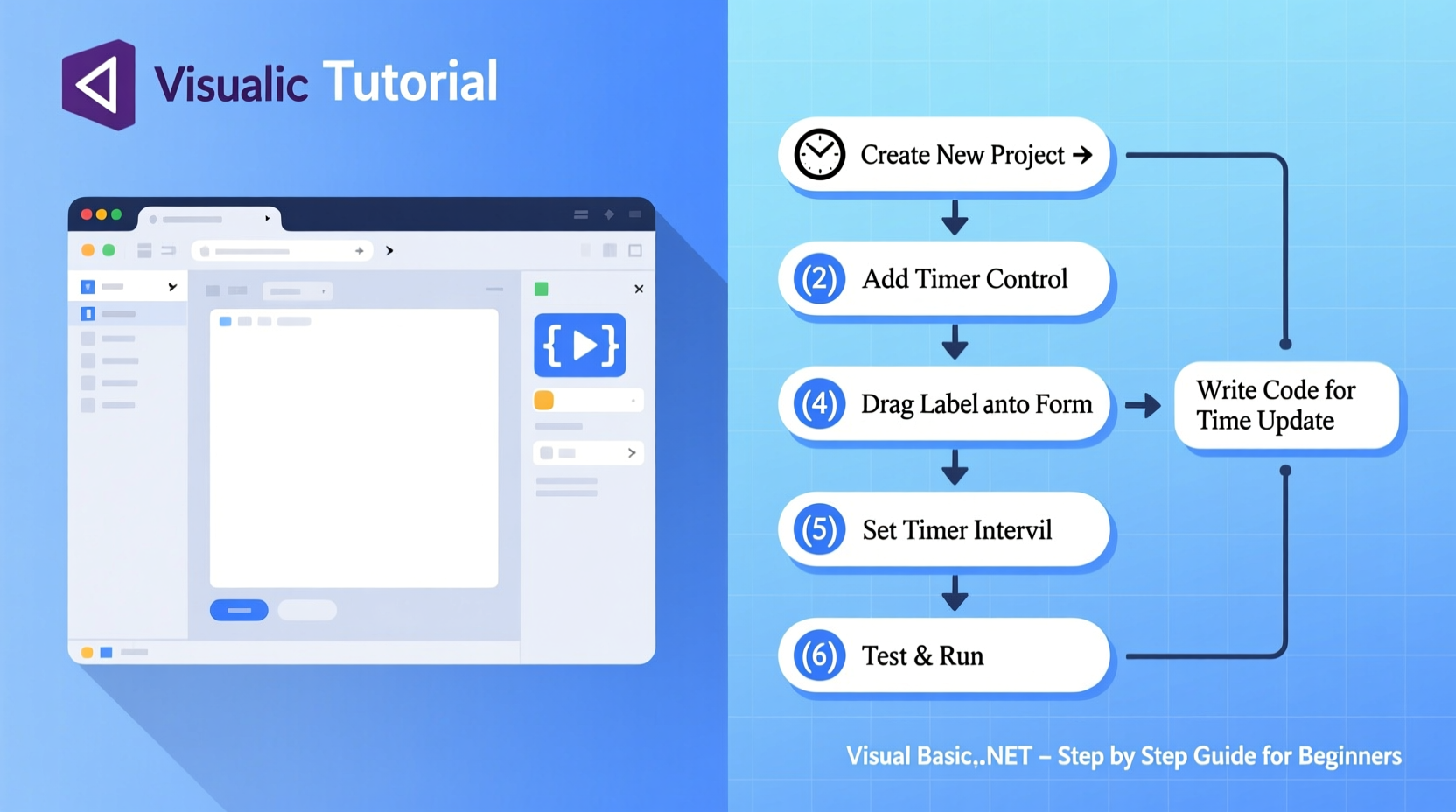
To begin, ensure you have Microsoft Visual Studio installed on your machine. The Community edition is free and fully capable for this project. Once installed, launch Visual Studio and create a new Windows Forms App (.NET Framework) project. Name it “CustomClock” and choose Visual Basic as the language.
After the project loads, you’ll see a blank form (Form1). This will serve as the canvas for your clock application. Resize the form slightly larger than default to give yourself room to work—around 300x150 pixels works well for a simple digital display.
Designing the Clock Interface
The interface requires only one key control: a Label. This label will display the current time and update every second. From the Toolbox, drag a Label control onto the form. Position it near the center and stretch it horizontally to fit the width of the form.
In the Properties window, adjust the following settings:
- Name: lblTime
- Text: (leave empty)
- Font: Consolas or Segoe UI, size 16–20pt, bold
- ForeColor: Black or dark gray for readability
- Alignment: MiddleCenter (to center text vertically and horizontally)
- AutoSize: False
- Dock: Fill (optional, to make the label expand with the form)
This label will now act as the digital face of your clock. You can customize colors and fonts later, but these defaults provide clear visibility.
Implementing Time Logic with the Timer Control
A clock must update regularly—once per second. In Visual Basic, the Timer component handles recurring actions. Unlike visible controls, the Timer appears in the component tray below the form.
- From the Toolbox, locate \"Timer\" under Components and double-click it to add to your form.
- Select the Timer in the tray and go to its Properties.
- Set Interval to 1000 milliseconds (1 second).
- Ensure Enabled is set to True so it starts automatically when the form loads.
Now, double-click the Timer to generate the Tick event handler in code. This subroutine runs every time the timer fires. Inside it, write the logic to fetch and format the current time:
Private Sub Timer1_Tick(sender As Object, e As EventArgs) Handles Timer1.Tick
    lblTime.Text = DateTime.Now.ToString(\"hh:mm:ss tt\")
End Sub
This line retrieves the current system time and formats it into a 12-hour clock with seconds and AM/PM indicator. You can modify the format string to suit different styles.
Supported Time Format Examples
| Format String | Output Example | Description |
|---|---|---|
| \"HH:mm:ss\" | 14:35:22 | 24-hour format, no AM/PM |
| \"hh:mm:ss tt\" | 02:35:22 PM | 12-hour format with period |
| \"h:mm:ss tt\" | 2:35:22 PM | 12-hour, no leading zero |
| \"MMM dd, yyyy - hh:mm:ss\" | Apr 05, 2025 - 02:35:22 | Date and time combined |
Enhancing Functionality and Appearance
With the basic clock working, consider adding enhancements that improve usability and aesthetics.
Add Form Load Behavior
You may want the clock to start immediately and set an appropriate title. In the form’s Load event, add:
Private Sub Form1_Load(sender As Object, e As EventArgs) Handles MyBase.Load
    Me.Text = \"Digital Clock\"
    Me.FormBorderStyle = FormBorderStyle.FixedSingle
    Me.MaximizeBox = False
End Sub
This disables resizing and sets a clean title bar.
Optional: Flashing Colons or Color Cycling
For visual flair, change the label color periodically. Modify the Timer tick event:
Static flashToggle As Boolean = False
flashToggle = Not flashToggle
lblTime.ForeColor = If(flashToggle, Color.Blue, Color.DarkRed)
This creates a subtle blinking effect. Be cautious not to overuse animations, as they can distract from functionality.
Do’s and Don’ts of Custom Clock Design
| Do’s | Don’ts |
|---|---|
| Use readable fonts and sufficient size | Use overly decorative or thin fonts |
| Update time at precise 1-second intervals | Call Sleep() or delay loops that freeze the UI |
| Handle time zone considerations if needed | Ignore localization settings for global users |
| Test across different screen DPI settings | Assume all monitors have the same resolution |
“Understanding how timers interact with the UI thread is foundational for any desktop application developer.” — Dr. Alan Reyes, Software Engineering Educator
Real-World Example: Classroom Attendance Clock
A high school teacher wanted a large, easy-to-read clock displayed on her classroom PC to help students track time during exams. She used this exact method in Visual Basic to build a full-screen digital clock with high-contrast yellow text on black background. By setting the form’s WindowState to Maximized and adjusting font size to 72pt, she created an effective teaching aid without purchasing additional hardware.
The simplicity of the solution allowed her to distribute the executable file to other teachers, who customized it with school colors and date displays. This demonstrates how even basic VB projects can solve real-world problems efficiently.
Checklist: Building Your First VB Clock
- ✅ Install Visual Studio with VB.NET support
- ✅ Create a new Windows Forms Application project
- ✅ Add a Label control named 'lblTime' to the form
- ✅ Set label properties: font size, alignment, AutoSize=False
- ✅ Add a Timer component with Interval=1000 and Enabled=True
- ✅ Write code in Timer.Tick event:
lblTime.Text = DateTime.Now.ToString(\"format\") - ✅ Customize appearance and behavior (optional)
- ✅ Run the project (F5) and verify time updates every second
- ✅ Build and export executable for standalone use
Frequently Asked Questions
Why isn’t my clock updating?
Ensure the Timer’s Enabled property is set to True. Also verify that the Tick event contains code to update the label. If the event handler was manually renamed, check that it still has Handles Timer1.Tick at the end of the declaration.
Can I show seconds only sometimes?
Yes. You can use conditional logic based on a checkbox or toggle. For example:
If chkShowSeconds.Checked Then
    lblTime.Text = DateTime.Now.ToString(\"hh:mm:ss tt\")
Else
    lblTime.Text = DateTime.Now.ToString(\"hh:mm tt\")
End If
Add a CheckBox control to let users switch modes dynamically.
Will this clock work offline?
Absolutely. The clock uses the system’s local time via DateTime.Now, which functions regardless of internet connectivity. However, accuracy depends on the host computer's clock settings.
Final Thoughts and Next Steps
Building a custom clock in Visual Basic teaches more than just time display—it reinforces understanding of event-driven programming, object properties, and user interface design. Once comfortable with this project, explore extending it: add stopwatch functionality, alarms, time zones, or even analog rendering using GDI+ graphics.
The skills developed here form a foundation applicable to more complex applications like dashboards, timers, or scheduling tools. Whether you're a student, hobbyist, or educator, mastering small projects like this builds confidence and competence in software development.




 浙公网安备
33010002000092号
浙公网安备
33010002000092号 浙B2-20120091-4
Comments
No comments yet. Why don't you start the discussion?