
Online shopping has become a daily habit for millions, but security concerns and clunky checkout processes remain common frustrations. Apple Pay offers a seamless solution—combining speed, convenience, and advanced encryption to protect your financial data. Unlike traditional methods that expose your card details with every transaction, Apple Pay keeps your information private while streamlining the purchase process. Whether you're shopping on an iPhone, iPad, Mac, or even through Safari on a desktop, this guide walks you through everything you need to know to buy online securely and efficiently using Apple Pay.
Understanding Apple Pay: How It Works
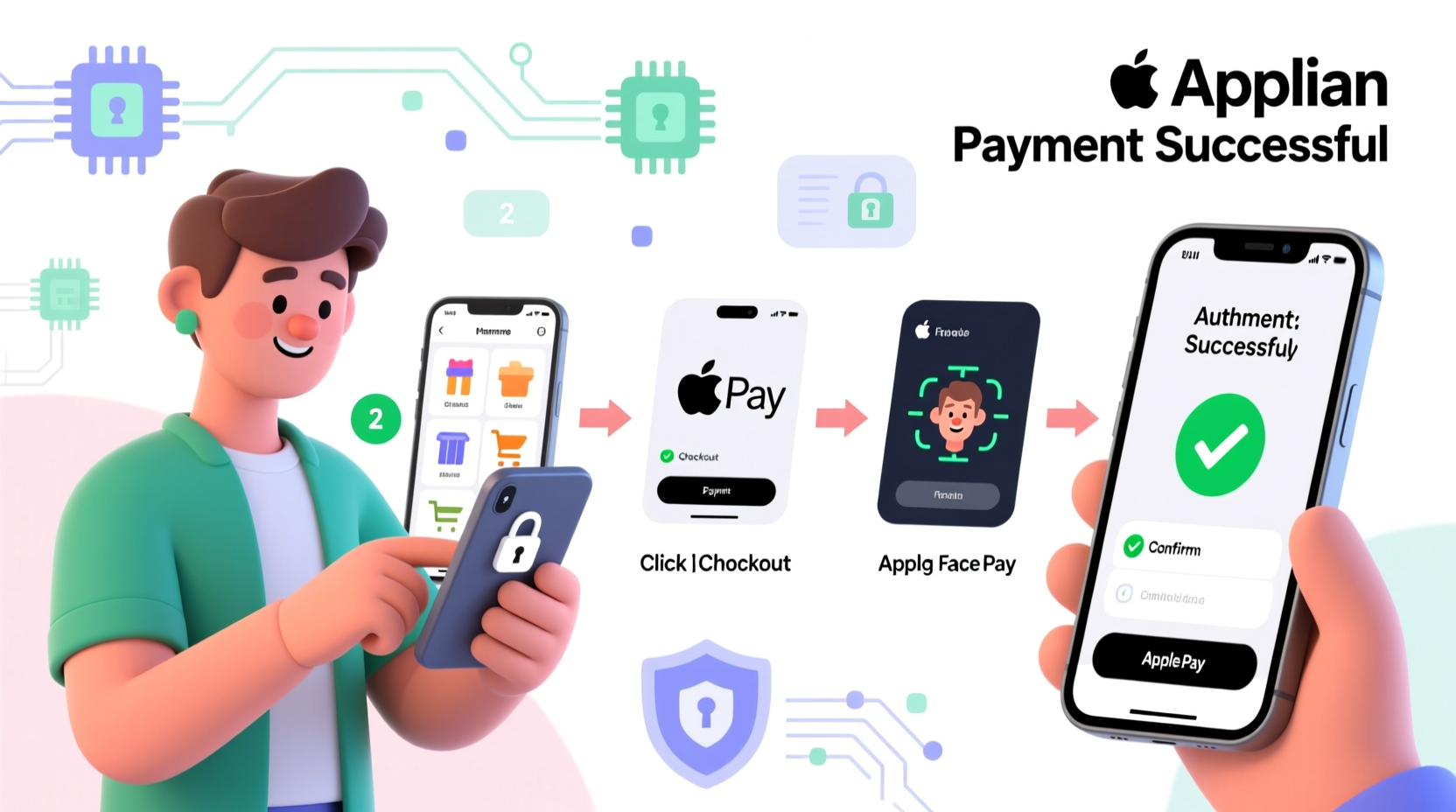
Apple Pay is not a digital wallet in the traditional sense—it doesn’t store your actual credit or debit card numbers on your device or Apple’s servers. Instead, it uses a technology called tokenization. When you add a card, Apple assigns a unique Device Account Number (a \"token\") that’s encrypted and stored securely in the Secure Element, a dedicated chip on your device. During a transaction, this token is used instead of your real card number, making it nearly impossible for hackers to access sensitive data.
Every time you make a purchase, Apple Pay generates a one-time transaction code. Even if intercepted, this code cannot be reused. Biometric authentication—Face ID, Touch ID, or a passcode—ensures only you can authorize payments. This combination of encryption, tokenization, and biometrics makes Apple Pay one of the most secure ways to shop online today.
“Apple Pay reduces fraud risk significantly because the merchant never sees your actual card details.” — Sarah Lin, Senior Security Analyst at CyberShield Financial
Setting Up Apple Pay on Your Device
Before you can start using Apple Pay, you need to set it up on your device. The process is straightforward and takes just a few minutes. Follow these steps to get started:
- Open the Wallet app on your iPhone or go to System Settings > Wallet & Apple Pay on newer models.
- Tap the + sign to add a new card.
- Use your camera to scan your credit or debit card, or enter the details manually.
- Verify the card with your bank—this may involve a phone call, text message, email, or authentication within your bank’s app.
- Once approved, your card will be ready to use with Apple Pay.
You can add multiple cards and choose which one is your default. On devices like the Apple Watch, setup syncs automatically once configured on your paired iPhone.
Step-by-Step Guide to Buying Online with Apple Pay
Once Apple Pay is set up, making purchases online becomes remarkably simple. Here’s how to complete a secure transaction from start to finish:
- Select Items: Browse the retailer’s website or app and add the desired products to your cart.
- Proceed to Checkout: Click “Checkout” or “Buy Now.” Look for the Apple Pay button—usually displayed as a white Apple logo on a black background or labeled “Pay with Apple.”
- Click the Apple Pay Button: This initiates the payment interface. On iPhone or iPad, a pop-up appears showing your default card and shipping/billing info.
- Edit Information If Needed: Tap “Edit” to change your card, shipping address, or contact details. Apple pulls saved information from your Contacts and Wallet for convenience.
- Authenticate the Payment: Confirm the purchase using Face ID, Touch ID, or your device passcode.
- Receive Confirmation: Once authenticated, the payment processes instantly. You’ll see a checkmark and receive a confirmation from the merchant.
On Mac computers, the process is similar. When you click Apple Pay at checkout, your iPhone (if nearby and unlocked) or Apple Watch will prompt you to authenticate using biometrics. This cross-device integration ensures flexibility without compromising security.
Advantages Over Traditional Checkout Methods
Compared to entering card details manually, Apple Pay offers several distinct benefits:
| Feature | Apple Pay | Manual Card Entry |
|---|---|---|
| Data Exposure | No card numbers shared with merchants | Full card details transmitted |
| Speed | Checkout in under 10 seconds | Typing delays, form errors |
| Security | Tokenization + biometric verification | Potential for phishing or data breaches |
| Auto-fill Accuracy | Pulls verified addresses and emails | Typing errors common |
| Fraud Protection | Zero liability policies + encryption | Depends on issuer; slower dispute resolution |
The efficiency gain is especially noticeable during flash sales or high-demand product launches, where every second counts. Shoppers using Apple Pay often beat those filling out forms manually.
Real Example: Securing a Limited-Edition Sneaker Drop
Consider Marcus, a sneaker enthusiast waiting for a limited-edition release from a major brand. The drop opens at 10:00 AM sharp. He’s prepared: his size selected, account logged in, and shipping details pre-filled. At exactly 10:00:03, he clicks “Buy” and taps the Apple Pay button. In two seconds—after a quick Face ID scan—the order is confirmed. Meanwhile, others struggle with expired promo codes, mistyped CVVs, or frozen browsers. Marcus secures his pair while many others miss out—not due to luck, but because of streamlined payment technology.
This isn’t just about convenience. In high-pressure scenarios, Apple Pay’s reliability and speed directly impact success rates.
Best Practices and Security Tips
To get the most out of Apple Pay while maintaining maximum security, follow these best practices:
- Only add cards from trusted financial institutions.
- Enable two-factor authentication on your Apple ID.
- Regularly review transactions in the Wallet app for unauthorized activity.
- Use strong passcodes and keep your software updated.
- Avoid using Apple Pay on shared or public devices.
Frequently Asked Questions
Can I use Apple Pay on non-Apple devices?
No, Apple Pay is exclusive to Apple devices including iPhone, iPad, Mac, Apple Watch, and Safari browser on supported systems. However, some third-party apps may support Apple Pay via web views on non-Apple platforms, though functionality is limited.
Is Apple Pay accepted everywhere online?
While adoption is growing rapidly, not all websites support Apple Pay. Major retailers like Amazon (via Safari), Nike, Uber, Airbnb, and Walmart do accept it. Look for the Apple Pay button at checkout or check the site’s payment options page.
What happens if my device is lost or stolen?
You can instantly suspend Apple Pay using Find My iPhone. Log into iCloud.com or use another Apple device to mark your device as lost, which disables Apple Pay remotely. Your physical cards remain safe since no actual numbers are stored on the device.
Final Checklist Before You Shop
Before making your next online purchase with Apple Pay, ensure you’ve completed these steps:
- ✅ Apple ID is secured with two-factor authentication
- ✅ Wallet app contains at least one verified card
- ✅ Face ID/Touch ID is set up and working
- ✅ Shipping and billing addresses are correct in Contacts
- ✅ Device software is up to date
- ✅ Notifications for Apple Pay are enabled
Start Shopping Smarter Today
Apple Pay transforms online shopping from a chore into a secure, near-instant experience. By eliminating repetitive form-filling and shielding your financial data behind layers of encryption, it sets a new standard for digital commerce. The initial setup takes only minutes, but the long-term benefits—speed, accuracy, and peace of mind—are lasting. Whether you're buying groceries, booking travel, or grabbing concert tickets, using Apple Pay gives you a competitive edge and stronger protection than traditional methods. Don’t wait for the next big sale to try it. Set up Apple Pay today and experience the future of frictionless, secure shopping.




 浙公网安备
33010002000092号
浙公网安备
33010002000092号 浙B2-20120091-4
Comments
No comments yet. Why don't you start the discussion?