
Accurate color representation is essential for professionals in photography, graphic design, video editing, and digital art. Without proper monitor calibration, what you see on screen may not reflect the true colors of your work—leading to inconsistent output across devices and printed media. Many assume that modern monitors are “ready to go” out of the box, but factory settings often favor brightness and contrast over color fidelity. This guide walks through a comprehensive, practical process to calibrate your monitor for reliable, repeatable color accuracy using both hardware and software methods.
Why Monitor Calibration Matters
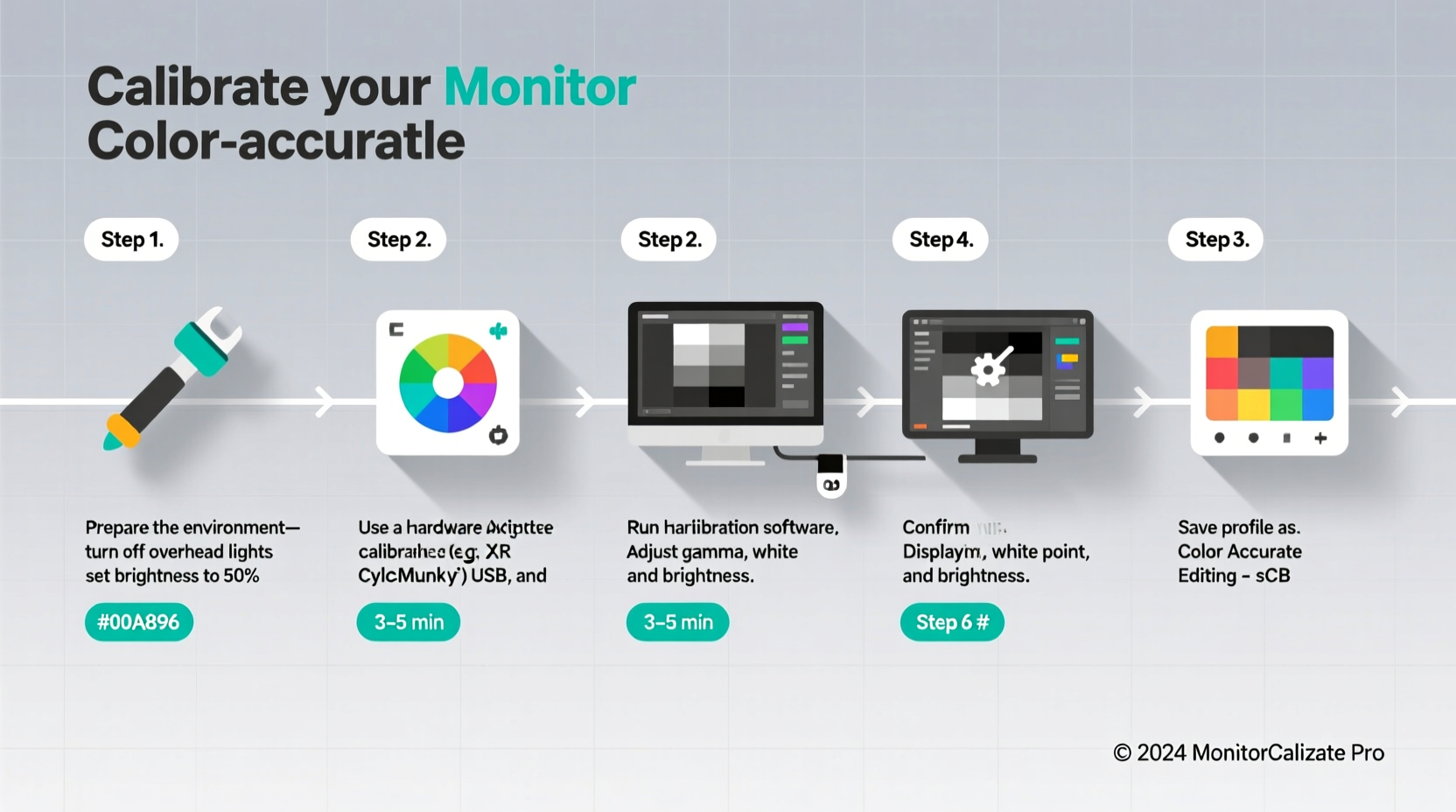
Color accuracy affects every stage of visual production. A monitor that hasn’t been calibrated can display colors too warm, too cool, oversaturated, or dimmer than they actually are. These discrepancies lead to poor editing decisions—such as adjusting white balance based on a yellow-tinted display—and result in files that look drastically different when viewed elsewhere.
Consider this: a photographer editing under uncalibrated conditions might correct an image to appear neutral on their monitor, only to find it looks blue on a client’s device. Similarly, a designer creating brand assets could deliver logo colors that don't match the company’s specifications. In print workflows, mismatched screens mean costly reprints and delays.
“Calibration isn’t about making your monitor look prettier—it’s about making it truthful.” — Dr. Lisa Chen, Color Science Researcher at Imaging Technologies Lab
Professional-grade color management starts with consistent viewing conditions and ends with a profiled display. The goal is not aesthetic preference but objective accuracy.
Essential Tools for Accurate Calibration
You can perform basic adjustments using built-in operating system tools, but true color accuracy requires specialized hardware. Here's what you need:
- Colorimeter or spectrophotometer: Devices like the X-Rite i1Display Pro, Datacolor SpyderX, or Calibrite ColorChecker Display offer precise measurement of your monitor’s output.
- Calibration software: Most hardware comes with proprietary software (e.g., i1Profiler, SpyderX Professional), which guides you through profiling and generates ICC/ICM profiles.
- Stable viewing environment: Control ambient lighting—avoid direct sunlight and overly bright overhead lights.
- Monitor warm-up time: Allow at least 30 minutes for your display to reach thermal stability before calibration.
Step-by-Step Monitor Calibration Process
Follow these steps to achieve a professionally calibrated monitor suitable for color-critical work.
- Prepare Your Environment
Work in a room with controlled lighting. Dimmed, neutral-white LED lights are ideal. Avoid colored walls or strong reflections on the screen. Close curtains if natural light enters the space. - Warm Up Your Monitor
Turn on your monitor and let it run for at least 30 minutes. LCDs and OLEDs shift slightly in luminance and chromaticity during initial use. - Reset to Factory Settings
Navigate to your monitor’s OSD (On-Screen Display) menu and select “Reset” or “Recall Settings.” This clears any prior user modifications. - Select the Correct Color Mode
Choose a standard preset such as “sRGB” or “Adobe RGB,” depending on your workflow. If available, disable dynamic contrast, eco modes, and blue light filters. - Set Luminance Target
For general photo and design work, aim for 120 cd/m². Some prefer 80–100 cd/m² in darker rooms. High-end reference monitors allow direct nits adjustment; others rely on backlight control. - Adjust White Point
Set the white point to D65 (6500K), which simulates average daylight and aligns with most color standards including sRGB and Adobe RGB. - Connect and Position the Sensor
Attach the colorimeter to the monitor surface using its suction cup or stand. Ensure no ambient light falls directly onto the sensor. - Run the Calibration Software
Launch the included application (e.g., X-Rite i1Profiler). Select “Create New Profile” and follow prompts. You’ll be asked to confirm settings like gamma (typically 2.2 for Windows/macOS), white point, and luminance. - Let the Device Measure
The software displays a series of test patterns—solid fields, gradients, grayscale ramps—while the sensor reads actual output. This takes 5–10 minutes. Remain still and avoid casting shadows. - Save the ICC Profile
Upon completion, the software installs a custom ICC profile into your OS. On macOS, it appears in System Settings > Displays > Color. On Windows, check Color Management settings. - Label and Organize Profiles
Name your profile clearly (e.g., “Dell U2723QE_2024-04-Calibrated”) so you can identify it later, especially if using multiple monitors.
Best Practices After Calibration
Calibration is not a one-time task. Displays drift over time due to aging panels, changing backlights, and environmental shifts. Maintain accuracy with ongoing habits.
- Re-calibrate monthly: Even high-end monitors can deviate after several weeks. Monthly sessions ensure consistency.
- Use consistent cables and ports: Different inputs may carry varying signal qualities or EDID data that affect color rendering.
- Avoid aggressive brightness changes: Frequent large adjustments strain the panel and destabilize color performance.
- Keep software updated: Firmware updates from manufacturers sometimes improve color processing or fix known issues.
Real Example: A Photographer’s Workflow Adjustment
Jamal, a freelance portrait photographer, struggled with client complaints about skin tones appearing too orange in delivered images. He edited on a year-old IPS monitor without ever calibrating it. After borrowing a SpyderX and running a full calibration, he discovered his display had drifted significantly—white point was reading at 7200K, and gamma was uneven across grayscales.
He created a new ICC profile, adjusted his editing environment lighting, and began monthly recalibrations. Within two weeks, client approval rates improved dramatically. More importantly, prints matched screen previews almost exactly. Jamal now includes a note in his delivery emails: “All images reviewed on a calibrated EIZO CG2700S.” This small addition increased perceived professionalism and trust.
Do’s and Don’ts of Monitor Calibration
| Do | Don’t |
|---|---|
| Calibrate in your normal working light conditions | Calibrate under bright fluorescent or direct sunlight |
| Use a dedicated calibration tool (not just software sliders) | Rely solely on eye-based adjustments or generic presets |
| Allow 30+ minutes for monitor warm-up | Start calibration immediately after powering on |
| Store the sensor properly when not in use | Leave the colorimeter exposed to dust or sunlight |
| Verify results with known color targets (e.g., ColorChecker chart) | Assume calibration succeeded without validation |
Frequently Asked Questions
Can I calibrate my laptop screen accurately?
Yes, though limitations exist. Built-in laptop displays often have narrower color gamuts and viewing angle dependencies. Use the same hardware tools, but position the sensor carefully to avoid tilting issues. For critical work, consider external calibrated monitors.
What’s the difference between calibration and profiling?
Calibration adjusts the monitor’s settings (brightness, contrast, gamma, white point) to meet defined standards. Profiling measures how the calibrated display reproduces color and creates a translation map (ICC profile) so the OS and applications can compensate for deviations. Both are necessary for end-to-end accuracy.
Should I calibrate each monitor differently in a multi-display setup?
Absolutely. Each screen should be calibrated individually, even if they’re the same model. Panels vary due to manufacturing tolerances. After calibration, set all monitors to the same white point and luminance for seamless transitions across screens.
Expert Tips for Long-Term Accuracy
“The most expensive monitor won’t help if it’s lying to you. Regular calibration turns guesswork into precision.” — Mark Tran, Senior Colorist at Lumina Post Studios
For those managing complex workflows, consider these advanced strategies:
- Use a reference-grade monitor: Models from EIZO ColorEdge, BenQ SW series, or Apple Studio Display include built-in sensors and factory calibration for tighter tolerances.
- Implement ambient light compensation: Some high-end systems automatically adjust brightness based on room lighting—a useful feature for environments where light levels fluctuate.
- Validate with physical swatches: Compare on-screen colors to Pantone guides or printed proofs under standardized lighting (e.g., D50 viewing booth).
- Sync calibration across teams: In collaborative studios, share ICC profiles and document calibration dates to maintain uniformity.
Conclusion: Take Control of Your Visual Output
Monitor calibration is not optional for anyone serious about digital imaging. It bridges the gap between creative intent and final presentation. By investing a modest amount of time and resources, you eliminate one of the largest variables in your workflow. Whether you're preparing images for print, web, or broadcast, a calibrated monitor ensures confidence in every pixel.




 浙公网安备
33010002000092号
浙公网安备
33010002000092号 浙B2-20120091-4
Comments
No comments yet. Why don't you start the discussion?