
Changing a photo’s background doesn’t require years of design experience or expensive software. With the right approach and accessible tools, you can transform any image in minutes. Whether you’re updating a profile picture, preparing product photos for an online store, or creating social media content, removing and replacing backgrounds has never been more achievable. This guide walks you through proven methods using free, user-friendly platforms that deliver professional-looking results—no Photoshop skills needed.
Why Change a Photo Background?
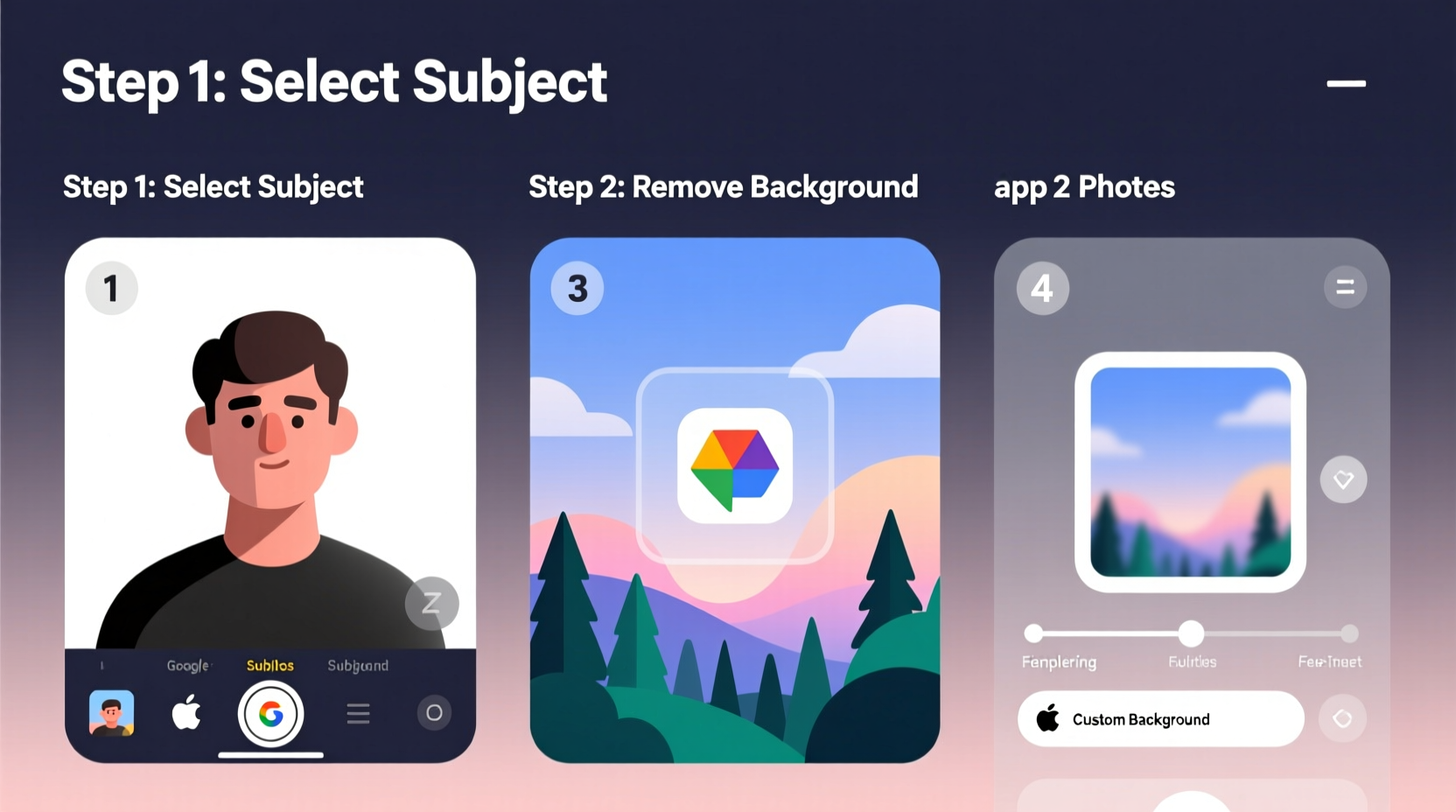
A cluttered or distracting background can take attention away from the subject of your photo. Replacing it with a clean, neutral, or themed backdrop enhances visual appeal and improves communication. For professionals, consistent background styling builds brand credibility. For casual users, it adds creativity and polish to personal projects.
Common use cases include:
- Creating professional headshots with solid-color backgrounds
- Isolating products for e-commerce listings
- Designing social media graphics with custom scenes
- Adding fun or seasonal themes to portraits
Choosing the Right Tool for the Job
You don’t need Adobe Photoshop to remove a background effectively. Several free online tools offer one-click background removal powered by artificial intelligence. These platforms analyze the image, detect edges, and separate the subject automatically.
The most reliable free options include:
| Tool | Best For | Key Features | Limitations |
|---|---|---|---|
| Remove.bg | Quick portrait and product edits | AI-powered, instant processing, high accuracy | Limited customization; watermark on free downloads |
| Canva | Social media and marketing visuals | Background remover + drag-and-drop editor | Pro features require subscription |
| Fotor | Creative edits with filters and effects | One-click erase, background replacement library | Free version includes ads and branding |
| PicMonkey | Detailed touch-ups and text integration | Precision masking tools, templates | Slower processing on complex images |
“Modern AI tools have democratized photo editing. What once took hours in Photoshop now happens in seconds—and often with better edge detection.” — Lena Torres, Digital Imaging Specialist
Step-by-Step Guide to Changing a Background
Follow this timeline to change any photo’s background using only free, web-based tools. We’ll use Remove.bg as the primary example due to its speed and reliability, but the principles apply across platforms.
- Prepare Your Image
Select a high-resolution photo with clear lighting and contrast between the subject and background. Avoid shadows or busy patterns behind the person or object. - Go to Remove.bg
Open remove.bg in your browser. No account is required for basic use. - Upload Your Photo
Click “Upload Image” and select your file. The tool processes it automatically within seconds. - Review the Result
The AI removes the background, leaving your subject on a transparent canvas. Check for missed areas—common around hair, glasses, or fine details. - Edit Mistakes (If Needed)
Use the “Edit” button to manually refine edges. You can paint over areas to restore or erase parts using the brush tools. - Download the Cutout
Click “Download” to save the image with transparency (PNG format recommended). - Add a New Background
Open Canva or Fotor. Upload your cutout image, then insert a new background—a solid color, gradient, or scenic photo. - Adjust Position and Scale
Resize the subject to fit naturally within the new scene. Align lighting direction and perspective for realism. - Final Touches
Add subtle shadows under feet or objects to ground the subject. Adjust brightness or saturation so tones match the new environment. - Export and Save
Download the final image in JPEG or PNG format depending on your use case.
Mini Case Study: E-Commerce Seller Transforms Product Photos
Jamal runs a small jewelry business on Etsy. His initial product photos were taken at home against a wrinkled bedsheet, making listings look unprofessional. After learning about background removal tools, he uploaded five key items to Remove.bg, replaced the messy backdrops with clean white backgrounds, and repositioned each piece over soft shadow layers in Canva.
The result? Within two weeks, his conversion rate increased by 38%, and several customers mentioned the “clean, boutique-style presentation” in reviews. Jamal now edits all new photos using this method, spending less than ten minutes per image.
Checklist: Quick-Start Routine for Background Replacement
Use this checklist every time you edit a photo:
- ☐ Choose a well-lit image with minimal background clutter
- ☐ Upload to a trusted AI tool (e.g., Remove.bg or Canva)
- ☐ Verify accurate subject isolation—especially around edges
- ☐ Manually correct any imperfections using touch-up tools
- ☐ Download the transparent PNG file
- ☐ Import into a design platform and add desired background
- ☐ Match scale, lighting, and orientation for realism
- ☐ Apply finishing touches like drop shadows or color balance
- ☐ Export in appropriate resolution and format
- ☐ Backup both original and edited versions
Common Pitfalls and How to Avoid Them
Even simple tools can produce poor results if misused. Here are frequent mistakes and their solutions:
- Halo Effect: A faint outline around the subject after removal. Fix by refining edges or adjusting feathering in advanced editors.
- Mismatched Lighting: Subject appears flat when placed on a bright scene. Adjust brightness, contrast, or add directional glow.
- Low Resolution Output: Some free tools compress downloads. Always upload high-res originals and check output quality.
- Overly Complex Backgrounds: Don’t replace a busy background with another chaotic one. Simplicity often enhances focus.
“Editing isn’t about doing more—it’s about drawing attention to what matters. A strong subject deserves a background that supports, not competes.” — Derek Lin, Visual Storytelling Coach
FAQ
Can I change a background on my phone?
Yes. Apps like Snapseed, Pixlr, and the mobile versions of Canva and Remove.bg allow full background replacement directly from smartphones. The process is nearly identical to desktop use.
Do I need to pay for these tools?
No. All major platforms offer free tiers suitable for occasional or small-scale use. Paid plans unlock batch processing, higher resolutions, and commercial licenses—but aren’t necessary for basic edits.
Will changing the background reduce image quality?
Only if you resize improperly or use heavily compressed files. Always work with original-resolution images and export in high quality. Transparency (PNG) preserves detail better than JPEG for layered edits.
Conclusion
Changing a photo background no longer requires technical expertise or costly software. With intuitive AI tools and a structured workflow, anyone can achieve polished results in under 15 minutes. The key is choosing the right platform, paying attention to lighting and composition, and knowing how to refine automated outputs. These skills open doors—from improving personal photos to enhancing professional branding.




 浙公网安备
33010002000092号
浙公网安备
33010002000092号 浙B2-20120091-4
Comments
No comments yet. Why don't you start the discussion?