
Every time you click a link in an email, document, or app, your device opens it using a default web browser. If that browser isn’t the one you prefer—whether it’s Chrome, Firefox, Safari, Edge, or Brave—you’re missing out on performance, privacy, and convenience. The good news: switching your default browser is simple, even if you’ve never done it before. This guide walks you through the exact steps for every major operating system, explains why the change matters, and helps you avoid common pitfalls.
Why Your Default Browser Matters
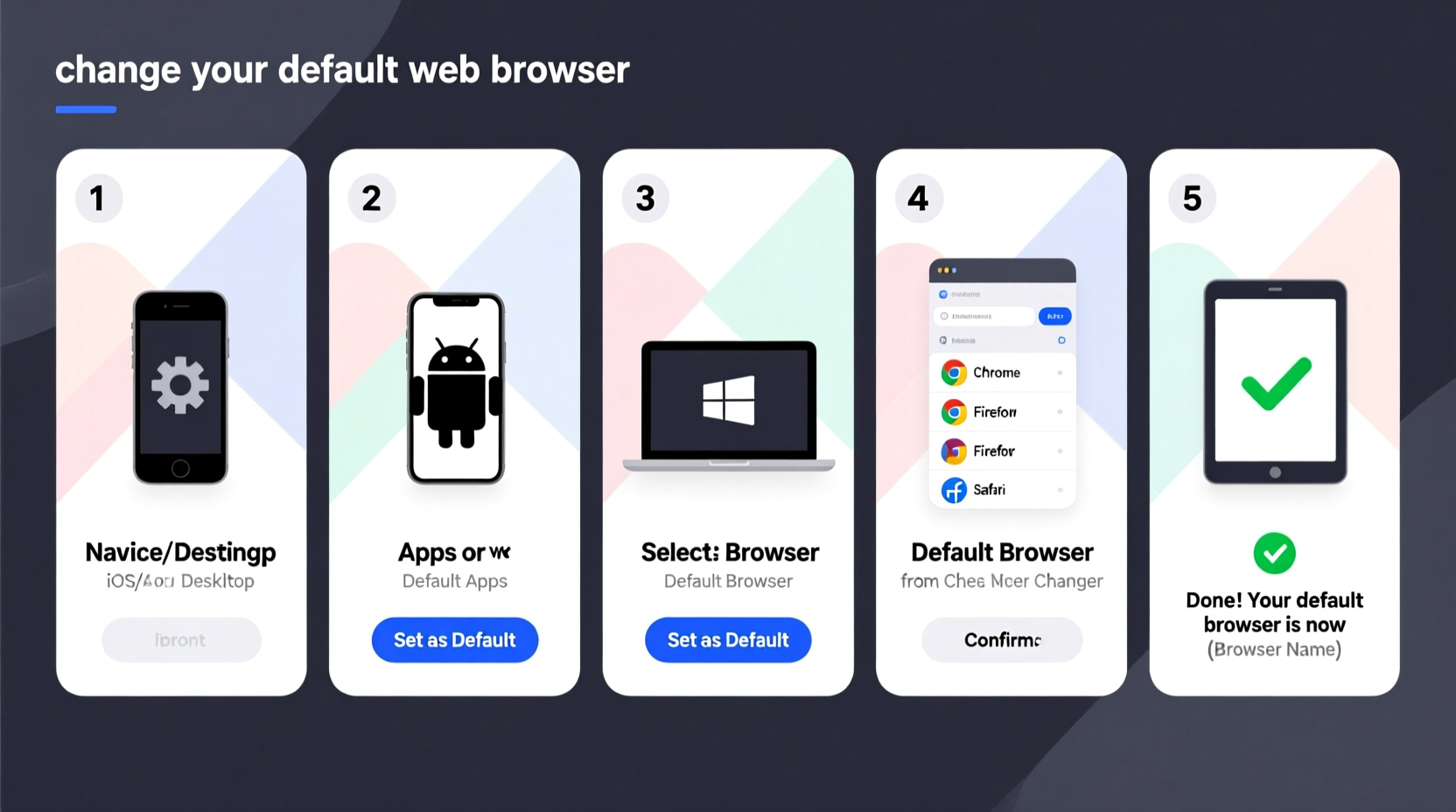
Your default browser handles all web-based links automatically. Whether you're clicking a URL in Slack, opening a PDF with embedded links, or tapping a map location in a messaging app, the system uses the default setting unless manually overridden. Using a browser you don’t trust or enjoy can lead to slower load times, unwanted data collection, and missed features like password managers or ad blockers.
Security researcher Jane Holloway notes:
“Your default browser is part of your digital hygiene. It's not just about preference—it’s about control over your online experience.” — Jane Holloway, Cybersecurity Analyst at NetShield Labs
Choosing a secure, fast, and privacy-focused browser as your default ensures consistent protection across all apps and services on your device.
Step-by-Step Guide by Device Type
Changing your default browser varies slightly depending on your operating system. Below are detailed instructions for each platform.
Windows 10 & 11
- Click the Start menu and select Settings (gear icon).
- Navigate to Apps > Default apps.
- Scroll down to “Web browser” and click the current browser name (e.g., Microsoft Edge).
- Select your preferred browser from the list (Chrome, Firefox, Brave, etc.).
- If your browser isn’t listed, install it first, then return to this menu.
macOS Ventura and Later
- Open System Settings from the Apple menu.
- Click General in the sidebar.
- Find “Default web browser” near the bottom.
- Click the dropdown and select your desired browser (Safari, Chrome, Firefox, etc.).
- A confirmation dialog may appear—click “Use [Browser Name]” to finalize.
Note: All browsers must be installed and launched at least once before appearing in the list.
Android (Android 12 and Above)
- Open Settings on your phone.
- Tap Apps > Default apps.
- Select Browser app.
- Choose your preferred browser (e.g., Chrome, Firefox, Samsung Internet).
If you use custom launchers or manufacturer skins (like Samsung One UI), the path might be slightly different, but “Default apps” remains the key section.
iOS (iPhone and iPad)
- Install your preferred browser from the App Store (e.g., Chrome, Firefox, DuckDuckGo).
- Open the Settings app.
- Scroll down and tap the name of the browser you just installed.
- Select Default Browser App.
- Confirm the change. Future links will now open in your chosen browser.
Linux (Ubuntu with GNOME)
- Open Settings from the Activities overview.
- Go to Default Applications.
- Under “Web,” select your preferred browser from the dropdown.
- If your browser isn’t listed, ensure it’s properly installed via package manager or snap.
Distributions like Fedora, Linux Mint, or KDE-based systems may place this under “Preferred Applications” or similar. Search “default applications” in settings for quick access.
Checklist: Successfully Changing Your Default Browser
- ✅ Install your preferred browser if not already present.
- ✅ Launch the browser at least once to register it with the OS.
- ✅ Navigate to the default apps or general settings section.
- ✅ Locate the “Web browser” or “Default browser app” option.
- ✅ Select your desired browser from the list.
- ✅ Test the change by clicking a link in an email or document.
- ✅ Verify that the correct browser opens automatically.
Common Issues and How to Fix Them
Even after setting a new default, some links may still open in the old browser. Here’s what could be going wrong—and how to fix it.
| Issue | Possible Cause | Solution |
|---|---|---|
| New browser doesn’t appear in default list | Not fully installed or never launched | Open the browser manually once after installation |
| Links still open in old browser | Protocol handlers not updated | On Windows, check “Choose default apps by protocol” and update HTTP/HTTPS |
| Setting reverts after reboot | Conflicting software or updates | Ensure no other apps are resetting defaults; disable auto-updates temporarily |
| iOS won’t allow default change | Browser not configured properly | Reinstall browser and go directly to its settings page in iOS Settings |
Real-World Example: Switching from Safari to Firefox on iPhone
Maya, a freelance writer, relied on Safari for years but grew frustrated with intrusive ads and lack of tracker blocking. She downloaded Firefox for iOS after reading about its enhanced privacy tools. At first, links still opened in Safari—even when she clicked them in her email app. Confused, she assumed the switch hadn’t worked.
After checking Apple’s support site, she realized she needed to go into iOS Settings, find Firefox in the app list, and manually enable “Default Browser App.” Once done, every link she tapped—from newsletters to research sources—opened instantly in Firefox with tracking protection active. Her browsing became faster, cleaner, and more secure.
This small adjustment saved her hours of distraction and gave her greater confidence in her online activity.
FAQ: Common Questions About Default Browsers
Does changing my default browser uninstall the old one?
No. Changing the default only redirects link handling. The original browser remains installed and usable. You can switch back at any time.
Can I set different browsers for HTTP vs HTTPS links?
Technically yes, on some desktop systems (like Windows), but it’s not recommended. Doing so creates inconsistency and confusion. Always set both protocols to the same browser for a seamless experience.
Will changing my default browser affect my bookmarks or passwords?
No. Your data stays within each browser. However, if you want to transfer bookmarks or saved logins, use built-in sync or import tools within the new browser’s settings.
Final Thoughts and Next Steps
Switching your default browser is one of the easiest yet most impactful changes you can make to improve your digital life. It affects speed, security, user experience, and even battery usage. Whether you're moving from Edge to Chrome, Safari to Brave, or exploring privacy-first options like Mullvad or Tor, taking control of this setting puts you back in charge.
The steps vary slightly across platforms, but the principle is universal: install, launch, set, test. Once confirmed, you’ll wonder why you waited so long.




 浙公网安备
33010002000092号
浙公网安备
33010002000092号 浙B2-20120091-4
Comments
No comments yet. Why don't you start the discussion?