
Apple Music offers seamless access to millions of songs, but managing your subscription details—especially your payment method—is essential for uninterrupted service. Whether you’re switching credit cards, updating billing information, or moving to a different Apple ID, knowing how to change your payment method efficiently ensures you stay in control of your account. This comprehensive guide walks you through every step clearly and securely across devices.
Why Updating Your Payment Method Matters
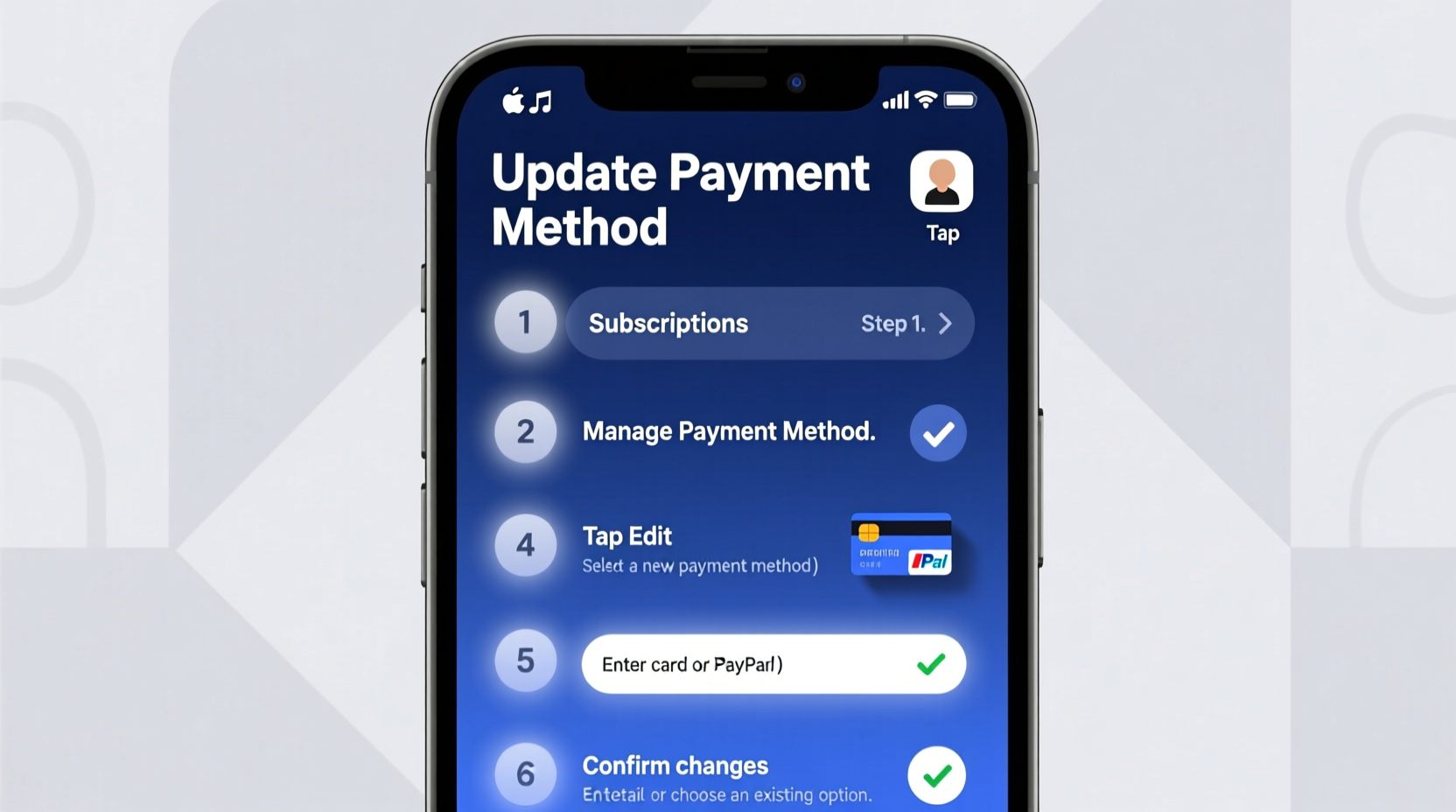
Your payment method is tied directly to your Apple ID and all associated subscriptions, including Apple Music. Outdated or expired cards can lead to service interruptions, unexpected charges, or declined renewals. Proactively updating your payment information prevents lapses in access and keeps your digital experience smooth.
Additionally, if you're sharing an Apple Family Sharing group, ensuring your personal payment details are current avoids affecting others' subscriptions. Apple does not automatically update card information when a bank reissues a new card—even if the number changes slightly—so manual intervention is required.
How to Change Your Payment Method on iPhone or iPad
The most common way to manage Apple subscriptions is through your iOS device. Follow these steps carefully to update your payment details:
- Open the Settings app on your iPhone or iPad.
- Tap your name at the top to enter your Apple ID settings.
- Select Media & Purchases, then tap View Account.
- You may be prompted to sign in with your Apple ID password or use Face ID/Touch ID.
- Under the Settings section, tap Payment & Shipping.
- Choose Edit next to your current payment method.
- Add a new credit or debit card by entering the required details: card number, expiration date, CVV, and billing address.
- Tap Done to save the new payment option.
Once saved, this new method will apply to all future Apple Music renewals and other App Store purchases linked to your Apple ID. If you have multiple cards saved, you can also set a default by tapping “Default” under the preferred card.
Alternative Path via the Music App
You can also initiate the process from within the Apple Music app:
- Open the Music app.
- Go to the Library tab and tap your profile picture or initials.
- Select Manage Subscription.
- Tap Edit Payment Information and follow the prompts.
This route redirects you to your Apple ID settings, where you’ll complete the same steps as above.
Changing Payment Methods on Mac or PC
If you prefer using a computer, updating your payment method on macOS or Windows is just as straightforward.
On Mac (macOS)
- Click the Apple menu in the top-left corner and select System Settings (or System Preferences on older versions).
- Click your name to access your Apple ID settings.
- Navigate to Media & Purchases > View Account.
- Sign in if prompted.
- Under Payment & Shipping, click Edit.
- Add or change your card details and confirm with Touch ID, password, or security key.
- Click Done to finalize.
On Windows (iTunes)
- Open iTunes on your PC.
- Click Account in the top menu, then select View My Account.
- Enter your Apple ID credentials.
- Scroll down to Settings and click Edit next to Payment Type.
- Enter your new card information and billing address.
- Click Next, then Done.
Note: iTunes on Windows remains functional for account management even though Apple has phased it out on Macs.
| Device | Access Method | Best For |
|---|---|---|
| iPhone/iPad | Settings → Apple ID → Media & Purchases | Quick updates on the go |
| Mac | System Settings → Apple ID → Media & Purchases | Users with multiple Apple services |
| PC (Windows) | iTunes → Account → View My Account | Cross-platform users still relying on desktop |
What to Do If You Use Family Sharing or Subscriptions Through Another Service
If your Apple Music subscription is part of a Family Sharing plan, the primary organizer’s payment method handles all charges. In that case, only the family organizer can change the payment method. Individual members cannot update billing details independently.
However, if you were invited to a group but want to switch to paying on your own, you can leave the family group and subscribe individually:
- Go to Settings → [Your Name] → Family Sharing.
- Select your name and tap Leave Family.
- Confirm and wait 90 days before creating a new individual subscription (Apple enforces this delay to prevent abuse).
- After leaving, sign up for Apple Music under your own payment method.
Some users access Apple Music through third-party providers like mobile carriers (e.g., Verizon, AT&T) or bundled plans (such as iCloud+). In these cases, your carrier or provider manages billing. To change your payment method, contact them directly or adjust settings in their app—not through Apple.
“Many customers don’t realize their Apple Music bill comes from their phone carrier. Always check your original sign-up method before assuming Apple handles the payment.” — Jordan Lee, Apple Support Consultant
Troubleshooting Common Issues
Occasionally, users encounter errors when updating payment information. Here are frequent problems and solutions:
- “Payment Method Not Accepted”: Ensure your card supports international transactions (if applicable), is not expired, and matches the exact billing address registered with your bank.
- Can’t Remove Old Card: Apple retains one active payment method per Apple ID. You can’t remove all cards unless you’re using a prepaid balance or have a free trial with no upcoming charge.
- Subscription Still Charging Old Card: Even after updating, old cards may be charged if renewal was already processed. Check your purchase history in Settings → [Your Name] → Media & Purchases → See All under Purchase History.
Mini Case Study: Sarah’s Smooth Transition
Sarah had been using an old credit card for her Apple Music subscription for over two years. When her bank upgraded her to a contactless card with a new number, she didn’t realize the change until her subscription failed mid-month. She lost access during a road trip, disrupting her playlist routine.
After regaining access, she followed the iOS steps outlined above to add her new card. She also enabled notifications for billing alerts under Settings → Notifications → iTunes & App Store. Since then, she hasn’t missed a beat—literally—and receives reminders before each renewal.
FAQ
Can I use PayPal or Apple Pay as my payment method?
Yes. Apple supports Apple Pay, major credit/debit cards, and PayPal in most regions. To add PayPal, go to Payment & Shipping and select PayPal as the type. You’ll be redirected to log in and authorize the link.
Will changing my payment method cancel my subscription?
No. Updating your payment method does not affect your subscription status. Your plan continues uninterrupted as long as the new payment is valid and the renewal date hasn’t passed without payment.
What happens if my payment fails?
Apple allows a grace period of up to 16 days after a failed charge. During this time, you’ll receive email and push reminders. If payment isn’t updated, your subscription will be suspended, and you’ll lose access to downloaded content and offline listening.
Checklist: Securely Update Your Apple Music Payment Method
- ✅ Back up any downloaded music before making changes
- ✅ Confirm whether you're on an individual or family plan
- ✅ Have your new card details or PayPal login ready
- ✅ Verify your billing address matches your financial institution’s records
- ✅ Test the update by checking recent transactions post-change
Conclusion
Updating your payment method on Apple Music is a simple yet crucial task for maintaining uninterrupted access to your favorite tracks. With clear navigation across devices and support for various payment types, Apple makes it easy to keep your account current. By following the steps outlined here, troubleshooting common issues, and staying aware of how your subscription is billed, you maintain full control over your digital entertainment.




 浙公网安备
33010002000092号
浙公网安备
33010002000092号 浙B2-20120091-4
Comments
No comments yet. Why don't you start the discussion?