
Streaming services like Netflix, Hulu, Disney+, and Amazon Prime Video tailor their content libraries based on geographic location. If you're traveling, living abroad, or simply want access to region-specific shows and movies, adjusting your TV’s location settings—or the network environment it operates in—can unlock a broader range of entertainment options. While you can't directly change your physical location, you can influence how streaming platforms perceive it through smart configuration. This guide walks you through practical, effective methods to optimize your TV's location settings for enhanced streaming performance and content access.
Why Location Settings Matter for Streaming
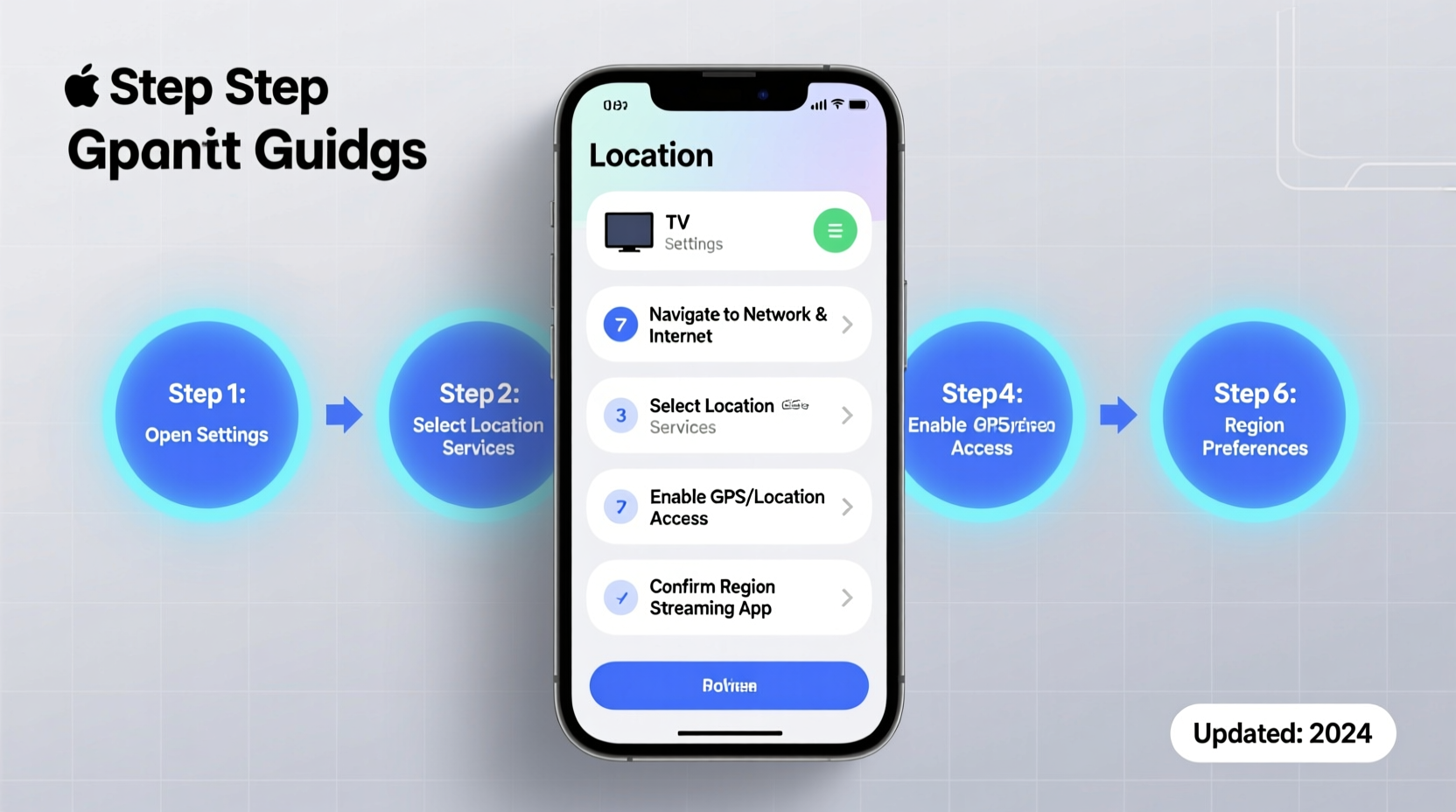
Your IP address reveals your approximate geographic location, which streaming platforms use to enforce licensing agreements. These restrictions mean that a show available in the U.S. may not be accessible in Germany, Canada, or Australia. Additionally, regional servers impact streaming speed and video quality. A server closer to your actual location typically delivers smoother playback, while misaligned settings can result in buffering, lower resolution, or geo-blocked content.
Adjusting your TV’s perceived location isn’t about deception—it’s about aligning your setup with your viewing needs. Whether you’re an expatriate missing hometown content, a traveler wanting consistent access, or someone seeking faster load times, understanding and managing location-based settings is essential.
Step-by-Step Guide to Adjusting Your TV’s Location Settings
Follow this structured process to modify how your smart TV identifies its location and connects to streaming services.
- Check Current Location Detection: Open your preferred streaming app (e.g., Netflix) and search for a globally recognized title known to vary by region (like “The Crown” or “Suits”). Note what’s available. This baseline helps assess changes later.
- Review TV System Settings: Navigate to your TV’s Settings menu > General > Location or Network > IP Settings. Some models allow manual region selection under “Country” or “Region Format.” Selecting a different country here may affect app availability but won’t bypass IP-based blocks.
- Update Router DNS Settings: Use Smart DNS services (e.g., Unlocator, SmartDNSProxy) to reroute only streaming traffic through servers in your desired region. Unlike full encryption via VPN, Smart DNS doesn’t slow down general browsing. Access your router settings (usually at 192.168.1.1), go to WAN or Internet settings, and replace default DNS addresses with those provided by your Smart DNS provider.
- Set Up a Streaming-Focused VPN: For complete location masking, install a trusted VPN directly on your router. This ensures all devices—including your TV—route through the selected server location. Choose providers like ExpressVPN, NordVPN, or Surfshark that support router firmware such as DD-WRT or AsusWRT.
- Reboot and Verify: Restart your TV and router. Reopen streaming apps and test access to previously restricted content. Clear app cache if needed (Settings > Apps > [App Name] > Clear Cache).
Smart DNS vs. VPN: What’s Best for Your TV?
Both tools alter how streaming platforms see your location, but they function differently. The right choice depends on your priorities: speed, security, or simplicity.
| Feature | Smart DNS | VPN |
|---|---|---|
| Encryption | No | Yes |
| Speed Impact | Minimal | Moderate to High |
| Setup Complexity | Low (router-level DNS change) | Moderate (firmware + account config) |
| Bypasses Geo-Blocks | Yes (streaming-only) | Yes (all traffic) |
| Cost | $5–$10/month | $8–$13/month |
| Best For | Fast streaming access only | Privacy + access across all devices |
“Smart DNS is ideal for users who prioritize speed and want seamless access to foreign content without encrypting their entire connection.” — David Lin, Network Optimization Specialist
Real Example: Unlocking U.S. Netflix Abroad
Sophie, a Canadian expat living in Portugal, wanted to continue watching her favorite U.S.-exclusive series on Hulu and HBO Max. Her smart TV detected her Portuguese IP, blocking access. She subscribed to ExpressVPN, flashed her Asus router with compatible firmware, and configured it to connect to a New York server. After rebooting her network, she launched her TV apps—immediately gaining full access to the U.S. content library. Buffering decreased because the chosen server had high bandwidth capacity, proving that location adjustment improves both access and performance.
Essential Checklist Before Changing Location Settings
- ✅ Confirm your streaming service supports external DNS or VPN use (most do, but terms vary)
- ✅ Identify which region’s content you need (U.S., UK, Japan, etc.)
- ✅ Choose between Smart DNS (speed-focused) or VPN (security + access)
- ✅ Ensure your router supports custom DNS or third-party firmware
- ✅ Back up current router settings before making changes
- ✅ Test one streaming app at a time after configuration
- ✅ Monitor internet speed pre- and post-setup to evaluate impact
Common Mistakes to Avoid
Even with the right tools, errors can prevent success. Be mindful of these pitfalls:
- Using a free VPN: Many lack reliable server networks, throttle speeds, or leak IP/DNS data, exposing your real location.
- Forgetting device caches: Old location data stored in apps can override new settings. Always clear cache after reconfiguration.
- Setting region in TV menu only: This affects language and broadcast standards but rarely bypasses online geo-restrictions.
- Ignoring firmware updates: Outdated router software may not support modern encryption protocols required by premium VPNs.
Frequently Asked Questions
Can I change my TV’s location without a VPN or Smart DNS?
Not effectively. While manually selecting a country in system settings alters some functions, streaming apps rely on IP detection. Without altering network routing via DNS or VPN, geo-blocks remain intact.
Will changing location affect my internet speed?
It can. Using a distant server increases latency. However, connecting to a well-maintained server close to major content hubs often results in faster streaming due to optimized routing and reduced congestion.
Do all smart TVs support location-changing methods?
All modern smart TVs can benefit from network-level changes (router DNS/VPN). TVs running Android TV or Google TV also support direct installation of certain VPN apps, offering more flexibility.
Optimize Today, Stream Better Tomorrow
Controlling how your TV appears to streaming platforms empowers you to access the content you want, when you want it. Whether you choose Smart DNS for lightweight rerouting or a full VPN for comprehensive privacy and access, the key lies in proper setup and ongoing maintenance. Regularly update your router firmware, monitor server performance, and adjust configurations as needed. With the right approach, your living room becomes a gateway to global entertainment—no passport required.




 浙公网安备
33010002000092号
浙公网安备
33010002000092号 浙B2-20120091-4
Comments
No comments yet. Why don't you start the discussion?