
Printing problems are among the most frustrating yet common tech issues in both home and office environments. One of the primary culprits behind failed or stalled print jobs is a corrupted or overloaded print spooler. When documents get stuck in the queue, refuse to print, or cause error messages like “Printer is Offline” or “Spooling,” the solution often lies in resetting the print spooler service and clearing the print queue manually. This comprehensive guide walks you through proven methods to resolve these issues efficiently and prevent recurrence.
Understanding the Print Spooler and Print Queue
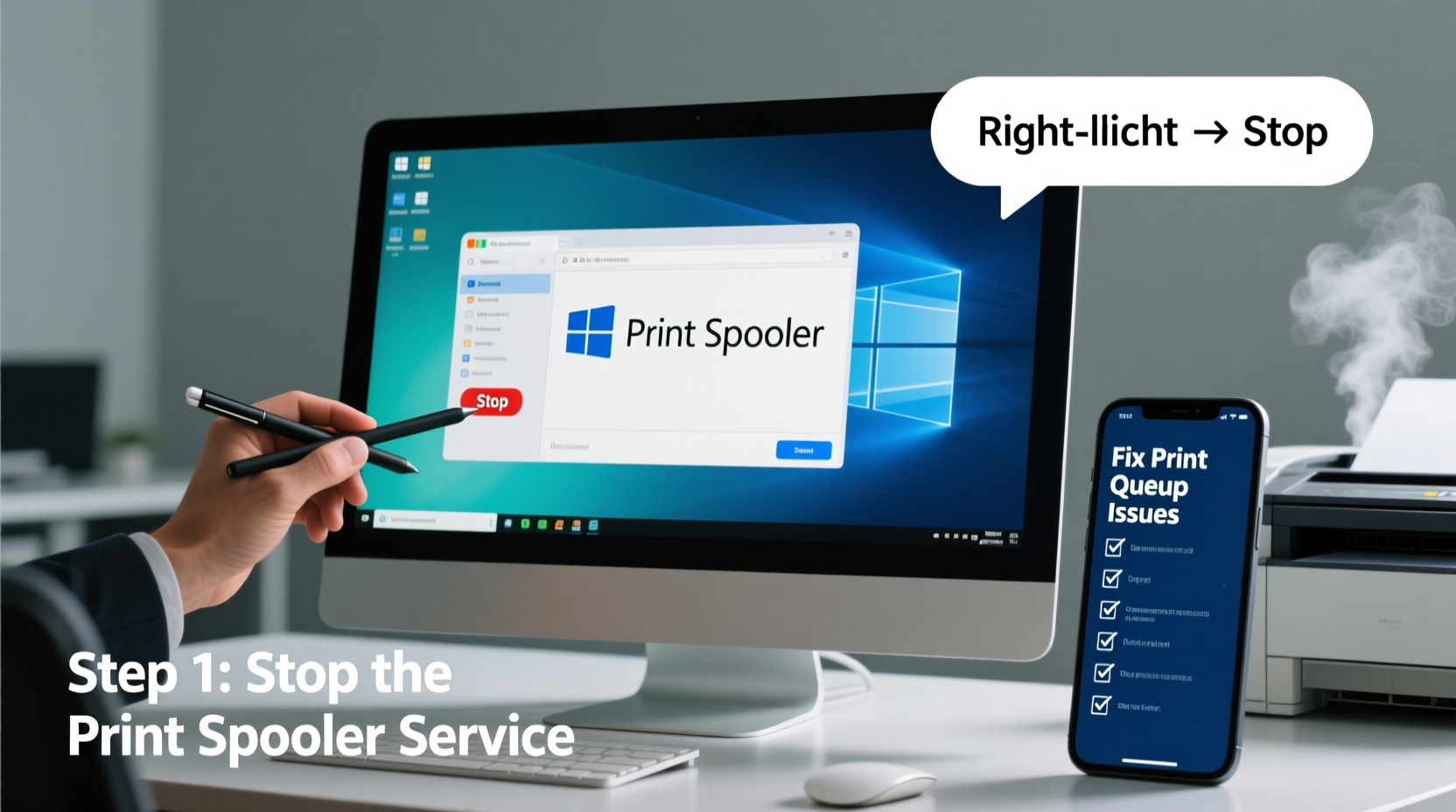
The Windows Print Spooler is a background service that manages all print jobs sent from your computer to a printer. It acts as a middleman: when you click “Print,” the document is temporarily stored (or “spooled”) in a folder on your hard drive before being sent to the printer. This allows you to continue working while printing occurs in the background.
However, if the spooler crashes, hangs, or encounters a problematic file, the entire queue can freeze. Symptoms include:
- Print jobs stuck at “Sending to printer” or “Pending”
- Printer showing as offline despite being connected
- Repeated error messages when attempting to print
- Inability to cancel print jobs
Before replacing hardware or reinstalling drivers, clearing the spooler and resetting the queue should be your first troubleshooting step.
Step-by-Step Guide to Clearing the Printer Spooler
Follow this structured sequence to safely clear the spooler and remove stuck print jobs. These steps apply to Windows 10 and Windows 11 but are also compatible with older versions.
- Stop the Print Spooler Service
Press Win + R, typeservices.msc, and press Enter. Locate “Print Spooler” in the list, right-click it, and select “Stop.” The service status will change from “Running” to “Stopped.” - Navigate to the Spool Directory
Open File Explorer and go to:
C:\\Windows\\System32\\spool\\PRINTERS
This folder contains temporary files (.SPL and .SHD) for each queued job. These files cannot be deleted while the spooler is running. - Delete All Files in the PRINTERS Folder
Select all files in the folder (Ctrl+A), then press Delete. If prompted for administrator permission, confirm the action. This removes all pending print jobs from the system. - Restart the Print Spooler Service
Return to the Services window (services.msc), right-click “Print Spooler,” and choose “Start.” Wait a few seconds for the service to initialize fully. - Test Printing
Turn your printer back on, send a test page from Control Panel > Devices and Printers > [Your Printer] > Print Test Page. If successful, the issue is resolved.
“Over 70% of persistent printing issues stem from corrupted spool files or service hangs. Resetting the spooler resolves most cases without driver reinstallation.” — David Lin, IT Infrastructure Specialist
Alternative Methods for Stubborn Print Queue Issues
If the standard method fails, especially when files won’t delete or the spooler won’t start, try these advanced techniques.
Using Command Prompt (Admin)
This method automates the spooler reset and is ideal for recurring issues.
- Press Win + X and select “Command Prompt (Admin)” or “Windows Terminal (Admin).”
- Enter the following commands one at a time, pressing Enter after each:
net stop spooler
del /Q /F %systemroot%\\System32\\spool\\PRINTERS\\*
net start spooler
This stops the service, forcefully deletes all spool files, then restarts the spooler—cleaning the queue in seconds.
Check for Dependent Services
Sometimes, the Print Spooler depends on other services like “Remote Procedure Call (RPC)” or “DCOM Server Process Launcher.” Ensure these are running:
- RPC must be set to “Automatic” and running.
- If RPC is disabled or stopped, the spooler cannot function.
sc query spooler to check the current status of the Print Spooler service directly from Command Prompt.
Preventing Future Print Queue Problems
Once the immediate issue is fixed, take preventive measures to avoid recurrence.
| Action | Benefit | Frequency |
|---|---|---|
| Clear print queue weekly | Prevents backlog buildup | Weekly (high-use environments) |
| Update printer drivers | Reduces compatibility errors | Every 3–6 months |
| Reboot the printer regularly | Resets internal memory and connections | Monthly or after heavy use |
| Use native drivers instead of Windows defaults | Improves stability and features | Upon setup or upgrade |
Mini Case Study: Office Network Printer Recovery
A mid-sized accounting firm reported that their shared HP LaserJet was rejecting all jobs every Monday morning. Technicians discovered that weekend batch reports were left in the queue over the weekend, causing spooler timeouts. After implementing a scheduled script that runs Friday evenings to clear the spooler and restart the service, the problem disappeared. They also trained staff to cancel large jobs after printing. Downtime dropped from 2+ hours weekly to zero.
Essential Checklist: Fixing Print Queue Issues
Use this checklist the next time printing fails:
- ✅ Check physical connections (USB/Ethernet/Wi-Fi)
- ✅ Restart the printer and computer
- ✅ Open Devices and Printers to verify printer status
- ✅ Attempt to cancel stuck jobs via Printers & Scanners settings
- ✅ Stop the Print Spooler service
- ✅ Delete contents of C:\\Windows\\System32\\spool\\PRINTERS
- ✅ Restart the Print Spooler service
- ✅ Send a test print job
- ✅ Update or reinstall printer drivers if issues persist
Frequently Asked Questions
Why do print jobs get stuck in the queue?
Jobs can stall due to corrupt print files, outdated drivers, network latency, or a crashed spooler service. Large or complex documents (e.g., high-resolution PDFs) are more likely to cause hangs.
Can I clear the spooler remotely on another computer?
Yes, if you have administrative access. Use services.msc with remote connection enabled or run the command prompt commands via PowerShell Remoting. Ensure firewall rules allow remote management.
Is it safe to delete files in the spool folder?
Yes, as long as the Print Spooler service is stopped. These files are temporary and will regenerate when new jobs are sent. Deleting them does not affect printer settings or configuration.
Conclusion
Clearing the printer spooler is a fast, reliable fix for most print queue problems. By understanding how the spooler works and following the correct procedure, you regain control over your printing environment without unnecessary hardware replacements or software reinstalls. Regular maintenance and awareness of queue health can prevent disruptions before they impact productivity.




 浙公网安备
33010002000092号
浙公网安备
33010002000092号 浙B2-20120091-4
Comments
No comments yet. Why don't you start the discussion?