
Despite its age, Windows 7 remains in use across various environments where legacy systems or hardware compatibility are essential. One practical function often overlooked is the ability to share your mobile phone’s internet connection with a Windows 7 PC via USB tethering or Bluetooth. This capability ensures uninterrupted access to online resources even when Wi-Fi is unavailable. Setting up this mobile network connection requires precision, especially given Windows 7’s limited native support for modern mobile devices. This guide walks you through every necessary step—from driver installation to final configuration—ensuring stable and secure connectivity.
Understanding Mobile Network Sharing on Windows 7
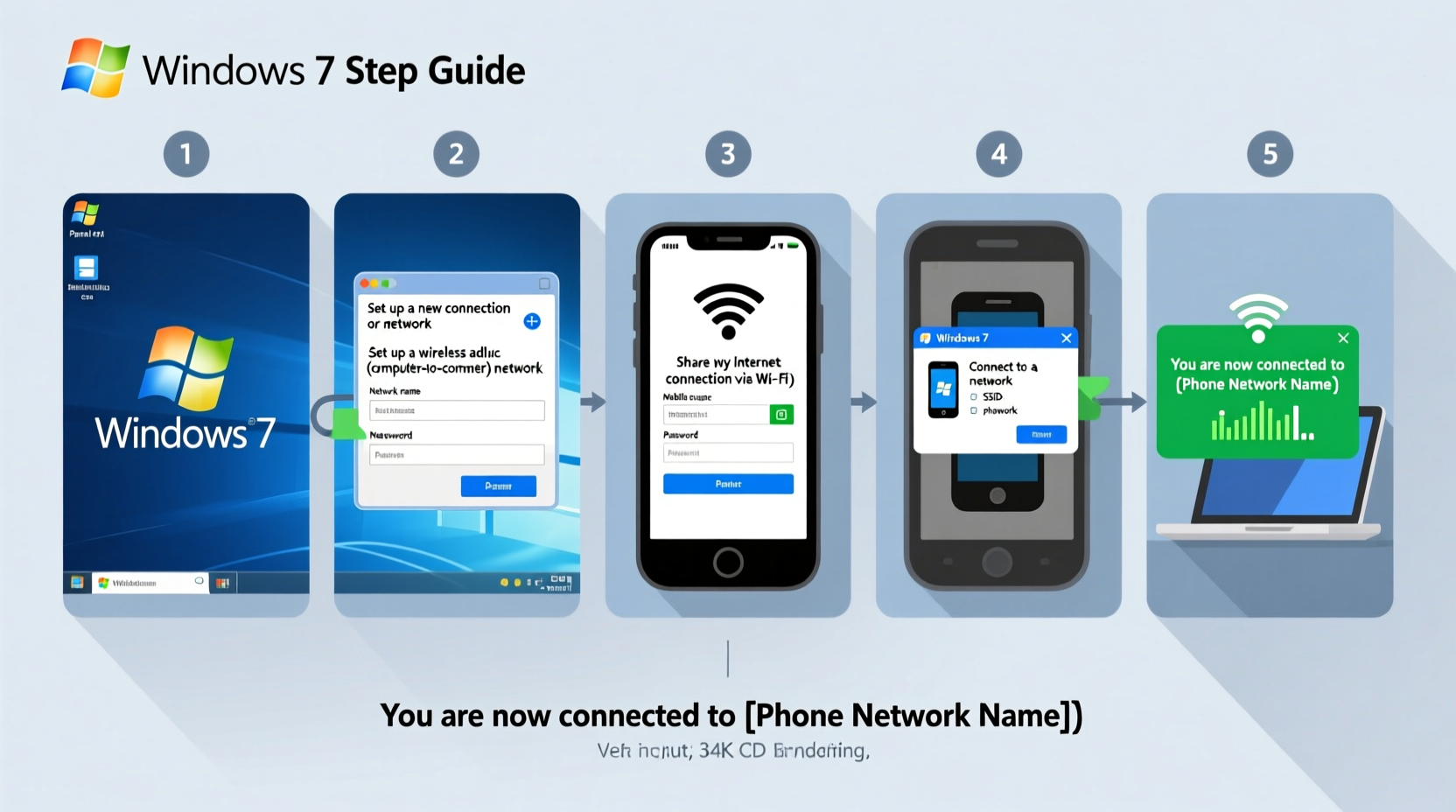
Mobile network sharing, commonly known as tethering, allows your smartphone to act as a modem for your computer. On Windows 7, this can be achieved through three primary methods: USB tethering, Bluetooth PAN (Personal Area Network), and Wi-Fi hotspot. While Wi-Fi hotspots are handled independently by the PC connecting to the phone's wireless signal, USB and Bluetooth require direct system-level integration with Windows networking components.
Windows 7 does not automatically recognize all smartphones upon connection, particularly newer Android or iOS models. Therefore, proper driver installation and correct settings on both the phone and PC are critical. The goal is to establish a recognized network interface that Windows treats like any other internet connection—assigning an IP address, enabling DNS resolution, and maintaining stable throughput.
Prerequisites Before Configuration
Before attempting to configure your mobile phone network, ensure the following conditions are met:
- A working smartphone with active data service
- USB cable or enabled Bluetooth on both devices
- Administrative rights on the Windows 7 machine
- Latest drivers installed for your phone model (especially important for Samsung, Huawei, or OnePlus devices)
- Bluetooth drivers updated if using wireless pairing
For Android users, enable Developer Options and USB Debugging temporarily if the device isn’t being detected. For iPhone users, make sure iTunes is installed on the Windows 7 PC, as it includes necessary Apple Mobile Device Support drivers required for network recognition.
“Tethering on older operating systems like Windows 7 hinges on driver availability. Without proper drivers, even a functional connection won’t appear as a usable network.” — Daniel Reeves, Network Systems Analyst
Step-by-Step Guide to USB Tethering Setup
USB tethering provides the most stable and fastest method of sharing your phone’s internet with a Windows 7 PC. Follow these steps carefully:
- Connect Your Phone via USB: Plug your smartphone into the computer using a compatible USB cable. Unlock the phone and allow file transfer mode (MTP) when prompted.
- Enable USB Tethering on Your Phone: Navigate to Settings > Network & Internet > Hotspot & Tethering (Android) or Settings > Personal Hotspot (iPhone). Toggle on “USB Tethering.”
- Wait for Driver Installation: Windows 7 will attempt to install drivers automatically. If you’re using a Samsung device, Smart Switch or Kies may be needed. For iPhones, verify that Apple Mobile Device USB driver is installed via iTunes.
- Check Network Connections: Press Win + R, type
ncpa.cpl, and press Enter. Look for a new entry labeled “Local Area Connection” or “Ethernet” associated with your phone. - Verify Internet Access: Open a browser and navigate to a website. If the page loads, the connection is successful.
If no network appears, manually update the driver through Device Manager. Right-click the unrecognized device under “Other Devices,” select “Update Driver Software,” and choose to search automatically or point to a downloaded driver package.
Configuring Bluetooth Tethering as an Alternative
When a USB cable isn't available, Bluetooth tethering offers a reliable alternative. However, setup complexity increases due to pairing requirements and protocol dependencies.
Pairing Process
- Turn on Bluetooth on both your phone and Windows 7 PC.
- On the PC, go to Start > Devices and Printers > Add a Device.
- Select your phone from the list and follow prompts to complete pairing. You may need to confirm a passcode on both devices.
- Once paired, right-click the device in “Devices and Printers,” select “Properties,” then go to the Services tab.
- Check the box next to “Access point for network connection (PAN)” and click OK.
After enabling PAN, Windows should create a new network interface. Confirm its presence in the Network and Sharing Center. If the connection fails, reboot both devices and retry the process with fresh pairing.
| Method | Speed | Stability | Driver Dependency |
|---|---|---|---|
| USB Tethering | High (up to 40 Mbps) | Excellent | High (device-specific) |
| Bluetooth Tethering | Moderate (3–8 Mbps) | Good | Medium (standard stack) |
| Wi-Fi Hotspot | High (varies with signal) | Good | Low (uses standard Wi-Fi) |
Troubleshooting Common Connectivity Issues
Even after correct configuration, some users encounter obstacles. Below are frequent problems and their solutions:
- No network interface appears after USB connection: Install OEM-specific USB drivers (e.g., Samsung USB Drivers, Motorola Device Manager).
- Connected but no internet access: Check APN settings on the phone; reset TCP/IP stack on Windows using
netsh int ip resetin Command Prompt (run as admin). - Bluetooth PAN not showing up: Ensure Bluetooth Support Service is running. Go to Services (
services.msc) and start “Bluetooth Support Service” if stopped. - Intermittent disconnections: Disable power-saving modes on USB ports via Device Manager > Universal Serial Bus controllers > Properties > Power Management > Uncheck “Allow the computer to turn off this device.”
Mini Case Study: Field Technician Using Mobile Tethering in Remote Areas
James, a field service technician based in rural Scotland, relies on his Android phone to access diagnostic tools and customer records while servicing industrial equipment. His company-issued laptop runs Windows 7 due to software compatibility with legacy control systems. In areas without cellular towers, he uses a MiFi device, but in moderate coverage zones, he tethers directly via USB.
Initially, his phone wouldn’t connect consistently. After installing Samsung’s official USB drivers and disabling USB power management, the link stabilized. He now carries a portable battery pack to maintain phone charge during long jobs. This solution has reduced downtime and improved reporting accuracy, proving that even outdated OS platforms can integrate effectively with modern mobile infrastructure when configured correctly.
FAQ
Can I use my iPhone to tether to a Windows 7 PC?
Yes, but only if iTunes and Apple Mobile Device Support are properly installed. Once connected, enable Personal Hotspot on the iPhone and select “Connect via USB.”
Why does my PC show “Limited Connectivity” after tethering?
This usually indicates a failure to obtain a valid IP address. Try restarting the phone’s hotspot, renewing the IP via ipconfig /renew, or resetting the network adapter.
Is it safe to tether regularly on Windows 7?
Yes, though Windows 7 no longer receives security updates from Microsoft. Use trusted antivirus software and avoid accessing sensitive accounts over public networks shared via tethering.
Final Checklist: Ready for Seamless Tethering
- ✅ Phone has active data plan
- ✅ USB cable or Bluetooth functional
- ✅ Correct drivers installed on Windows 7
- ✅ USB debugging enabled (if needed)
- ✅ Tethering option enabled on phone
- ✅ Network interface visible in ncpa.cpl
- ✅ Internet test completed successfully
Conclusion
Configuring a mobile phone network on Windows 7 demands attention to detail, particularly around driver compatibility and service settings. While newer operating systems streamline this process, Windows 7 users must take manual control to achieve reliable connectivity. By following the structured approach outlined here—preparing prerequisites, selecting the right tethering method, troubleshooting proactively, and validating results—you can maintain consistent internet access regardless of environment.




 浙公网安备
33010002000092号
浙公网安备
33010002000092号 浙B2-20120091-4
Comments
No comments yet. Why don't you start the discussion?