
Setting up a home network can feel overwhelming, especially when dealing with routers, modems, and wireless signals. However, Netgear devices are designed with user-friendly interfaces and reliable performance to simplify the process. Whether you're installing a new router, extending your Wi-Fi range with a mesh system, or reconnecting after a reset, following a structured approach ensures stable, high-speed internet across all your devices. This comprehensive guide walks you through every stage—from unboxing to optimization—so you can enjoy seamless connectivity without technical hiccups.
Understanding Your Netgear Device
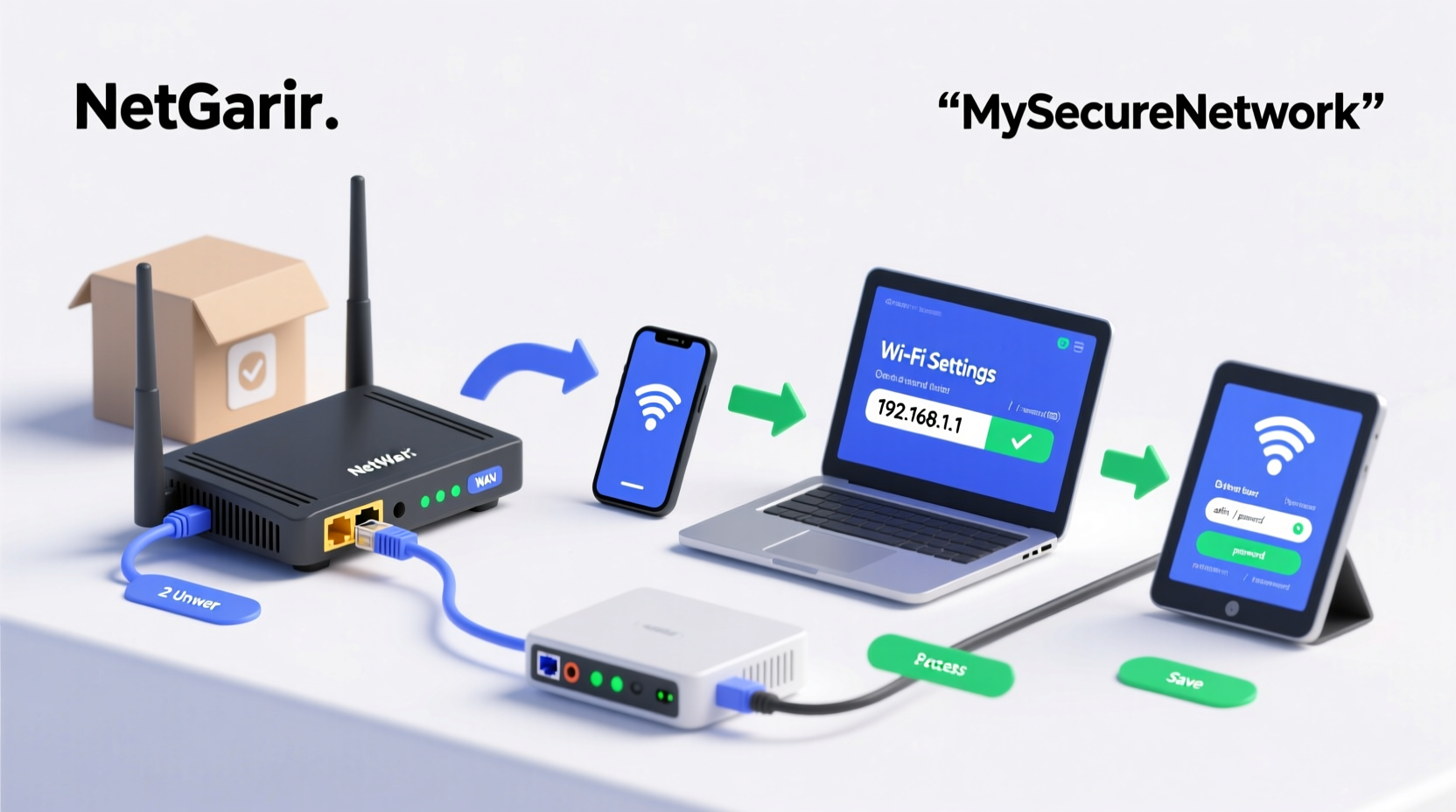
Before diving into setup, it’s important to identify what type of Netgear device you have. Netgear offers several models: standalone routers (like the Nighthawk series), cable modems, modem-router combos, and Wi-Fi mesh systems (such as Orbi). Each serves a different purpose:
- Router: Distributes internet from a modem to multiple devices via Wi-Fi or Ethernet.
- Modem: Connects directly to your Internet Service Provider (ISP) and converts the signal for use in your home.
- Modem-Router Combo: Combines both functions in one unit—ideal for simplifying setup.
- Mesh System: Uses multiple units to eliminate dead zones in large homes.
Check the model number on the bottom of the device and consult Netgear’s official support site to confirm compatibility with your ISP and internet plan. Knowing your hardware prevents mismatched configurations that could delay activation.
Step-by-Step Setup Process
Follow this universal sequence for most Netgear routers and gateways. While exact steps may vary slightly depending on the model, the core process remains consistent.
- Unbox and inspect components. Ensure you have the router, power adapter, Ethernet cable, and any additional accessories (e.g., satellite units for Orbi).
- Power off your modem. If replacing an existing router, disconnect and power down your current equipment.
- Connect the modem to the router. Use the provided Ethernet cable to link the modem’s LAN port to the yellow Internet (WAN) port on the Netgear device.
- Power on the modem first. Wait 60 seconds for it to fully initialize before powering on the router.
- Plug in the router. Connect the power adapter and turn on the device. Allow two minutes for startup lights to stabilize.
- Connect to the default Wi-Fi network. Look for a network name (SSID) starting with “NETGEAR” followed by a random number. The password is usually printed on the device label.
- Open a web browser. Navigate to
http://www.routerlogin.netorhttp://www.routerlogin.com. - Log in. Enter the default username and password (typically “admin” and “password”) found on the device sticker.
- Run the setup wizard. The NETGEAR genie interface will prompt you to customize settings such as SSID, Wi-Fi password, and time zone.
- Update firmware. After configuration, check for available updates under Maintenance > Firmware Update.
Once complete, reconnect your devices using the new network name and password. You should now have full internet access.
Optimizing Your Network Performance
A successful connection is just the beginning. To maintain speed and reliability, fine-tune your settings based on usage patterns and environment.
| Setting | Recommended Action | Purpose |
|---|---|---|
| Wi-Fi Channel | Select auto or less congested channels (1, 6, 11 for 2.4GHz) | Reduces interference from neighboring networks |
| Band Steering | Enable if dual-band capable | Directs devices to faster 5GHz band automatically |
| Guest Network | Enable with unique password | Secures main network while sharing access |
| QoS (Quality of Service) | Set priority for streaming/gaming devices | Prevents lag during high-bandwidth activities |
| Firmware Updates | Enable automatic checks | Ensures security patches and performance improvements |
“Proper channel selection and regular firmware updates can improve throughput by up to 30% in dense urban environments.” — David Lin, Senior Network Engineer at Netgear Support
Troubleshooting Common Connection Issues
Even with careful setup, issues may arise. Here’s how to resolve frequent problems efficiently.
No Internet Access After Setup
Verify physical connections: ensure the Ethernet cable is securely plugged into both modem and router. Restart both devices in order (modem first, then router). Confirm your ISP service is active by connecting a computer directly to the modem.
Can’t Access routerlogin.net
Ensure you’re connected to the correct Wi-Fi network. Try using a wired connection. Clear browser cache or attempt access via incognito mode. If still blocked, reset the router and retry.
Weak Signal in Certain Rooms
For larger homes, consider adding a Netgear range extender or upgrading to an Orbi mesh system. Reposition the router centrally and avoid placing it near microwaves or cordless phones that emit interference.
Mini Case Study: Overcoming Connectivity Gaps in a Multi-Floor Home
Sarah, a remote worker living in a three-story townhouse, struggled with spotty Wi-Fi in her attic office. Her Netgear R7000 router was located in the basement near the modem, resulting in poor signal upstairs. Initially, she tried repositioning the router but saw minimal improvement. After researching solutions, she purchased a Netgear EX7500 Wi-Fi extender and placed it midway between the router and her office. Using the WPS button, she synced the devices in under two minutes. Post-installation, her download speeds increased from 12 Mbps to 86 Mbps in the attic, enabling smooth video conferencing and cloud backups. This real-world example underscores how understanding placement and leveraging extenders can transform connectivity.
Essential Checklist Before Going Live
Use this checklist to ensure a secure, optimized network launch:
- ✅ Verified modem compatibility with ISP
- ✅ Connected WAN port to modem using Ethernet
- ✅ Powered on modem and router in correct sequence
- ✅ Accessed routerlogin.net and logged in successfully
- ✅ Changed default admin credentials
- ✅ Set strong Wi-Fi password (WPA3 if supported)
- ✅ Updated firmware to latest version
- ✅ Configured guest network for visitors
- ✅ Enabled parental controls if needed
- ✅ Tested speed on multiple devices
Frequently Asked Questions
What do I do if I forget my Netgear admin password?
If you’ve changed the default login and forgotten it, perform a factory reset. Press and hold the reset button for 10 seconds until the lights blink. You’ll regain access using the original “admin/password” credentials, but all settings will be erased.
Can I use my Netgear router with any internet provider?
Most Netgear routers work with any ISP that provides internet via Ethernet, DSL, or fiber. However, cable modems and combo units must be certified for your provider (e.g., Comcast Xfinity, Spectrum). Check Netgear’s compatibility list before purchasing.
How often should I reboot my Netgear device?
Monthly reboots help clear memory leaks and refresh connections. Alternatively, enable automatic reboot scheduling in the router settings to maintain performance without manual intervention.
Conclusion: Take Control of Your Home Network Today
Connecting your Netgear device doesn’t require advanced technical skills—just a methodical approach and attention to detail. From initial setup to long-term optimization, each step plays a crucial role in delivering fast, reliable internet throughout your home. By applying best practices in placement, security, and maintenance, you create a foundation that supports everything from online learning to 4K streaming. Don’t let poor connectivity disrupt your digital life. Implement these strategies today and experience the full potential of your Netgear device.




 浙公网安备
33010002000092号
浙公网安备
33010002000092号 浙B2-20120091-4
Comments
No comments yet. Why don't you start the discussion?