
Smart glasses are transforming how we interact with digital information—offering hands-free navigation, real-time notifications, and immersive augmented reality experiences. But before you can enjoy these benefits, you need to connect your smart glasses to your phone or computer. While manufacturers design these devices for seamless integration, the setup process can still feel confusing without clear guidance. This comprehensive guide walks you through every step, from initial unboxing to full functionality across multiple devices, ensuring a smooth and frustration-free experience.
Understanding Your Smart Glasses Compatibility
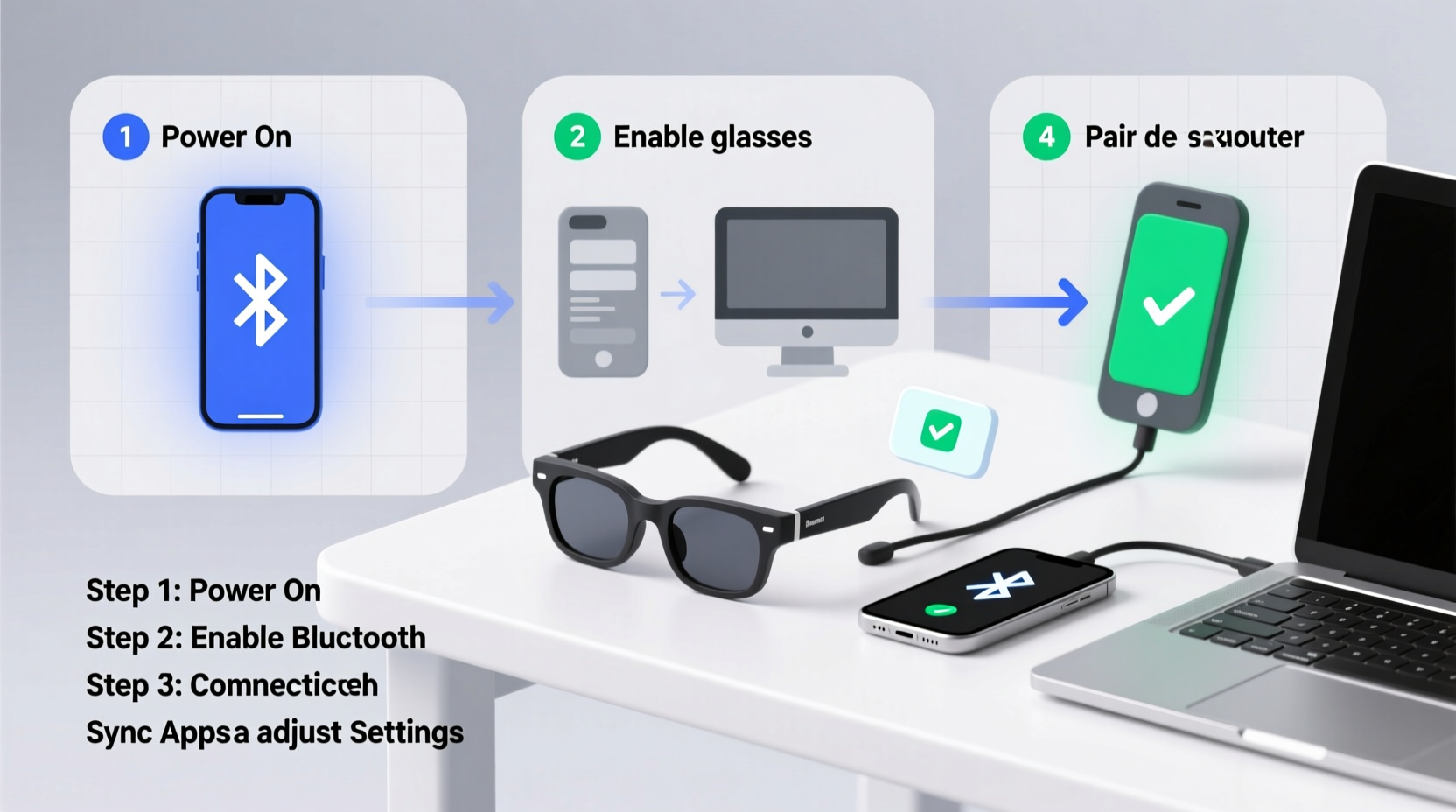
Not all smart glasses work with every device. Before attempting any connection, verify compatibility between your glasses and your smartphone or computer. Most models support either Android or iOS, while some high-end versions offer cross-platform functionality. Similarly, computer connectivity often depends on operating systems (Windows, macOS, Linux) and available Bluetooth or USB-C capabilities.
Check the manufacturer’s official website or user manual for:
- Supported mobile OS versions (e.g., iOS 14+, Android 9+)
- Required apps (such as Ray-Ban Stories App, XREAL Air, or Vuzix Blade)
- Bluetooth version requirements (ideally Bluetooth 5.0 or higher)
- Computer OS compatibility and driver needs
Connecting Smart Glasses to Your Smartphone
Most smart glasses use Bluetooth for wireless communication with smartphones. The exact steps may vary slightly depending on brand and model, but the general process remains consistent.
- Charge your glasses fully. Low battery can interfere with discovery mode.
- Power on the glasses. Press and hold the power button until an LED blinks or voice prompt confirms startup.
- Enable pairing mode. This is usually done by holding the power button for 5–7 seconds until the indicator flashes blue and red (common signal for discoverable mode).
- Open Bluetooth settings on your phone. Navigate to Settings > Bluetooth and ensure it’s turned on.
- Select your glasses from the list. Look for a device name like “XREAL Air” or “Ray-Ban Stories.” Tap to pair.
- Install the companion app if prompted. Some brands require their proprietary app for full functionality (e.g., audio control, camera access, firmware updates).
- Follow in-app setup instructions. Grant necessary permissions like microphone, location, and notifications.
Once connected, test basic functions: play music, receive a call, or activate voice assistant. If the glasses don’t appear in your Bluetooth list, try resetting them using the manufacturer’s reset procedure—often involving a 10-second button press.
Synchronizing Smart Glasses with Your Computer
Connecting to a computer expands your smart glasses’ utility—ideal for virtual meetings, extended displays, or AR development. The method varies based on whether your glasses support direct wireless pairing or require a wired connection.
Wireless Connection via Bluetooth
If your glasses support audio/video streaming over Bluetooth:
- Turn on Bluetooth in your computer’s system settings.
- Put glasses into pairing mode (as described earlier).
- Select the device when it appears in the list.
- Set the glasses as the default audio output under Sound Settings.
Wired Connection via USB-C or HDMI
Many AR-focused glasses (like Nreal/XREAL or Rokid Max) connect via USB-C to laptops for screen mirroring or extended desktop use.
- Use the included USB-C cable to connect glasses to your computer.
- Allow permission prompts for device access.
- Install required drivers or software (e.g., XREAL Beam app).
- Launch the app and configure display settings—choose between mirror mode or extended desktop.
| Connection Type | Best For | Latency | Setup Complexity |
|---|---|---|---|
| Bluetooth (Wireless) | Calls, audio, notifications | Medium | Low |
| USB-C (Wired) | Video streaming, AR apps, productivity | Low | Medium |
| HDMI + Adapter | Desktops without USB-C | Low | High |
“Proper device pairing ensures not only stable connectivity but also optimal performance of AR overlays and spatial audio.” — Dr. Lena Torres, Wearable Technology Researcher at MIT Media Lab
Troubleshooting Common Connection Issues
Even with careful setup, problems can arise. Here are frequent issues and practical solutions:
- Glasses won’t enter pairing mode: Charge for at least 20 minutes. Try a factory reset using the long-press method outlined in the manual.
- Device appears but won’t connect: Remove the device from Bluetooth history on your phone/computer, then retry pairing.
- No sound after connection: Check audio routing in settings. Some systems default to internal speakers even when headphones are paired.
- Lag during video playback: Use wired connections for high-resolution content. Wireless streaming over Bluetooth has bandwidth limitations.
- App crashes during setup: Clear cache or reinstall the companion app. Ensure you’re using the latest version.
Real-World Example: Setting Up XREAL Air Glasses for Remote Work
Sophia, a UX designer in Berlin, recently purchased XREAL Air glasses to create a dual-monitor setup while working from cafes. She followed these steps:
- Connected the glasses to her MacBook Pro using the included USB-C cable.
- Downloaded the XREAL Beam app and authorized device access.
- Configured one screen for Figma and another for Slack and email.
- Paired her iPhone via Bluetooth for incoming calls.
The result? A portable, immersive workspace that eliminated the need for bulky external monitors. When Wi-Fi was spotty, she switched to her phone’s hotspot and continued working seamlessly—a testament to well-executed multi-device integration.
Essential Checklist for Seamless Setup
Before starting, gather everything you’ll need:
- ✅ Fully charged smart glasses
- ✅ Smartphone with updated OS and Bluetooth enabled
- ✅ Companion app installed and permissions ready
- ✅ USB-C cable (if connecting to computer)
- ✅ Computer with compatible OS and ports
- ✅ Stable internet connection (for app downloads and updates)
- ✅ User manual or online support page open for reference
Frequently Asked Questions
Can I connect my smart glasses to both my phone and computer at the same time?
Most smart glasses do not support simultaneous active connections to two primary devices. However, you can quickly switch between them. For example, keep your glasses paired with your phone for calls and notifications while using a wired connection to your laptop for screen extension. Disconnect one to prioritize the other.
Do I need Wi-Fi to connect smart glasses?
Wi-Fi is not required for the initial Bluetooth pairing, but it becomes essential once you install companion apps or download firmware updates. For full functionality—especially cloud-based features like voice assistants or live translation—an internet connection is necessary.
Why does my phone forget the glasses after turning off?
This typically happens if the glasses were not properly paired or if Bluetooth memory is full. Remove unused devices from your Bluetooth list and re-pair the glasses. Also, ensure the glasses complete a full shutdown—not just sleep mode—to prevent sync errors.
Maximize Your Smart Glasses Experience
Connecting smart glasses to your phone and computer opens up a new dimension of digital interaction. Whether you're enhancing productivity, enjoying immersive media, or staying connected on the go, a reliable setup is the foundation. Take time to follow each step carefully, double-check compatibility, and leverage companion apps to unlock advanced features. With the right configuration, your smart glasses become more than a gadget—they evolve into a natural extension of your digital life.




 浙公网安备
33010002000092号
浙公网安备
33010002000092号 浙B2-20120091-4
Comments
No comments yet. Why don't you start the discussion?