
PowerPoint is often overlooked as a creative tool, seen primarily as a platform for business presentations. But beneath its professional surface lies a powerful animation engine capable of producing dynamic, shareable content. One of the most underutilized features? The ability to export fully customized animated GIFs—without needing Photoshop, After Effects, or any third-party design software. Whether you're creating social media content, instructional snippets, or playful messages, PowerPoint offers a surprisingly robust environment for building frame-by-frame animations and exporting them as lightweight GIFs.
Why Use PowerPoint for Animated GIFs?
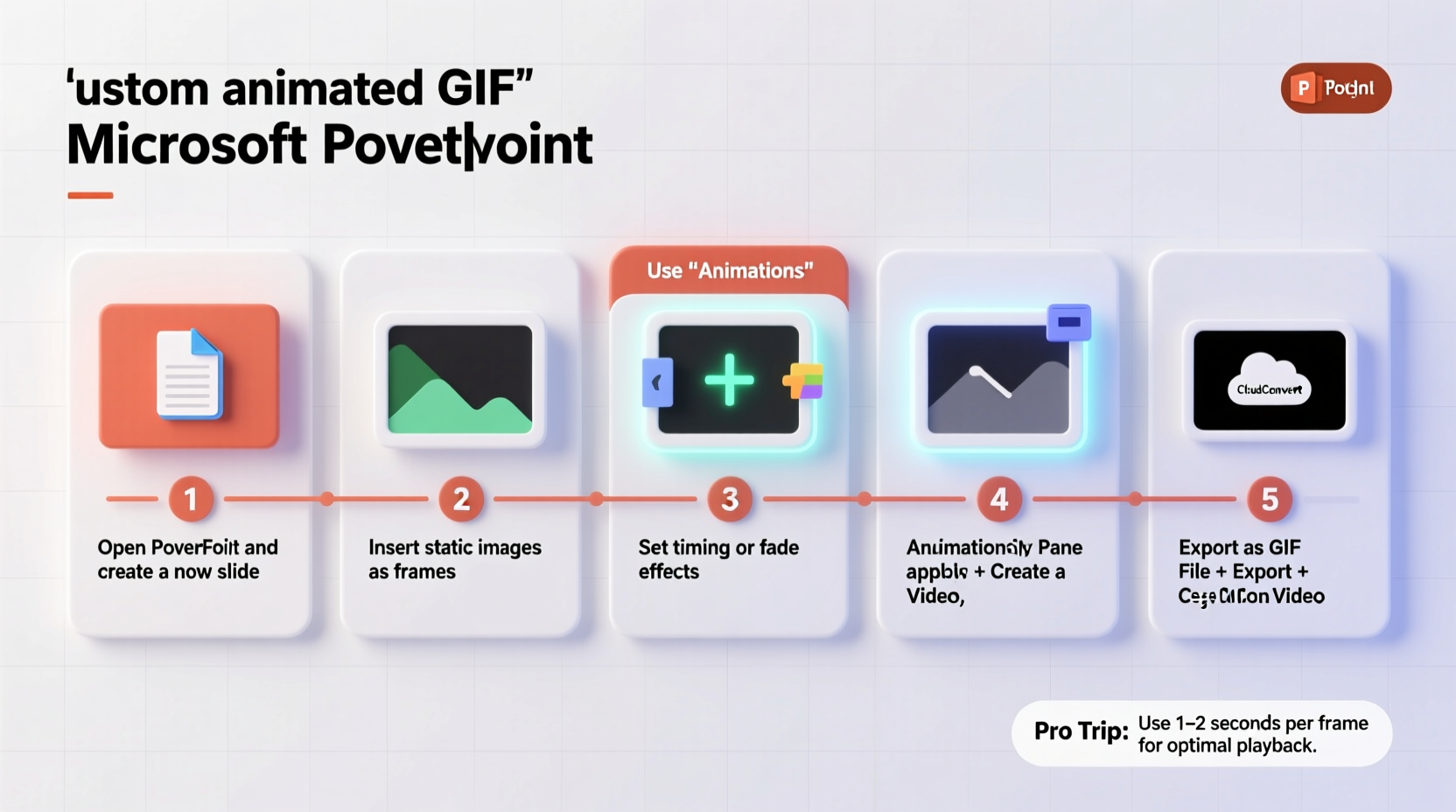
While dedicated animation tools offer more precision, PowerPoint excels in accessibility and ease of use. It’s already installed on most office computers, requires no steep learning curve, and supports keyframe-style animations, transitions, and layering. Educators, marketers, and small business owners can leverage this functionality to produce eye-catching visuals quickly. Plus, since PowerPoint allows precise control over timing and object behavior, it's ideal for simple but effective motion graphics.
“PowerPoint isn’t just for slides—it’s a stealth animation studio that ships with your laptop.” — Dr. Lisa Tran, Digital Media Instructor at Northwestern University
Setting Up Your Canvas for Animation
Before diving into animation, configure your slide dimensions to match typical GIF viewing environments. Most online platforms display GIFs best at 480px to 600px wide. Adjusting your canvas ensures compatibility and prevents unwanted scaling.
- Navigate to the Design tab.
- Click Slide Size > Custom Slide Size.
- Set width to 600 cm (this will be scaled down later) or choose “On-screen Show (16:9)” for standard widescreen format.
- Ensure orientation is set to Landscape, unless your target platform favors vertical content.
Although PowerPoint doesn't work in pixels directly, using a consistent base size helps maintain proportion when exporting. Consider adding guides (via View > Gridlines > Guides) to align elements precisely.
Creating Frame-by-Frame Animations
The core of any animated GIF is sequential movement. In PowerPoint, this is achieved through layered objects combined with entrance, exit, and motion path animations. Unlike video editors, PowerPoint treats each animation as an event triggered over time—perfect for simulating frames.
Basic Animation Workflow
- Add Objects: Insert shapes, text boxes, icons, or images that will move or appear.
- Apply Entrance/Exit Effects: Use Fade, Appear, Wipe, or Bounce to simulate appearance changes.
- Set Timing: Adjust duration and delay under the Animations tab to control pacing.
- Use Motion Paths: Draw custom paths for objects to follow across the slide.
- Duplicate Slides: For multi-scene animations, duplicate the current slide (Ctrl+D) and slightly adjust object positions to create motion progression.
For smoother results, break complex movements into smaller steps across several duplicated slides. Each slide becomes a “frame” in your final GIF.
Exporting Your Animation as a GIF
Once your animation sequence is complete, it’s time to convert it into a universally compatible GIF file. This process involves exporting the entire presentation as a series of images, then compressing them into a looping animation.
Step-by-Step Export Process
- Go to File > Save As.
- Choose your save location and click the dropdown menu next to “Save as type.”
- Select GIF (*.gif) from the list.
- In the pop-up dialog, select Use Full Precision if color accuracy matters.
- Under “Publish What,” choose Animated GIF.
- Set the Seconds per slide value to match your animation timing (e.g., 0.5 seconds for fast-paced action).
- Click Publish.
PowerPoint automatically converts each slide into a frame of the GIF, preserving all built-in animations. The resulting file will loop continuously and play in any browser or messaging app.
| Setting | Recommended Value | Notes |
|---|---|---|
| Resolution | Low (96 dpi) | Sufficient for web sharing; reduces file size |
| Seconds per slide | 0.2 – 1.0 | Faster for quick loops, slower for readability |
| Publish What | Animated GIF | Ensures animations are included |
| Loop Continuously | Yes (default) | GIFs auto-loop unless disabled externally |
Optimizing Quality and File Size
Raw exports from PowerPoint can sometimes result in large files or pixelated output. A few adjustments can dramatically improve performance without sacrificing visual appeal.
- Limit Colors: GIFs support up to 256 colors. Simplify gradients and avoid photo-heavy slides to reduce file bloat.
- Crop Unnecessary Space: Keep content centered and minimize empty areas to focus attention and shrink dimensions.
- Reduce Slide Count: Only include essential frames. Excessive duplication increases load time.
- Avoid Audio: Sound isn’t supported in GIFs and may interfere with export.
If the exported file exceeds 8MB (common upload limit on platforms like Twitter or Slack), re-export with fewer frames or lower timing values.
Mini Case Study: Marketing Team Creates Branded Social Snippets
A local bakery wanted to promote their new seasonal cupcake line on Instagram Stories. Instead of hiring a designer, their marketing assistant used PowerPoint to animate a rotating cupcake with falling sprinkles and a bouncing “New Flavor!” label. By duplicating five slides, adjusting sprinkle positions incrementally, and applying fade-ins, they created a 3-second loop. Exported as a GIF and uploaded directly to Instagram, the post gained 40% more engagement than static images. Total creation time: under 20 minutes.
Checklist: Creating a Custom Animated GIF in PowerPoint
- ✅ Set slide size to 16:9 or custom dimensions
- ✅ Design animation across multiple slides or within one slide using Animation Pane
- ✅ Use entrance, exit, and motion path effects for movement
- ✅ Preview with F5 to test timing and flow
- ✅ Save as Animated GIF with correct seconds-per-slide setting
- ✅ Test GIF in a browser or messaging app
- ✅ Optimize by reducing frames or simplifying visuals if needed
Frequently Asked Questions
Can I edit the speed of individual frames in my GIF?
Not directly within PowerPoint. All slides use the same “seconds per slide” setting during export. To vary speed, create additional intermediate frames for slower sections or skip frames to accelerate motion.
Why does my exported GIF look blurry?
This usually happens due to low-resolution rendering during export. Ensure you’re not zooming in excessively on small objects. Use vector shapes instead of raster images where possible, and avoid tiny text that may pixelate.
Can I make transparent-background GIFs in PowerPoint?
No—PowerPoint does not support alpha transparency in GIF exports. If transparency is required, export as PNG sequence and use free tools like GIMP or EZGIF.com to compile with transparency.
Conclusion
Crafting custom animated GIFs in PowerPoint proves that powerful digital tools don’t always require expensive software or advanced skills. With thoughtful planning and strategic use of built-in animation features, anyone can turn simple slides into engaging, shareable visuals. From classroom explanations to product teasers, these lightweight animations enhance communication in ways static images cannot. The next time you need a quick looping graphic, skip the download queue and open the app already on your desktop.




 浙公网安备
33010002000092号
浙公网安备
33010002000092号 浙B2-20120091-4
Comments
No comments yet. Why don't you start the discussion?