
Setting up a new Gmail account from your smartphone is faster and more convenient than ever. Whether you're managing personal communications, starting a side business, or separating work from private life, having a dedicated Gmail address gives you control over your digital identity. The entire process takes less than five minutes and can be completed entirely from your Android or iPhone—no computer required. This guide walks you through each stage with clear instructions, practical tips, and troubleshooting advice to ensure success the first time.
Why Create a Gmail Account on Your Phone?
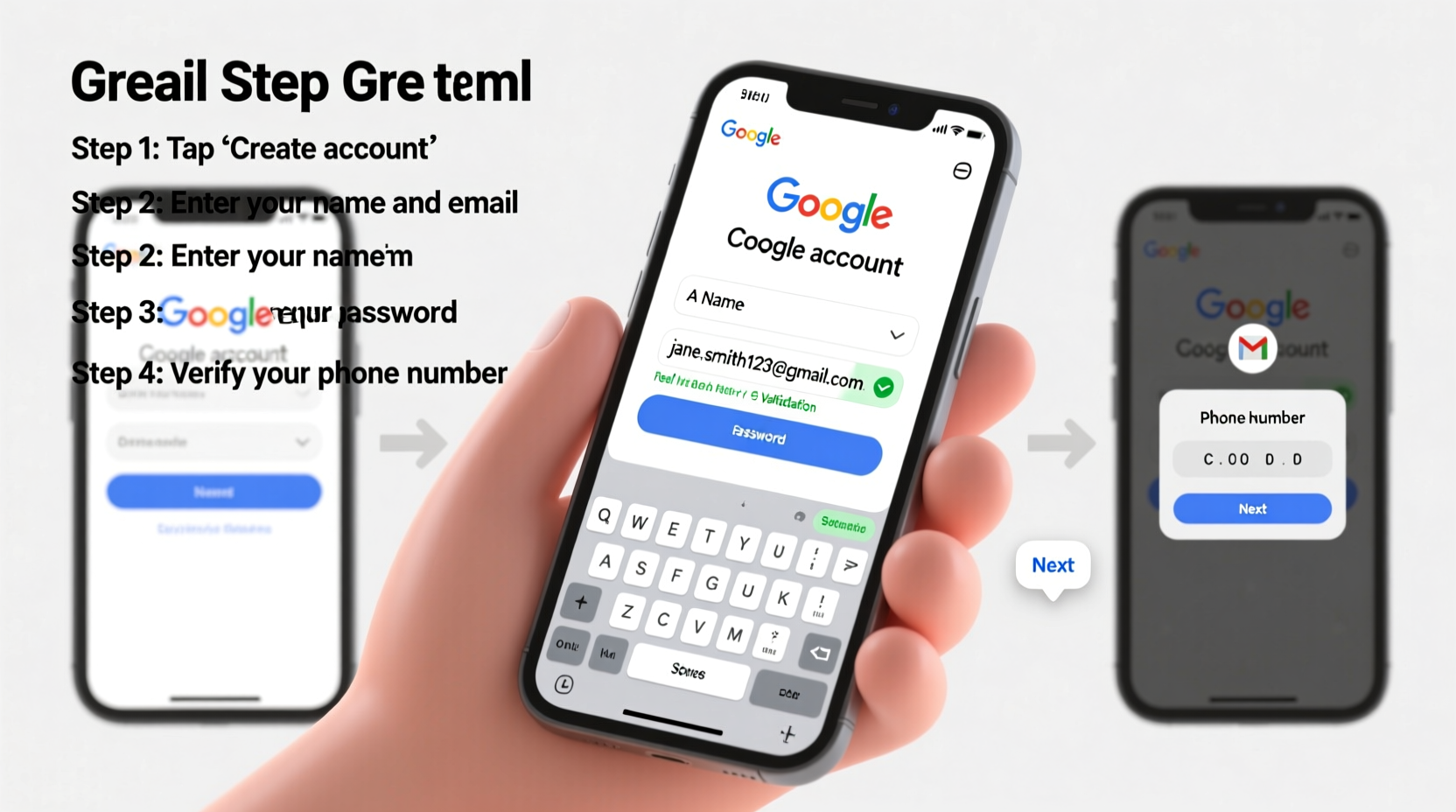
Gmail remains one of the most trusted email platforms globally, integrated seamlessly with Google Drive, Calendar, YouTube, and other essential services. Creating an account directly on your mobile device eliminates the need for additional hardware and allows immediate access across apps and browsers.
Mobile sign-up also ensures that your recovery options—like phone number verification and app-based 2-step verification—are configured correctly from the start. With over 1.5 billion active Gmail users, maintaining a clean, organized inbox begins with proper setup.
What You’ll Need Before Starting
To create a Gmail account on your phone, make sure you have the following ready:
- A working smartphone with internet connectivity (Wi-Fi or data)
- Your phone number for verification (optional but recommended)
- A strong password idea (at least 8 characters with mix of letters, numbers, symbols)
- Access to another email if you want to use it for recovery
- About 4–6 minutes of uninterrupted time
Google may ask for your birthday and gender, primarily to personalize ads and comply with age restrictions. These details do not affect account functionality.
Step-by-Step Guide to Creating a New Gmail Address
- Open your mobile browser – Launch Chrome (Android) or Safari (iPhone).
- Navigate to Google's account creation page – Type
accounts.google.com/signupinto the address bar and press Go. - Enter your name – Fill in your first and last name. This will appear when you send emails.
- Choose a username – In the “Choose your email address” field, type your desired Gmail username (e.g., jane.doe123). If it’s taken, Google will suggest alternatives.
- Create a secure password – Enter a strong password twice. Avoid common phrases or reused passwords.
- Verify your phone number – Google will prompt you to add a recovery phone number. Confirm by entering the SMS code sent to your device.
- Add recovery email (optional) – If you already have another email, enter it here to help regain access if locked out.
- Enter birthdate and gender – Select your birthday and preferred gender setting. This helps Google customize features and meet legal requirements.
- Agree to terms – Review Google’s Terms of Service and Privacy Policy, then tap “I agree.”
- Complete setup – You’ll be redirected to your new Gmail inbox. The account is now active.
After completion, you can immediately start sending emails, syncing contacts, or enabling two-factor authentication for added security.
Using the Gmail App vs. Web Browser
You can also create a Gmail account using the official Gmail app, though the process redirects to a web form regardless. Here’s how both methods compare:
| Method | Pros | Cons |
|---|---|---|
| Web Browser (Recommended) | Full visibility of fields; easier navigation; works on all devices | Requires typing on small screen |
| Gmail Mobile App | Direct integration after setup; automatic inbox access | Limited control during sign-up; fewer customization options visible |
For maximum clarity and control, using a browser is advised. Once created, your account will automatically sync with the Gmail app if installed.
Common Issues and How to Fix Them
While the sign-up process is generally smooth, some users encounter hurdles. Below are frequent problems and solutions:
- “This username is taken” – Try variations with numbers or middle initials. For example, alex.park becomes alex.park03.
- No SMS code received – Check signal strength, wait 2 minutes, or request a call instead of text.
- Page won’t load – Clear browser cache or switch between Wi-Fi and mobile data.
- Password rejected – Ensure it has at least 8 characters and includes uppercase, lowercase, and a number or symbol.
- Account suspended after creation – Avoid suspicious activity like rapid sign-ups or fake information.
“Creating a Gmail account on mobile is just as secure as doing so on desktop—provided you use a trusted network and enable recovery options early.” — David Lin, Cybersecurity Analyst at NetSecure Labs
Security Best Practices After Setup
Your new Gmail account needs protection from day one. Follow these steps to enhance security:
- Turn on 2-Step Verification: Go to Google Account settings > Security > 2-Step Verification and link your phone or authenticator app.
- Set up recovery options: Confirm your backup email and phone number are current.
- Review app permissions: Regularly check which third-party apps have access to your Gmail via “Third-party apps with account access” in settings.
- Use a password manager: Store your credentials securely rather than saving them in notes or texts.
- Check sign-in activity: Monitor recent devices and locations under “Security” in your Google Account.
Mini Case Study: Maria Sets Up Her Freelance Email
Maria, a freelance graphic designer, needed a professional email to separate client communication from her personal life. She used her iPhone during a coffee break to create mariadesigns@gmail.com. When the name was taken, she tried maria.design.co, which worked instantly. She verified via SMS, set up recovery email, and enabled 2FA the same day. Within 48 hours, she connected the account to her portfolio website and began receiving project inquiries. By week’s end, she had landed her first paid gig—all thanks to a clean, credible email presence established in under ten minutes.
Quick Checklist: Did You Complete These Steps?
Use this checklist to confirm your account is fully optimized:
- ✅ Created a unique, professional username
- ✅ Set a strong, memorable password
- ✅ Verified phone number and/or recovery email
- ✅ Enabled 2-step verification
- ✅ Reviewed Google’s privacy settings
- ✅ Tested sending a test email to yourself or a friend
Frequently Asked Questions
Can I create a Gmail account without a phone number?
Yes, but it's not recommended. While Google allows skipping phone verification, doing so limits recovery options and increases the risk of permanent lockout. Providing a number strengthens account security and simplifies password resets.
How many Gmail accounts can I create on one phone?
You can manage multiple Gmail accounts on a single device. Most smartphones support adding several accounts within the Gmail app or browser. Google allows up to four accounts per device for easy switching, though there's no hard limit on total accounts per person.
Is my new Gmail address permanent?
Yes, once created, your Gmail username is yours indefinitely—as long as you log in at least once every two years. Inactive accounts may be deleted due to prolonged dormancy, so occasional use preserves ownership.
Final Thoughts and Next Steps
Creating a new Gmail address on your cell phone is a straightforward process that opens doors to better organization, professionalism, and digital safety. Whether you're launching a blog, applying for jobs, or managing finances, a dedicated email streamlines communication and builds trust.
The key to long-term success lies not just in setup, but in maintenance. Secure your account, keep recovery details updated, and avoid sharing login information. A well-managed Gmail account can serve you reliably for years.




 浙公网安备
33010002000092号
浙公网安备
33010002000092号 浙B2-20120091-4
Comments
No comments yet. Why don't you start the discussion?