
Accessing millions of apps, games, books, and media on Android starts with one essential step: setting up a Google Play Store account. Whether you're using a new device, switching to a different email, or helping someone else get started, the process must be done correctly to ensure full functionality and security. A properly configured account unlocks personalized recommendations, secure purchases, cloud backups, and cross-device synchronization. This comprehensive guide walks through each phase of account creation with precision, offering expert insights, real-world examples, and practical tips to avoid common pitfalls.
Why a Google Play Account Matters
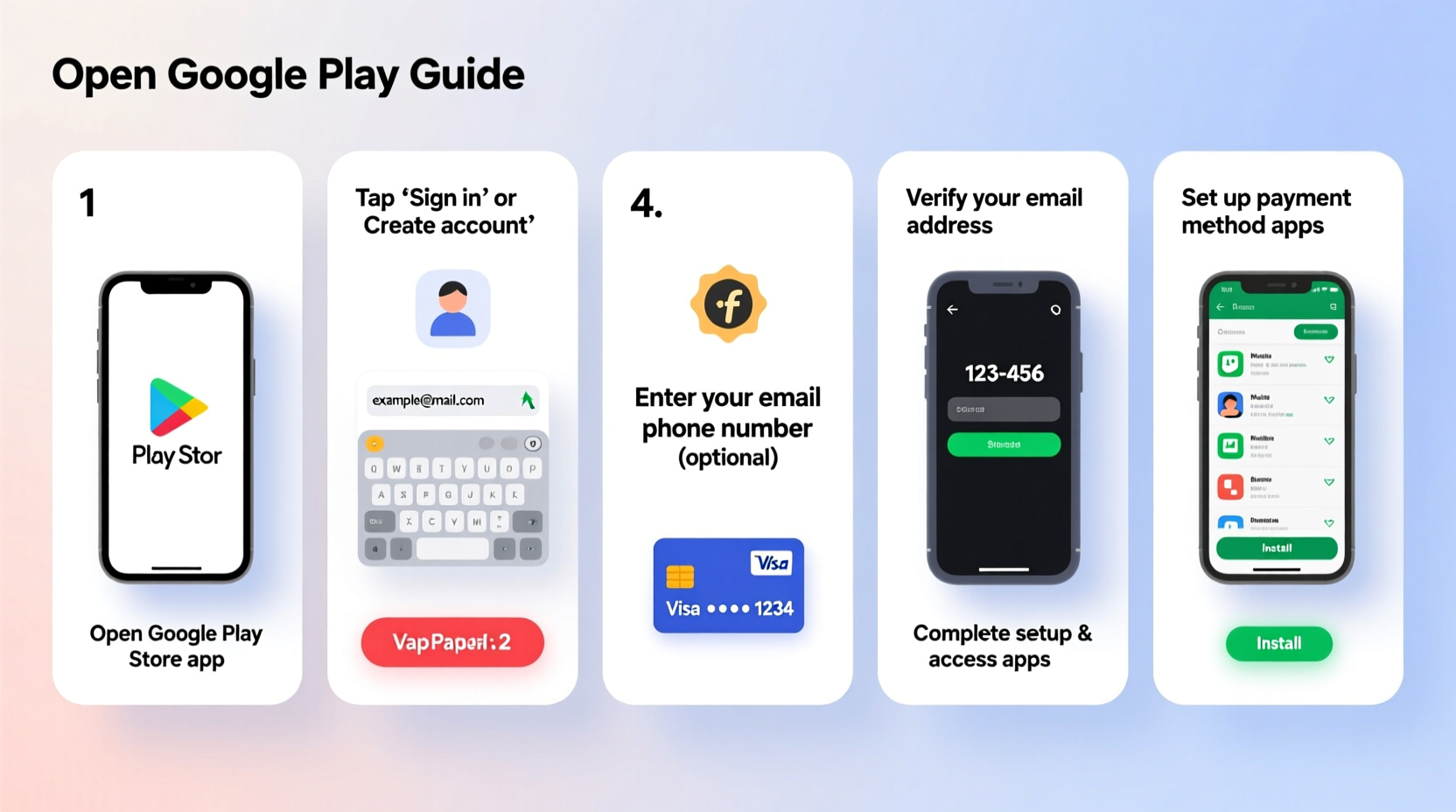
A Google Play Store account is more than just a gateway to download apps—it’s the digital identity that ties your Android experience together. It connects your Gmail, YouTube, Drive, and other Google services, enabling seamless data flow across devices. Without it, you can’t install most modern apps, update software, or restore backed-up settings after switching phones.
Additionally, having a verified account allows secure transactions, parental controls, and app purchase history tracking. For developers, educators, or families managing multiple users, separate accounts help maintain boundaries and usage oversight.
Step-by-Step Guide to Creating a New Google Play Store Account
The following timeline outlines the exact sequence needed to create a functional, verified Google account optimized for Play Store use. While some steps occur automatically during device setup, understanding each stage ensures no critical detail is missed.
- Prepare Your Device: Ensure your Android phone or tablet is powered on, connected to Wi-Fi, and updated to the latest system version. Outdated firmware may cause sign-in errors.
- Navigate to Settings > Accounts: Tap “Add account” and select “Google.” If this is a new device, the option will appear during initial setup.
- Select “Create Account”: Choose “For myself” unless setting up for a child (Family Link) or business (Google Workspace).
- Enter Personal Information: Provide your first and last name. These will be visible when sharing files or commenting on Google services.
- Create a Username (Gmail Address): Select a unique username ending in @gmail.com. Avoid complex characters; stick to letters, numbers, periods, and underscores.
- Set a Strong Password: Use at least 12 characters with uppercase, lowercase, numbers, and symbols. Do not reuse passwords from other platforms.
- Add Recovery Options: Input a secondary email and mobile number. These are crucial for password resets and two-factor authentication (2FA).
- Verify Identity: Google may ask you to confirm via SMS or voice call. In some regions, backup codes or security questions are also used.
- Accept Terms & Privacy Policies: Review Google’s service terms, privacy policy, and personalization settings before proceeding.
- Launch the Play Store App: After account addition, open the Play Store. It should automatically recognize your login and sync preferences.
Once complete, your account will begin syncing contacts, calendar events, and app data. The first launch of the Play Store may prompt additional permissions, such as location access for localized content.
Essential Setup Checklist
To ensure your new Google Play account functions smoothly, follow this verification checklist:
- ✅ Confirm successful sign-in across Gmail, YouTube, and Play Store
- ✅ Enable two-factor authentication in Google Account settings
- ✅ Set up payment methods under “Payments & subscriptions” in the Play Store
- ✅ Review and adjust app permission defaults (e.g., auto-updates, background data)
- ✅ Activate Google Play Protect for automatic malware scanning
- ✅ Customize content filters based on age ratings (especially important for family devices)
- ✅ Backup app data to Google Drive for future restoration
Common Mistakes and How to Avoid Them
Even simple account setups can go wrong without awareness of frequent issues. Below is a comparison table highlighting typical missteps and their solutions.
| Do’s | Don’ts |
|---|---|
| Use a memorable but secure password stored in a trusted manager | Write down passwords on sticky notes or save them in unencrypted files |
| Add both recovery email and phone number | Rely solely on one recovery method |
| Review app permissions before installing | Click “Accept All” without reading what data an app accesses |
| Log out of public devices immediately after use | Stay signed in on shared or borrowed phones/tablets |
| Regularly check “Security Checkup” in Google Account settings | Ignore security alerts or verification prompts |
Real Example: Maria’s Smooth Transition
Maria recently upgraded from an old Android phone to a Pixel 7. Her previous device had been inactive for months due to syncing issues and outdated apps. When setting up her new phone, she decided to create a fresh Google account instead of transferring the old one, suspecting corrupted settings.
Following the steps outlined above, she created a new @gmail.com address, enabled 2FA using her iPhone (she uses both ecosystems), and added her credit card securely through Google Pay. Within ten minutes, she was downloading WhatsApp, banking apps, and streaming services—all without encountering installation errors or login loops.
By reviewing content restrictions and turning off auto-updates temporarily, she avoided excessive data usage during setup. A week later, Maria reported faster app launches and fewer crashes compared to her previous configuration.
“Starting fresh with a clean Google account often resolves lingering performance issues tied to outdated profiles.” — David Lin, Mobile Systems Analyst at TechFlow Insights
Frequently Asked Questions
Can I have multiple Google Play accounts on one device?
Yes. Android supports multiple user accounts or profile additions under Settings > Accounts. You can switch between them in the Play Store by tapping your profile icon. This is useful for separating personal and work apps or managing children’s access.
Is it safe to add a payment method to a new account?
Yes, provided you enable two-factor authentication and monitor transaction alerts. Google encrypts all payment information and offers instant fraud detection. However, avoid saving cards on shared devices or unsecured networks.
What happens if I forget my password after creating the account?
If recovery options were set up correctly, you can reset your password via linked email or phone. Visit accounts.google.com/signin/recovery and follow the prompts. Without recovery details, regaining access becomes difficult and may require identity verification.
Optimizing Your Account for Long-Term Use
After successful creation, fine-tune your account for efficiency and safety. Navigate to Google Account settings and explore sections like “Data & Privacy,” “Security,” and “Payments & Subscriptions.” Turn on features like “Web & App Activity” if you want predictive searches and tailored app suggestions.
Consider enabling Family Link if managing minors’ screen time and app downloads. For professionals, linking the account to Google Workspace provides enhanced collaboration tools while keeping personal data separate.
Finally, schedule quarterly reviews of connected apps and third-party permissions. Revoke access from unused services to reduce privacy risks.
Conclusion
Creating a Google Play Store account isn’t just a technical task—it’s the foundation of your entire Android ecosystem. With careful attention to detail during setup, you gain reliable access to apps, improved security, and better device management. By avoiding common mistakes, leveraging recovery tools, and maintaining good digital hygiene, your account will remain functional and protected for years.




 浙公网安备
33010002000092号
浙公网安备
33010002000092号 浙B2-20120091-4
Comments
No comments yet. Why don't you start the discussion?