
Whether you're selling products online, building a portfolio, or preparing images for print, a clean white background instantly elevates the professionalism of your photos. A consistent, bright backdrop removes distractions and ensures your subject stands out. While studio lighting and backdrops are ideal, not everyone has access to them. The good news is that even with imperfect source images, you can achieve polished white backgrounds using digital tools—no photography studio required.
This guide walks through practical, accessible methods to transform any background into a crisp white, whether you're using desktop software, mobile apps, or browser-based editors. You’ll learn how to avoid common pitfalls like halos, color casts, and jagged edges, ensuring your final image looks natural and high-quality.
Why a White Background Matters
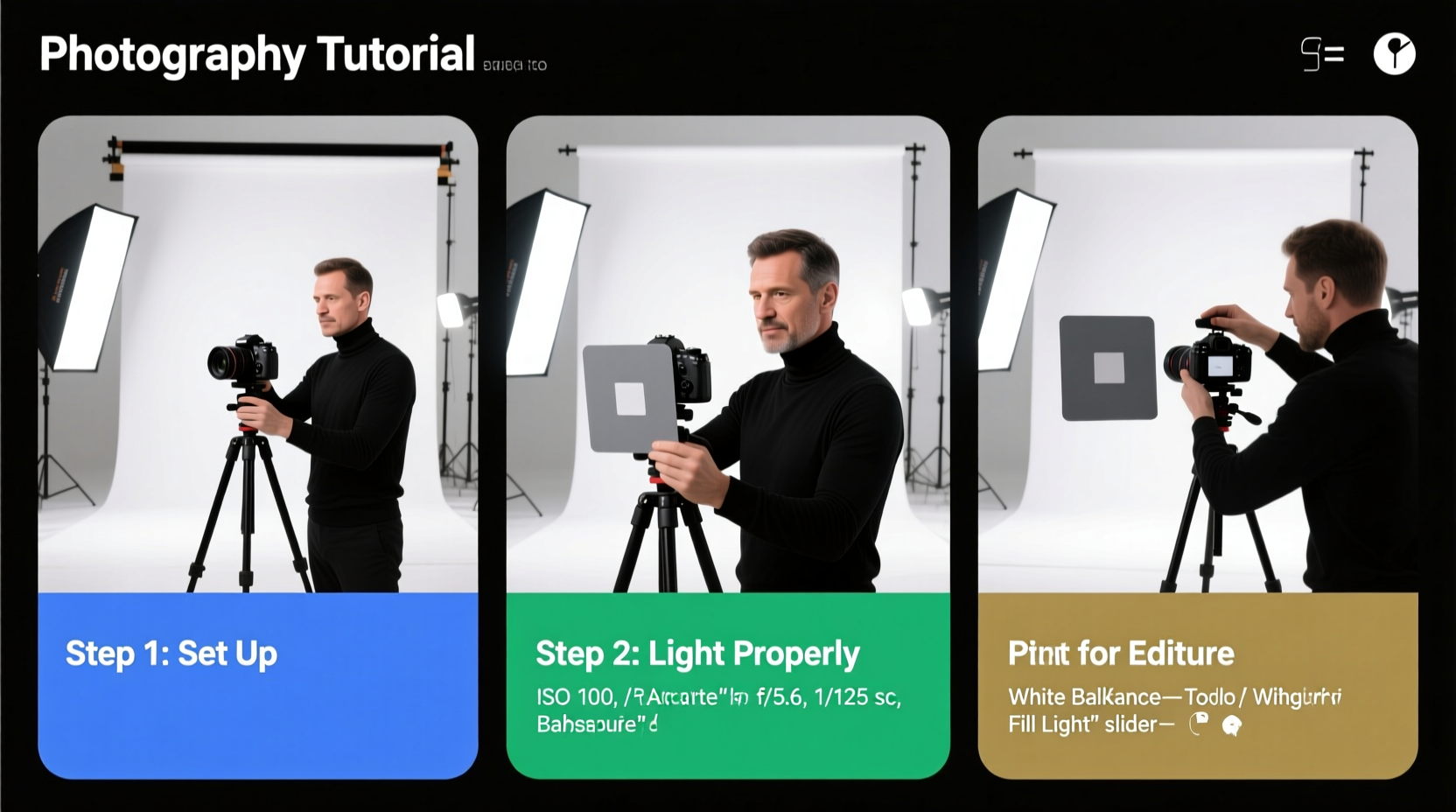
A uniform white background is more than just aesthetic—it’s functional. E-commerce platforms like Amazon, Etsy, and Shopify require product images with pure white backgrounds (typically #FFFFFF) to maintain visual consistency across listings. Similarly, photographers and designers use white backgrounds to create minimalist portfolios or prepare assets for graphic design projects.
According to industry standards from Adobe and professional retouchers, a well-executed white background should:
- Be completely neutral (no yellow, gray, or blue tints)
- Preserve fine details like hair, fur, or fabric texture
- Maintain accurate skin tones or product colors
- Blend seamlessly without visible edges or artifacts
“Consistency in background tone builds trust with customers. It signals professionalism and attention to detail.” — Lena Torres, Digital Imaging Specialist at StudioPixel
Essential Tools and Software Options
You don’t need expensive gear to produce high-quality results. Here are the most effective tools, ranging from beginner-friendly to advanced:
| Tool | Best For | Learning Curve | Cost |
|---|---|---|---|
| Adobe Photoshop | Precision masking, complex edges | High | Paid (subscription) |
| GIMP | Free alternative to Photoshop | Moderate | Free |
| Photopea (online) | PSD editing in-browser | Moderate | Free (ads), Pro version available |
| Remove.bg | Quick one-click removal | Low | Freemium |
| Canva | Basic edits and quick fixes | Low | Free + Pro features |
Step-by-Step Process Using GIMP (Free Option)
GIMP is a powerful open-source image editor that handles background removal effectively. Follow these steps to create a professional white background:
- Open Your Image: Launch GIMP and import your photo via File > Open.
- Duplicate the Layer: Right-click the layer in the Layers panel and select “Duplicate Layer” to preserve the original. <3> Select the Subject: Use the “Foreground Select Tool” (F). Click and drag loosely around your subject, then press Enter. Carefully trace over areas that didn’t register, such as hair strands.
- Refine the Selection: After pressing Enter, GIMP will mask the background. Use the “Select > Grow” or “Select > Shrink” options to fine-tune if needed.
- Invert and Delete: Go to Select > Invert, then press Delete to remove the selected background.
- Add a White Background Layer: In the Layers panel, click the “+” icon to add a new layer. Drag it below your subject layer. Fill it with white using the Bucket Fill Tool.
- Check for Artifacts: Zoom in to inspect edges. Use the Eraser Tool gently to clean up stray pixels or halos.
- Adjust Lighting (Optional): If the subject appears too dark against white, go to Colors > Brightness-Contrast to balance exposure.
- Export: Save as PNG to retain transparency (if needed) or JPEG for web use.
Using Remove.bg for Instant Results
For users who need speed and simplicity, Remove.bg uses AI to automatically detect and erase backgrounds. It’s especially effective for portraits and isolated objects.
- Visit remove.bg and upload your image.
- Wait a few seconds while the AI processes the subject.
- Download the result with transparent background.
- Open in Canva or another editor, set canvas background to #FFFFFF, and re-export.
Mini Case Study: E-Commerce Product Photo Upgrade
Sophie runs a handmade jewelry shop on Etsy. Her initial product photos were taken near a window with a cluttered wall behind them. Despite good lighting, the inconsistent background made her listings look unprofessional.
She used Remove.bg to remove the original backdrop, then imported the images into Canva. By placing each item on a solid white canvas and adjusting brightness slightly, she achieved uniform, clean visuals. Within two weeks, her conversion rate increased by 34%, and customer messages asking “What’s in the background?” dropped to zero.
The entire process took less than 15 minutes per image—and no additional equipment was purchased.
Pro Checklist: Perfect White Background in 7 Steps
Follow this checklist every time you edit an image to ensure quality and consistency:
- ✅ Start with a well-lit, high-resolution image
- ✅ Ensure clear separation between subject and background
- ✅ Use non-destructive editing (duplicate layers)
- ✅ Remove background precisely, preserving fine details
- ✅ Add a solid #FFFFFF fill layer beneath the subject
- ✅ Check for color fringing or grayish edges
- ✅ Export in appropriate format (PNG for transparency, JPEG for web)
Common Mistakes to Avoid
- Using low-resolution images: Blurry sources lead to jagged edges.
- Ignoring edge refinement: Hair, lace, or glass elements require careful masking.
- Setting brightness too high: Overexposing the background can cause pixelation or loss of detail.
- Forgetting color balance: A warm or cool white cast makes the image look unnatural.
“A perfect white background doesn’t draw attention to itself. It lets the subject do the talking.” — Marcus Lin, Commercial Retoucher
Frequently Asked Questions
Can I create a white background from a colored photo?
Yes. After removing the original background, place your subject on a new layer filled with pure white (#FFFFFF). Adjust ambient lighting in post-processing to prevent harsh contrasts.
Why does my white background look gray or off-white?
This often happens due to incorrect exposure or color balance. Use the Levels or Color Balance tool to neutralize any tint. Ensure the white point is calibrated to RGB(255, 255, 255).
Is it better to shoot on white or edit later?
If possible, shooting against a physical white backdrop under even lighting reduces editing time and produces more realistic shadows. However, digital editing offers flexibility when reshoots aren't feasible.
Final Tips for Flawless Results
Even small improvements in background quality can significantly impact perception. Consider saving templates in your preferred editor with pre-sized canvases and white fills to streamline future work. For batch processing multiple images, tools like Photoshop Actions or GIMP Batch Mode can automate repetitive tasks.
Always preview your final image on different screens—phones, tablets, laptops—to ensure the white appears consistent across devices. Some monitors exaggerate brightness, making edges harder to see.
Conclusion
Creating a professional white background doesn’t require a studio or advanced skills. With the right tools and technique, anyone can produce clean, market-ready images from everyday photos. Whether you choose automated services like Remove.bg or manual control with GIMP or Photoshop, the key is precision and consistency.




 浙公网安备
33010002000092号
浙公网安备
33010002000092号 浙B2-20120091-4
Comments
No comments yet. Why don't you start the discussion?