
In today’s connected world, having a secure and well-managed internet account is essential. Whether you're signing up for email, social media, cloud storage, or online banking, your cell phone is often the primary device used to access these services. Setting up and maintaining your accounts properly ensures privacy, prevents unauthorized access, and streamlines your digital experience. This guide walks through the entire process—from initial creation to long-term management—with practical steps and expert-backed strategies.
Understanding Internet Accounts on Mobile Devices
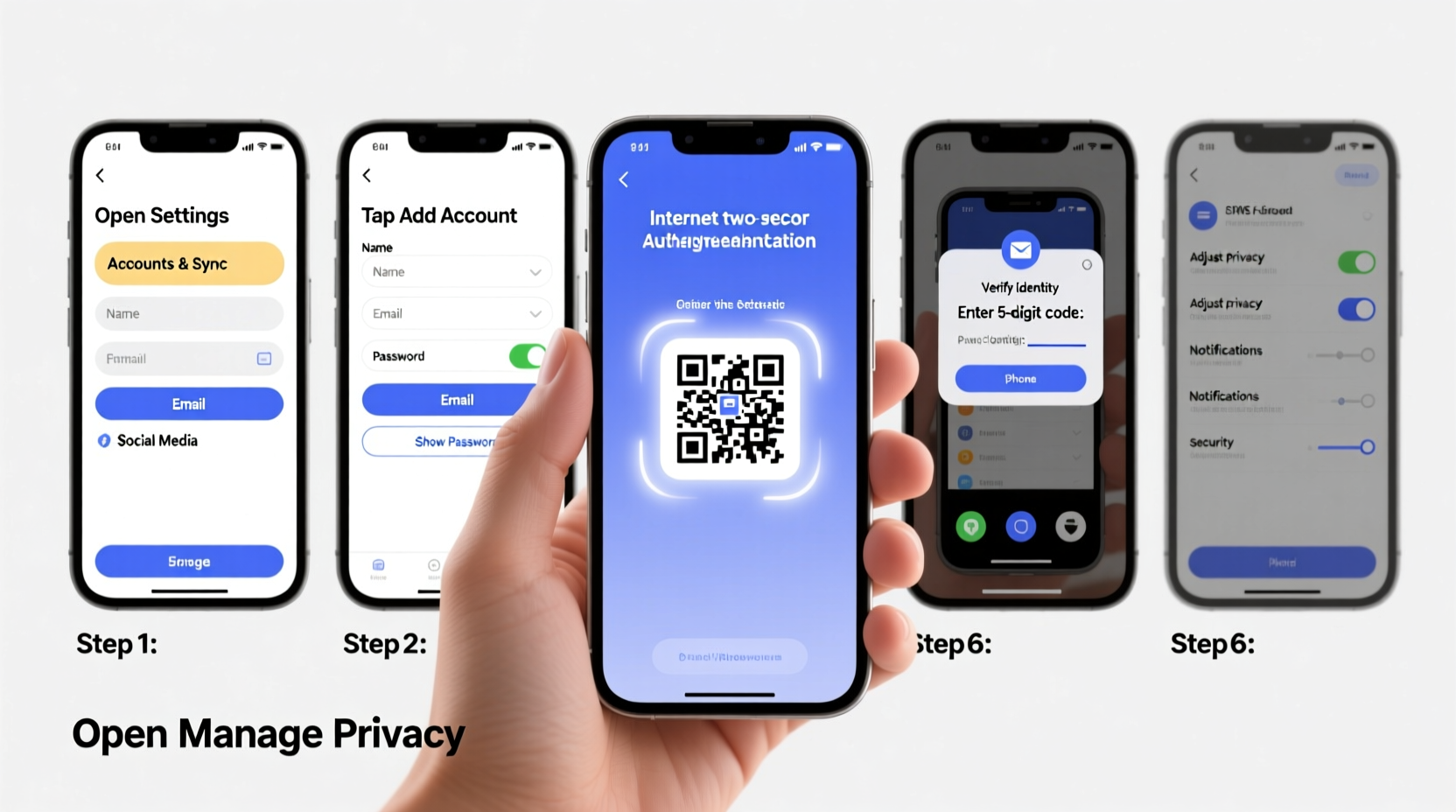
An internet account refers to any service that requires login credentials (username and password) to access online features. On a cell phone, these accounts are typically managed through apps or mobile browsers. Common examples include Google, Apple ID, Facebook, Instagram, Microsoft, and financial institutions.
Mobile accounts differ from desktop setups in key ways: they often use biometric authentication (fingerprint or face recognition), sync across devices automatically, and may require two-factor authentication via SMS or authenticator apps. Understanding how these systems work helps users make informed decisions during setup and maintenance.
Step-by-Step Guide to Creating an Internet Account
- Choose the Right Service: Identify the purpose of your account—email, photo storage, social networking, etc.—and select a reputable provider known for security and reliability.
- Open the App or Website: Download the official app from the Google Play Store or Apple App Store, or visit the service’s website using your phone’s browser.
- Start Registration: Tap “Sign Up” or “Create Account.” Avoid using third-party shortcuts like “Continue with Google” if you want full control over credentials.
- Enter Personal Information: Provide required details such as name, date of birth, and phone number. Use accurate but minimal data where possible to reduce exposure.
- Create Strong Credentials: Choose a unique username and a strong password—at least 12 characters with uppercase, lowercase, numbers, and symbols.
- Verify Identity: Confirm your identity via SMS code, email link, or voice call. Some services may ask for additional verification steps.
- Enable Two-Factor Authentication (2FA): Turn on 2FA immediately after registration. Prefer authenticator apps (like Google Authenticator or Authy) over SMS when available.
- Review Privacy Settings: Adjust visibility, ad preferences, and data-sharing options before finalizing setup.
Timeline: How Long It Takes to Set Up an Account
| Step | Estimated Time |
|---|---|
| Downloading App | 1–2 minutes |
| Filling Registration Form | 3–5 minutes |
| Verification Process | 2–4 minutes |
| Setting Up Security & Preferences | 5–7 minutes |
| Total | ~10–18 minutes |
Best Practices for Managing Your Mobile Internet Accounts
Creating an account is just the beginning. Ongoing management protects your identity and enhances usability.
- Use a Password Manager: Apps like Bitwarden, 1Password, or Apple Keychain generate and store complex passwords securely.
- Regularly Update Login Details: Change passwords every 90 days for sensitive accounts like banking or email.
- Monitor Active Sessions: Check which devices are logged in and log out unknown sessions.
- Keep Software Updated: Install OS and app updates promptly to patch security vulnerabilities.
- Limit Permissions: Only allow necessary permissions (camera, location, contacts) for each app.
“Over 80% of data breaches involve weak or stolen passwords. Using a password manager and enabling 2FA can block most automated attacks.” — Dr. Alan Reed, Cybersecurity Researcher at Stanford University
Checklist: Secure Account Management Routine
- ✅ Enable two-factor authentication
- ✅ Use a trusted password manager
- ✅ Review connected apps monthly
- ✅ Revoke access from unused services
- ✅ Update recovery email and phone number
- ✅ Audit privacy settings quarterly
Real Example: Recovering a Compromised Social Media Account
Sarah, a freelance designer, noticed unfamiliar posts appearing on her Instagram profile. She hadn’t shared her password, but she had recently installed a third-party analytics tool that requested login access. After reporting the issue, Instagram guided her through a recovery process: verifying her identity via email, resetting her password, and removing third-party app access. She then enabled 2FA using Google Authenticator and began using a password manager to avoid reuse across platforms.
This case highlights how seemingly harmless apps can expose accounts—and why proactive management matters. Had Sarah reviewed her connected apps earlier, she might have caught the breach sooner.
Avoiding Common Mistakes
Even tech-savvy users fall into traps that compromise their online safety. Here’s what not to do:
| Mistake | Why It’s Risky | What to Do Instead |
|---|---|---|
| Using the same password across multiple sites | One breach exposes all accounts | Use unique passwords stored in a password manager |
| Skipping two-factor authentication | Easy target for brute-force attacks | Always enable 2FA, especially for email and finance apps |
| Ignoring app permission requests | Apps may collect unnecessary personal data | Review permissions and deny non-essential access |
| Storing passwords in notes or messages | Unencrypted and easily accessed if phone is lost | Use built-in or third-party encrypted password managers |
FAQ: Frequently Asked Questions
Can I create an internet account without a phone number?
Some services allow account creation using only an email address. However, many platforms—including WhatsApp, Telegram, and certain banks—require a phone number for verification. If privacy is a concern, consider using virtual phone number services (with caution) or secondary lines.
What should I do if I lose access to my account?
First, use the “Forgot Password” option and follow recovery prompts. Ensure your recovery email and phone number are up to date. For persistent issues, contact customer support with proof of identity. Never share personal details with unverified sources claiming to help recover accounts.
Is it safe to stay logged in on my phone?
Yes, if your phone has a strong passcode, biometric lock, and automatic screen locking enabled. Avoid staying logged in on public or shared devices. For high-risk accounts (e.g., banking), consider logging out after each session or using app-specific timeouts.
Final Thoughts and Next Steps
Managing internet accounts on your cell phone doesn’t have to be overwhelming. With a clear process for setup, consistent security habits, and regular reviews, you maintain control over your digital life. The convenience of mobile access comes with responsibility—protecting your data starts with smart choices today.




 浙公网安备
33010002000092号
浙公网安备
33010002000092号 浙B2-20120091-4
Comments
No comments yet. Why don't you start the discussion?