
Managing user accounts in Windows 10 is essential for maintaining system security, privacy, and productivity—especially in shared environments like homes, small offices, or educational setups. Whether you're setting up a guest profile, adding a family member, or configuring access for a colleague, understanding how to properly create and manage accounts ensures each user has the right level of access without compromising your system.
This guide walks through every phase of user account management on Windows 10, from initial creation to advanced configuration, troubleshooting common issues, and applying security best practices. You'll learn not only how to perform these tasks but also why certain choices matter for long-term usability and protection.
Understanding User Account Types in Windows 10
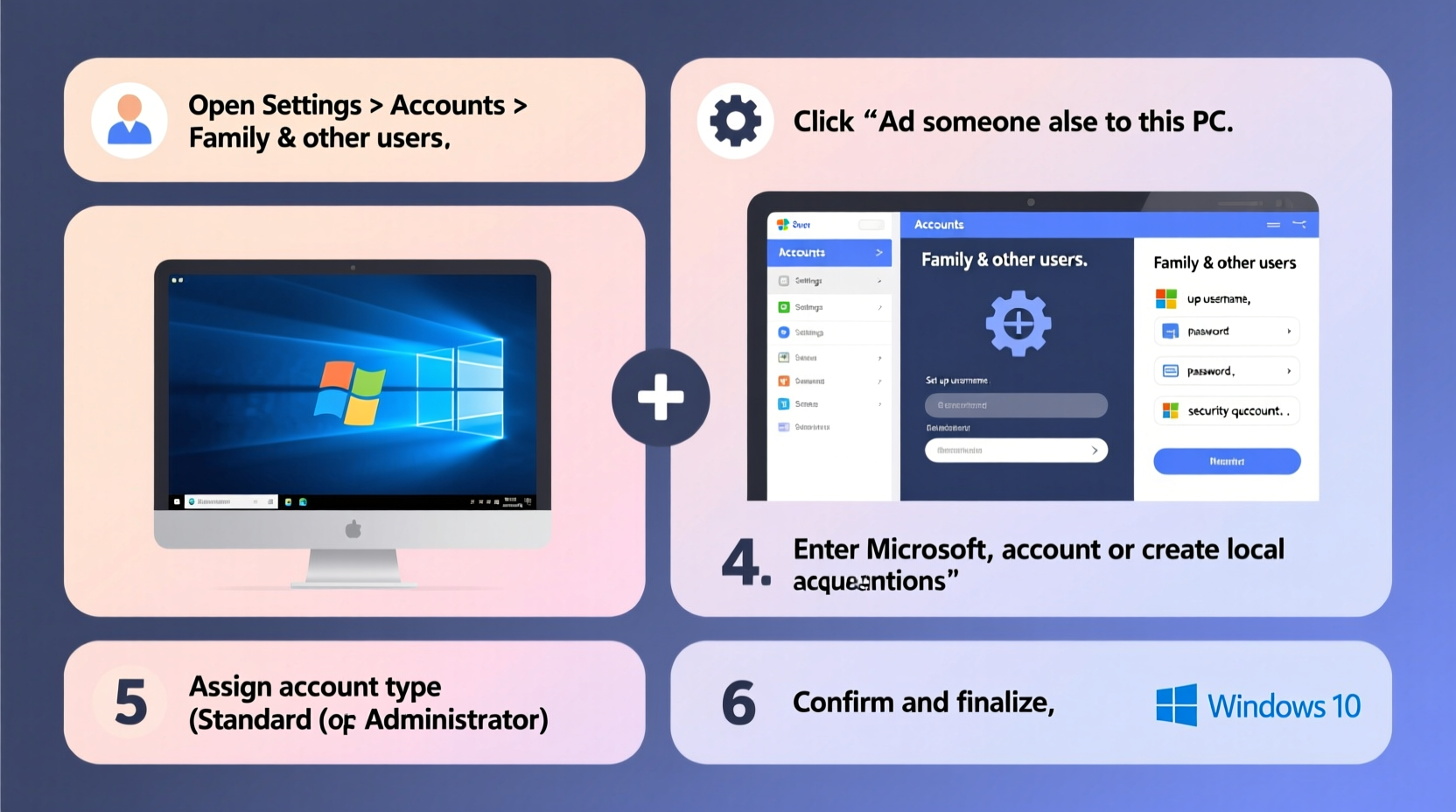
Before creating a new account, it’s important to understand the different types available in Windows 10. Each type offers distinct privileges and use cases:
- Administrator: Full control over the system, including installing software, changing settings, and managing other accounts.
- Standard User: Limited permissions; can use most apps but cannot make system-wide changes.
- Child Account: A standard account with additional parental controls via Microsoft Family Safety.
- Guest Account: Temporary access with minimal privileges (not enabled by default).
The choice of account type directly affects both functionality and security. For example, using an administrator account for daily tasks increases the risk of malware gaining elevated access. Microsoft recommends using standard accounts for regular activities and switching to administrator only when necessary.
“Limiting administrative privileges to only those who need them reduces attack surface by up to 75%.” — National Institute of Standards and Technology (NIST)
Step-by-Step: Creating a New User Account
Follow this detailed process to add a new user account through the Settings app, which is the modern and recommended method in Windows 10.
- Click the Start menu, then select Settings (gear icon).
- Navigate to Accounts > Family & other users.
- Under the “Other users” section, click Add someone else to this PC.
- A Microsoft account prompt will appear. If the person has a Microsoft email (Outlook, Hotmail), enter it here.
- If they don’t have one, click I don’t have this person’s sign-in information, then choose Add a user without a Microsoft account.
- Enter a username, password (optional), password hint, and click Next.
- The account will now appear under “Other users.”
Changing Account Type and Permissions
After creating the account, you may need to adjust its privileges. For instance, a trusted family member might need admin rights temporarily.
To Change Account Type:
- Go to Settings > Accounts > Family & other users.
- Select the user account under “Other users,” then click Change account type.
- In the pop-up window, choose either Standard User or Administrator.
- Click OK.
Note: Only administrators can modify account types. If prompted, confirm with an admin password.
Do’s and Don’ts When Managing Account Privileges
| Action | Recommended? | Reason |
|---|---|---|
| Assign admin rights to all users | No | Increases risk of unauthorized changes or malware installation |
| Create separate accounts for each user | Yes | Maintains privacy and personalization |
| Use local accounts instead of Microsoft accounts | Sometimes | Useful for offline devices or privacy concerns, but lacks cloud sync |
| Delete inactive accounts | Yes | Reduces clutter and potential backdoor access points |
Managing Accounts Using Computer Management (Advanced Method)
For more granular control, especially in professional environments, use the Computer Management console. This tool allows you to manage users, groups, and system tools from a single interface.
Steps to Access and Use Computer Management:
- Press Windows + X and select Computer Management.
- Navigate to Local Users and Groups > Users.
- Right-click in the right pane and choose New User.
- Fill in the username, full name, description, password, and options (e.g., “User must change password at next logon”).
- Click Create, then Close.
This method is particularly useful for IT professionals or power users who prefer scripting compatibility or are working in domain-less networks. However, note that this feature is not available in Windows 10 Home edition.
Real-World Example: Setting Up a Child’s Account with Parental Controls
Sarah, a parent of two, wanted her 10-year-old son to use the family laptop for homework and approved games, but she was concerned about screen time and inappropriate content. She followed these steps:
- Created a Microsoft account for her son using his school email.
- Added him as a “Child” under Family & other users in Settings.
- Visited family.microsoft.com to enable web filtering, set bedtime limits, and approve apps.
- Enabled activity reporting so she could review weekly summaries.
Within minutes, she had a fully monitored environment where her son could learn safely. The setup prevented access to adult websites and restricted usage after 8 PM, aligning with household rules.
Essential Checklist for Secure User Account Management
Use this checklist whenever setting up or reviewing user accounts on your Windows 10 device:
- ✅ Create individual accounts for each user (no shared logins)
- ✅ Assign appropriate account type (admin vs. standard)
- ✅ Set strong, unique passwords
- ✅ Enable Microsoft Family Safety for children
- ✅ Regularly review active accounts
- ✅ Remove unused or outdated accounts
- ✅ Audit recent login activity via Event Viewer (optional)
- ✅ Educate users on phishing and safe computing habits
Frequently Asked Questions
Can I switch a local account to a Microsoft account later?
Yes. Go to Settings > Accounts > Your info, then click Sign in with a Microsoft account instead. Follow the prompts to link or create a Microsoft account.
How do I delete a user account and their files?
Navigate to Settings > Accounts > Family & other users. Click the account, then select Remove. Choose whether to keep or delete the user’s folders (Desktop, Documents, etc.). Be cautious—deleting files is permanent.
Why can’t I see the ‘Add a user without a Microsoft account’ option?
Microsoft has been gradually pushing users toward online accounts. If this option is missing, you may need to disconnect from the internet during setup or modify a registry setting (advanced users only). Alternatively, use the Computer Management method described earlier.
Conclusion: Take Control of Your System’s Access
User account management is not just a technical task—it's a foundational part of digital hygiene. By carefully creating, organizing, and securing user profiles on your Windows 10 machine, you protect personal data, reduce risks, and ensure a smoother experience for everyone who uses the device.
Whether you're a home user, educator, or small business owner, implementing structured account policies pays off in reliability and peace of mind. Start today by auditing existing accounts, removing duplicates, and setting up proper permissions. A few minutes now can prevent hours of recovery work later.




 浙公网安备
33010002000092号
浙公网安备
33010002000092号 浙B2-20120091-4
Comments
No comments yet. Why don't you start the discussion?