
iCloud is the backbone of Apple’s ecosystem, seamlessly connecting your iPhone, iPad, Mac, and even Windows PC. It stores your photos, messages, files, contacts, and more—safely encrypted and accessible from any device. Yet, many users either skip setting it up or fail to use it effectively. Setting up an iCloud account doesn’t require technical expertise, but doing it correctly ensures better security, smoother synchronization, and peace of mind.
This guide walks you through every stage—from creating your iCloud ID to managing storage, securing your data, and troubleshooting common issues. Whether you're a new Apple user or looking to optimize your existing setup, this comprehensive walkthrough will help you take full control of your digital life.
Step 1: Creating Your iCloud Account
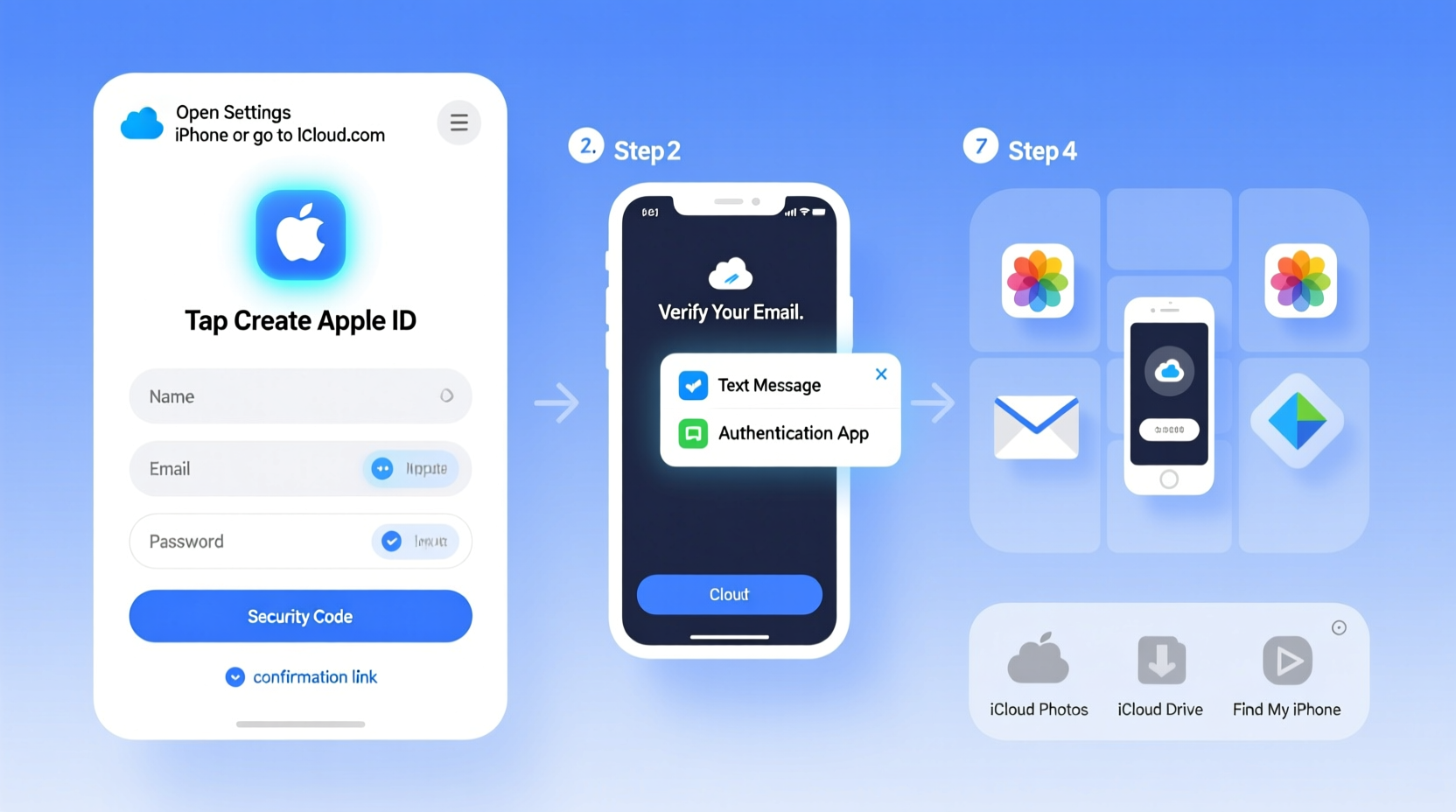
The first step in using iCloud is creating an Apple ID, which doubles as your iCloud login. You can do this directly on an Apple device or via a web browser.
- On an iPhone or iPad: Open Settings, tap your name at the top, then select Sign in to Your iPhone. Choose “Don’t have an Apple ID or forgot it?” and tap Create Apple ID.
- Enter personal details: Provide your name, date of birth, and a valid email address (or create a free @icloud.com email).
- Set a strong password: Use at least eight characters with uppercase, lowercase, numbers, and symbols.
- Verify your email: Apple sends a confirmation link. Click it to activate your account.
- Enable two-factor authentication: Recommended for security. Enter your phone number to receive verification codes.
Step 2: Activating iCloud Services on Your Devices
Once your Apple ID is created, sign in across all your Apple devices to sync data automatically.
- iPhone/iPad: Go to Settings > [Your Name] > iCloud. Toggle on services like Photos, Contacts, Notes, and Keychain.
- Mac: Open System Settings > Apple ID > iCloud. Select which apps should sync.
- Windows PC: Download iCloud for Windows from Apple’s website. Install, sign in, and choose which data to sync (e.g., Photos, Bookmarks, Mail).
After enabling, your data begins syncing across devices. For example, a note added on your iPad appears instantly on your Mac.
What iCloud Syncs by Default
| Service | Data Type | Synchronization Benefit |
|---|---|---|
| Photos | All images and videos | Access memories from any device; optimized storage saves space |
| Contacts | Names, numbers, emails | No need to manually transfer when switching phones |
| Notes & Reminders | To-do lists, memos | Stay organized across work and personal devices |
| Keychain | Passwords, credit cards, Wi-Fi logins | Auto-fill credentials securely without third-party tools |
| Find My | Device location, activation lock | Locate lost devices or erase them remotely |
Step 3: Managing iCloud Storage Efficiently
Every iCloud account comes with 5 GB of free storage. While sufficient for contacts and settings, it fills up quickly with photos, app backups, and messages.
To check usage: Settings > [Your Name] > iCloud > Manage Storage. Here, you’ll see a breakdown of what’s consuming space.
“Over 70% of iCloud storage overuse comes from unoptimized photo libraries and outdated device backups.” — David Lin, Senior iOS Support Analyst at AppleInsider
To free up space:
- Delete old backups from discontinued devices.
- Use Optimize iPhone Storage under Photos settings.
- Offload large attachments in Messages.
- Move files to third-party cloud services (e.g., Google Drive) if needed.
If you still need more room, upgrade your plan. Options include:
- 50 GB: $0.99/month – Ideal for one user with moderate photo backup.
- 200 GB: $2.99/month – Suitable for families or heavy media users.
- 2 TB: $9.99/month – Best for professionals storing 4K videos or extensive documents.
Step 4: Securing Your iCloud Account
Your iCloud account holds sensitive personal information. Protecting it is non-negotiable.
Essential Security Practices
- Use Two-Factor Authentication (2FA): Ensures only you can access your account, even if someone knows your password.
- Review Trusted Devices Regularly: Remove old phones or computers you no longer use.
- Avoid Public Wi-Fi for Sign-In: Unsecured networks increase phishing risks.
- Monitor Sign-In Activity: Visit appleid.apple.com to view recent logins.
- Set Up Account Recovery Contacts: If locked out, trusted contacts can help regain access.
If your device is lost, use Find My to put it in Lost Mode, display a message, or erase data remotely—all from another Apple device or iCloud.com.
Do’s and Don’ts of iCloud Security
| Do | Don't |
|---|---|
| Enable two-factor authentication | Share your Apple ID password with anyone |
| Update recovery email and phone number | Use weak passwords like “123456” or your birthday |
| Log out of public computers after use | Click on suspicious links claiming to be from Apple |
Step 5: Real-World Example – Recovering from a Lost Phone
Sophia, a freelance designer in Portland, left her iPhone at a coffee shop. She realized it was missing within 15 minutes. Using her MacBook, she went to icloud.com/find, signed in, and located her phone on a map. It showed “Last Seen” near the café.
She used the Play Sound feature—no answer. Then, she activated Lost Mode, locking the device and displaying her alternate contact number. Two hours later, a barista called her using the number on screen. The phone was returned intact.
Because her iCloud was fully synced, she didn’t lose any data—even her latest design sketches were backed up moments before the phone went missing.
Frequently Asked Questions
Can I change my iCloud email address?
Yes, but only if you created an @icloud.com email during setup. Go to Settings > [Your Name] > Apple ID > Edit. Tap your email and choose “Change to a MobileMe or iCloud Email.” Note: You cannot switch to a custom domain unless you had a legacy MobileMe account.
What happens if I turn off iCloud for an app?
Disabling iCloud sync for an app stops future updates from appearing across devices. Existing data remains on each device unless manually deleted. For example, turning off Notes sync means new notes on your iPhone won’t appear on your iPad.
Is my data really private in iCloud?
Apple uses end-to-end encryption for critical data like iMessages, Face ID data, Health records, and passwords in iCloud Keychain. However, not all data is end-to-end encrypted—photos and backups are encrypted in transit and at rest, but Apple holds the keys. For maximum privacy, avoid storing highly sensitive documents in iCloud Drive unless they’re password-protected externally.
Final Checklist: Mastering Your iCloud Experience
- Create Apple ID:
- ✅ Use a secure email and strong password
- Enable 2FA:
- ✅ Add a trusted phone number
- Sync Key Apps:
- ✅ Turn on Photos, Contacts, Notes, and Find My
- Check Storage:
- ✅ Review usage monthly; delete old backups
- Secure Access:
- ✅ Log out of shared devices; monitor sign-ins
- Plan for Emergencies:
- ✅ Know how to use Find My and remote erase
Take Control of Your Digital Life Today
Your iCloud account isn’t just a backup tool—it’s the central hub that keeps your digital world unified, protected, and always within reach. By following these steps, you’ve laid the foundation for a seamless, secure experience across all your Apple devices.
Now is the time to act. Double-check your settings, clean up unused backups, and ensure your family members are covered under Family Sharing. A few minutes now can save hours—or heartache—later.




 浙公网安备
33010002000092号
浙公网安备
33010002000092号 浙B2-20120091-4
Comments
No comments yet. Why don't you start the discussion?