
Screen recordings are a powerful tool for educators, developers, marketers, and content creators. But raw footage alone rarely delivers the impact or clarity audiences expect. Turning a basic screen capture into a polished, engaging video requires intentional planning, clean recording practices, and thoughtful post-production. This guide walks through every stage of elevating your screen recordings into high-quality videos that inform, engage, and reflect professionalism.
1. Prepare Your Environment and Tools
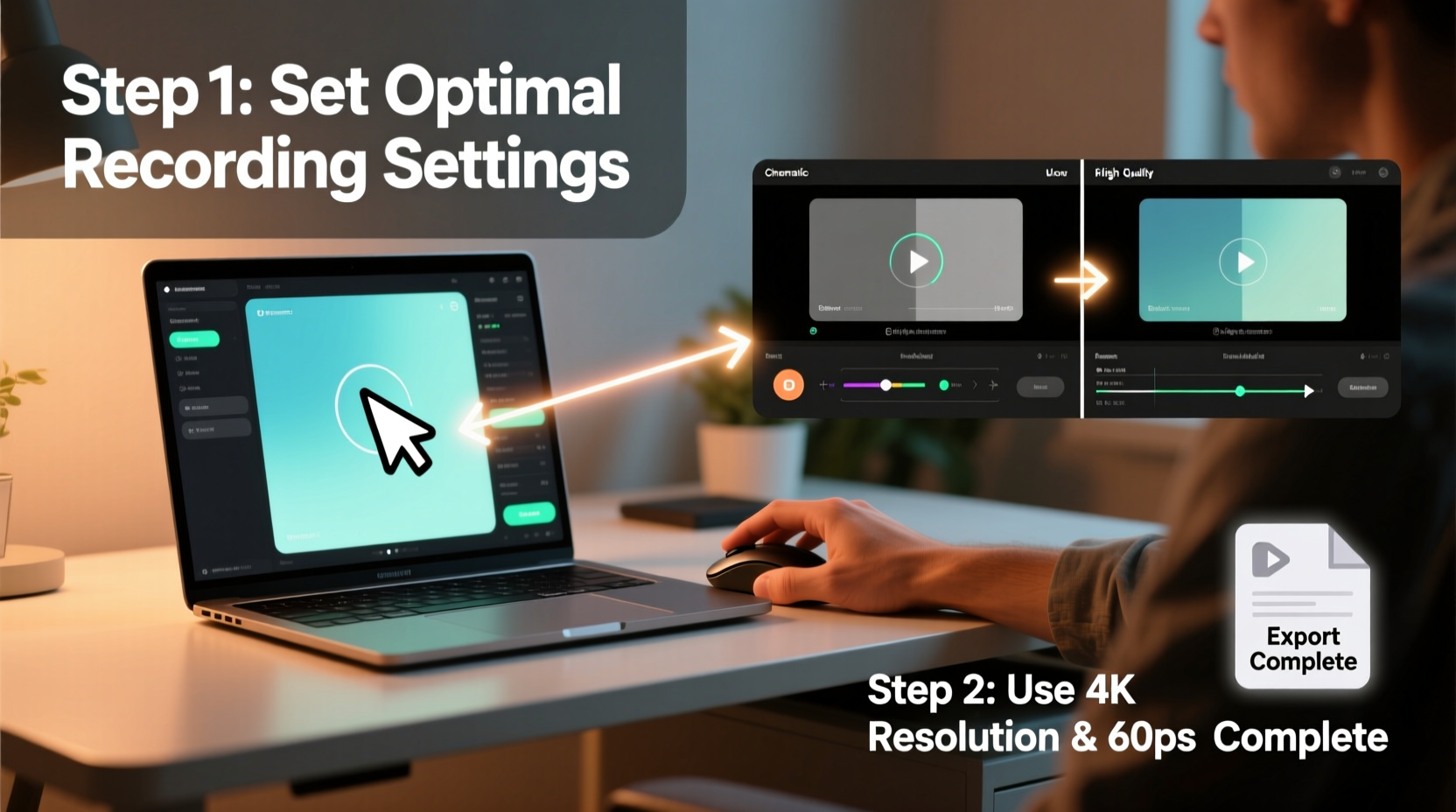
The foundation of a high-quality screen recording starts before you hit “record.” Cluttered desktops, background notifications, and poor microphone placement can sabotage even the most well-intentioned content. Begin by optimizing both your digital workspace and hardware setup.
Close unnecessary applications and browser tabs to prevent pop-ups and performance lag. Disable system notifications on Windows or macOS so they don’t interrupt your flow mid-recording. Use a dedicated external microphone if possible—built-in laptop mics often pick up ambient noise and produce flat audio.
Select screen recording software that matches your needs. Options range from free tools like OBS Studio and QuickTime (macOS) to premium solutions such as Camtasia, ScreenFlow, or Adobe Premiere Pro with screen capture plugins. Ensure your chosen tool supports at least 1080p resolution and records system audio cleanly.
2. Capture Clean, Focused Footage
When recording, prioritize clarity over quantity. Define the purpose of your video upfront—whether it’s demonstrating a software workflow, teaching a concept, or presenting data—and structure your screen movements accordingly.
- Use a consistent cursor theme with visibility enhancements (e.g., larger pointer size or click effects).
- Navigate deliberately; avoid rapid mouse movements that confuse viewers.
- Zoom in on critical UI elements when necessary to improve legibility.
- Speak clearly and at a steady pace, aligning narration with on-screen actions.
Keep individual segments concise. If your topic is complex, break it into multiple short recordings rather than one long take. This simplifies editing and reduces re-recording effort if something goes wrong.
“Clear visuals paired with precise voiceover double viewer retention in tutorial content.” — Dr. Lena Torres, Educational Media Researcher
3. Edit Strategically for Professional Polish
Editing transforms raw footage into a cohesive, professional product. Import your clips into a capable video editor. For beginners, tools like iMovie or Clipchamp offer intuitive interfaces. Advanced users may prefer DaVinci Resolve or Final Cut Pro for finer control.
Essential Editing Steps
- Trim silence and errors: Remove dead air, false starts, and off-topic tangents.
- Synchronize audio and video: Adjust timing if narration lags behind screen actions.
- Add cuts and transitions: Use subtle cuts between scenes instead of flashy effects.
- Enhance audio: Normalize volume, reduce background hiss, and apply light compression.
- Insert annotations: Highlight key areas with text callouts, arrows, or zoom-ins.
- Include branding: Add intro/outro sequences with your logo, name, or website.
| Action | Recommended Tool Feature | Avoid |
|---|---|---|
| Audio Cleanup | Noise reduction filter | Over-processing that distorts voice |
| Visual Clarity | Cursor highlighting or spotlight effect | Excessive animations |
| Pacing | Speed-up non-critical sections (1.25x) | Rushing important steps |
| Branding | Lower-third title overlay | Obstructing key interface elements |
4. Optimize Output for Quality and Compatibility
Even a perfectly edited video can suffer from poor export settings. A high-resolution source file loses value if exported with low bitrate or incompatible codecs.
Choose MP4 (H.264) as your default format—it balances quality and compatibility across platforms like YouTube, LMS systems, and social media. Set resolution to at least 1080p unless targeting mobile-only audiences where 720p suffices.
For bitrate, use:
- Video: 8–12 Mbps for 1080p, 5–8 Mbps for 720p
- Audio: 128–192 kbps AAC stereo
Enable two-pass encoding if available—it analyzes the entire video first to allocate bandwidth efficiently, preserving detail during fast screen changes.
Checklist: Pre-Export Review
- ✅ Audio levels peak between -6dB and -3dB
- ✅ No visible pixelation or blockiness in motion
- ✅ Text overlays are legible on all devices
- ✅ File size is reasonable (under 500MB for 10-minute 1080p)
- ✅ Playback tested on multiple devices
5. Real Example: From Rough Demo to Client-Ready Training Video
Jamal, a freelance UX consultant, needed to deliver a walkthrough of a new dashboard feature to a client. His initial screen recording was functional but lacked polish—muffled audio, cluttered desktop icons, and no visual cues to guide attention.
He re-recorded using a cleaned desktop, an external USB mic, and enabled cursor highlighting in OBS. During editing in DaVinci Resolve, he trimmed redundant clicks, added zoom-ins on form fields, and inserted text labels explaining each step. He applied a noise reduction profile to smooth out HVAC hum and used fade transitions between sections.
The final export used H.264 at 10 Mbps with AAC audio at 160 kbps. The result was a crisp, nine-minute video that the client praised for its clarity. Jamal later reused segments in a public tutorial series, receiving positive feedback on its production quality.
Frequently Asked Questions
How do I reduce echo or room reverberation in voice recordings?
Record in a carpeted room with soft furnishings to absorb sound. Use a directional microphone positioned close to your mouth, and enable noise suppression features in your recording or editing software. Avoid large empty rooms with hard surfaces.
Can I record system audio and microphone simultaneously on Windows?
Yes, but native tools like Xbox Game Bar support this directly. Alternatively, use OBS Studio: add both “Desktop Audio” and “Mic/Auxiliary Audio” sources, then configure them separately in the mixer panel before recording.
Why does my exported video look blurry even though I recorded in HD?
This usually stems from incorrect export settings. Ensure resolution is set to 1920x1080 (not scaled down), bitrate is sufficient (8+ Mbps for HD), and sharpening filters aren't over-applied. Also, verify that your playback device or platform isn't auto-downscaling due to bandwidth detection.
Final Thoughts
High-quality screen-based videos don’t happen by accident—they’re the result of deliberate preparation, clean execution, and meticulous refinement. Every decision, from microphone choice to export bitrate, shapes how your audience perceives your message and expertise. By following these steps consistently, you build credibility, enhance comprehension, and create content that stands out in a crowded digital landscape.




 浙公网安备
33010002000092号
浙公网安备
33010002000092号 浙B2-20120091-4
Comments
No comments yet. Why don't you start the discussion?