
Creating a new user account is often the first step toward accessing online services, from social media and banking to productivity tools and e-commerce. While the process may seem straightforward, doing it correctly—securely and efficiently—can prevent future issues like data breaches, forgotten passwords, or access lockouts. Whether you're setting up your first email or managing multiple professional profiles, understanding the nuances of account creation across platforms ensures long-term usability and security.
Understanding Account Creation Basics
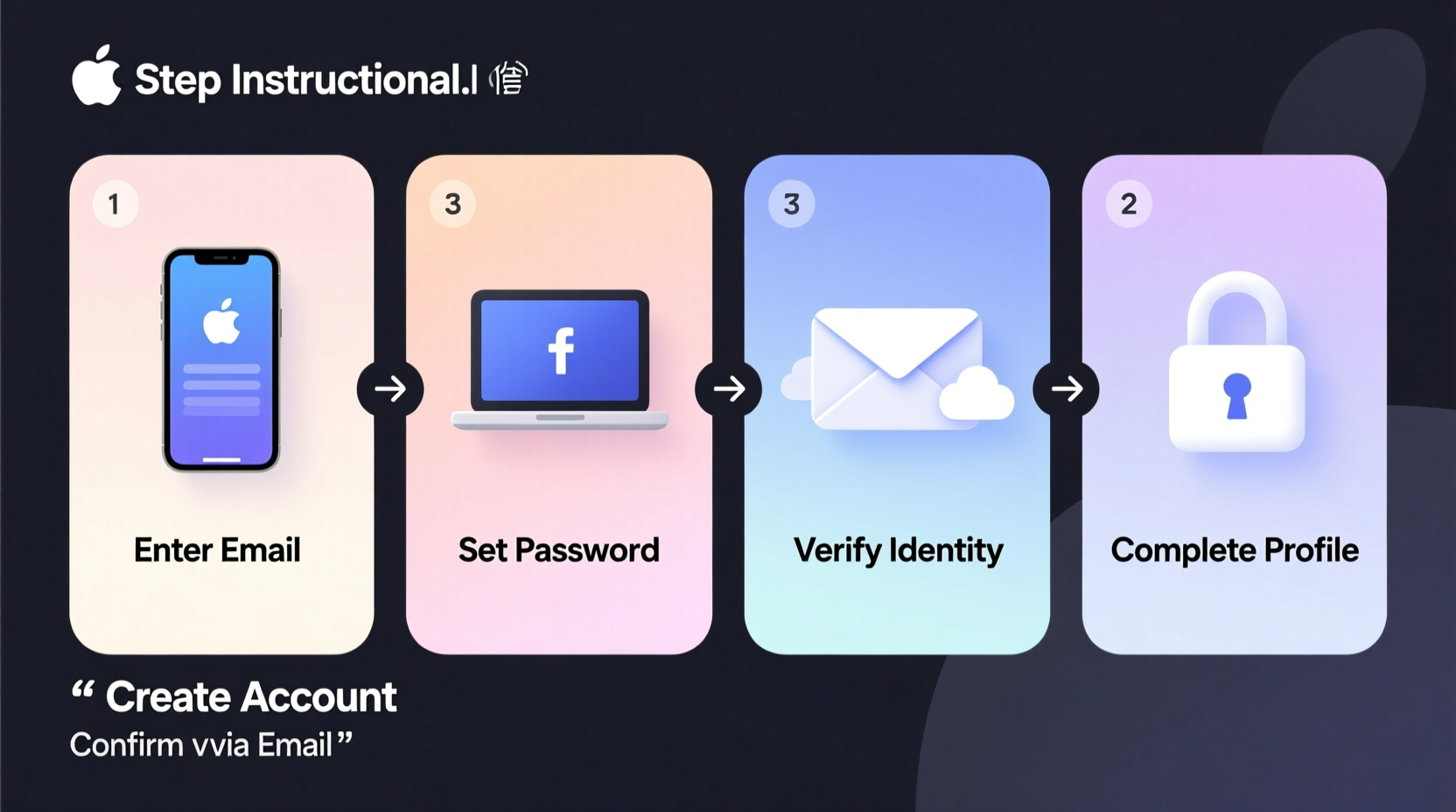
Before diving into specific platforms, it's essential to recognize the common elements of account creation. Most digital services require a combination of personal information, authentication credentials, and verification steps. The goal is twofold: confirm identity and establish secure access.
At its core, creating an account involves four universal stages:
- Choosing a platform — Decide which service you need (e.g., Google, Microsoft, Facebook).
- Providing required information — This typically includes name, email, phone number, and password.
- Verifying identity — Usually done via email confirmation or SMS code.
- Configuring initial settings — Such as privacy preferences, two-factor authentication (2FA), or recovery options.
While the structure is consistent, execution varies significantly between platforms. Some prioritize ease of access; others emphasize security from the outset.
Step-by-Step Guide for Major Platforms
1. Creating a Google Account
Google accounts grant access to Gmail, Drive, YouTube, and Android devices. Follow these steps:
- Navigate to accounts.google.com/signup.
- Enter your first and last name.
- Create a username (this becomes your Gmail address).
- Set a strong password (at least 12 characters with numbers, symbols, and mixed case).
- Add a recovery phone number or alternate email.
- Verify your phone via SMS or call.
- Agree to Google’s Terms of Service and Privacy Policy.
- Complete setup and explore your dashboard.
2. Setting Up a Microsoft Account
A Microsoft account unlocks Outlook.com, OneDrive, Xbox Live, and Windows device syncing.
- Go to signup.live.com.
- Choose to use an existing email or create a new @outlook.com address.
- Enter your chosen password.
- Input your country/region and birthdate.
- Verify ownership through a temporary code sent to your email or phone.
- Complete CAPTCHA if prompted.
- Sign in and customize default apps and sync settings.
3. Signing Up for Apple ID
Required for iCloud, App Store, FaceTime, and Apple device integration.
- Visit appleid.apple.com or set up during device activation.
- Provide your full name.
- Choose an email address as your Apple ID.
- Create a strong password meeting Apple’s complexity rules.
- Select security questions or enable two-factor authentication (preferred).
- Verify email through a confirmation link.
- Accept license agreements and begin using Apple services.
4. Creating Social Media Accounts (Facebook & LinkedIn)
Social platforms focus on identity validation and network building.
- Facebook: Enter name, mobile number or email, password, birthdate, and gender. Confirm via SMS or email. Add profile photo and friend suggestions post-login.
- LinkedIn: Provide name, email, password, and job title. Verify email. Complete profile with education and experience to increase visibility.
Security Best Practices During Account Setup
The moment you create an account is the best time to implement security measures. Waiting increases risk.
| Action | Why It Matters | How to Implement |
|---|---|---|
| Enable Two-Factor Authentication (2FA) | Adds a second layer beyond passwords | Use authenticator apps (Google Authenticator, Authy) instead of SMS when possible |
| Set Up Recovery Options | Prevents permanent lockout | Add both backup email and phone number |
| Use a Password Manager | Generates and stores complex, unique passwords | Try Bitwarden, 1Password, or KeePass |
| Review Privacy Settings | Limits data exposure | Disable public profile visibility or ad personalization if desired |
“Over 80% of hacking-related breaches are due to weak or reused passwords. Secure account creation starts with strong credential hygiene.” — National Institute of Standards and Technology (NIST)
Common Pitfalls and How to Avoid Them
Even experienced users make mistakes during registration. Awareness helps prevent them.
- Using fake or temporary information: While tempting for spam avoidance, this blocks recovery options.
- Skipping verification steps: Never ignore email or SMS confirmations—they activate critical features.
- Choosing simple passwords: “Password123” or “123456” are easily cracked. Opt for random phrases like “PurpleTiger$RunsFast!”
- Ignoring terms and conditions: These outline data usage policies. At minimum, scan for permissions requested.
Mini Case Study: Recovering a Locked Business Account
Sarah, a freelance designer, created a Dropbox account using her personal Gmail but never added a phone number. When she changed jobs and lost access to that email, she couldn’t log in. Dropbox had no recovery path without verified contact methods. She lost three months of client work stored in the cloud.
After rebuilding trust with clients, Sarah now uses a dedicated professional email, enables 2FA on all accounts, and stores recovery codes in her password manager. Her workflow is slower during setup—but far more resilient.
Checklist: Secure Account Creation Process
Follow this checklist every time you register on a new platform:
- ✅ Use a legitimate email address you actively monitor
- ✅ Create a strong, unique password (or let a password manager generate one)
- ✅ Enable two-factor authentication immediately after signup
- ✅ Add at least one recovery method (email or phone)
- ✅ Verify your account via confirmation link or code
- ✅ Review privacy and notification settings
- ✅ Save login details securely (not in browser or notes app)
- ✅ Log out and back in to test access
Frequently Asked Questions
Can I have multiple accounts on the same platform?
Yes, most platforms allow multiple accounts per person, especially if used for different purposes (e.g., personal vs. business). However, some services like PayPal restrict this for fraud prevention. Always check the platform’s acceptable use policy.
What should I do if I don’t receive a verification email?
First, check your spam or junk folder. If it’s not there, request a resend from the platform. Ensure the email was entered correctly. If problems persist, try using a different email provider (Gmail and Outlook tend to have high deliverability).
Is it safe to sign up using “Login with Google” or similar options?
Generally, yes. Federated login reduces password fatigue and leverages established security protocols. However, it creates dependency—if your Google account is compromised, linked services may be at risk. Only use this option on trusted websites.
Final Steps: Maintaining Your Accounts Long-Term
Account creation is just the beginning. To ensure ongoing access and protection, schedule quarterly reviews of all active accounts. Update passwords annually, remove unused logins, and audit connected apps. Consider using a centralized dashboard like a password manager to track expiration dates, recovery options, and 2FA status.
Digital identity is foundational in today’s world. A few minutes spent setting up an account properly can save hours—or even financial loss—down the line.




 浙公网安备
33010002000092号
浙公网安备
33010002000092号 浙B2-20120091-4
Comments
No comments yet. Why don't you start the discussion?