
Your Android home screen is more than just a launchpad for apps—it’s the control center of your digital life. Yet most users treat it as static real estate, cluttered with unused icons and default widgets. A well-organized home screen reduces decision fatigue, speeds up task execution, and creates a sense of digital calm. With thoughtful customization, you can transform your device into a streamlined productivity tool tailored to your daily rhythm.
This guide walks through a deliberate, tested approach to reengineering your Android home screen. From decluttering to intelligent layout design, each step builds on the last to create an interface that works for you—not against you.
Step 1: Audit and Declutter Your Current Setup
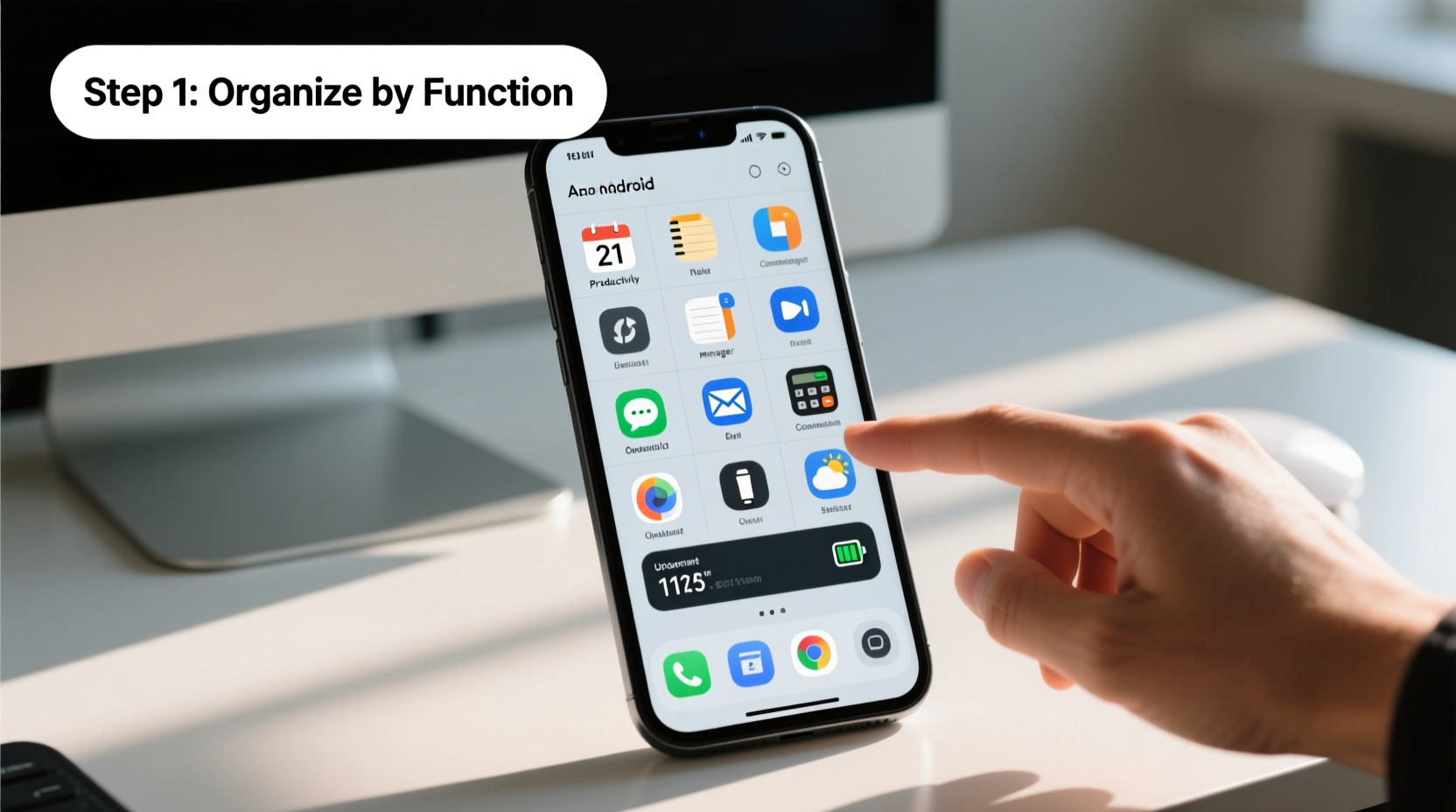
The first step in optimization is understanding what you already have. Begin with a full audit of your current home screen and app drawer.
- List every icon on your home screen and rate each app based on usage frequency: Daily, Weekly, Rarely, Never.
- Remove or archive all apps rated \"Rarely\" or \"Never.\" Move them to a folder or uninstall if unnecessary.
- Identify duplicates, such as multiple weather apps, browsers, or note-taking tools. Keep only one per category unless purpose-specific.
- Check widget utility. Are they delivering timely information, or just taking up space?
After this audit, your home screen should feel lighter—visually and mentally. The goal isn’t minimalism for its own sake, but intentional placement of high-value tools.
Step 2: Define Your Usage Zones
Efficiency comes from spatial consistency. Your brain learns faster when frequently used tools are always in the same place. Divide your home screen into functional zones based on behavior patterns.
| Zone | Location | Purpose | Recommended Items |
|---|---|---|---|
| Primary Action Zone | Bottom center (thumb reach) | Frequent tasks | Phone, Messages, Calendar, Camera |
| Productivity Hub | Middle-left | Work & focus tools | Email, Notes, Task Manager |
| Communication Corner | Middle-right | Social & messaging | WhatsApp, Slack, Instagram |
| Info & Status Panel | Top half | At-a-glance updates | Clock, Weather, Calendar, To-do widget |
| Secondary Apps | Second home screen or folders | Less frequent access | Banking, Utilities, Shopping |
These zones align with natural thumb movement and cognitive grouping. For example, placing communication apps together reduces context-switching effort. Similarly, situating time-sensitive widgets at the top ensures visibility without interference.
“Designing UI around muscle memory and visual hierarchy cuts interaction time by up to 40%.” — Dr. Lena Park, Human-Computer Interaction Researcher, MIT Media Lab
Step 3: Optimize Layout with Folders and Shortcuts
A clean layout relies on smart organization. Folders and shortcuts reduce tap depth and improve navigation speed.
Creating Smart Folders
- Name folders by function, not category: “Travel Tools” instead of “Apps,” or “Finance” instead of “Banking.”
- Limits folder size to 6–9 apps. More than that defeats the purpose.
- Use emoji in folder names for quick visual recognition: 💬 Messages, 🛒 Shopping, 🧠 Notes.
Adding Direct Shortcuts
Many apps support deep shortcuts. Long-press an app icon to reveal options like “New Note” (in Evernote), “Scan QR Code” (in WhatsApp), or “Start Timer” (in Clock).
For even greater efficiency, consider using a launcher like Nova Launcher or Microsoft Launcher, which allow grid customization, icon packs, and gesture controls. These tools unlock advanced features not available in stock Android.
Step 4: Leverage Widgets Strategically
Widgets are where Android shines. They deliver dynamic content without opening apps. But too many create noise. The key is strategic placement of high-signal widgets.
Choose widgets that meet three criteria:
- Time-sensitive: Information that changes frequently and matters now (e.g., next calendar event).
- Actionable: Allows interaction without launching the app (e.g., play/pause music).
- Glanceable: Delivers value in under two seconds of viewing.
Recommended widgets by use case:
- Morning routine: Weather, Next Calendar Event, Daily To-Do List
- Workday: Email inbox preview, Task manager, Focus timer
- Night mode: Sleep tracker, Reading list, Screen time summary
Resize widgets to fit your zone layout. A large weather widget may dominate the top, while a narrow music controller sits at the bottom. Avoid stacking too many small widgets—they create visual clutter.
Mini Case Study: Maria, Remote Project Manager
Maria found herself constantly switching between apps to check deadlines, respond to messages, and track meetings. Her home screen had 22 icons and five widgets, none logically grouped.
After applying the zoning method, she redesigned her screen:
- Top: Calendar widget showing next meeting + Tasks widget with top three priorities
- Center-left: Email and Trello shortcuts
- Center-right: Slack and Zoom (with direct “Start Meeting” shortcut)
- Bottom: Phone, Messages, and Camera—always accessible
She reported a 30% reduction in app-switching time and fewer missed deadlines within two weeks. “It’s like my phone finally understands how I work,” she said.
Step 5: Maintain and Iterate Regularly
Customization isn’t a one-time project. Your needs evolve, and so should your home screen.
Monthly Maintenance Checklist
- Review app usage via Digital Wellbeing
- Remove any new rarely-used apps
- Update folder contents (add/remove apps)
- Adjust widget relevance (e.g., disable holiday-themed ones post-season)
- Test new layout ideas on a secondary screen first
Consider seasonal adjustments. During tax season, move finance apps forward. While traveling, prioritize maps, translation, and boarding pass widgets.
Also, periodically experiment with alternative layouts. Try a single-home-screen model with only 8–10 essential icons and everything else in folders. Or test a “dark mode priority” layout optimized for low-light use.
Common Mistakes to Avoid
Even well-intentioned redesigns can backfire. Watch out for these pitfalls:
| Mistake | Why It Hurts Efficiency | Better Alternative |
|---|---|---|
| Overloading with widgets | Creates visual noise and drains battery | Use only 2–4 high-value widgets |
| Alphabetical app arrangement | Ignores actual usage patterns | Group by function or frequency |
| Hiding everything in folders | Adds extra taps for common tasks | Keep top 5–7 apps visible |
| Ignoring thumb ergonomics | Slows interaction on larger phones | Place key apps in lower half |
| Using distracting live wallpapers | Increases cognitive load and battery drain | Choose static or subtle animated themes |
FAQ
Can I customize my home screen without third-party launchers?
Yes. Stock Android (especially on Pixel devices) supports widgets, folders, shortcuts, and wallpaper customization. However, advanced features like gesture navigation, icon shape control, and scrollable widgets require launchers like Nova, Lawnchair, or Microsoft Launcher.
How many home screens should I use?
Most users benefit from 1–2 active screens. The first screen holds essentials; the second can house secondary apps, widgets, or contextual tools (e.g., workout playlist, grocery list). More than three screens often lead to disuse of later ones.
Should I use dark mode on my home screen?
If you use your phone in low light or want to conserve battery (on OLED screens), yes. Dark mode reduces eye strain and improves readability at night. Pair it with light-colored widgets for contrast and clarity.
Conclusion: Turn Your Home Screen Into a Productivity Engine
Your Android home screen doesn’t have to be a chaotic collection of apps. With deliberate planning, you can turn it into a precision instrument for daily efficiency. Start with a clean slate, define your functional zones, use folders and shortcuts wisely, choose widgets with intent, and maintain the system over time.
The best home screen isn’t the prettiest—it’s the one that gets out of your way and helps you accomplish more with less effort. Whether you're managing a busy schedule, staying connected with loved ones, or focusing on deep work, a customized interface gives you back precious seconds every day. Those seconds compound into hours of saved time and reduced mental clutter over the year.




 浙公网安备
33010002000092号
浙公网安备
33010002000092号 浙B2-20120091-4
Comments
No comments yet. Why don't you start the discussion?