
In an age where we generate more digital files than ever—photos, documents, downloads, emails, and cached data—it’s easy for clutter to accumulate silently in the background. Over time, this digital buildup doesn’t just slow down your laptop; it can also contribute to mental fatigue and reduced productivity. A cluttered desktop and bloated storage aren’t just aesthetic issues—they impact system responsiveness, boot times, and even battery efficiency. The good news? With a structured approach, you can reclaim both digital space and mental clarity. This guide walks you through actionable steps to clean up your digital environment and restore your laptop to peak performance.
Why Digital Clutter Slows You Down
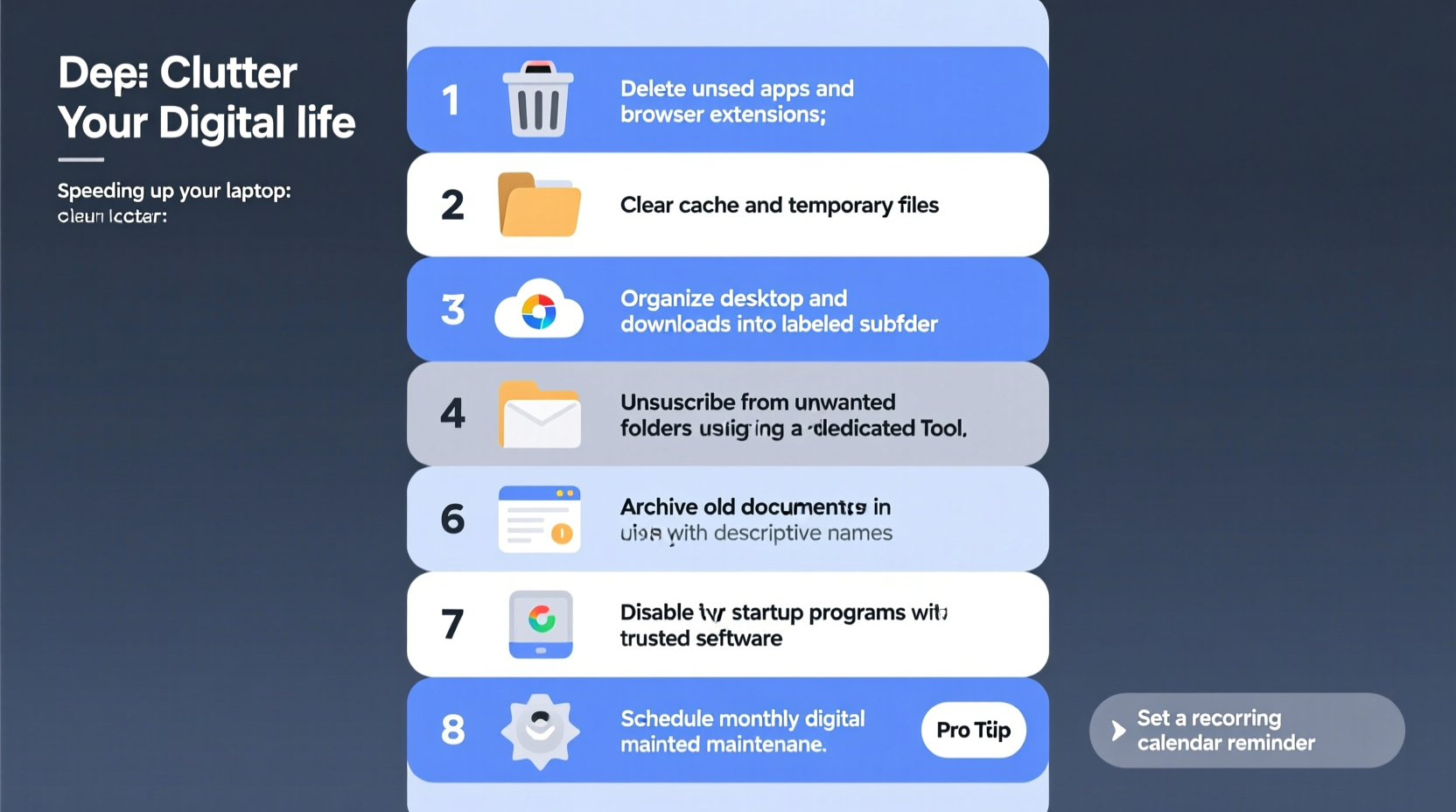
Digital clutter isn't just about disorganized folders. It includes unused applications, duplicate files, outdated downloads, temporary caches, and fragmented disk space—all of which consume valuable system resources. When your hard drive is nearly full or littered with unnecessary data, your operating system works harder to locate files, manage memory, and run background processes. This leads to sluggish performance, longer startup times, and increased risk of crashes.
Beyond technical strain, digital clutter affects focus. Studies from the Princeton Neuroscience Institute show that visual distractions in your environment—digital or physical—reduce cognitive capacity. A chaotic desktop with dozens of icons, endless browser tabs, and overflowing email inboxes triggers low-grade stress and decision fatigue. Cleaning up your digital life isn’t just about speed—it’s about creating a calmer, more intentional relationship with technology.
“Digital minimalism isn’t about doing more with less tech—it’s about ensuring every file, app, and notification earns its place.” — Cal Newport, Author of *Digital Minimalism*
Phase 1: Audit Your Digital Environment
Before deleting anything, take stock of what you have. This inventory phase helps you identify what’s essential and what’s obsolete. Begin with these five areas:
- Files & Folders: Open your Documents, Downloads, Desktop, and Pictures directories. Note how many duplicates, old projects, or forgotten files exist.
- Applications: List all installed programs. Identify which you use daily versus those launched once or never.
- Email Inbox: Check unread messages, promotional spam, and archived threads. How many are over a year old?
- Browser Tabs & Bookmarks: Count open tabs and review bookmark folders. Are any links broken or irrelevant?
- Cloud Storage: Log into Google Drive, Dropbox, or iCloud. Look for redundant backups or outdated versions.
Phase 2: Clean Up Files and Folders Systematically
Start with your local storage. Most performance gains come from freeing up disk space and organizing critical files for faster access.
Step 1: Clear the Desktop
Your desktop is not storage—it’s workspace. Every file here loads into RAM at startup, slowing boot time. Move everything into properly named folders (e.g., “Projects,” “Personal,” “Archives”). Keep only shortcuts or active work items.
Step 2: Tackle the Downloads Folder
This folder is often a black hole of forgotten installers, PDFs, and media. Sort contents by date and delete anything older than 30 days unless actively needed. Use this rule: if it hasn’t been opened in two months, archive or remove it.
Step 3: Remove Duplicates
Duplicate files—especially photos and videos—can occupy gigabytes. Use tools like Duplicate Cleaner (Windows) or Gemini 2 (macOS) to scan and safely remove redundancies.
Step 4: Archive Old Projects
Create an “Archive” folder on an external drive or cloud service for completed work. Compress large folders into ZIP files to save space. Label them clearly with dates (e.g., “Client_Project_Jan2022_Archive.zip”).
Step 5: Wipe Temporary Files
Both Windows and macOS store cache, logs, and temporary files that rarely get cleaned automatically.
- Windows: Press Win + R, type
%temp%, and delete all contents. Run Disk Cleanup as administrator. - macOS: Navigate to
~/Library/Cachesand delete subfolders. Avoid deleting the folder itself.
| Action | Estimated Space Saved | Frequency |
|---|---|---|
| Clear Downloads folder | 1–5 GB | Monthly |
| Delete temp/cache files | 500 MB – 3 GB | Biweekly |
| Remove duplicate photos | 2–10+ GB | Quarterly |
| Uninstall unused apps | 1–8 GB | Biannually |
Phase 3: Optimize Applications and Startup Processes
Background apps are silent performance killers. Many programs launch at startup without your knowledge, consuming CPU and RAM before you even begin working.
Manage Startup Programs
On Windows: Press Ctrl+Shift+Esc to open Task Manager > Startup tab. Disable non-essential entries (e.g., Spotify, Adobe Updater, printer utilities).
On macOS: Go to System Settings > General > Login Items. Toggle off apps you don’t need at boot.
Uninstall Bloatware and Unused Software
Review installed applications and remove those you no longer use. Pay attention to trial software, old antivirus tools, and pre-installed vendor apps (often called bloatware).
Update Remaining Software
After removing junk, update the apps you keep. Outdated software can cause compatibility issues and security vulnerabilities that indirectly affect performance.
Phase 4: Streamline Email and Browser Usage
Email and browsers are major sources of digital distraction and hidden clutter.
Empty Your Inbox
Apply the “4 Ds” method to each message: Delete, Delegate, Do, or Defer.
- Delete newsletters you no longer read.
- Use filters to auto-archive recurring notifications (e.g., shipping updates).
- Unsubscribe using tools like Unroll.me or Gmail’s native unsubscribe link.
Reset Your Browser
Over time, extensions, cookies, and cached data bog down browsing speed.
- Clear browsing history, cookies, and cached images.
- Disable or remove unused extensions (especially ad blockers, coupon finders, and social widgets).
- Reset settings to default if performance remains poor.
“Your browser should feel fast and focused—not weighed down by years of accumulated junk.” — Mozilla Performance Team
Phase 5: Maintain Speed with Ongoing Habits
Decluttering isn’t a one-time fix. To sustain results, build maintenance into your routine.
Weekly Digital Reset
Set a 15-minute weekly appointment to:
- Clear the Downloads folder.
- Close unused browser tabs and bookmarks.
- Run a quick disk cleanup.
- Review new files and organize them immediately.
Automate Where Possible
Leverage automation tools:
- Use cloud sync rules to move files from Downloads to designated folders.
- Schedule monthly cleanup scripts (e.g., CCleaner or OnyX).
- Enable automatic app updates to avoid version lag.
Adopt the “One In, One Out” Rule
For every new app you install or folder you create, remove one old item. This prevents re-cluttering and encourages mindful digital consumption.
Real Example: Sarah’s Laptop Turnaround
Sarah, a freelance graphic designer, noticed her MacBook Pro was taking over three minutes to start and frequently froze during video calls. Her disk was 97% full, mostly due to unsorted client files, duplicated project backups, and 42 browser extensions. She followed this guide over a weekend:
- Deleted 18 GB of duplicate design assets.
- Moved old projects to an encrypted external drive.
- Removed 30 unused extensions and reset Safari.
- Disabled Slack and Zoom from launching at startup.
Result: Boot time dropped to 28 seconds, available storage increased to 62%, and system fan noise decreased significantly. More importantly, Sarah reported feeling “less overwhelmed” when opening her laptop each morning.
FAQ: Common Questions About Digital Decluttering
How do I know if my laptop is slow due to clutter or hardware limits?
If your device struggles with basic tasks despite having adequate RAM and a modern processor, clutter is likely the culprit. Run a cleanup first. If performance doesn’t improve, consider upgrading to an SSD or adding RAM—especially if you’re still using a traditional hard drive.
Is it safe to delete system cache files?
Yes, cache files are designed to be disposable. The system will regenerate them as needed. However, avoid deleting files in system-critical directories like Windows/ or /System. Stick to user-specific cache locations such as ~/Library/Caches or %temp%.
Can cloud storage replace local cleanup?
Cloud storage helps offload files, but syncing large volumes can drain bandwidth and battery. Use it strategically for archives and backups—not as a dumping ground. Always maintain a lean local environment for optimal speed.
Checklist: Your Digital Decluttering Action Plan
- ✅ Audit all major folders (Downloads, Desktop, Documents)
- ✅ Delete temporary and cache files
- ✅ Remove duplicate photos and documents
- ✅ Uninstall unused applications
- ✅ Disable unnecessary startup programs
- ✅ Clear browser cache and extensions
- ✅ Organize files into labeled, dated folders
- ✅ Archive old projects to external or cloud storage
- ✅ Set up a weekly 15-minute digital cleanup habit
- ✅ Test laptop speed before and after (use built-in benchmarks or simple task timing)
Conclusion: Reclaim Control of Your Digital Experience
A fast, responsive laptop starts with intentionality. By systematically removing digital clutter—from forgotten files to background apps—you’re not just improving performance; you’re reducing cognitive load and creating space for focused work. The process takes a few hours, but the benefits last for months. Don’t wait for your computer to freeze or run out of storage. Start today with one folder, one app, or one cleanup tool. Small actions compound into significant gains. Your future self—sitting down to a swift-booting, organized machine—will thank you.




 浙公网安备
33010002000092号
浙公网安备
33010002000092号 浙B2-20120091-4
Comments
No comments yet. Why don't you start the discussion?