
In an age where we generate over 2.5 quintillion bytes of data daily, the average person juggles hundreds of files, dozens of apps, and a never-ending stream of notifications. Over time, this digital clutter accumulates silently—slowing down devices, increasing stress, and eroding productivity. Unlike physical mess, digital disarray is often invisible until it impacts performance or mental clarity. The good news? A focused, structured approach can transform chaos into calm in less than seven days. This guide provides a realistic, actionable plan to clear digital noise, protect privacy, and create sustainable digital habits.
Day 1: Audit Your Devices and Accounts
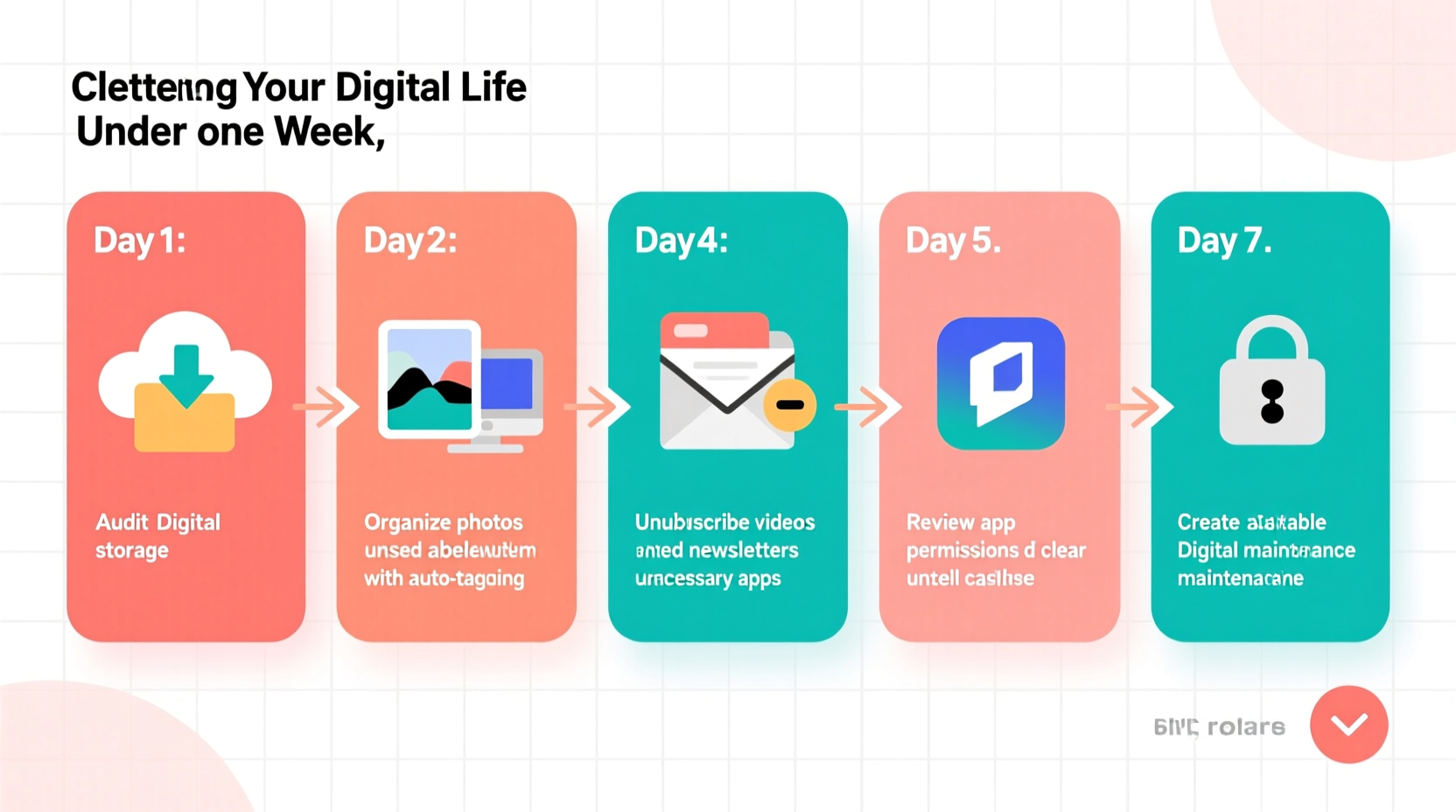
The first step in decluttering is awareness. Begin by taking inventory of every device you own—smartphones, laptops, tablets, external drives—and list all active online accounts. Most people underestimate how many services they’ve signed up for over the years, from forgotten subscriptions to dormant social media profiles.
Start with a simple spreadsheet or notepad. For each device, note its primary use, storage capacity, and current free space. Then, compile a list of all email addresses, cloud services, financial platforms, streaming subscriptions, and app logins. Tools like Bitwarden, 1Password, or even Google’s “Manage your Google Account” page can help identify linked services.
Once listed, categorize accounts by necessity: essential (banking, work tools), useful (streaming, learning platforms), and obsolete (free trials, old forums). Mark anything unused for over six months as a candidate for deletion.
“Digital minimalism isn’t about deleting everything—it’s about making room for what truly adds value.” — Cal Newport, Author of *Digital Minimalism*
Day 2: Organize and Purge Files
Now that you know what you’re working with, tackle file clutter. Begin with your main computer, focusing on the desktop, downloads folder, and documents directory—common dumping grounds for unsorted data.
Create a top-level folder structure using broad categories such as:
- Work / Projects
- Personal / Finances
- Creative / Media
- Archives
Within these, use subfolders with clear naming conventions (e.g., \"Invoices_2023\", \"Project_Alpha_Drafts\"). Avoid vague names like “Stuff” or “Misc.” Move files into their appropriate homes, and delete duplicates, outdated versions, and temporary files. If you haven’t opened a document in two years and it holds no legal or sentimental value, discard it.
For photos and videos, consider using tools like Google Photos’ duplicate finder or Apple’s Photos app optimization features. Archive full-resolution versions to an external drive or encrypted cloud service, then keep lightweight copies for daily access.
| Folder Type | Recommended Action | Frequency |
|---|---|---|
| Downloads | Empty weekly; sort immediately | Daily review |
| Desktop | Limit to 5 active items | Weekly cleanup |
| Email Attachments | Save only essentials; delete rest | Monthly purge |
| Old Backups | Verify integrity, then remove | Quarterly |
Day 3: Streamline Apps and Notifications
Mobile and desktop applications multiply quickly. Many run background processes, drain battery, and deliver constant alerts that fragment attention. Evaluate each app based on usage and utility.
On smartphones, go beyond the home screen. Scroll through all installed apps in settings. Ask: Have I used this in the past month? Does it serve a core function? If not, uninstall it. Pay special attention to pre-installed bloatware—disable or hide if removal isn’t possible.
For remaining apps, customize notification settings. Disable non-essential alerts (e.g., social likes, promotional updates) and enable “Do Not Disturb” during focused hours. On iOS and Android, use Focus Modes or Digital Wellbeing tools to schedule quiet periods.
On computers, remove unused software via control panel or Applications folder. Disable auto-launch programs that slow boot times. Use Activity Monitor (macOS) or Task Manager (Windows) to spot resource-heavy background apps.
Day 4: Clean Up Email and Cloud Storage
Email remains a major source of digital overwhelm. Start by unsubscribing from newsletters and promotions you no longer read. Tools like Unroll.Me or Gmail’s built-in unsubscribe link make this fast. Aim to reduce incoming mail by at least 50%.
Next, apply the “Four Ds” to your inbox: Delete, Delegate, Do, or Defer. Process messages in batches rather than reacting throughout the day. Archive completed threads and mute long-running conversations.
Create filters or rules to automatically sort incoming mail. For example, route receipts to a “Finances” folder, social notifications to “Updates,” and project correspondence to relevant labels. Set up a “Someday/Maybe” folder for low-priority items you want to revisit later.
Repeat the same process for cloud storage (Google Drive, Dropbox, iCloud). Remove outdated shared folders, delete redundant uploads, and ensure sensitive files are protected with permissions or encryption.
“Your inbox should be a processing center, not a storage unit.” — Merlin Mann, Creator of Inbox Zero
Day 5: Secure and Simplify Passwords
Digital clutter isn't just visual—it includes security risks. Reusing passwords, storing credentials in notes apps, or relying on memory creates vulnerabilities. A password manager eliminates this risk while simplifying access.
Choose a reputable tool like Bitwarden (free), 1Password, or Dashlane. Import existing passwords, then audit them for strength and duplication. Change weak or repeated passwords, especially for critical accounts like email, banking, and healthcare.
Enable two-factor authentication (2FA) wherever possible. Use authenticator apps (Google Authenticator, Authy) instead of SMS when available—they’re more secure against SIM-swapping attacks.
Finally, delete saved passwords from browsers and remove autofill data. Browsers lack advanced encryption and recovery options compared to dedicated managers.
Day 6: Digitally Detox Your Social Media
Social platforms are designed to capture attention, not serve users. Curate your experience by auditing follows, groups, and feeds.
Unfollow brands, influencers, or individuals whose content no longer inspires or informs. Mute noisy group chats without leaving them—a polite way to reduce noise. Leave communities that foster negativity or comparison.
Adjust algorithmic feeds to chronological order where possible (e.g., Twitter, LinkedIn). This restores control over what you see and reduces manipulative content loops.
Consider a temporary break. Even 48 hours offline can reset dopamine responses and clarify which platforms genuinely enrich your life.
Mini Case Study: Recovering Focus After Burnout
Sarah, a freelance designer, found herself checking Instagram 20+ times a day, often losing hours to reels and comparison. After a minor burnout, she committed to a digital reset. She deleted TikTok, turned off Instagram notifications, and unfollowed 300+ accounts. Using Screen Time, she set a 30-minute daily limit. Within a week, her ability to concentrate improved dramatically. She reported finishing client work 40% faster and sleeping better. Six months later, she maintains a curated feed of art inspiration and industry news—no mindless scrolling.
Day 7: Establish Sustainable Habits
Decluttering is only effective if followed by maintenance. Build routines that prevent future buildup.
Set recurring calendar events: 10 minutes every Friday to clear downloads, 30 minutes monthly to review subscriptions, and quarterly audits of cloud storage. Automate where possible—use tools like Hazel (macOS) to auto-sort files, or IFTTT to back up photos.
Adopt the “one in, one out” rule: when installing a new app, delete an old one. When saving a new file, archive or delete a related outdated version.
Designate tech-free zones or hours—especially before bed. Charge phones outside the bedroom and use a physical alarm clock. This reduces nighttime usage and improves sleep quality.
Digital Declutter Checklist
- Inventory all devices and accounts
- Delete unused apps and software
- Organize files into clear folders
- Unsubscribe from unwanted emails
- Set up a password manager with 2FA
- Reduce social media follows and notifications
- Schedule monthly maintenance reminders
- Backup important data securely
- Test device performance post-cleanup
- Reflect on mental clarity and focus improvements
FAQ
How do I know which files are safe to delete?
If a file hasn’t been accessed in over two years, has no legal, financial, or sentimental value, and isn’t backed up elsewhere, it’s likely safe to remove. When in doubt, archive it to an external drive labeled “Review 2025” rather than keeping it in active storage.
Can I really improve focus by cleaning my phone?
Yes. Research from the University of Chicago shows that even having a cluttered screen visible reduces cognitive capacity. Removing visual distractions and limiting app availability frees mental resources and reduces decision fatigue.
What if I accidentally delete something important?
Always verify backups before mass deletions. Most systems have trash bins with 30-day recovery windows (Google Drive, iCloud, etc.). For critical data, use the 3-2-1 backup rule: three copies, on two different media, one offsite (e.g., external drive + cloud).
Conclusion
A cluttered digital environment doesn’t just slow down your devices—it slows down your thinking. By dedicating just one week to intentional cleanup, you regain control over your time, attention, and emotional energy. The process isn’t about perfection; it’s about progress. You don’t need to eliminate every file or quit every platform. You need a system that works for you—one that supports your goals instead of sabotaging them.
Start tonight. Pick one device. Delete three unused apps. Unsubscribe from five emails. Small actions compound into lasting change. Your future self will open their laptop or unlock their phone and feel calm instead of overwhelmed. That peace is worth the effort.




 浙公网安备
33010002000092号
浙公网安备
33010002000092号 浙B2-20120091-4
Comments
No comments yet. Why don't you start the discussion?