
Low Data Mode is a useful iOS feature designed to reduce background network activity and conserve cellular data. While beneficial when you're near your monthly limit or in areas with poor signal, it can unintentionally restrict performance when you need fast, reliable internet. If you've noticed sluggish browsing, buffering during video calls, or delayed email syncing, Low Data Mode might be the culprit. This guide walks you through how to identify if it’s enabled and how to disable it across Wi-Fi and cellular connections—ensuring your iPhone performs at its best.
Understanding Low Data Mode and Its Impact
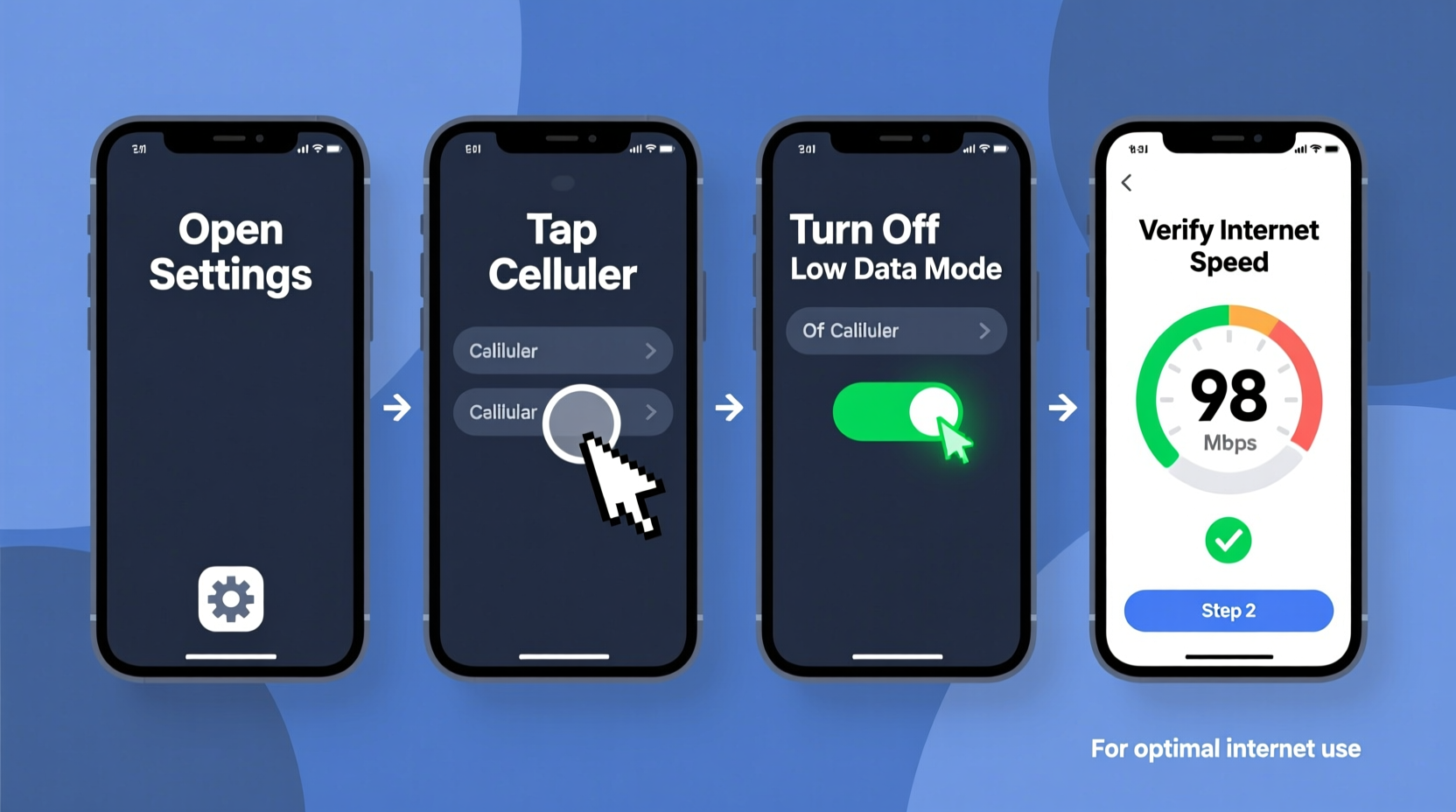
Introduced in iOS 13, Low Data Mode helps minimize data consumption by pausing automatic downloads, reducing streaming quality, and limiting background app refresh. It's available for both Wi-Fi and cellular networks, meaning it can affect your connection even when you're connected to home broadband.
When active, Low Data Mode instructs apps to:
- Suspend automatic updates and large file downloads
- Stream videos at lower resolutions
- Delay iCloud Photo sync and mail fetch intervals
- Reduce background data usage for third-party apps
While these behaviors help extend limited data plans, they can hinder user experience during high-bandwidth tasks like HD video streaming, online gaming, or large file transfers.
“Low Data Mode is excellent for conserving bandwidth, but users should disable it when connected to unlimited or high-speed networks to unlock full device potential.” — Jordan Lee, Mobile Network Analyst at TechSignal Labs
How to Disable Low Data Mode on Wi-Fi
If you’re connected to Wi-Fi and experiencing slow speeds, check whether Low Data Mode has been manually or automatically enabled. Follow this step-by-step process to turn it off:
- Open the Settings app on your iPhone.
- Tap Wi-Fi.
- Locate the network you're currently connected to and tap the blue info icon (i) next to its name.
- Scroll down to find Low Data Mode.
- If the toggle is green, it means the mode is active. Tap the toggle to switch it off.
Once disabled, your device will resume normal background operations, including automatic downloads and higher-quality media streaming over Wi-Fi.
Disabling Low Data Mode for Cellular Data
The same feature applies to your cellular connection, often triggered after reaching a carrier-imposed data threshold or enabled manually to avoid overage fees. To restore full-speed cellular performance:
- Go to Settings.
- Select Cellular (or Mobile Data, depending on region).
- Tap Cellular Data Options.
- Choose Data Mode.
- Select Standard instead of Low Data Mode.
Note: On some carriers and iPhone models, this option may appear directly under “Cellular” as a toggle labeled Low Data Mode. Toggle it off if active.
After making this change, background processes such as app updates, cloud backups, and push notifications will function without artificial throttling.
Real-World Example: Sarah’s Streaming Struggles
Sarah, a remote worker and frequent traveler, relied on her iPhone for daily Zoom meetings and Netflix during downtime. After returning from a trip abroad, she noticed her video calls were constantly dropping and her shows loaded in grainy quality—even while connected to her home Wi-Fi.
She hadn’t realized that while using a local SIM card overseas, she had enabled Low Data Mode to avoid roaming charges. The setting persisted after switching back to her regular carrier. Once she followed the steps to disable Low Data Mode on both Wi-Fi and cellular, her call stability improved instantly, and streaming resumed in HD.
This scenario illustrates how easily settings can linger beyond their intended use case—especially when traveling or managing multiple networks.
Do’s and Don’ts When Managing Low Data Mode
| Do’s | Don’ts |
|---|---|
| Enable Low Data Mode when on metered connections or public hotspots | Leave it enabled permanently without reviewing your needs |
| Disable it when using high-speed Wi-Fi for work or entertainment | Assume it only affects cellular—it also limits Wi-Fi performance |
| Use it strategically during travel to control costs | Expect apps like FaceTime or YouTube to stream in full HD while it’s active |
| Check individual network settings if performance varies by location | Ignore background sync delays—they’re often tied to this mode |
Troubleshooting: What If the Option Is Missing?
Some users report not seeing the Low Data Mode toggle. Here are common reasons and fixes:
- Outdated iOS version: Ensure your iPhone runs iOS 13 or later. Go to Settings > General > Software Update.
- Carrier restrictions: Certain carriers disable or rename the feature. Contact customer support to confirm availability.
- Network-specific settings: The toggle appears only next to supported Wi-Fi networks or within Cellular settings.
- Device limitations: All iPhones from iPhone 6s onward support this feature, provided they are updated.
Complete Checklist: Optimize Your iPhone’s Data Settings
Follow this checklist to ensure your iPhone uses data efficiently without sacrificing performance:
- ✅ Check if Low Data Mode is active on current Wi-Fi network
- ✅ Disable Low Data Mode under Wi-Fi settings via the (i) icon
- ✅ Turn off Low Data Mode in Cellular > Data Mode
- ✅ Confirm iOS is up to date (iOS 13 or newer)
- ✅ Test internet speed before and after disabling (use Safari or Speedtest app)
- ✅ Re-enable only when necessary (e.g., limited data plan, weak signal)
- ✅ Educate family members or shared-device users about the setting’s impact
Frequently Asked Questions
Does Low Data Mode affect call quality?
No, voice calls (including cellular and VoIP services like WhatsApp or FaceTime Audio) are generally unaffected. However, video calls may default to lower resolution to save bandwidth.
Can I automate Low Data Mode based on network type?
Not natively. iOS does not currently offer automation rules for this setting. You must enable or disable it manually per network. Consider using Shortcuts app to create a custom toggle if you frequently switch modes.
Will disabling Low Data Mode increase my data bill?
Potentially, yes—if you're on a limited data plan. Disabling it allows apps to use more background data, which could lead to overages. Use this setting wisely based on your data allowance and network conditions.
Maximize Your iPhone’s Internet Performance Today
Your iPhone is capable of delivering seamless web browsing, instant app responses, and high-definition media playback—but only when configured correctly. Low Data Mode serves an important purpose, but leaving it enabled unnecessarily restricts what your device can do. By understanding where and how this setting applies, you gain greater control over your digital experience.
Take a few moments now to review your Wi-Fi and cellular configurations. Disable Low Data Mode where full-speed connectivity matters most. Whether you're working remotely, streaming your favorite series, or sharing photos in real time, removing artificial limits ensures your iPhone works as powerfully as it was designed to.




 浙公网安备
33010002000092号
浙公网安备
33010002000092号 浙B2-20120091-4
Comments
No comments yet. Why don't you start the discussion?