
Smartphones have become essential tools for communication, productivity, entertainment, and more. The key to unlocking their full potential lies in the apps you install. Whether you're new to smartphones or just want a clearer understanding of how to download apps safely and efficiently, this guide walks you through every step—regardless of your device’s operating system.
From accessing official app stores to avoiding common pitfalls, you’ll learn how to find, verify, and install applications with confidence. No technical jargon, no confusion—just practical steps that work across iPhones, Android phones, and even lesser-known platforms.
Understanding App Stores: Your Gateway to Apps
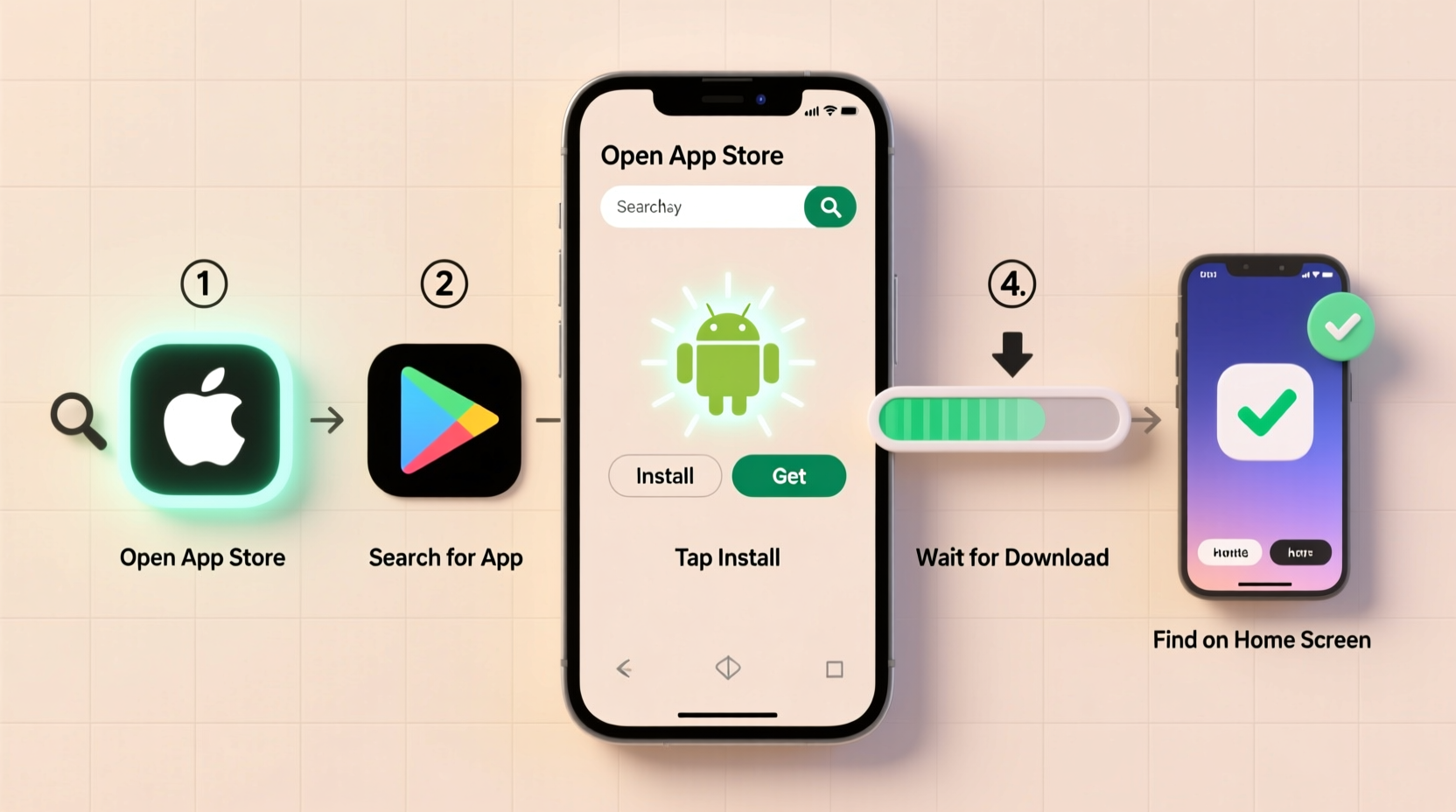
Every smartphone relies on an official app store to distribute software. These digital marketplaces are curated environments where developers submit apps for review before users can download them. Knowing which store serves your device is the first step toward successful app installation.
- iOS Devices (iPhone): Use the App Store, operated by Apple.
- Android Devices: Primarily use the Google Play Store. Some brands like Samsung also offer their own alternative, such as Galaxy Store.
- Other Platforms: Devices running Huawei’s HarmonyOS use AppGallery, while some budget phones may support third-party stores like APKPure.
Official app stores provide built-in security checks, automatic updates, and user reviews—features that significantly reduce the risk of installing malicious software.
Step-by-Step Guide to Downloading Apps Safely
Follow this universal process to install apps on any smartphone. While interface details vary between iOS and Android, the core logic remains consistent.
- Connect to Wi-Fi: Before downloading, ensure you’re on a stable internet connection. Large apps consume significant data, so using Wi-Fi prevents unexpected charges and interruptions.
- Open Your App Store: Tap the App Store (iOS) or Google Play Store (Android) icon on your home screen or app drawer.
- Sign In to Your Account: You’ll need an Apple ID for iOS or a Google account for Android. If you haven’t created one, the store will guide you through setup.
- Search for the App: Use the search bar at the top. Type the exact name (e.g., “Spotify”) or describe what you need (e.g., “fitness tracker”).
- Verify the App: Check the developer name, star rating, number of downloads, and recent reviews. Avoid apps with vague descriptions, poor grammar, or suspicious permissions.
- Download or Install: Tap “Get” (iOS) or “Install” (Android). Some free apps may still prompt for authentication via Face ID, fingerprint, or password.
- Wait for Installation: A progress circle or percentage indicator shows download status. Once complete, the app appears on your home screen or app list.
- Open and Set Up: Launch the app and follow initial setup prompts. Grant only necessary permissions when asked.
What to Do If an App Won’t Download
If an app fails to install, consider these common causes:
- Insufficient storage space – delete unused apps or media.
- Poor internet connection – switch to a stronger Wi-Fi network.
- Outdated operating system – check for OS updates in Settings.
- Account issues – sign out and back into your Apple ID or Google account.
Do’s and Don’ts When Installing Mobile Apps
| Do’s | Don’ts |
|---|---|
| Check app ratings and read recent user reviews | Download apps from unverified websites or pop-up ads |
| Review requested permissions (e.g., camera, location) | Grant all permissions without understanding why they’re needed |
| Keep your operating system updated | Ignore system update notifications for long periods |
| Use strong passwords and two-factor authentication on your account | Share your Apple ID or Google account with others |
| Enable automatic app updates for security patches | Leave outdated apps running—they may contain exploitable bugs |
Real Example: Maria Downloads Her First Banking App
Maria recently switched from an old feature phone to a new Android smartphone. She wanted to manage her finances digitally but wasn’t sure how to get started. After connecting to her home Wi-Fi, she opened the Google Play Store and searched for her bank’s name.
The first result looked correct—same logo, over a million downloads, and a 4.5-star rating. But the developer name didn’t match her bank’s official website. Suspicious, she clicked on the app and noticed it requested access to her SMS messages and contacts—unnecessary for basic banking.
Instead, she visited her bank’s official website and found a direct link to their authentic app. From there, she was redirected to the Play Store, where the verified version showed the correct developer: “National Trust Bank Ltd.” She installed it safely and set up biometric login without issues.
This small act of verification protected her from a potential phishing app designed to steal login credentials.
“Over 23% of mobile malware comes from fake versions of legitimate apps disguised in unofficial stores.” — Dr. Lena Patel, Cybersecurity Researcher at Mobile Threat Labs
Alternative Ways to Install Apps (With Caution)
While official stores are safest, some users turn to alternatives for region-locked apps, early releases, or unsupported devices. These methods carry higher risks and should be used sparingly.
- APK Files (Android): Android allows installation from unknown sources. Users can download .apk files from sites like APKMirror. However, each file must be manually scanned for malware.
- Enterprise or Beta Programs: Developers often release beta apps via TestFlight (iOS) or Google Play Beta. These are monitored and relatively safe.
- Sideloaded Apps (iOS): Using tools like AltStore or third-party platforms such as Panda Helper. These bypass Apple’s restrictions but void warranties and increase vulnerability.
Frequently Asked Questions
Can I download apps without a Google or Apple account?
On most smartphones, a registered account is required to access the primary app store. However, some Android devices allow manual installation of apps (APKs) without an account. This is not recommended for average users due to increased security risks.
Why do some apps cost money?
Paid apps typically offer premium features, ad-free experiences, or specialized tools (e.g., professional photo editors). Many paid apps also include free trials or limited versions to test functionality before purchasing.
How do I know if an app is safe?
Look for high download counts, consistent positive reviews, a reputable developer name, and minimal permission requests. Cross-check the app on the company’s official website. Security apps like Bitdefender or Malwarebytes can also scan apps post-installation.
Essential Checklist Before Installing Any App
- ✅ Confirm you’re using the official app store for your device.
- ✅ Search for the exact app name and verify the developer.
- ✅ Read recent user reviews for red flags (e.g., “steals data,” “crashes constantly”).
- ✅ Review required permissions—ask if they make sense for the app’s function.
- ✅ Ensure your phone has enough storage and battery (or is charging).
- ✅ Enable automatic updates in settings to receive security patches.
- ✅ After installation, check app behavior—unusual battery drain or pop-ups may indicate issues.
Final Thoughts: Make App Installation Effortless and Secure
Downloading apps doesn’t have to be complicated or risky. By sticking to trusted platforms, verifying authenticity, and understanding what permissions you’re granting, you maintain control over your digital experience. Whether you're setting up a phone for yourself or helping a family member, these steps ensure every app adds value—not vulnerability.
Technology should simplify life, not complicate it. With the right habits, installing apps becomes second nature—quick, secure, and stress-free.




 浙公网安备
33010002000092号
浙公网安备
33010002000092号 浙B2-20120091-4
Comments
No comments yet. Why don't you start the discussion?