
Mobile phone updates are essential for maintaining security, improving performance, and unlocking new features. Yet many users delay or avoid them due to concerns about data usage, battery drain, or potential glitches. The solution? Download updates over Wi-Fi—safely and efficiently. This guide walks you through the entire process with clear steps, expert-backed tips, and real-world insights to ensure your device stays up-to-date without unnecessary risk or hassle.
Why Updating Over Wi-Fi Matters
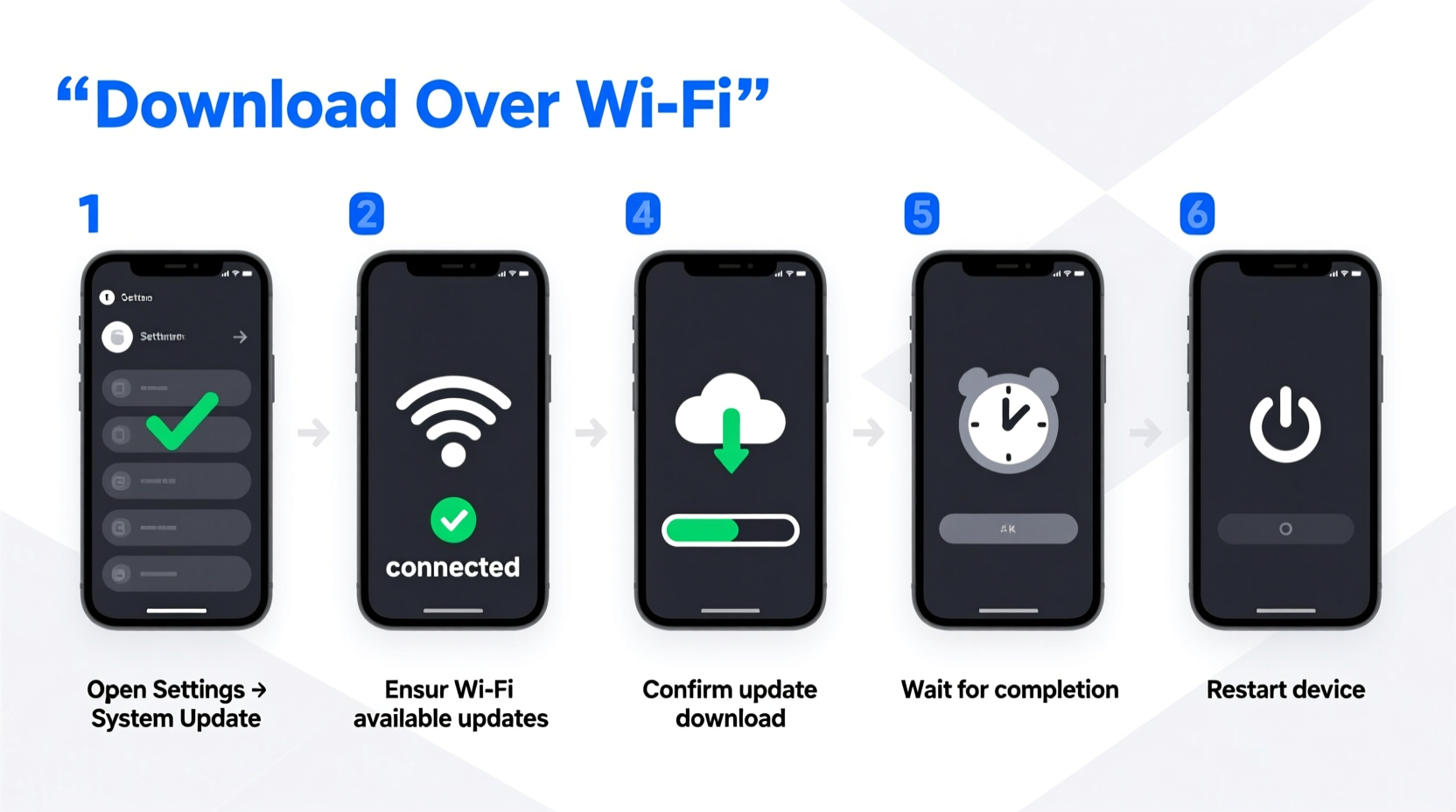
Wi-Fi is the ideal environment for downloading system updates. Unlike cellular data, it typically offers faster speeds, unlimited bandwidth, and more stable connections—critical when downloading large update files that can exceed 1GB. Additionally, updating over Wi-Fi reduces the strain on your monthly data plan and minimizes the risk of interrupted downloads caused by fluctuating signal strength.
Security is another major factor. Public networks may expose your device to vulnerabilities during an update, but a trusted home or office Wi-Fi network ensures encrypted, private communication between your phone and the manufacturer’s servers.
Step-by-Step Guide to Safe and Efficient Updates
- Check Your Current Software Version
Go to Settings > About Phone > Software Information (Android) or Settings > General > About (iOS). Note the current version so you can confirm the update was successful later. - Connect to a Reliable Wi-Fi Network
Ensure you’re connected to a strong, stable Wi-Fi signal. Avoid public hotspots. If possible, reboot your router beforehand to optimize connection quality. - Charge Your Device or Plug It In
Updates require significant processing power and can take 20–60 minutes. Connect your phone to a charger to prevent shutdowns mid-update. Ideally, start with at least 50% battery. - Free Up Storage Space
Most updates need 1–2GB of free space. Delete unused apps, offload photos to cloud storage, or use built-in cleanup tools (Settings > Storage) to make room. - Initiate the Update
For Android: Settings > System > System Update. For iOS: Settings > General > Software Update. Tap “Download and Install” when prompted. - Do Not Interrupt the Process
Once the download begins, let it complete. Avoid using the phone heavily during installation. Never force-restart unless the device becomes completely unresponsive after 30+ minutes. - Verify Completion
After rebooting, return to the software information screen and confirm the version number has changed. Check that all apps function normally.
Essential Checklist Before You Begin
- ✅ Connected to secure, high-speed Wi-Fi
- ✅ Device charged to at least 50% (preferably plugged in)
- ✅ At least 2GB of free storage available
- ✅ Backup completed (photos, messages, app data)
- ✅ No critical tasks scheduled during the update window
- ✅ Auto-brightness and background app refresh disabled to conserve power
Avoid These Common Mistakes
| Don’t | Do Instead |
|---|---|
| Update on public Wi-Fi | Use only trusted, password-protected networks |
| Ignore storage warnings | Clear cache and delete temporary files first |
| Force restart during installation | Wait at least 30 minutes if frozen; then consult support |
| Skip backups before updating | Back up to iCloud, Google Drive, or computer |
| Download updates over cellular data | Always wait for Wi-Fi to avoid overage charges |
Real Example: How One User Avoided a Costly Error
Sarah, a freelance designer in Portland, once attempted a major Android OS update while working from a coffee shop using public Wi-Fi. Midway through the download, her connection dropped, corrupting the partial file. When she restarted, the phone entered a boot loop and lost access to client files stored locally. After visiting a repair shop, she learned the update had failed due to an insecure network and insufficient battery. She now follows a strict pre-update routine: connecting only to her home network, charging fully, backing up to Google Drive, and scheduling updates for weekends. Her device has remained stable and secure ever since.
“Firmware updates rewrite core system files. An interruption—even for a few seconds—can brick your device. Wi-Fi provides the consistency needed for a clean install.” — Dr. Raj Mehta, Mobile Systems Engineer at OpenOS Labs
Optimize Efficiency: Pro Tips for Faster, Smoother Downloads
Not all Wi-Fi experiences are equal. To speed up update downloads and reduce failure rates:
- Position your phone close to the router – Walls and appliances can weaken signals.
- Limit connected devices – Pause streaming or large downloads on other gadgets during the update.
- Use 5GHz band instead of 2.4GHz – If your router supports dual-band, connect to 5GHz for faster throughput and less interference.
- Enable developer options (advanced) – On Android, enabling \"Auto-update system\" ensures future patches install seamlessly when conditions are met.
Frequently Asked Questions
How long should a phone update take over Wi-Fi?
Download time depends on update size and connection speed. A typical 1–1.5GB update takes 5–15 minutes on a 50 Mbps connection. Installation and rebooting add another 10–30 minutes. Larger feature drops (like iOS 17 or Android 14) may take longer.
Can I use my phone while the update downloads?
Yes, light usage is safe during the download phase. However, once installation begins, the phone will likely lock and reboot automatically. Avoid intensive tasks like gaming or video calls during this window.
What if the update fails or gets stuck?
First, wait at least 30 minutes. If the screen remains frozen, perform a forced restart (usually by holding Power + Volume Down for 10+ seconds). Then recheck for updates. If the issue persists, back up your data and contact manufacturer support.
Final Thoughts: Make Updates Routine, Not Reactive
Regularly updating your phone isn’t just about new emojis or interface tweaks—it’s a fundamental part of digital hygiene. Cybersecurity threats evolve daily, and manufacturers release patches to protect against known exploits. By adopting a consistent, Wi-Fi-first update strategy, you safeguard personal data, maintain optimal performance, and extend your device’s usable lifespan.
Treat software updates like routine maintenance: scheduled, prepared, and stress-free. With the right habits, your phone will stay fast, secure, and ready for whatever comes next.




 浙公网安备
33010002000092号
浙公网安备
33010002000092号 浙B2-20120091-4
Comments
No comments yet. Why don't you start the discussion?