
The Nintendo Wii may be a legacy console, but it still holds value for retro gaming enthusiasts, casual players, and families who enjoy its iconic library of games and services like the now-discontinued Wii Shop Channel or preserved homebrew tools. Connecting your Wii to Wi-Fi unlocks online multiplayer, software updates, and access to downloadable content. While the process is straightforward, outdated interfaces and modern router settings can create confusion. This guide walks you through every step clearly and includes solutions to common hurdles.
Understanding the Wii’s Network Capabilities
The original Wii model (RVL-001) features built-in 802.11b/g Wi-Fi support—meaning it only connects to 2.4 GHz networks and does not support 5 GHz bands or modern WPA3 encryption. It also lacks native support for WPA2-Enterprise or complex authentication protocols used in public hotspots. This limits compatibility with some newer routers unless adjusted manually.
Before beginning, ensure your wireless network operates on the 2.4 GHz frequency and uses WEP, WPA, or WPA2-Personal (TKIP or AES) security. The Wii cannot connect to open networks that redirect through captive portals (like cafes or hotels).
Step-by-Step Connection Process
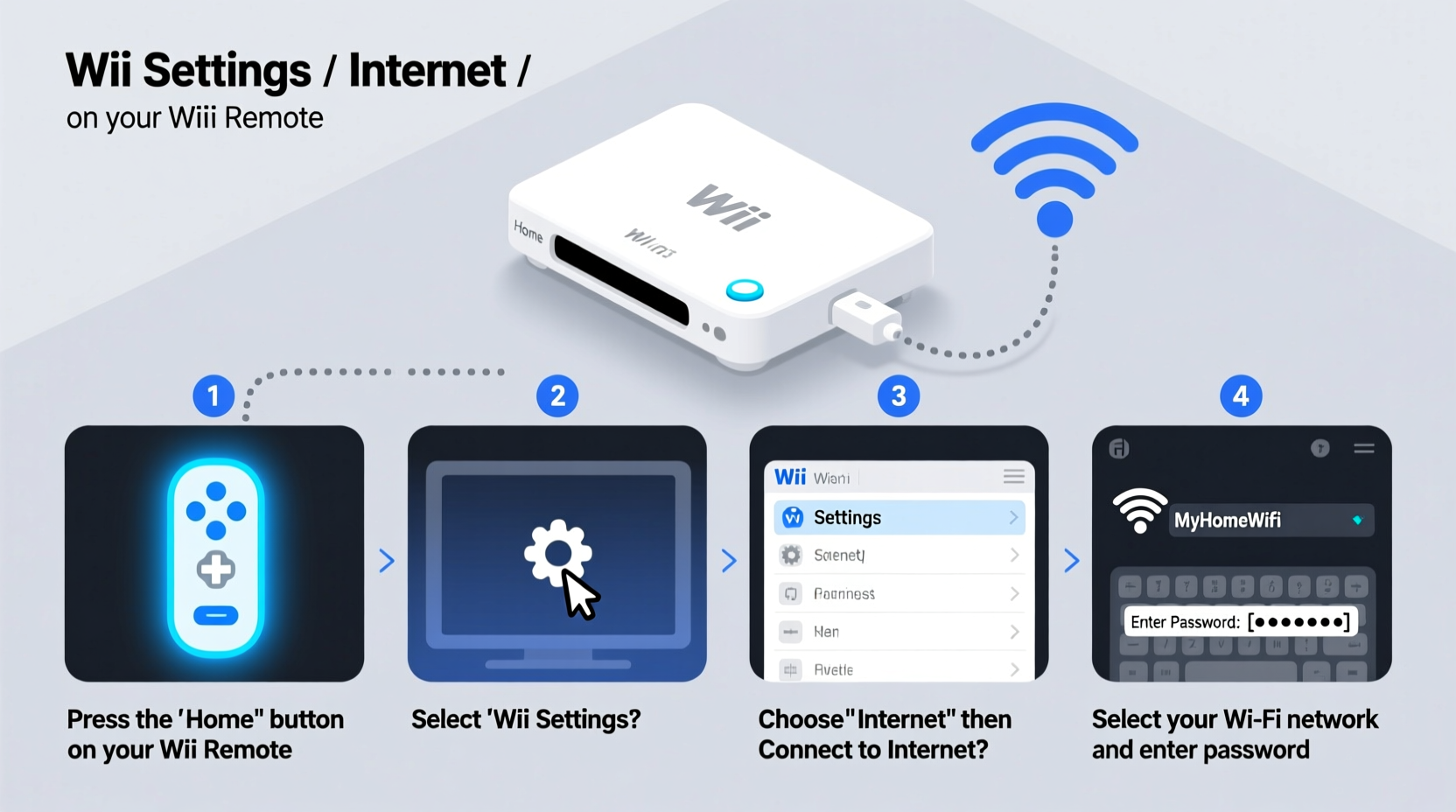
- Power on your Wii and navigate to the main menu. Use the pointer to select the “Wii” button in the lower-left corner.
- Select “Wii Settings” (the wrench icon). This opens system preferences across two screens—press the right arrow to reach the second screen.
- Choose “Internet”, then click “Connection Settings.” You’ll see three available connection slots. Pick an empty one (recommended: Connection 1).
- Select “Wireless Connection” when prompted for connection type.
- Click “Search for Access Points.” The Wii will scan for nearby networks. Wait up to a minute for results.
- Select your network (SSID) from the list. If it doesn’t appear, proceed to manual setup.
- Enter your Wi-Fi password using the on-screen keyboard. Be precise—case sensitivity matters. Supported characters include letters, numbers, and basic symbols.
- Save and test the connection. After entering credentials, choose “Confirm” then “Test Connection.”
The test checks four stages: router detection, internet access, Nintendo server connection, and data transfer stability. A successful result shows all green checkmarks and displays your IP address.
Troubleshooting Common Connection Issues
Even with correct inputs, many users encounter failed tests due to mismatched security settings or signal interference. Consider these factors:
- Signal strength too low: Position the Wii within 10–15 feet of the router, avoiding thick walls or metal objects.
- Security protocol mismatch: Some routers default to WPA3 or mixed modes incompatible with the Wii. Log into your router settings and set security to WPA2-PSK (AES) or WPA-PSK (TKIP).
- MAC filtering enabled: If MAC filtering is active, add the Wii’s MAC address (found during connection test failure) to the allowed devices list.
- Router firewall blocking UDP ports: The Wii requires open UDP ports 3490, 3491, 3492, and 3493. Adjust firewall rules if necessary.
| Issue | Possible Cause | Solution |
|---|---|---|
| “No Access Points Found” | Distance, 5 GHz only network, hidden SSID | Move closer, enable 2.4 GHz, manually enter SSID |
| “Wrong Password” error | Typing mistake, WPA3/WEP mismatch | Re-enter carefully; change router to WPA2-AES |
| Connects but no internet | DNS misconfiguration | Set DNS manually to 8.8.8.8 (Google) or 1.1.1.1 (Cloudflare) |
| Test fails at final stage | Port restrictions, NAT type strict | Enable UPnP on router or forward required ports |
Manual Setup for Hidden or Problematic Networks
If your network isn’t detected during scanning—common with hidden SSIDs—you must configure the connection manually.
- After selecting “Wireless Connection,” choose “Manual Setup.”
- Enter your network’s SSID exactly as configured in the router (case-sensitive).
- Select the correct security type: WEP, WPA, or WPA2. If unsure, check your router settings.
- Input the password or key. For WEP, keys are typically 10 or 26 hexadecimal digits (0–9, A–F), or 5/13 ASCII characters.
- When prompted, set the IP Address Configuration to “Auto-Obtain.”
- Set DNS Settings to “Auto-Obtain” initially. If connection fails later, return and enter primary DNS:
8.8.8.8, secondary:8.8.4.4. - Save and run the connection test.
Real Example: Connecting a Wii in a Modern Apartment
Mark owns a Wii passed down from his brother and wants to play Mario Kart Wii online. He lives in an apartment with a dual-band mesh router (Netgear Orbi) that hides the 2.4 GHz network name. His initial scan returns no results.
He logs into his router via browser, enables SSID broadcast for the 2.4 GHz band, and changes the security mode from WPA3 to WPA2-PSK (AES). After restarting the router, he powers on the Wii, searches again, finds the network, enters the password, and passes all test stages. However, he notices lag in gameplay. Upon checking, NAT Type shows as “Type 3.”
He enables UPnP in the router settings, retests, and achieves NAT Type 1. Online matches become smoother and more responsive.
“Legacy consoles like the Wii require deliberate configuration adjustments on modern networks. Compatibility isn’t automatic—it’s negotiated through proper settings.” — Jordan Lee, Home Networking Technician
Checklist: Preparing Your Environment for Success
- ✅ Confirm your router supports 2.4 GHz with visible SSID
- ✅ Disable WPA3 or use mixed-mode (WPA2/WPA3) with fallback
- ✅ Know your Wi-Fi password and security type
- ✅ Place the Wii within range of the router
- ✅ Have a physical copy of router login details handy
- ✅ Prepare to adjust DNS or port settings if needed
- ✅ Allow time for firmware updates post-connection
Frequently Asked Questions
Can I connect the Wii to a mobile hotspot?
Yes, but only if the hotspot broadcasts a 2.4 GHz signal with WPA2-PSK security and does not use a captive portal. Most smartphones allow this configuration in advanced hotspot settings. Note that data usage may increase quickly during downloads or updates.
Why does my Wii disconnect randomly?
Random disconnections often stem from weak signal strength or router congestion. Try reducing distance between devices, rebooting the router weekly, or assigning a static IP to the Wii through router DHCP reservation.
Is it safe to update the Wii system software over Wi-Fi?
Yes. System updates delivered through official channels are digitally signed and verified by Nintendo. Never install unofficial updates from third-party sites, as they may compromise system integrity.
Final Steps and Enjoyment
Once connected, explore the Wii Menu’s Channels section. You may receive prompts to update the system software—do so to ensure compatibility and security. Revisit “Wii Settings > Internet > Connection Settings” periodically to verify connection health, especially after router changes.
While the Wii’s online infrastructure has diminished since the closure of Nintendo Wi-Fi Connection in 2014, community-driven servers like Wiimmfi restore multiplayer functionality for games such as Mario Kart Wii, Super Smash Bros. Brawl, and Animal Crossing: City Folk. Connecting your console opens doors to revived online communities and enhanced gameplay experiences.




 浙公网安备
33010002000092号
浙公网安备
33010002000092号 浙B2-20120091-4
Comments
No comments yet. Why don't you start the discussion?