
Pairing your Apple Watch with an iPhone unlocks a seamless ecosystem of health tracking, notifications, fitness monitoring, and smart features. Whether you're setting up a brand-new device or switching to a new iPhone, the process is designed to be intuitive—but knowing the right steps ensures a smooth experience without delays or errors. This guide walks you through every stage of pairing, from preparation to final customization, with expert insights and real-world tips to help you get it right the first time.
Prepare Your Devices for Pairing
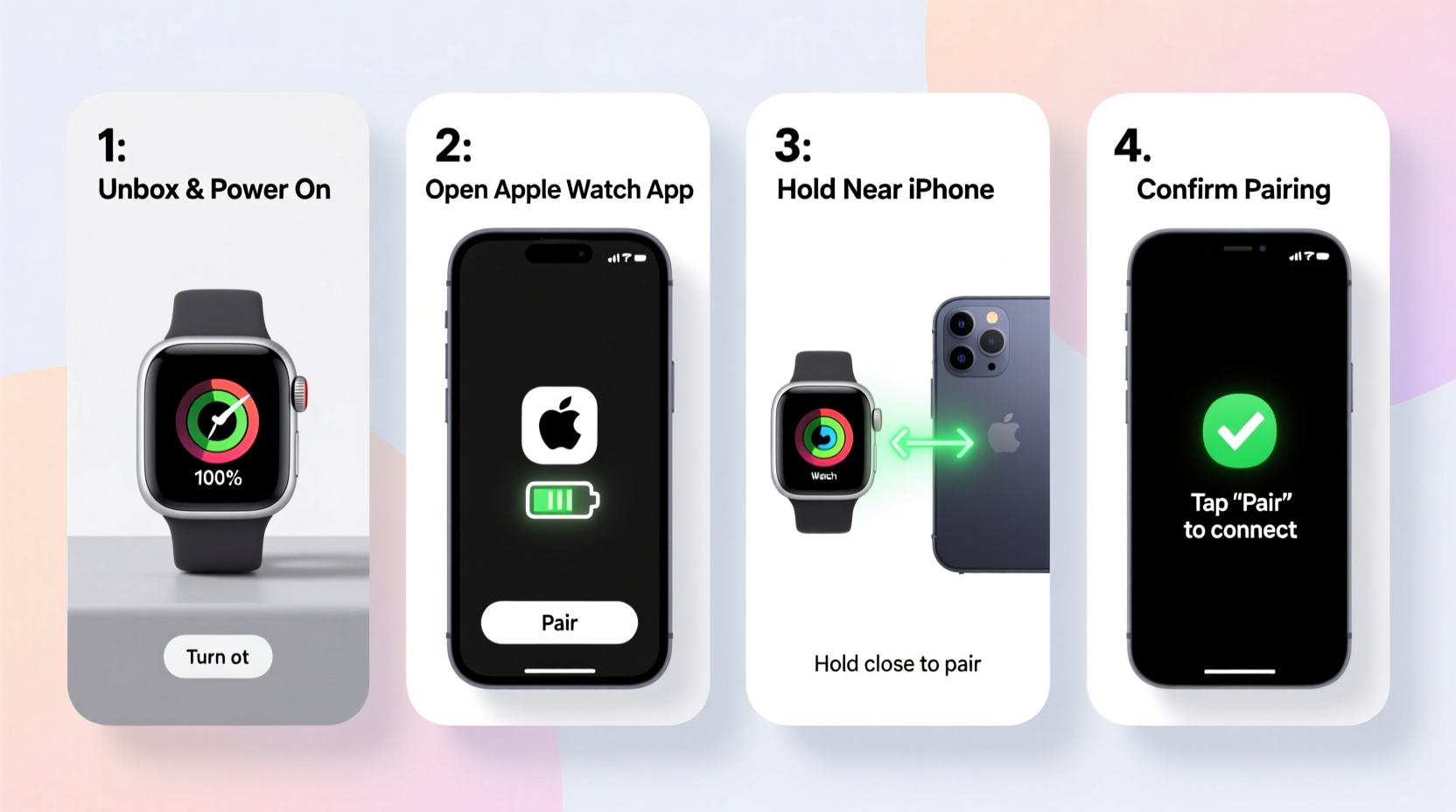
Before initiating the pairing process, ensure both your Apple Watch and iPhone are ready. A small oversight—like low battery or disabled Bluetooth—can stall the setup.
- Charge both devices: Ensure your Apple Watch has at least 50% battery and your iPhone is sufficiently charged.
- Enable Wi-Fi and Bluetooth: Both must be active on your iPhone. Go to Settings > Wi-Fi and Settings > Bluetooth to confirm.
- Unlock your iPhone: Keep it unlocked and nearby during setup.
- Turn on your Apple Watch: Press and hold the side button until the Apple logo appears.
- Update software: Make sure your iPhone runs iOS 15 or later and your Apple Watch uses watchOS 9 or newer.
Step-by-Step Guide to Pairing Your Apple Watch
The actual pairing process is visual and interactive. Follow these steps carefully for a successful connection.
- Bring the devices close together. Place your iPhone near the powered-on Apple Watch. The iPhone should detect the watch automatically and display a “Set Up Apple Watch” animation.
- Tap “Continue” on your iPhone. If prompted, allow the iPhone to use its camera to scan the animated pattern on the Apple Watch screen.
- Align the watch face in the camera view. Hold your iPhone steady so the camera reads the swirling animation. Once recognized, pairing begins.
- Wait for verification. Your iPhone will show a confirmation that the devices are paired. This may take up to a minute.
- Choose setup option: Select “Restore from Backup” if replacing an old watch, or “Set Up as New Apple Watch” for a fresh start.
- Sign in with your Apple ID. This syncs your data, apps, and settings across devices.
- Customize settings: Set up features like Siri, heart rate alerts, fall detection, and privacy options.
- Wait for content transfer. Apps, music, and preferences will download. This can take several minutes depending on internet speed.
- Complete setup on the watch. Follow prompts directly on the Apple Watch to finish configuration.
“Apple’s tap-to-pair technology leverages NFC, Bluetooth, and Wi-Fi simultaneously to create one of the most reliable wearable pairing experiences on the market.” — David Lin, Senior Mobile Engineer at TechSync Labs
Troubleshooting Common Pairing Issues
Even with careful preparation, pairing can fail due to connectivity hiccups or outdated software. Here’s how to resolve frequent problems.
| Issue | Possible Cause | Solution |
|---|---|---|
| No animation appears on iPhone | Bluetooth/Wi-Fi off, distance too great | Ensure both are enabled; bring devices within 1 foot of each other |
| Scan fails repeatedly | Screen brightness too low, glare, or camera obstruction | Increase Apple Watch brightness; clean screen; shield from sunlight |
| Stuck on “Setting Up…” | Slow internet or server delay | Switch to a faster Wi-Fi network; restart both devices |
| Apple ID sign-in error | Two-factor authentication issue or incorrect credentials | Verify Apple ID password; check trusted device access |
Real Example: Recovering from a Failed Setup
Sarah, a fitness coach in Portland, bought a new iPhone 15 and tried pairing her Series 8 Apple Watch. Despite multiple attempts, her phone wouldn’t detect the watch. She checked Bluetooth and Wi-Fi—both were on. Then she noticed her watch screen was dim. After increasing brightness via the Digital Crown and cleaning smudges, the animation appeared instantly. The second scan succeeded, and her watch restored from iCloud in under ten minutes. The lesson? Environmental factors like screen visibility matter more than users expect.
Checklist: Before, During, and After Pairing
Use this checklist to ensure no step is missed and your setup runs smoothly.
- ✅ Charge both Apple Watch and iPhone
- ✅ Enable Wi-Fi and Bluetooth on iPhone
- ✅ Unlock iPhone and keep it awake
- ✅ Power on Apple Watch (press and hold side button)
- ✅ Update iPhone to latest iOS version
- ✅ Position devices within 6 inches of each other
- ✅ Allow camera access when prompted
- ✅ Choose correct setup method (new or restore)
- ✅ Sign in with correct Apple ID
- ✅ Wait for full app and data sync before heavy usage
Frequently Asked Questions
Can I pair my Apple Watch with more than one iPhone?
No. Each Apple Watch is designed to pair with only one iPhone at a time. To switch iPhones, you must unpair the watch from the current phone first, which erases all data on the watch.
Do I need to unpair my Apple Watch before getting a new iPhone?
You don’t have to unpair it beforehand. When setting up your new iPhone, restore from backup, then pair the watch directly. It will recognize your previous setup and offer to restore from the last backup automatically.
Why does my Apple Watch keep disconnecting after pairing?
This often happens when Bluetooth is interrupted or the watch goes out of range. Ensure both devices stay within 30 feet and check for interference from walls or electronics. Also verify that Background App Refresh is enabled for the Apple Watch app in iPhone Settings.
Maximize Your Apple Watch Experience After Setup
Once paired, take a moment to personalize your device. Customize watch faces to prioritize fitness stats, weather, or calendar events. Enable Emergency SOS and Medical ID for safety. Download essential apps like Strava, WaterMinder, or Sleep Cycle to enhance functionality. Sync your favorite playlist to the watch for phone-free workouts. These small optimizations turn your Apple Watch from a notification tool into a powerful daily companion.
Conclusion: Take Control of Your Connected Lifestyle
Pairing your Apple Watch with your iPhone is more than a technical task—it’s the first step toward a smarter, healthier, and more connected daily routine. By following the right sequence, preparing your devices properly, and understanding potential pitfalls, you can complete the setup in minutes and enjoy years of reliable performance. Don’t rush the process; attention to detail now prevents frustration later. Now that your devices are synced, explore features like ECG, blood oxygen monitoring, and mindfulness reminders to get the most out of your investment.




 浙公网安备
33010002000092号
浙公网安备
33010002000092号 浙B2-20120091-4
Comments
No comments yet. Why don't you start the discussion?