
JavaScript is the backbone of modern web interactivity. From loading dynamic content to enabling smooth navigation and form validation, it powers nearly every interactive element you encounter online. If JavaScript is disabled on your MacBook, websites may appear broken, unresponsive, or fail to load entirely. Whether you're troubleshooting login issues, fixing broken forms, or simply ensuring optimal performance across browsers, enabling JavaScript is essential.
This comprehensive guide walks you through everything you need to know about JavaScript on macOS — how to enable it in major browsers, verify its status, troubleshoot common issues, and maintain security without sacrificing functionality.
Why JavaScript Matters for Your Browsing Experience
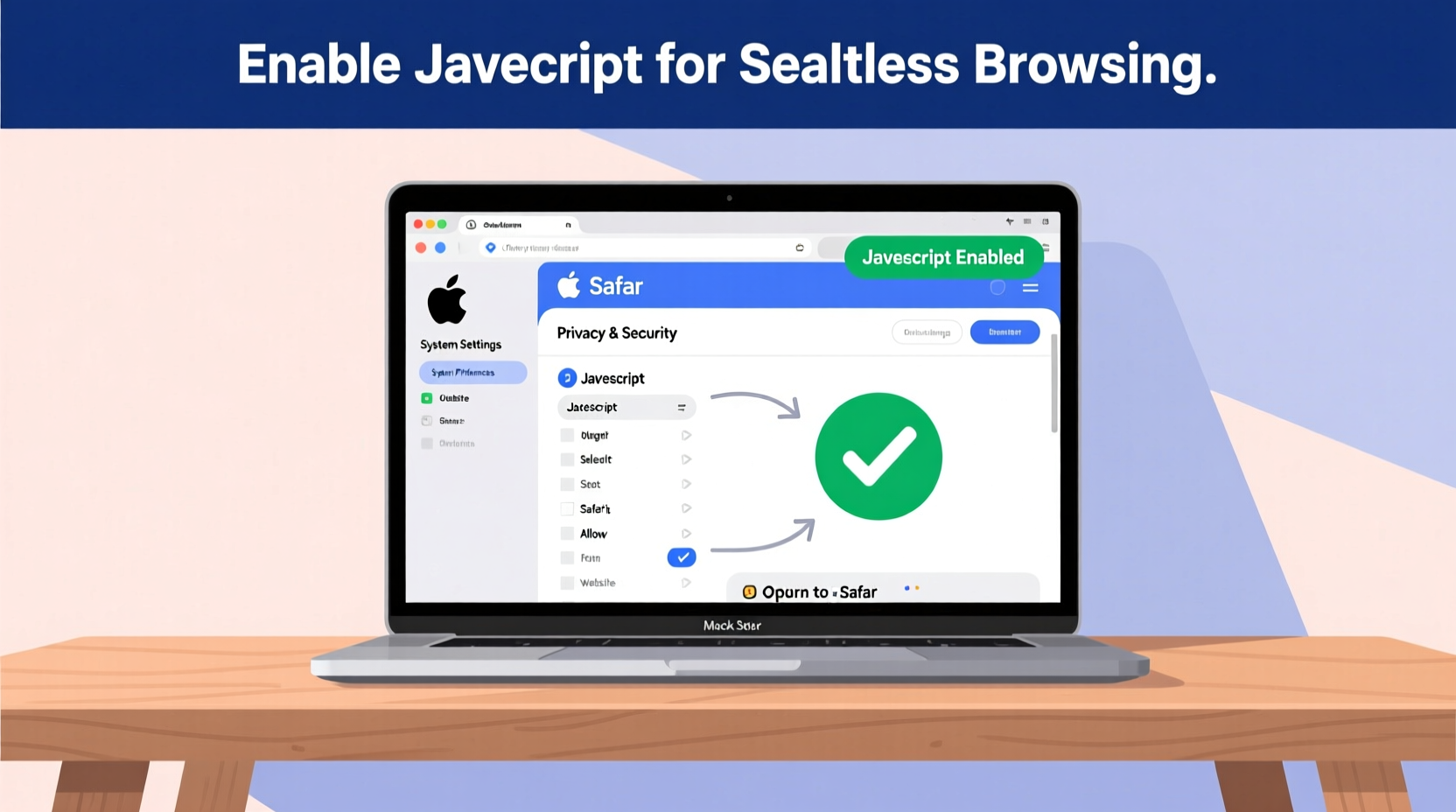
Without JavaScript, many websites lose core functionality. You might be unable to:
- Submit contact forms or log into accounts
- View interactive maps or videos
- Use shopping carts or payment gateways
- Access real-time updates (e.g., news feeds, chat apps)
Modern web applications like Gmail, Google Docs, Notion, and Trello rely heavily on JavaScript. Disabling it may seem like a security enhancement, but it often leads to frustration when sites don’t work as expected.
“Disabling JavaScript today is like driving with the handbrake on — technically possible, but inefficient and limiting.” — Dr. Lena Patel, Web Security Analyst at OpenWeb Labs
How to Enable JavaScript in Safari (macOS Default Browser)
Safari is the default browser on all MacBooks. While it enables JavaScript by default, settings can change due to parental controls, privacy extensions, or manual adjustments. Follow these steps to ensure JavaScript is active:
- Open Safari from your Dock or Applications folder.
- Click on Safari in the top-left menu bar, then select Settings (or Preferences).
- Navigate to the Security tab.
- Under the \"Web content\" section, check the box labeled \"Enable JavaScript\".
- Close the window and restart Safari for changes to take effect.
If restrictions are enabled, you’ll need administrator access to modify them. This often occurs in shared or managed devices where parental controls limit scripting capabilities.
Enabling JavaScript in Chrome and Firefox
While Safari comes pre-installed, many users prefer Chrome or Firefox for their speed, extensions, and cross-device syncing. Here’s how to enable JavaScript in each:
Google Chrome
- Launch Google Chrome.
- Click the three-dot menu in the upper-right corner and go to Settings.
- Scroll down and click Privacy and security in the sidebar.
- Select Site Settings.
- Click Additional content settings, then choose JavaScript.
- Ensure that \"Sites can use JavaScript\" (Recommended) is selected.
Mozilla Firefox
- Open Mozilla Firefox.
- Type
about:configin the address bar and press Enter. - Accept the warning prompt (\"Proceed with caution\").
- In the search bar, type
javascript.enabled. - If the value is
false, double-click the entry to set it totrue.
Browser Comparison: JavaScript Settings at a Glance
| Browser | Default State | Where to Enable | Common Issues |
|---|---|---|---|
| Safari | Enabled | Preferences → Security → Enable JavaScript | Grayed out due to Screen Time restrictions |
| Google Chrome | Enabled | Settings → Privacy & Security → Site Settings → JavaScript | Extensions blocking scripts (e.g., NoScript) |
| Mozilla Firefox | Enabled | about:config → javascript.enabled = true | User accidentally disables via config edit |
Troubleshooting: What to Do When JavaScript Still Doesn’t Work
Even after enabling JavaScript, some sites may not respond correctly. Consider these potential causes:
- Ad blockers or script blockers: Extensions like uBlock Origin or NoScript may disable JavaScript selectively. Try disabling them temporarily.
- Cached outdated settings: Clear your browser cache and cookies to refresh site permissions.
- Outdated browser version: Update your browser to the latest release to ensure compatibility.
- Malware interference: Rarely, malicious software can alter browser behavior. Run a scan using trusted antivirus tools.
Mini Case Study: Fixing Online Banking Access
Sophia, a freelance designer in Portland, couldn’t log into her bank’s website using Safari. The login button did nothing when clicked. She tried multiple times before realizing JavaScript was disabled — not by choice, but because her child had activated Screen Time restrictions earlier that week.
After following the steps to re-enable JavaScript under System Settings > Screen Time > Content Restrictions, she regained full access. The bank’s two-factor authentication widget loaded instantly, and the session remained stable. This simple fix saved her hours of unnecessary calls to customer support.
Security vs. Functionality: Finding the Right Balance
Some users disable JavaScript to reduce tracking or prevent malicious scripts. While this improves privacy, it also breaks usability. A smarter approach involves selective control rather than blanket disabling.
Consider using privacy-focused extensions like Brave Shields (in Brave Browser) or Privacy Badger (from EFF), which block trackers while allowing essential JavaScript to run. These tools provide granular control over what scripts execute, offering both protection and performance.
“Total JavaScript blocking is outdated. Modern threats require intelligent filtering, not outright denial of core web functions.” — Mark Tran, Senior Developer at SecureNet Systems
Checklist: Ensure JavaScript Is Working Properly
- Confirm JavaScript is enabled in your preferred browser
- Disable conflicting extensions temporarily to test functionality
- Update your browser to the latest version
- Verify no system-level restrictions (e.g., Screen Time) are interfering
- Test on a known JavaScript-heavy site (e.g., Gmail, YouTube)
- Clear cache if pages behave unexpectedly after enabling
Frequently Asked Questions
Is enabling JavaScript safe?
Yes, for most users. Major browsers sandbox JavaScript execution to prevent harmful actions. The risk comes from visiting untrusted websites or clicking suspicious links — not from having JavaScript enabled. Use reputable antivirus software and avoid phishing sites to stay protected.
Can I enable JavaScript for specific sites only?
Yes. In Chrome and Firefox, you can manage site-specific permissions. For example, allow JavaScript on your bank’s site while restricting it on ad-heavy blogs. This offers a middle ground between security and usability.
Why does my website say 'JavaScript required' even though I’ve enabled it?
This usually means another layer is blocking scripts — such as an extension, firewall rule, or network filter. Disable ad blockers one by one to identify the culprit. Also, check if your organization or school network enforces script filtering.
Final Steps for a Seamless Experience
Now that JavaScript is enabled, test your setup:
- Visit a dynamic site like Gmail or YouTube.
- Interact with elements — play a video, expand a menu, submit a search.
- If everything responds smoothly, your configuration is correct.
For ongoing maintenance, periodically review your browser settings, especially after system updates or new extension installations. macOS updates sometimes reset privacy configurations, particularly under Screen Time or parental controls.
Conclusion
JavaScript isn’t just optional — it’s fundamental to how the modern web works. By ensuring it’s properly enabled across your browsers, you unlock faster, richer, and more functional online experiences. Whether you're managing finances, collaborating remotely, or simply browsing news, a few quick settings adjustments can make all the difference.




 浙公网安备
33010002000092号
浙公网安备
33010002000092号 浙B2-20120091-4
Comments
No comments yet. Why don't you start the discussion?