
Streaming live content on Facebook has become one of the most effective ways to connect with audiences in real time. Whether you're a small business owner, educator, artist, or community leader, going live allows you to build trust, answer questions instantly, and strengthen relationships with followers. With over 2 billion active users, Facebook offers unmatched reach when used strategically. The key is not just hitting “Go Live,” but doing so with preparation, purpose, and professionalism.
This guide walks through every stage—from technical setup to post-stream engagement—so you can deliver high-quality, impactful broadcasts that keep viewers coming back.
1. Prepare Your Equipment and Environment
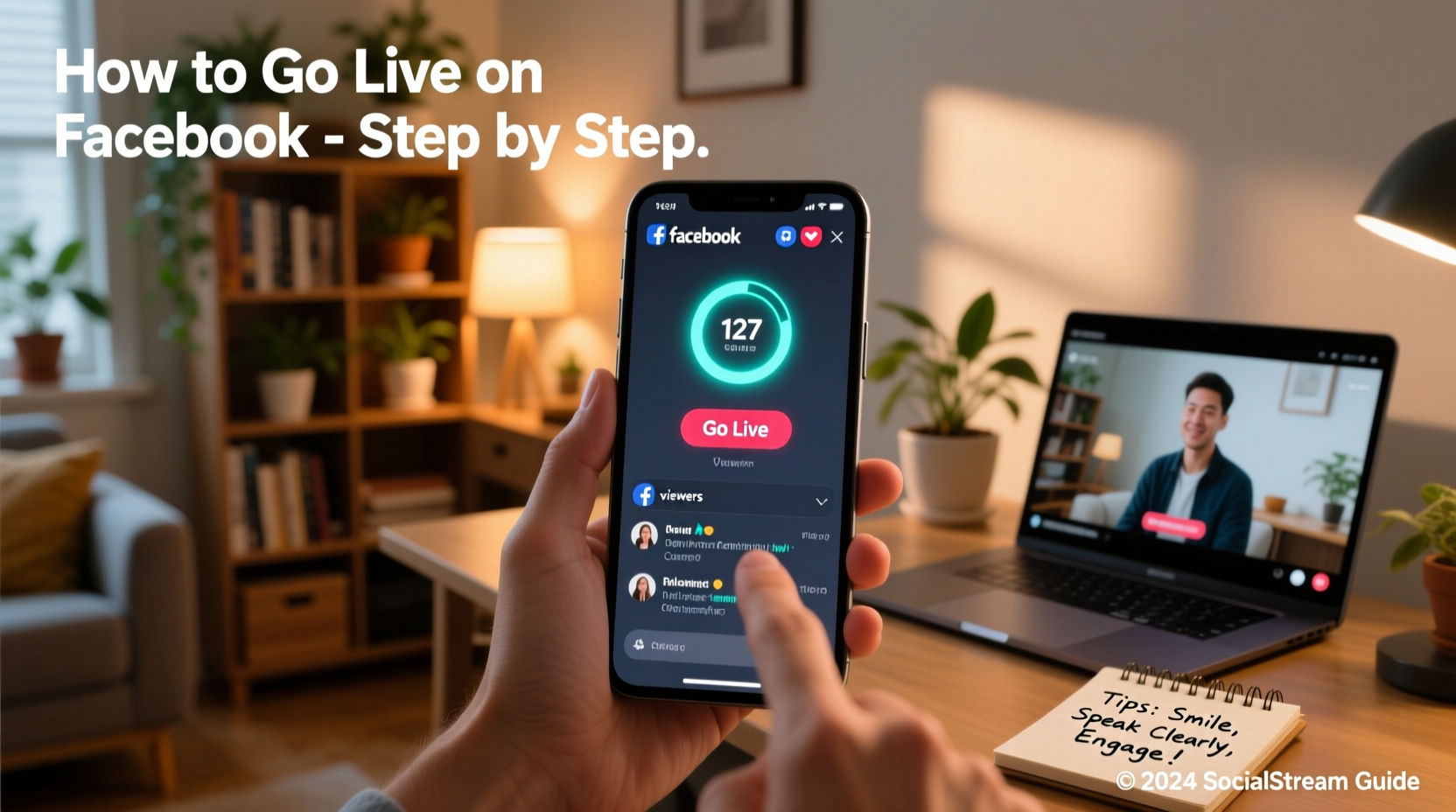
Before launching into a live stream, ensure your hardware and surroundings support a smooth experience. Viewers are more likely to stay engaged if the audio is clear, the video is stable, and the background isn’t distracting.
- Smartphone or webcam: Most Facebook Live streams are done via mobile devices. Use an iPhone or Android phone with a rear-facing camera for better quality.
- Stable internet connection: Upload speed should be at least 5 Mbps for HD streaming. Use Wi-Fi instead of cellular data when possible.
- External microphone (optional): For professional-grade audio, consider a lavalier mic compatible with your device.
- Lighting: Face natural light or use soft artificial lighting to avoid shadows.
- Quiet space: Choose a location free from background noise, interruptions, or visual clutter.
2. Step-by-Step Guide to Starting a Facebook Live Stream
Facebook makes it easy to go live directly from your Page, whether using a mobile app or desktop browser. Follow this sequence to start broadcasting without errors.
- Log in to your Facebook account and navigate to your official Page (not your personal profile).
- Click “Create” at the top of your Page’s feed (on desktop) or tap “Live” under the status update box (on mobile).
- Enter a compelling title that clearly states what viewers will gain. Example: “Behind-the-Scenes: How We Bake Our Signature Sourdough.”
- Add a description with context, hashtags (#SmallBusinessTips), and any links (e.g., product pages or sign-up forms).
- Select privacy settings: Choose “Public” for maximum reach or limit visibility to specific groups if needed.
- Preview your video feed and adjust camera angle, lighting, and audio input if available.
- Tap “Go Live” once everything looks good. Allow a few seconds for the stream to initialize.
Once live, interact with viewers by reading comments aloud, thanking people by name, and responding to questions. This interaction boosts algorithmic visibility during and after the broadcast.
3. Best Practices During Your Live Session
A successful live stream isn’t just about technology—it’s about engagement. Even with perfect gear, poor delivery can cause drop-offs within the first minute.
| Do’s | Don’ts |
|---|---|
| Mention viewer names when responding to comments | Read from a script word-for-word |
| Speak clearly and maintain eye contact with the camera | Turn away frequently or look at your screen |
| Keep sessions between 10–20 minutes unless highly interactive | Ramble without structure or clear takeaway |
| Use on-screen graphics or props to illustrate points | Stream in low light or noisy environments |
“Live video generates 6 times more interactions than regular posts. Authenticity matters more than perfection.” — Sarah Chen, Social Media Strategist at ReachWell Digital
Start with a warm welcome, state the purpose of the session, and outline what viewers will learn. Midway, prompt engagement: “Drop a 🍕 if you’ve tried our new pizza flavor!” End with a summary and call-to-action: “Visit our website now for today’s exclusive discount.”
4. Real Example: How a Local Bakery Grew Engagement
Jessica runs “Maple & Crumb,” a neighborhood bakery with a loyal local following. She decided to host weekly Facebook Lives showcasing her baking process. Every Friday at 9 AM, she went live from the kitchen, demonstrating how to make croissants from scratch.
The first few streams had only 12–15 viewers. But Jessica responded to every comment, asked questions (“What pastry should we feature next?”), and shared fun facts. Over six weeks, average viewership grew to 80+, with several videos reaching over 1,000 total views due to shares and replays.
One viewer commented, “I never knew how much goes into flaky layers—now I appreciate it even more!” That emotional connection translated into increased foot traffic and online orders. Her consistent schedule built anticipation and trust.
5. After the Stream: Maximize Long-Term Impact
Your work doesn’t end when the stream stops. What you do afterward determines long-term value.
Facebook automatically saves your live video to your Page’s timeline and video library. Within minutes, edit the post to:
- Add timestamps in the description for key moments (e.g., “0:58 – Mixing the dough”)
- Pin the video to the top of your Page for 7 days
- Share it to relevant Groups or Stories to extend reach
- Respond to lingering comments to maintain momentum
Analyze performance using Facebook Insights. Look at metrics like:
- Total minutes viewed
- Peak concurrent viewers
- Engagement rate (likes, shares, comments)
Use these insights to refine future topics and timing. For instance, if most viewers joined after the 5-minute mark, consider starting with a quick hook: “In 60 seconds, I’ll show you the secret ingredient.”
Checklist: Before You Go Live
- Charge your device and close unused apps
- Connect to a strong Wi-Fi network
- Set up tripod or stable surface
- Adjust lighting (avoid backlighting)
- Write a brief outline or bullet points
- Draft a title and description
- Notify your team or co-hosts
- Post a teaser story 30 minutes before going live
Frequently Asked Questions
Can I go live from a computer?
Yes. Use Facebook Creator Studio or third-party software like OBS (Open Broadcaster Software) to stream from your desktop. This method supports higher resolution and multi-camera setups.
How do I stop someone from commenting during my live stream?
You can moderate comments in real time. Tap “View Comments,” then block or remove inappropriate ones. Enable comment filtering under Privacy Settings to hide offensive words automatically.
Will my live video be searchable later?
Absolutely. Once published, your video appears in your Page’s Video tab and may appear in Facebook search results. Use descriptive titles and keywords to improve discoverability.
Conclusion: Turn Moments Into Momentum
Going live on your Facebook page isn’t just a feature—it’s an opportunity to humanize your brand, educate your audience, and foster real-time dialogue. With minimal investment and thoughtful execution, even simple broadcasts can yield meaningful connections and measurable growth.
Start small. Focus on consistency over polish. Engage like you’re talking to one person, not a crowd. Each stream builds familiarity, trust, and visibility. Now that you have the tools and strategy, it’s time to press “Go Live” and let your voice be seen.




 浙公网安备
33010002000092号
浙公网安备
33010002000092号 浙B2-20120091-4
Comments
No comments yet. Why don't you start the discussion?