
Streaming live on YouTube from your phone is no longer just for casual creators. With the right preparation, even solo streamers can deliver polished, professional broadcasts that rival studio productions. Whether you're hosting Q&As, launching products, or sharing tutorials, mobile live streaming offers unmatched flexibility. The key lies in mastering the setup, optimizing performance, and engaging your audience effectively—all from the device in your pocket.
1. Meet the Requirements Before You Go Live
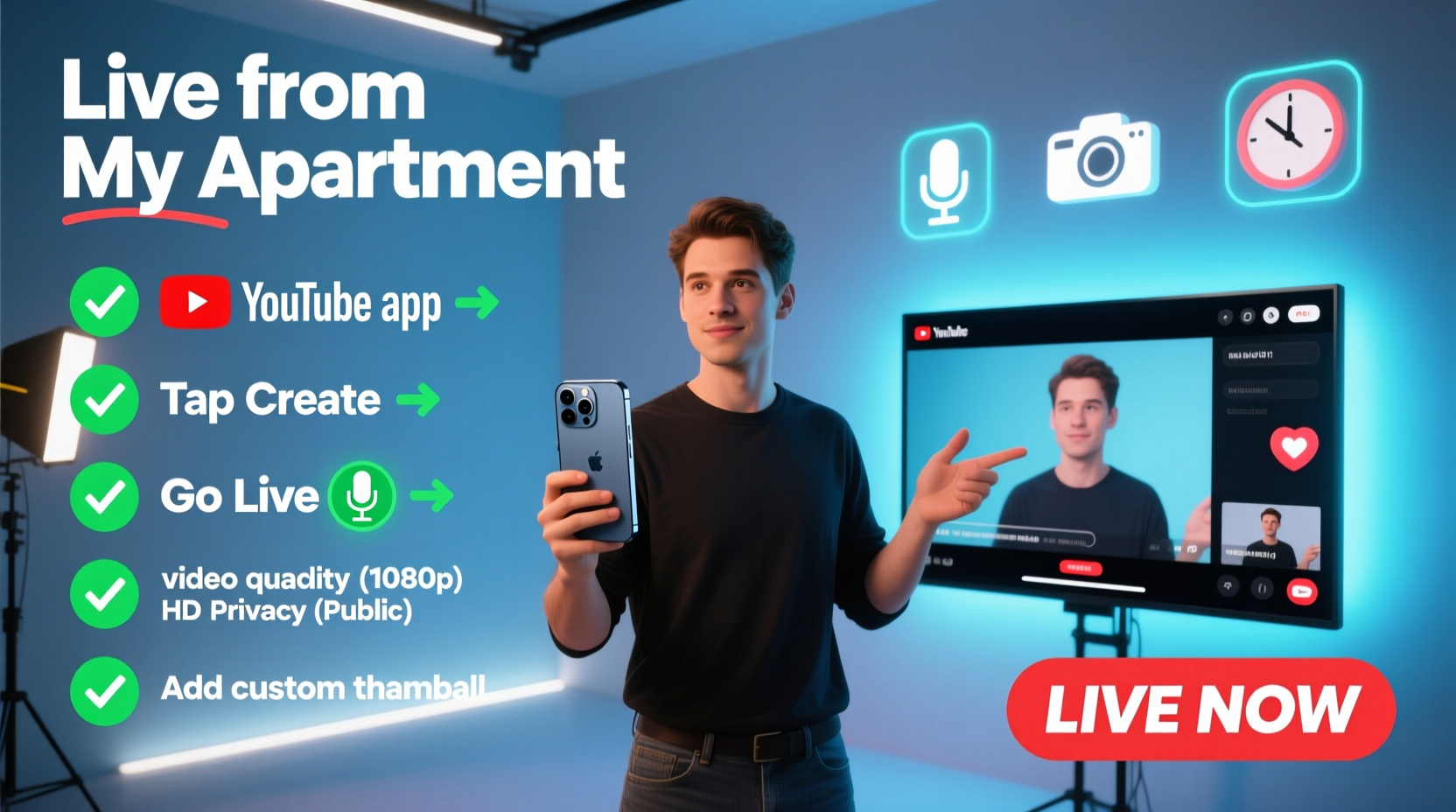
Before pressing “Go Live,” ensure your account meets YouTube’s eligibility criteria. Not every channel can stream immediately. YouTube requires:
- Your Google Account to be verified
- Two-step verification enabled
- At least 500 subscribers (as of current policy)
- A linked AdSense account (for monetization readiness)
- No community guideline strikes in the past 90 days
These restrictions exist to maintain platform integrity and reduce spam. If you haven’t hit 500 subscribers yet, consider building momentum through consistent uploads and audience engagement before attempting live streams.
2. Optimize Your Phone Settings for High-Quality Streaming
Your phone is both camera and broadcast station. To ensure smooth transmission, configure it properly:
- Close background apps: Free up RAM and processing power to prevent lag or crashes.
- Lock screen brightness: Prevent auto-dimming during long sessions.
- Enable airplane mode (with Wi-Fi on): Stop incoming calls and notifications from interrupting your stream.
- Use a stable internet connection: Aim for at least 5 Mbps upload speed for 720p HD. Use Wi-Fi over cellular data whenever possible.
- Disable battery saver: This can throttle CPU and affect video encoding.
For best results, test your network using tools like Speedtest.net directly from your phone. Upload speeds below 3 Mbps may result in buffering or automatic resolution downgrades.
Recommended Video Settings for Mobile Streaming
| Resolution | Frame Rate | Bitrate Range | Best For |
|---|---|---|---|
| 720p (HD) | 30 fps | 2,500–4,000 kbps | Most mobile streams; balanced quality and stability |
| 1080p (Full HD) | 30 fps | 4,000–6,000 kbps | Well-lit, static content with strong internet |
| 720p | 60 fps | 4,500–6,500 kbps | Fast motion, gaming, or dynamic visuals |
YouTube’s mobile app automatically selects bitrate based on your connection, but understanding these ranges helps diagnose quality issues post-stream.
3. Step-by-Step Guide to Starting Your First Live Stream
Once prepared, follow this sequence to go live smoothly:
- Open the YouTube app and tap your profile icon.
- Select Create > Go Live.
- Choose Mobile as your streaming source.
- Title your stream clearly—e.g., “Live Q&A: Mobile Filming Tips” instead of “Going Live Now.”
- Add a detailed description with relevant keywords and links (e.g., social handles, product pages).
- Select the correct category (e.g., Education, Gaming, People & Blogs).
- Set visibility: Public, Unlisted, or Private (Public is default).
- Configure advanced settings: resolution, frame rate, and audio input.
- Position your phone securely using a tripod or grip.
- Tap Go Live and allow a 10–15 second buffer for signal stabilization.
After going live, monitor viewer count and comments in real time. Avoid touching the screen unnecessarily to prevent accidental taps or exposure adjustments.
4. Enhance Production Quality Like a Pro
Professionalism isn’t defined by gear alone—it’s consistency, clarity, and confidence. Even on a phone, you can elevate production value significantly.
Lighting and Framing
Use natural light whenever possible. Position yourself facing a window during daylight hours. Avoid backlighting, which causes silhouetting. For evening streams, invest in a compact ring light or softbox panel (many clip directly onto tripods).
Frame your shot with the rule of thirds: align your eyes along the top third line of the screen. Leave space above your head and keep the background clutter-free.
Audio Clarity
Phone microphones pick up ambient noise easily. For critical content, use a wireless lavalier mic connected via Bluetooth or a TRRS adapter. Apps like Rode Reporter or FiRe can enhance recording quality further.
Engagement Techniques
Respond to comments by name: “Great question, Sarah!” This builds connection. Pin important messages (like links or disclaimers) to keep them visible. Assign a moderator if possible—or pause briefly to acknowledge top contributors.
“The most successful mobile streamers don’t have the best cameras—they have the strongest rapport with their audience.” — Dana Patel, Digital Broadcast Strategist
5. Post-Stream Best Practices
The moment your stream ends, YouTube begins processing the archive. Take advantage of this window:
- Edit the thumbnail: Select a clear, expressive frame that represents the content.
- Add chapters: Break long streams into sections (e.g., 0:00 Intro, 5:12 Tutorial Start).
- Pin a follow-up comment: Thank viewers, link resources, and ask for feedback.
- Promote the replay: Share the archived video across social platforms with timestamps.
- Analyze metrics: Check retention graphs in YouTube Studio to see where viewers dropped off.
Retention spikes often occur during interactive segments or demonstrations. Use this insight to refine future live content.
Mini Case Study: From Zero to 10K Viewers in 3 Months
Jess Lin, a freelance photographer, began hosting weekly mobile live sessions titled “Phone Photography Hacks.” Initially drawing fewer than 20 viewers, she focused on consistency—streaming every Thursday at 7 PM. She used a $20 lavalier mic, natural lighting, and engaged every commenter by name.
Within eight weeks, average viewership grew to 300. By promoting replays on Instagram and Pinterest, her archived streams gained traction. One video on “Editing Sunset Photos in Snapseed” went viral, driving over 8,000 views in a week. Today, her live sessions regularly attract 1,000+ concurrent viewers, and she’s partnered with two camera accessory brands.
Her secret? “I treated each stream like a mini TV show—same intro music, consistent branding, and always ended with a teaser for next week.”
Frequently Asked Questions
Can I go live on YouTube without 500 subscribers?
No, YouTube currently requires at least 500 subscribers to enable live streaming on mobile or desktop. However, you can host live streams in YouTube Shorts if you have at least 100 subscribers and meet other eligibility requirements.
Why does my stream keep buffering or disconnecting?
This usually stems from unstable internet. Ensure you’re on a strong Wi-Fi network, restart your router if needed, and avoid bandwidth-heavy activities (like downloads or video calls) during the stream. Also, check that your phone isn’t overheating, which can throttle performance.
Can I use external cameras with the YouTube mobile app?
Directly, no—the YouTube app only uses your phone’s built-in camera. However, you can use third-party RTMP apps like Larix Broadcaster or OBS Camera to feed video from an external source (such as a DSLR or action cam) to YouTube via a custom ingest URL.
Final Checklist Before Going Live
- ✅ Technical Setup
- - Phone charged or plugged in
- - Stable Wi-Fi connection confirmed
- - Background apps closed
- ✅ Content Prep
- - Clear title and description drafted
- - Key talking points or script outline ready
- - Links or graphics prepared for mention
- ✅ Environment
- - Quiet, well-lit space secured
- - Phone mounted on tripod or stand
- - External mic connected (if used)
- ✅ Engagement Plan
- - Greeting and closing script noted
- - Plan to respond to comments
- - Moderator assigned (or self-monitoring strategy)
Conclusion: Own Your Moment, One Stream at a Time
Going live on YouTube from your phone isn’t about perfection—it’s about presence. With thoughtful preparation and consistent execution, you can deliver professional-grade broadcasts that inform, entertain, and grow your audience. The barrier to entry has never been lower, but the opportunity to stand out has never been greater.




 浙公网安备
33010002000092号
浙公网安备
33010002000092号 浙B2-20120091-4
Comments
No comments yet. Why don't you start the discussion?