
Over time, even the most powerful Android phones can begin to slow down, freeze unexpectedly, or suffer from persistent bugs. While software updates and routine maintenance help, sometimes a deeper solution is required. A hard format—also known as a factory reset—can restore your device to its original operating condition, eliminating clutter, malware, and system errors. However, performing this action incorrectly can result in data loss or bricked devices. This guide walks you through the entire process with precision, safety measures, and best practices so you can reset your phone confidently and effectively.
Understanding Hard Formatting: What It Is and Why You Might Need It
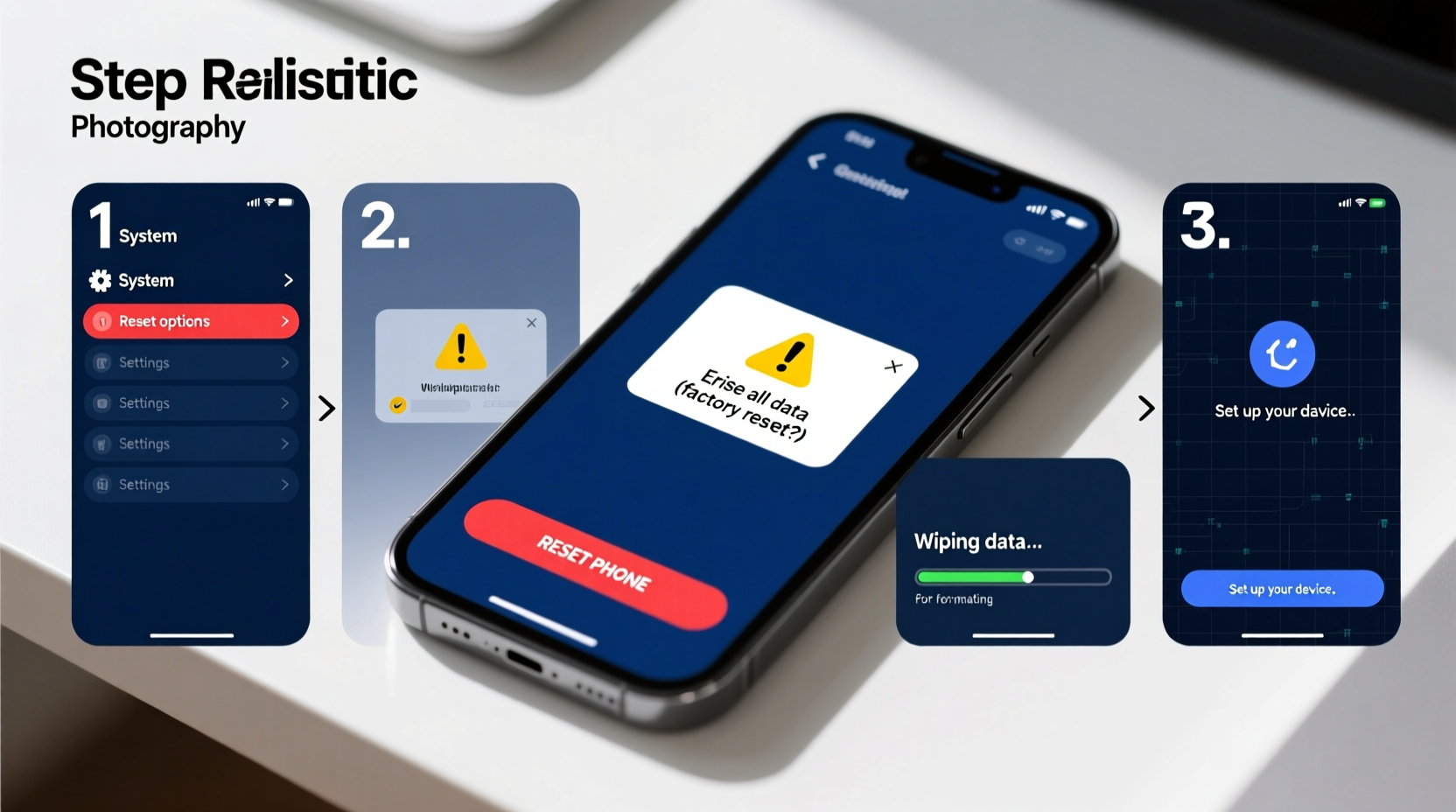
A hard format, or factory reset, erases all user-installed apps, settings, files, and accounts from your Android device, returning it to the state it was in when first unboxed. Unlike a soft reset (which merely restarts the system), a hard format clears internal storage completely. This process is useful for several scenarios:
- Selling or giving away your phone and wanting to erase personal data
- Fixing recurring crashes, freezes, or boot loops
- Removing malware or unauthorized access
- Resolving performance degradation due to app bloat
- Preparing the device for warranty service or repair
While effective, a factory reset should never be taken lightly. Once initiated, recovery of deleted data without prior backups is nearly impossible.
“Factory resets are among the most powerful troubleshooting tools available to users—but they must be used responsibly.” — Dr. Lena Torres, Mobile Systems Engineer at OpenTech Labs
Essential Preparations Before Hard Formatting
Before initiating a factory reset, thorough preparation ensures that your data remains safe and your transition back to normal use is seamless. Skipping these steps could lead to irreversible consequences.
Back Up Your Critical Data
All photos, messages, contacts, app data, and documents stored locally on your phone will be erased. Use one or more of the following backup methods:
- Google Account Sync: Enable sync for Contacts, Calendar, Gmail, and Chrome settings under Settings > Google > Backup.
- Google One or Drive: Manually upload photos and videos via the Google Photos app with “Backup & Sync” enabled.
- Third-party cloud services: Dropbox, Microsoft OneDrive, or Samsung Cloud (for Galaxy devices) offer additional redundancy.
- Local computer backup: Connect your phone via USB and copy internal storage folders such as DCIM, Downloads, and Documents.
Ensure Device Compatibility and Battery Readiness
Your phone must meet certain conditions to complete the reset successfully:
| Requirement | Action Needed |
|---|---|
| Battery Level | At least 50%, ideally 80% charged |
| Google Account Lock (FRP) | Remember login credentials; post-reset verification required |
| Device Encryption Status | Modern Android versions encrypt automatically; older models may require manual setup |
| SD Card Handling | Choose whether to format SD card during reset (optional but recommended if compromised) |
Step-by-Step Guide to Performing a Hard Format
Follow this sequence carefully to execute a secure and complete factory reset.
- Open Settings – Navigate to the main Settings app on your Android device.
- Go to System > Reset Options – Path may vary slightly depending on brand (e.g., Samsung: General Management > Reset).
- Select “Erase All Data (Factory Reset)” – Confirm that this option is highlighted.
- Review Warnings – The system will display alerts about data loss and account removal. Read them thoroughly.
- Authenticate Identity – Enter your PIN, pattern, password, or fingerprint if prompted.
- Confirm Reset – Tap “Reset Phone” or similar button. Some devices ask again: “Delete all?” → Confirm.
- Wait for Completion – The phone will reboot and begin wiping partitions. This takes 5–15 minutes. Do not interrupt power.
- Reboot into Setup Mode – After completion, the device boots like new, prompting language selection and account login.
If your phone is unresponsive or stuck in a loop, an alternative method using Recovery Mode applies:
Hard Format via Recovery Mode (Non-Responsive Devices)
- Power off the device completely.
- Press and hold Power + Volume Up (varies by model; some use Volume Down).
- Release Power button when logo appears but keep holding Volume key until Recovery Mode loads.
- Use volume keys to navigate to “Wipe data/factory reset” and press Power to select.
- Confirm action using the same navigation method.
- After wipe completes, choose “Reboot system now.”
Post-Reset Best Practices
After your phone restarts fresh, avoid repeating habits that led to instability. Follow these guidelines to maintain peak performance.
Restore Only Necessary Data
During initial setup, Android offers to restore from a previous backup. Be selective:
- Restore contacts, calendar, and essential media.
- Avoid auto-installing all previous apps immediately—install only what you actively use.
- Manually configure privacy settings instead of accepting defaults.
Update System and Apps Immediately
Fresh installations often run outdated firmware. Check for updates:
- Go to Settings > System > System Update
- Install any available OS patches
- Open Play Store and update core apps (Chrome, Gmail, Security, etc.)
“A clean slate is your chance to optimize—not just replicate—the past. Install apps mindfully.” — Marcus Lin, Senior Android Developer at AppGuard Solutions
Common Pitfalls and How to Avoid Them
Even experienced users make mistakes during resets. Here’s what to watch out for:
| Pitfall | Consequence | Prevention |
|---|---|---|
| Skipping backup | Permanent loss of photos, messages, notes | Verify cloud sync status and local copies |
| Forgetting Google account credentials | FRP lock prevents usage after reset | Write down or securely store login details |
| Interrupting the reset process | Risk of corrupted OS or boot failure | Ensure stable battery and do not force shutdown |
| Assuming SD card is wiped | Private data remains accessible | Select “Format SD card” during reset or wipe separately |
Real-World Example: Recovering a Lagging Pixel 6
Jamal had been using his Pixel 6 for over two years. Recently, it began freezing during calls, apps crashed frequently, and battery life dropped sharply despite charging habits remaining unchanged. He tried clearing caches and uninstalling unused apps, but performance didn’t improve.
Following this guide, he backed up his photos to Google Photos, ensured his Gmail and contacts were synced, and confirmed his Google credentials. He then performed a factory reset via Settings. After 12 minutes, the phone rebooted cleanly. Upon reactivation, he selectively restored apps, updated the OS, and noticed immediate improvements: faster response times, longer battery endurance, and no more random restarts.
The hard format eliminated deeply embedded cache corruption and conflicting app permissions that standard fixes couldn't resolve.
FAQ: Common Questions About Hard Formatting
Will a factory reset remove root access or custom ROMs?
Not always. If your device has been rooted or runs a custom ROM, a standard reset won’t revert it to stock firmware. You’ll need to manually flash the original system image using tools like Fastboot or Odin (Samsung).
Can I cancel a factory reset once started?
No. Once the wiping process begins, interruption may render the device unusable. Always double-check before confirming.
Does hard formatting improve battery life?
Indirectly, yes. By removing background-hungry apps, bloatware, and inefficient processes, system efficiency improves, leading to better battery management. However, it won’t fix aging hardware or degraded batteries.
Conclusion: Take Control of Your Device’s Longevity
Hard formatting your Android phone isn’t just a last resort—it’s a proactive strategy for maintaining digital hygiene and optimal performance. When done correctly, it revitalizes your device, enhances security, and provides peace of mind. By backing up wisely, following the correct steps, and avoiding common errors, you ensure a smooth and successful reset every time.




 浙公网安备
33010002000092号
浙公网安备
33010002000092号 浙B2-20120091-4
Comments
No comments yet. Why don't you start the discussion?