
Upgrading to a solid state drive (SSD) is one of the most impactful improvements you can make to your computer’s performance. Unlike traditional hard disk drives (HDDs), SSDs have no moving parts, resulting in faster boot times, near-instant file access, and greater durability. However, simply installing an SSD isn’t enough to unlock its full potential. Proper setup, configuration, and ongoing optimization are essential to ensure long-term speed and reliability.
This comprehensive guide walks through every stage—from physical installation to advanced software tuning—so your SSD performs at its peak for years to come.
Step 1: Choose the Right SSD and Prepare Your System
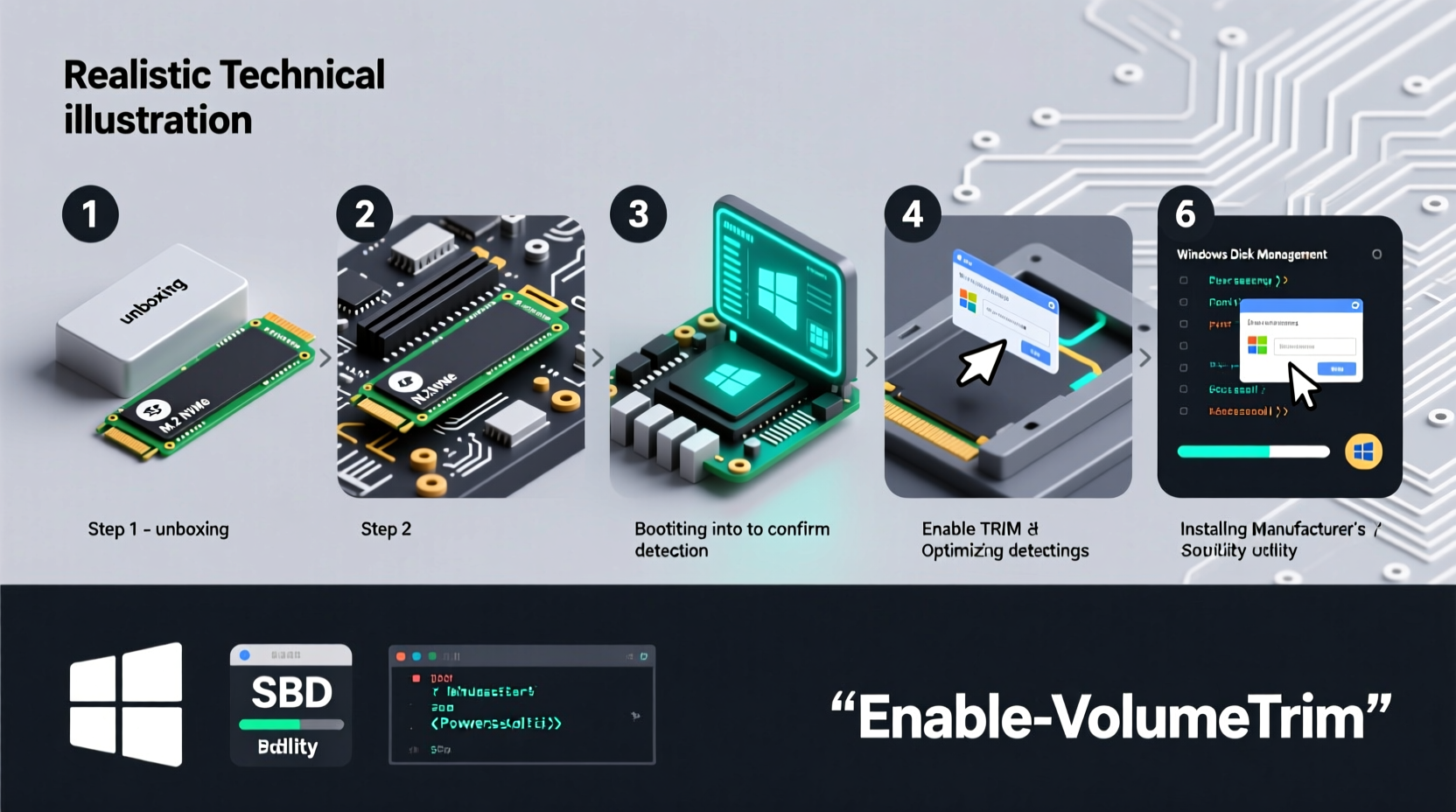
Before installation, confirm compatibility with your system. Most modern computers support either SATA III or NVMe PCIe SSDs. Check your motherboard manual or manufacturer’s website to determine which type your system supports.
- SATA SSDs: Use the same interface as traditional HDDs, ideal for older systems.
- NVMe SSDs: Much faster, using the PCIe bus; require an M.2 slot on newer motherboards.
Once you’ve selected the right SSD, back up all critical data from your current drive. Even if you’re not replacing it, having a backup ensures peace of mind during the transition.
Essential Tools You’ll Need
- Screwdriver (usually Phillips #0)
- Anti-static wrist strap (recommended)
- USB flash drive (for OS installation media)
- Cloning software (e.g., Macrium Reflect Free, Samsung Data Migration)
Step 2: Install the SSD Physically
The physical installation varies slightly between desktops and laptops, but the principles remain consistent.
For Desktop Computers:
- Power off the PC and unplug it from the wall.
- Open the case and ground yourself to prevent static discharge.
- For a 2.5-inch SATA SSD: Mount it in a drive bay and connect the SATA data and power cables.
- For an M.2 NVMe SSD: Locate the M.2 slot on the motherboard, insert the SSD at a 30-degree angle, secure it with the screw, and close the case.
For Laptops:
- Shut down and disconnect all cables.
- Remove the bottom panel—refer to your model’s service manual.
- Replace the old drive or use an available secondary slot.
- Secure the SSD with screws and reassemble the laptop.
Step 3: Install or Clone the Operating System
You have two main options: perform a clean OS installation or clone your existing drive.
Clean Installation (Recommended for Best Performance)
- Create a bootable USB drive with Windows or Linux using tools like Rufus or Ventoy.
- Boot from the USB by changing the boot order in BIOS/UEFI.
- Follow the OS installer prompts and select the new SSD as the target.
- Complete installation and install necessary drivers.
Drive Cloning (Faster Transition)
- Connect both old and new drives (use a USB enclosure if needed).
- Use cloning software to copy the entire contents of the old drive to the SSD.
- Ensure the cloned drive is marked as “bootable” and set as primary in BIOS.
“Cloning saves time, but a clean OS install eliminates accumulated clutter and often yields better long-term performance.” — David Lin, Senior Systems Engineer at TechFlow Labs
Step 4: Enable Key Performance Features
After installation, several settings must be verified or enabled to maximize SSD performance and lifespan.
Confirm TRIM Is Enabled
TRIM allows the operating system to inform the SSD which blocks of data are no longer in use and can be wiped internally. This prevents slowdowns over time.
To check TRIM status on Windows:
fsutil behavior query DisableDeleteNotify
If the result is “0”, TRIM is active. If “1”, enable it with:
fsutil behavior set DisableDeleteNotify 0
On macOS and Linux, TRIM is typically enabled automatically for supported SSDs.
Update Firmware
Manufacturers release firmware updates to improve stability, security, and speed. Visit the SSD maker’s website (e.g., Samsung, Crucial, WD) and use their utility to check for and apply updates.
Disable Defragmentation
Unlike HDDs, SSDs do not benefit from defragmentation—and it can reduce their lifespan. Windows usually disables this automatically for SSDs, but verify:
- Go to Defragment and Optimize Drives.
- Select your SSD and ensure the optimization schedule is set to “ON” but runs TRIM, not defrag.
Step 5: Optimize Long-Term Performance
Peak performance isn’t just about initial setup—it’s sustained through smart usage habits and system tuning.
Reserve Free Space
SSDs perform best when they have free space for wear leveling and garbage collection. Aim to keep at least 10–15% of the drive unoccupied.
Avoid Excessive Write Cycles
While modern SSDs are durable, minimizing unnecessary writes extends longevity. Avoid:
- Storing temporary files or browser caches directly on the SSD if possible.
- Running virtual machines or logging servers from the boot drive without monitoring usage.
Enable AHCI Mode in BIOS
Advanced Host Controller Interface (AHCI) enables features like hot-swapping and Native Command Queuing, improving SSD efficiency. Ensure it’s enabled in your BIOS settings—especially critical for SATA drives.
Adjust Power Settings
Some aggressive power-saving modes can cause SSDs to spin down or throttle performance. In Windows:
- Go to Power Options > Change Plan Settings > Change Advanced Power Settings.
- Set “PCI Express > Link State Power Management” to “Off”.
- Set “Hard Disk > Turn Off After” to “Never”.
Optimization Checklist
- Confirmed SSD is detected in BIOS and OS
- TRIM is enabled
- Defragmentation is disabled
- Firmware is up to date
- AHCI mode is active in BIOS
- At least 15% free space maintained
- OS and drivers updated post-installation
Real-World Example: Upgrading a 5-Year-Old Laptop
Mark, a freelance graphic designer, was struggling with his aging laptop. Boot times exceeded three minutes, and Adobe Photoshop frequently froze during large file loads. He replaced his 500GB HDD with a 1TB NVMe SSD using a USB-to-SATA adapter to clone his system.
After installation, he performed a clean Windows reinstall instead of relying on the clone. He updated the SSD firmware via Samsung Magician and adjusted power settings to prioritize performance. The results?
- Boot time reduced from 180 seconds to 12 seconds.
- Photoshop launch time dropped from 45 seconds to under 8.
- System responsiveness improved noticeably, even with multiple apps open.
Mark now maintains 200GB of free space and schedules quarterly firmware checks—his laptop feels like new.
Common SSD Optimization Do’s and Don’ts
| Do’s | Don’ts |
|---|---|
| Keep 10–15% free space | Fill the SSD beyond 85% capacity |
| Enable TRIM | Run defragmentation tools |
| Update SSD firmware regularly | Ignore manufacturer software alerts |
| Use hibernation sparingly (creates large hiberfile) | Store massive media libraries on the boot SSD |
FAQ
Can I use my SSD as both a boot drive and storage for large files?
You can, but for best performance, reserve the SSD primarily for the operating system, applications, and active projects. Store large media files (videos, backups) on a secondary HDD or external drive.
How long do SSDs last?
Modern SSDs typically last 5–7 years under normal use. They are rated by TBW (TeraBytes Written). A 1TB drive with a 600TBW rating can handle 600 terabytes of total writes over its lifetime—far more than most users will ever reach.
Should I encrypt my SSD?
Yes—especially if it contains sensitive data. Use built-in tools like BitLocker (Windows) or FileVault (macOS). Note: Hardware encryption on some SSDs may impact performance; software encryption is often more reliable.
Conclusion: Unlock Your System’s True Speed
Installing an SSD is just the beginning. By following these steps—correct installation, OS setup, enabling TRIM, reserving free space, and disabling harmful practices—you transform your computer into a responsive, future-ready machine. Regular maintenance and awareness of your drive’s health ensure it remains fast and reliable for years.




 浙公网安备
33010002000092号
浙公网安备
33010002000092号 浙B2-20120091-4
Comments
No comments yet. Why don't you start the discussion?