
With the release of iOS 16, Apple redefined how users interact with their iPhone’s home and lock screens. For the first time, you can customize not just the background image but also the font, time style, and widget placement—all from the lock screen. This flexibility allows for deep personalization, turning your device into a true reflection of your style and daily rhythm.
Whether you want to use a favorite photo, a stunning landscape, or a Live Photo from a memorable trip, setting up a custom wallpaper has never been more intuitive—or powerful. But with new features come new steps. This guide walks you through every stage of installing and personalizing custom wallpapers on iOS 16, ensuring you get the most out of Apple’s latest interface design.
Understanding iOS 16 Wallpaper Features
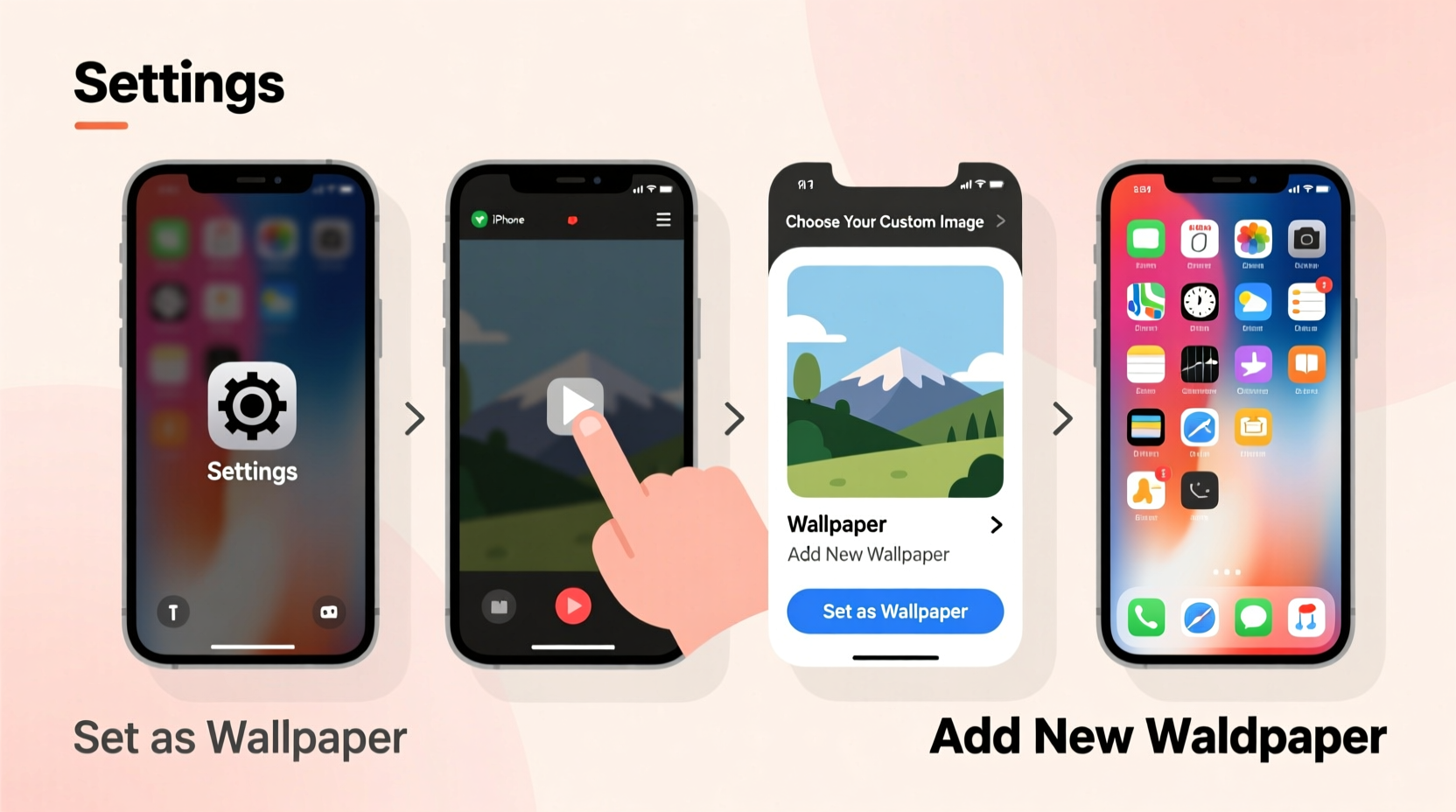
iOS 16 introduced a major overhaul of the wallpaper system. Unlike earlier versions where the lock screen was static, iOS 16 treats it as a dynamic canvas. You can now:
- Separately customize the lock screen and home screen wallpapers
- Apply different fonts and colors to the clock and date
- Add widgets directly to the lock screen
- Use Focus modes to automatically switch wallpapers based on activity (e.g., work, sleep, fitness)
- Set Live Photos, videos (via third-party apps), or even depth-effect photos as backgrounds
This level of control means your wallpaper isn’t just decorative—it can be functional and adaptive. A morning workout Focus mode might trigger a vibrant sunrise wallpaper, while bedtime could shift to a calming night sky.
How to Install a Custom Wallpaper in 5 Steps
The process of installing a custom wallpaper on iOS 16 is simple but requires attention to detail. Follow this step-by-step sequence for flawless results.
- Open the Settings app and tap “Wallpaper.” Alternatively, long-press on an empty area of your lock screen to enter edit mode directly.
- Select “Add New Wallpaper” at the bottom of the screen. You’ll see options like Photo, People, Pets, Weather, Astronomy, and more.
- Choose “Photo” to pick an image from your library. Navigate to the album containing your desired image and select it.
- Customize appearance: After selecting the photo, you can adjust its zoom and position. Tap “+” or “–” to scale, or drag to reposition. If supported, enable “Perspective Zoom” to keep the image dynamic as you move your phone.
- Assign to screens: Tap “Set” and choose whether to apply the wallpaper to the Lock Screen, Home Screen, or both. For full customization, set them separately.
Once applied, exit the editor by pressing the Home button or swiping up. Your new wallpaper will be active immediately.
Using Live Photos and Videos as Wallpapers
Live Photos add motion and sound to your lock screen. To use one:
- Capture or select a Live Photo in your Camera Roll
- Follow the same steps above, ensuring the Live Photo icon (three concentric circles) is visible in the preview
- After setting, press and hold the lock screen to activate the animation
Note: Video wallpapers are not natively supported, but third-party apps like Vellum or IntoLive allow conversion of short clips into Live Photo format for use as dynamic backgrounds.
Enhancing Your Lock Screen with Widgets and Fonts
One of iOS 16’s standout features is the ability to personalize more than just the image. You can now style the clock, add widgets, and create multiple lock screen configurations tied to Focus modes.
To access these options:
- Long-press the lock screen to enter edit mode
- Select the clock to change its style, color, and font
- Tap “Add Widget” to include elements like Calendar, Weather, Battery, or Fitness rings
- Swipe left on the lock screen to access additional saved configurations
You can save multiple lock screen setups—each with unique wallpapers and widgets—and switch between them with a simple swipe. For example, keep a minimalist lock screen for work hours and a vibrant, animated one for weekends.
“iOS 16 turned the lock screen into a personal dashboard. It’s no longer just about aesthetics—it’s about utility and identity.” — Jordan Lee, Mobile Interface Designer at UX Daily
Best Practices and Common Pitfalls
While customization is powerful, poor choices can reduce readability or battery life. The following table outlines key do’s and don’ts when setting custom wallpapers.
| Do’s | Don’ts |
|---|---|
| Use high-contrast images if adding widgets or keeping the clock visible | Avoid overly bright or flashing wallpapers that may cause eye strain |
| Match wallpaper color to widget/font tone for visual harmony | Don’t clutter the screen with too many widgets—limit to 1–2 for clarity |
| Leverage Focus modes to auto-switch wallpapers (e.g., Sleep mode = dark theme) | Don’t rely solely on animated wallpapers; they can increase battery usage |
| Save multiple configurations for different times of day or activities | Avoid using copyrighted images without permission, especially for public sharing |
Mini Case Study: Personalizing for Productivity
Samantha, a freelance graphic designer, struggled with distractions during client work hours. After updating to iOS 16, she created three distinct lock screens:
- Work Mode: Minimalist black wallpaper with white clock and a single Calendar widget showing upcoming deadlines
- Creative Mode: A vibrant abstract artwork with a Music widget linked to her inspiration playlist
- Personal Mode: A family photo with a Weather widget and warm-colored font
She linked each to a Focus mode—Work, Creative, and Personal—triggered manually or via schedule. Within two weeks, she reported improved concentration and a stronger sense of digital balance. “It’s like having different mindsets built into my phone,” she said.
FAQ: Common Questions About Custom Wallpapers on iOS 16
Can I use any photo as a wallpaper?
Yes, any photo in your library can be used. However, for best results, use high-resolution images with sufficient vertical space to avoid cropping important details. Photos taken in Portrait mode often work well due to their depth effect.
Why does my wallpaper look blurry after setting it?
Blurriness usually occurs when the image resolution is too low or when excessive zoom is applied. Try using a photo with dimensions close to your iPhone’s screen resolution (e.g., 1170x2532 for iPhone 14). Also, avoid stretching small social media thumbnails.
Can I share my custom lock screen setup with others?
Yes. When you long-press your lock screen and tap the share icon, you can send your entire configuration—including wallpaper, font, and widgets—to friends via Messages, email, or social media. They can adopt it with one tap.
Checklist: Installing & Optimizing Your Custom Wallpaper
- ✅ Choose a high-resolution image from your photo library or download a premium wallpaper
- ✅ Open Settings > Wallpaper or long-press the lock screen to begin editing
- ✅ Select “Add New Wallpaper” and pick your image
- ✅ Adjust zoom and position carefully to highlight key parts of the photo
- ✅ Customize clock style, color, and add 1–2 relevant widgets
- ✅ Assign the wallpaper to Lock Screen, Home Screen, or both
- ✅ Save the setup and optionally link it to a Focus mode
- ✅ Test readability under different lighting conditions
Conclusion: Make Your iPhone Uniquely Yours
Your iPhone is more than a tool—it’s a companion that reflects your personality, habits, and aesthetic. With iOS 16’s advanced wallpaper system, you have unprecedented control over how your device looks and feels throughout the day. From serene nature scenes to bold artistic expressions, the right wallpaper can elevate your experience and even influence your mood.
Take the time to experiment. Try different combinations of images, fonts, and widgets. Create themes for different parts of your life. Share your favorites with friends. The lock screen is no longer just a barrier to your apps—it’s a canvas waiting for your creativity.




 浙公网安备
33010002000092号
浙公网安备
33010002000092号 浙B2-20120091-4
Comments
No comments yet. Why don't you start the discussion?