
Connecting to a Minecraft server opens up a world of multiplayer creativity, collaboration, and competition. Whether you're joining a friend's private realm or exploring a public minigame hub, the process can seem confusing if you’ve never done it before. More importantly, not all servers are secure, and connecting without precautions can expose your device or personal information. This guide walks you through each stage—from choosing a trusted server to logging in—with clear instructions and essential safety practices.
Understanding Minecraft Server Types
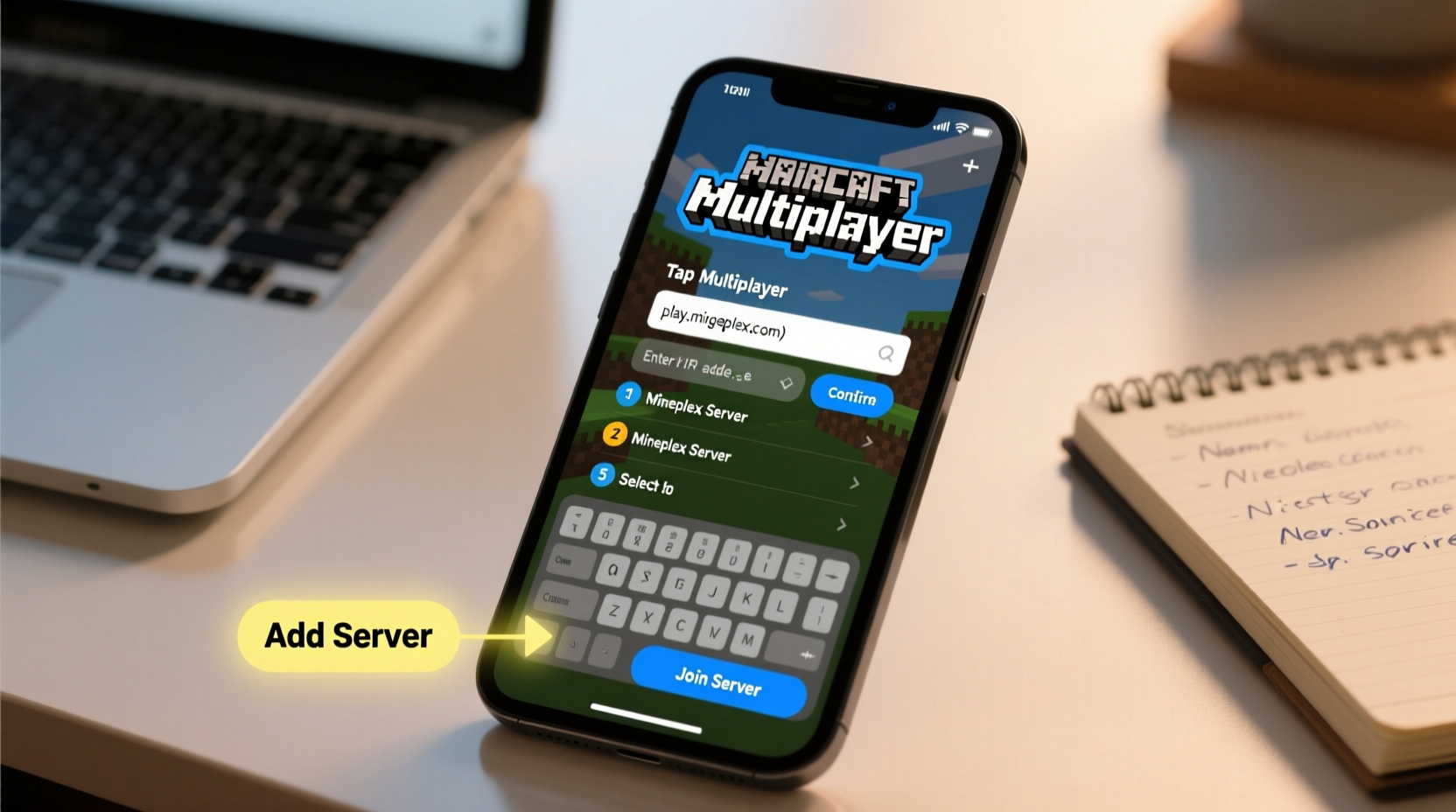
Minecraft supports two main editions: Java Edition and Bedrock Edition (available on consoles, mobile, and Windows 10/11). Each edition has its own server ecosystem, and they are not cross-compatible. Before attempting to connect, confirm which version the server supports.
- Java Edition: Most popular for custom servers, modded gameplay, and community-run networks like Hypixel or Mineplex.
- Bedrock Edition: Used on Xbox, PlayStation, Nintendo Switch, iOS, Android, and Windows 10/11. Supports official Marketplace servers and integrated Realms.
Public servers often list their supported edition on websites or forums. Private servers usually require an invite link or IP address shared directly by the host.
Step-by-Step: Connecting to a Minecraft Server
- Launch Minecraft: Open the Minecraft launcher and sign in with your Mojang or Microsoft account. Ensure you're using the correct edition (Java or Bedrock).
- Navigate to Multiplayer: From the main menu, click “Play” then select “Multiplayer.”
- Add Server: Click “Add Server” (Java) or “Join Realm” / “Servers” tab (Bedrock). You’ll need either an IP address or invite link.
- Enter Server Details:
- Server Name: Assign a recognizable label (e.g., “Friend’s Survival World”).
- Server Address: Paste the IP address and port (if provided), such as
mc.hypixel.netor192.168.1.50:25565.
- Save and Connect: Click “Done,” then select the server from your list and press “Join Server.”
- Troubleshoot Connection Issues: If the connection fails, double-check the IP, ensure the server is online, and confirm your internet stability.
For Bedrock users, some servers may require joining via a unique invite code instead of manual entry. These are typically accessed through the “Friends” or “Servers” section after being invited by the host.
Safety Checklist Before Joining Any Server
Not all servers are created equal. Some may host malicious plugins, phishing attempts, or inappropriate content. Use this checklist to minimize risks:
- ✅ Verify the server URL or IP through official sources (e.g., Hypixel.net, not hypixel-login.ru).
- ✅ Avoid entering your Minecraft password anywhere outside the official game client or mojang.com.
- ✅ Check user reviews or community feedback on platforms like PlanetMinecraft or Reddit.
- ✅ Disable auto-login features if using a shared or public computer.
- ✅ Enable Two-Factor Authentication (2FA) on your Microsoft/Mojang account.
- ✅ Don’t download “required mods” or “client packs” from untrusted links—many contain malware.
“Over 70% of reported Minecraft account thefts stem from fake server login pages or credential phishing.” — Cybersecurity Report, Gaming Safety Initiative 2023
Common Server Connection Issues and Fixes
Even when everything seems correct, connectivity problems can occur. Here’s a breakdown of frequent issues and practical solutions:
| Issue | Possible Cause | Solution |
|---|---|---|
| “Cannot connect to server” | Incorrect IP/port, server offline | Double-check address; contact server admin to confirm status |
| “Timed out” error | Network latency or firewall block | Restart router; allow Minecraft through firewall settings |
| “Failed to authenticate” | Outdated game version or expired session | Update Minecraft; re-login to your account |
| “Disconnected” immediately after joining | Banned IP, whitelist-only server, or plugin conflict | Confirm you’re whitelisted; try launching without resource packs |
Real Example: Joining a Friend’s Home Server
Alex wanted to play survival mode with three friends over the weekend. One friend, Jordan, set up a local server using a rented host from a reputable provider. Jordan sent Alex the IP address: play.craftfun.net, noting it was a Java Edition server running version 1.20.1.
Alex opened Minecraft Java Edition, clicked “Multiplayer,” then “Add Server.” He entered “Jordan’s World” as the name and pasted the IP. After saving, he selected the server and clicked “Join.” At first, it failed with a “Connection Refused” message. Alex checked his internet and confirmed the game was updated. Then he realized he had accidentally launched the Bedrock version from the Microsoft Store. After switching to the Java launcher, the connection succeeded instantly.
This scenario highlights how simple mistakes—like launching the wrong edition—can cause confusion. Verifying the edition and ensuring consistent updates prevent most access issues.
Do’s and Don’ts When Connecting to Servers
| Do’s | Don’ts |
|---|---|
| Use strong, unique passwords for your Mojang/Microsoft account | Share your password with anyone, even friends |
| Bookmark official server websites | Click on suspicious links in chat or Discord messages |
| Review server rules before interacting | Assume all public servers are safe or moderated |
| Use built-in reporting tools for harassment or cheating | Download unauthorized clients promising “free VIP ranks” |
Frequently Asked Questions
Can I join a Minecraft server without paying?
Yes. While Minecraft itself requires purchase, many public servers are free to join. Examples include Hypixel, The Hive, and Mineplex. Just ensure you own a legitimate copy of the game to log in.
Is it safe to join unknown public servers?
It depends. Reputable public servers with large communities and active moderation are generally safe. However, avoid obscure servers that request personal information, downloads, or mimic official login screens. Stick to well-known domains and verified community recommendations.
What is a server whitelist, and how do I get on one?
A whitelist is a security feature where only approved players can join. If a server is whitelisted, you must be added by the owner. Contact the administrator through their official website or Discord and follow their application process.
Final Tips for a Secure and Smooth Experience
Joining a Minecraft server should be exciting, not stressful. By following these steps—confirming your edition, entering the correct server details, and prioritizing account security—you reduce risks and enhance your gameplay. Always remember that your login credentials are valuable; never enter them into web forms claiming to be “Minecraft server portals.”
Keep your game updated, use strong passwords, and enable two-factor authentication. If you're hosting your own server, consider using a dynamic DNS service and port forwarding carefully to avoid exposing your network unnecessarily.




 浙公网安备
33010002000092号
浙公网安备
33010002000092号 浙B2-20120091-4
Comments
No comments yet. Why don't you start the discussion?