
The Amazon Echo Dot has become a staple in modern homes, offering hands-free control over music, timers, news, and smart home devices. One of its most powerful features is integration with Spotify, the world’s leading music streaming service. By linking your Echo Dot to Spotify, you unlock voice-controlled access to millions of songs, playlists, and podcasts. This guide walks you through every step of the process, from initial setup to advanced usage tips, ensuring smooth and reliable music playback.
Why Link Your Echo Dot to Spotify?
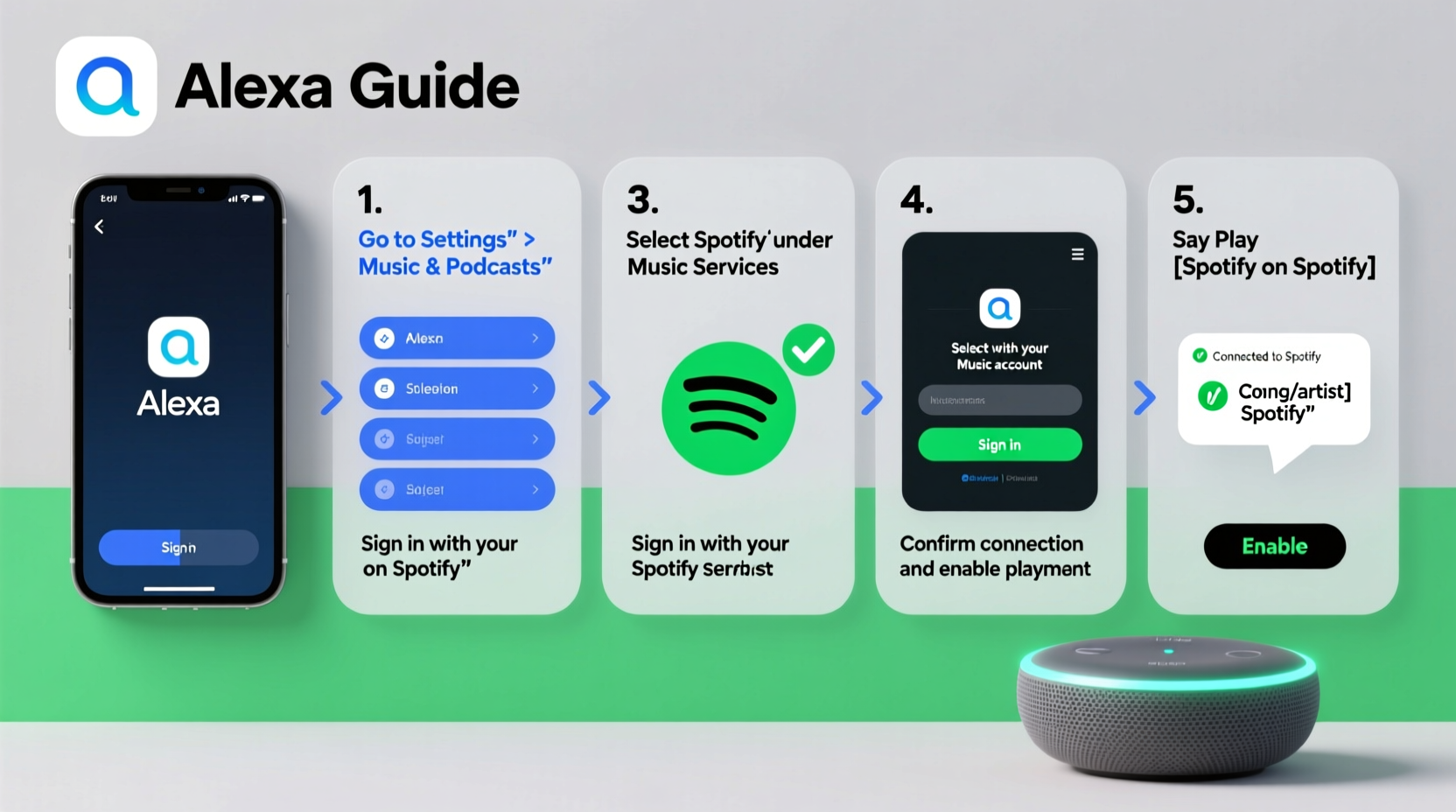
While Amazon Music is the default audio service for Alexa-enabled devices, many users prefer Spotify for its superior playlist algorithms, personalized recommendations, and cross-platform availability. Linking your Echo Dot to Spotify allows you to:
- Play specific songs, albums, or playlists using voice commands.
- Continue listening where you left off on another device.
- Control Spotify playback across multiple rooms using multi-room audio.
- Access your saved libraries and custom playlists instantly.
With over 500 million active users, Spotify's ecosystem is designed for seamless integration—and Alexa makes it even more intuitive.
Step-by-Step Guide to Connecting Echo Dot with Spotify
Follow this clear sequence to successfully pair your Echo Dot with your Spotify account. The process takes less than five minutes and only needs to be done once per device.
- Open the Alexa App: Launch the Amazon Alexa app on your smartphone or tablet. Make sure you're logged into the same Amazon account linked to your Echo Dot.
- Navigate to Settings: Tap the \"More\" (three-line) icon in the bottom-right corner, then select \"Settings.\"
- Select 'Music & Podcasts': Under the \"Alexa Preferences\" section, tap \"Music & Podcasts.\"
- Add a Service: Tap \"Link New Service,\" then search for \"Spotify.\"
- Sign In to Spotify: Enter your Spotify email and password when prompted. If you have two-factor authentication enabled, complete the verification step.
- Grant Permissions: Allow Alexa to access your Spotify account, including your playlists, favorites, and playback controls.
- Set as Default (Optional): After linking, return to \"Music & Podcasts\" and set Spotify as your default music provider so you don’t need to specify the service each time.
Once linked, say “Alexa, play my Discover Weekly playlist on Spotify” or “Alexa, play jazz workout music on Spotify” to test the connection.
Troubleshooting Common Connection Issues
Even with careful setup, occasional hiccups can occur. Below are frequent issues and their solutions.
| Issue | Possible Cause | Solution |
|---|---|---|
| \"Spotify is not responding\" | Unstable Wi-Fi or outdated app | Restart your router and update the Alexa app. |
| Login fails repeatedly | Incorrect credentials or session timeout | Re-enter your Spotify login details or unlink and relink the service. |
| Plays Amazon Music instead of Spotify | Spotify not set as default | Go to Music & Podcasts settings and set Spotify as default. |
| No sound output | Muted device or Bluetooth interference | Check volume level and disconnect any paired Bluetooth devices. |
“Voice-first interfaces like Alexa reduce friction in daily routines—especially when integrated with high-engagement platforms like Spotify.” — Dr. Lena Patel, Human-Computer Interaction Researcher, MIT Media Lab
Optimizing Your Spotify-Alexa Experience
After successful pairing, enhance functionality with these practical strategies.
Create Custom Voice Shortcuts
In the Alexa app, go to Routines and create a custom command such as “Alexa, start morning mix” that triggers your favorite Spotify playlist automatically.
Use Multi-Room Music
If you own multiple Echo devices, group them under one profile and use a single voice command to play Spotify simultaneously across rooms. Say, “Alexa, play lo-fi beats on all speakers.”
Leverage Spotify Connect via Alexa
You can also use Alexa as a Spotify Connect target. Open the Spotify app on your phone, tap the \"Devices Available\" icon, and select your Echo Dot to stream directly—even without voice commands.
Enable Crossfade and Repeat Modes
Although Alexa doesn’t support all Spotify features natively, you can enable repeat or shuffle by saying:
- “Alexa, turn on shuffle.”
- “Alexa, repeat this playlist.”
Real-World Example: Sarah’s Smart Home Upgrade
Sarah, a busy marketing manager and mother of two, struggled with managing background music during mornings. She used her phone to manually start playlists but often forgot, leading to chaotic breakfast routines. After linking her Echo Dot to Spotify, she created a routine: “Alexa, good morning,” which now plays her upbeat Spotify playlist, reads the weather, and starts the coffee maker via smart plug.
Within a week, her household rhythm improved significantly. “It feels like I have a personal assistant who knows exactly what I need,” she said. Her experience highlights how simple integrations can deliver meaningful quality-of-life improvements.
Frequently Asked Questions
Can I use Spotify Free with Echo Dot?
No. Only Spotify Premium subscribers can use voice commands with Alexa. Free-tier users cannot control playback through Alexa due to licensing restrictions.
How do I switch back to Amazon Music after using Spotify?
Simply say, “Play [song name] on Amazon Music,” or change your default music service in the Alexa app under Music & Podcasts settings.
Why does Alexa sometimes pause Spotify unexpectedly?
This may happen if another device logs into your Spotify account, triggering a playback shift. Ensure no other apps or devices are actively using your Spotify session.
Final Checklist Before You Begin
Before starting the setup, confirm the following:
- ✅ Your Echo Dot is powered on and connected to Wi-Fi.
- ✅ The Alexa app is installed and updated on your mobile device.
- ✅ You have valid login credentials for both Amazon and Spotify.
- ✅ You are using a Spotify Premium account (required for voice control).
- ✅ Your smartphone and Echo Dot are on the same network.
Conclusion: Take Control of Your Audio Environment
Linking your Echo Dot with Spotify transforms your living space into an intelligent audio environment. With just a few voice commands, you can enjoy curated playlists, discover new music, and maintain a consistent soundtrack throughout your day. Whether you're hosting guests, working remotely, or winding down after work, seamless music access enhances comfort and convenience.




 浙公网安备
33010002000092号
浙公网安备
33010002000092号 浙B2-20120091-4
Comments
No comments yet. Why don't you start the discussion?