
Planning a trip has evolved far beyond printed brochures and dog-eared guidebooks. Today, the most efficient travelers use digital tools to visualize their itineraries, coordinate logistics, and keep everything in one accessible place. One of the most powerful — and free — tools at your disposal is Google Maps' custom map feature. With it, you can plot every destination, estimate travel times, share plans with companions, and even add notes and photos. Whether you're road-tripping across Europe or exploring a new city for the weekend, building a custom Google Map turns chaos into clarity.
Why Custom Google Maps Are Essential for Modern Travelers
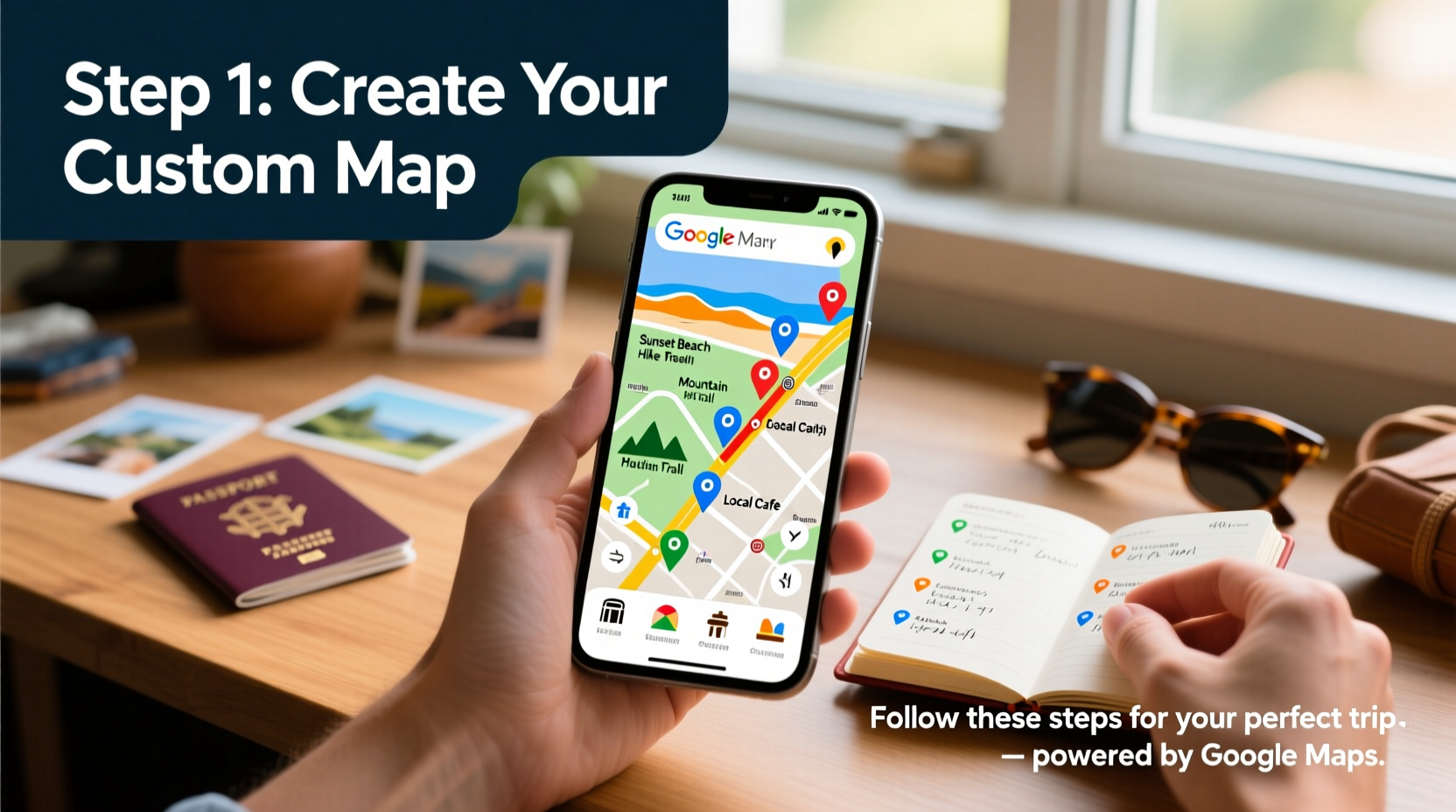
A standard search on Google Maps shows routes and locations, but a custom map lets you own the experience. You’re not just navigating—you’re curating. By pinning hotels, restaurants, attractions, and hidden gems, you create a dynamic itinerary that adapts as your plans evolve. Unlike static PDFs or spreadsheets, your map updates in real time and syncs across devices. Plus, it’s collaborative: partners, family members, or travel buddies can view, edit, or suggest additions from anywhere.
Travel experts agree. According to Sarah Lin, a digital nomad and travel planner with over 50 countries visited:
“We used to rely on notebooks and memory. Now, a shared Google Map is our central command. It reduces stress, prevents missed spots, and keeps everyone on the same page—literally.” — Sarah Lin, Global Travel Strategist
Step-by-Step Guide to Creating Your Custom Trip Map
Follow this detailed process to build a fully functional, personalized travel map in under 30 minutes.
- Open Google Maps and Sign In
Go to maps.google.com and sign in with your Google account. This ensures your map saves to your profile and remains accessible across devices. - Start a New Custom Map
In the top-left menu, click the three horizontal lines (☰), then select “Your places.” Switch to the “Maps” tab and click “Create Map.” A new window will open with an empty map canvas. - Name and Describe Your Trip
Give your map a clear title like “Italy Summer 2024” or “Japan Cherry Blossom Tour.” Add a short description if helpful—include dates, key goals, or travel companions. - Add Locations Manually or Search
Use the search bar to find cities, landmarks, or addresses. Click the star icon next to any result to save it to your map. Alternatively, right-click any point on the map and select “Add to map.” - Organize with Layers and Labels
Custom maps allow multiple layers. Create separate ones for “Hotels,” “Restaurants,” “Museums,” and “Day Trips.” This keeps your map clutter-free and easy to filter. - Customize Pins with Details
Click any added location to edit its details. Insert personal notes (“Ask about rooftop seating”), ratings, opening hours, phone numbers, or even upload photos from your device. - Draw Routes and Estimate Travel Time
Use the “Draw a line” tool to sketch driving, walking, or cycling routes between destinations. Google will automatically calculate distance and duration, helping you schedule realistically. - Share and Collaborate
Click the “Share” button and generate a link. Choose whether collaborators can view only or edit. Perfect for group trips where input is welcome. - Save Offline Access
Before departure, open the map in the Google Maps app and download the relevant areas for offline use. No internet? No problem.
Pro Tips for Maximizing Your Custom Map
A basic map gets the job done. A smart map enhances your entire journey. These advanced techniques turn good planning into great execution.
- Color-code pins by priority: Red for “must-see,” yellow for “if time allows,” green for “optional.”
- Add embedded links: Paste URLs to reservation confirmations, attraction websites, or YouTube walkthroughs directly into pin descriptions.
- Integrate with calendars: Copy daily itineraries from your map into Google Calendar for time-based reminders.
- Track real-time changes: If a museum closes unexpectedly, update the pin instantly so all collaborators see the change.
- Use Street View previews: Before finalizing a route, check sidewalks, entrances, or parking via Street View to avoid surprises.
Real Example: Mapping a 7-Day Portugal Adventure
Consider Mark and Lena, a couple planning a week-long trip from Lisbon to Porto. They created a custom map titled “Portugal Road Trip June 2024.”
They began by adding their Airbnb bookings in Lisbon, Sintra, Coimbra, and Porto as layer “Stays.” Next, they pinned 12 restaurants recommended by friends, tagging each with dietary info (e.g., “vegan-friendly”). Historical sites like Jerónimos Monastery and Douro Valley wineries were color-coded red. They drew driving routes between cities, revealing that the Coimbra-to-Porto leg took nearly 2.5 hours—prompting them to leave earlier than planned.
They shared the map with their traveling friends, who added a surfing lesson in Nazaré. All changes synced instantly. On arrival, they accessed the map offline during rural drives. The result? Not a single logistical hiccup—and zero arguments over directions.
Do’s and Don’ts: Best Practices Table
| Do’s | Don’ts |
|---|---|
| Label pins with practical notes (e.g., “Closed Mondays”) | Overload a single layer with too many pins |
| Use layers to separate trip phases (e.g., “Lisbon Days 1–3”) | Forget to test offline access before travel |
| Update pins with real-time info during the trip | Rely solely on estimated travel times without buffer |
| Share editing rights only with trusted collaborators | Ignore battery-saving tips when using GPS all day |
Frequently Asked Questions
Can I use custom Google Maps on mobile?
Yes. Open the Google Maps app, go to “Saved” > “Maps,” and locate your custom map under “Your lists.” You can view, edit, and navigate directly from your phone or tablet.
How many locations can I add to one map?
Google allows up to 10,000 points per map—far more than most travelers will ever need. For usability, however, it’s wise to limit dense trips to 50–100 well-organized pins.
Is my custom map private by default?
Yes. Unless you manually click “Share” and generate a link, your map is visible only to you. Even then, you control whether others can view or edit it.
Final Checklist Before You Go
- ✅ Map Title & Description Set
- Clear, recognizable name with travel dates or theme.
- ✅ Key Locations Added
- Accommodations, transport hubs, major attractions.
- ✅ Organized by Layers
- Separate categories like food, stays, and activities.
- ✅ Notes & Links Included
- Contact info, reservations, or special instructions.
- ✅ Routes Drawn and Timed
- Driving, walking, or transit paths between key points.
- ✅ Shared with Travelers
- Collaborators have appropriate access levels.
- ✅ Offline Access Confirmed
- Downloaded map areas in Google Maps app.
Start Mapping, Start Traveling Smarter
A perfect trip isn’t just about where you go—it’s about how smoothly you get there. A custom Google Map transforms fragmented ideas into a cohesive, living itinerary. It reduces decision fatigue, empowers collaboration, and gives you confidence that nothing important slips through the cracks. The few minutes you invest in setting it up pay dividends in time saved, stress avoided, and memories made.




 浙公网安备
33010002000092号
浙公网安备
33010002000092号 浙B2-20120091-4
Comments
No comments yet. Why don't you start the discussion?