
Creating an Apple ID and setting up an account on the App Store is essential for anyone using an iPhone, iPad, or iPod Touch. It unlocks access to millions of apps, games, books, and media. While the process is straightforward, first-time users may encounter confusion around verification steps, payment methods, or region settings. This comprehensive guide walks you through every stage—ensuring a secure, smooth setup with no hidden hurdles.
Why You Need an App Store Account
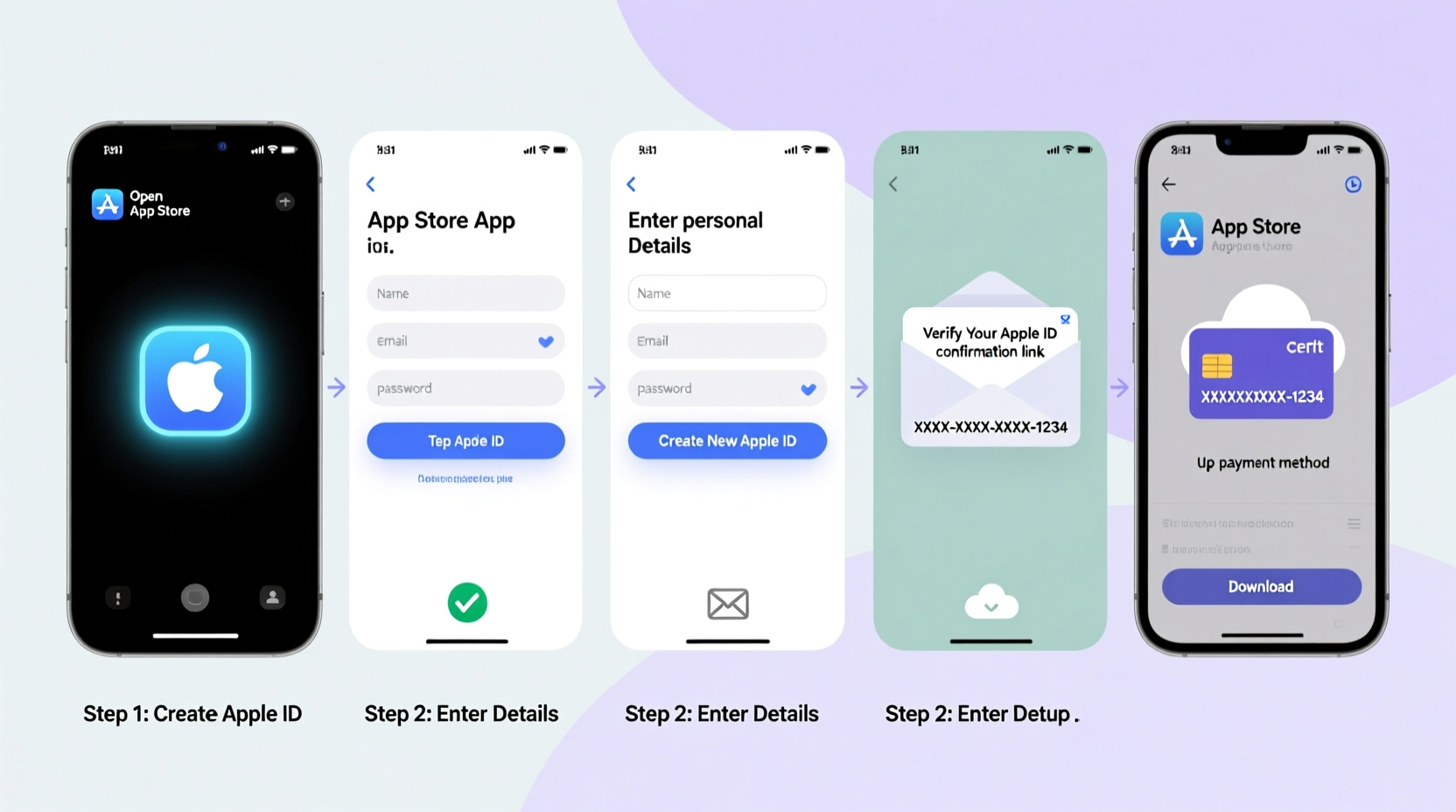
An App Store account, powered by your Apple ID, serves as your digital passport across Apple’s ecosystem. It allows you to download free and paid apps, sync purchases across devices, use iCloud, and access services like Apple Music, iMessage, and FaceTime. Without it, core functionality of your device is limited.
Whether you’re setting up a new iPhone or helping a family member get started, having a verified Apple ID streamlines software updates, backups, and app management. It also enables features like Family Sharing, which lets up to six family members share subscriptions and purchases without sharing accounts.
Step-by-Step Guide to Creating an App Store Account
The easiest way to create an App Store account is directly from your iOS device. Follow these steps carefully to avoid common setup issues.
- Open the App Store app on your iPhone or iPad.
- Tap your profile icon in the top-right corner.
- Select Create New Apple ID.
- Choose your country or region—this cannot be changed later without creating a new account.
- Enter your birth date and tap Next.
- Input your full name.
- Select whether to use your existing email or get a free @icloud.com email.
- Create a strong password (at least 8 characters, including uppercase, lowercase, and a number).
- Add a phone number for verification and security.
- Choose a payment method—select “None” if you don’t want to add a card.
- Agree to Apple’s Terms & Conditions.
- Verify your email address via the confirmation sent by Apple.
- Complete two-factor authentication using your trusted device or phone number.
Once confirmed, your Apple ID is active. Return to the App Store and sign in to begin downloading apps.
Setting Up Without a Credit Card
You do not need a credit card to create an App Store account. During setup, when prompted for payment information, select “None” as your payment method. However, this option is only available if your selected country supports it and you are signing up for a free Apple ID.
Note: If you’ve previously tried to make an account with a card, you may not see the “None” option. In that case, try creating the account while signed out of all Apple services, or use a different email address.
| Country | Supports 'None' Payment Option? | Notes |
|---|---|---|
| United States | Yes | Must select \"None\" during initial setup |
| Canada | Yes | Requires valid postal code |
| India | Yes | Uses local payment gateways |
| Germany | Limited | May require bank verification |
| Brazil | No | Credit card or prepaid card required |
Security Best Practices for Your Apple ID
Your Apple ID is one of your most important digital credentials. Protecting it prevents unauthorized access to your data, devices, and purchases.
- Enable two-factor authentication: Go to Settings > [Your Name] > Password & Security > Turn on Two-Factor Authentication.
- Use a unique, strong password not used on other sites.
- Avoid answering security questions with publicly known information (e.g., mother’s maiden name).
- Regularly review trusted devices and remove any you no longer use.
- Never share your Apple ID password—even with family members.
“Over 80% of compromised Apple IDs result from weak passwords or phishing attempts. Enabling two-factor authentication reduces risk by 99%.” — James Lin, Senior Security Analyst at CyberSafe Labs
Tips for Parents Setting Up Accounts for Children
If you're creating an account for a child under 13, Apple requires use of Family Sharing and Communication Limits. You can create a child account through your own Apple ID:
- Go to Settings > [Your Name] > Family Sharing.
- Select “Add Person” > “Create Child Account.”
- Follow prompts to enter the child’s information.
- Apple will verify age and send a confirmation email to the parent.
- Once approved, the child can use their own Apple ID with parental controls enabled.
Common Issues and How to Fix Them
Even with careful setup, users sometimes face errors. Here are frequent problems and solutions:
- \"Could Not Create Apple ID\": Usually due to network issues or invalid information. Ensure your Wi-Fi is stable and double-check birth date and email format.
- Email Already in Use: The email is linked to another Apple ID. Try signing in first or use a different email.
- Verification Email Not Received: Check spam/junk folders. Resend the verification from the Apple ID account page.
- Payment Method Not Accepted: Update billing address or try a different card. Prepaid cards often work better than virtual ones.
- Account Locked: Too many failed login attempts. Wait an hour or reset via iforgot.apple.com.
Mini Case Study: Maria’s First iPhone Setup
Maria, a 65-year-old retiree, received her first iPhone from her daughter. She wanted to download WhatsApp and weather apps but was stuck at the App Store sign-in screen. After several failed attempts, she called her daughter, who guided her through creating an Apple ID.
They chose a simple @icloud.com email, used Maria’s real phone number, and selected “None” for payment. When the verification email didn’t arrive, they checked the spam folder and resent it. Within 15 minutes, Maria had her account and downloaded her first app. Her daughter also enabled two-factor authentication and saved the recovery key in a safe place.
This experience highlights how small oversights—like missing a verification email—can delay setup, but with patience and correct guidance, anyone can succeed.
FAQ
Can I have more than one App Store account?
Yes, but not simultaneously on the same device. You can switch between Apple IDs in Settings > [Your Name], but doing so frequently may trigger security alerts. Each account must use a unique email address.
What if I forget my Apple ID password?
Visit iforgot.apple.com to reset it. You’ll need access to your trusted device, phone number, or recovery key. If two-factor authentication is enabled, you can regain access in minutes.
Do I need to pay to create an App Store account?
No. Creating an Apple ID and App Store account is completely free. You only pay when purchasing apps, subscriptions, or iCloud+ storage.
Essential Checklist Before You Finish Setup
- ✔ Verify your email address
- Click the link Apple sends to confirm ownership.
- ✔ Enable two-factor authentication
- Add an extra layer of protection against unauthorized access.
- ✔ Set up trusted contacts
- Designate someone who can help recover your account if needed.
- ✔ Review privacy settings
- Go to Settings > Privacy & Security to control app tracking and location access.
- ✔ Sign in on all your Apple devices
- Sync your data seamlessly across iPhone, iPad, Mac, and Apple Watch.
Conclusion
Setting up an App Store account is more than just a technical step—it’s the foundation of your digital experience on Apple devices. With a properly configured Apple ID, you gain secure access to apps, cloud services, and personalized features that enhance productivity and entertainment.
Take the time now to create your account correctly, protect it with strong security practices, and explore the full potential of the App Store. Whether you’re downloading your first game or managing family devices, a well-managed Apple ID makes everything easier.




 浙公网安备
33010002000092号
浙公网安备
33010002000092号 浙B2-20120091-4
Comments
No comments yet. Why don't you start the discussion?