
Music has a unique way of connecting people. Whether you're curating the perfect workout mix, setting the mood for a dinner party, or compiling songs that remind you of a special trip, sharing your playlists on Spotify can deepen those connections. However, many users create playlists only to keep them hidden—either by accident or uncertainty about how to make them visible. Making a playlist public and sharing it with friends is simple once you know where to look and what settings to adjust. This guide walks you through every step across devices, highlights best practices, and helps you avoid common pitfalls so your music reaches the audience you intend.
Why Make Your Playlist Public?
Spotify hosts over 100 million playlists, and each one reflects personal taste, emotion, or intent. When you make a playlist public, it becomes discoverable beyond your own account. Friends can follow it, algorithms may promote it, and listeners worldwide might find resonance in your selections. Public playlists contribute to Spotify’s community-driven culture—think of them as digital mixtapes in an era where streaming reigns.
Visibility increases engagement. A public playlist can gather followers, appear in Spotify’s editorial suggestions, and even be featured in user-generated charts. For creators, influencers, or brands, this is a powerful tool for building identity and influence through music.
Step-by-Step: How to Make Your Spotify Playlist Public
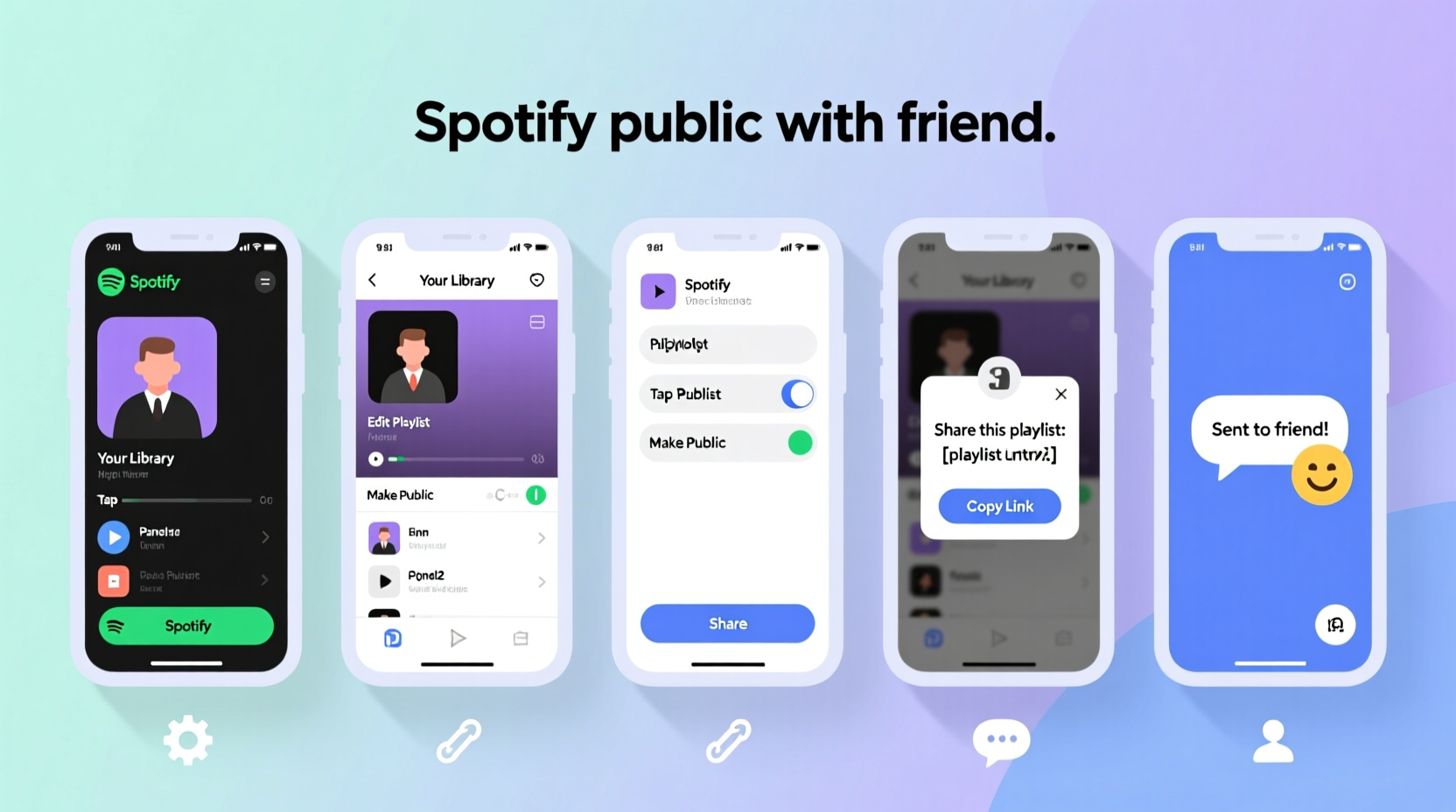
The process is nearly identical across platforms—desktop, mobile app (iOS/Android), and web player—with slight interface variations. Follow these steps to change your playlist from private to public.
- Open Spotify on your preferred device and navigate to “Your Library.”
- Find the playlist you want to share and click or tap on it.
- On the playlist page, locate the three-dot menu (⋯) usually found near the top-right corner.
- Select Edit Playlist from the dropdown menu.
- Look for the toggle labeled \"Make Public\" or a checkbox next to “Public playlist.”
- Switch it on. On some interfaces, you may need to confirm the action.
- Click Save or exit the menu. The playlist is now public.
Once public, your playlist will appear in search results (if named clearly), show up on your public profile, and allow others to follow or share it independently.
Device-Specific Notes
- Mobile App: Tap the three dots below the playlist cover art, then select “Make Public” directly if available, or go into “Edit Details” to find the toggle.
- Desktop App: Right-click the playlist name in the left sidebar or use the ⋯ menu within the playlist view.
- Web Player: Functionality mirrors the desktop app; ensure you’re logged in and have editing rights.
Sharing Your Public Playlist With Friends
Making a playlist public doesn’t automatically notify anyone—it just enables sharing. Now comes the fun part: getting it into the hands (and ears) of your friends.
Multiple Ways to Share
| Method | How To | Best For |
|---|---|---|
| Copy Link | Use the ⋯ menu → “Share” → “Copy link to playlist.” Paste anywhere. | Email, text messages, social bios |
| Social Media | Select “Share to Instagram,” “Post to X (Twitter),” etc., directly from the app. | Reaching wider audiences |
| Direct Message | Choose “Share” → “Send to…” and pick contacts via Spotify Friends or linked accounts. | Private sharing with known users |
| Embed Code | Use “Share” → “Embed playlist” to get HTML code for websites or blogs. | Content creators, newsletters |
When sharing via social media, consider adding context: why you made the playlist, the mood it evokes, or a standout track. A caption like “Songs that got me through March” adds emotional weight and encourages listens.
“Playlists are modern storytelling tools. A public playlist isn’t just a list of songs—it’s a curated experience worth sharing.” — Lena Reyes, Music Curator & Digital Culture Analyst
Avoiding Common Mistakes
Even experienced users sometimes misconfigure settings or overlook privacy implications. Here’s what to watch out for:
- Assuming 'collaborative' means public: A collaborative playlist can still be private. Both settings are independent.
- Forgetting to save changes: After toggling “Make Public,” always confirm or save. Some mobile versions auto-save, but not all.
- Sharing links before making public: If the playlist is still private, recipients will see an error. Always verify status first.
- Using vague names: “My Mix 3” won’t attract attention. Use descriptive titles like “Chill Coffee Shop Vibes – Summer 2024.”
- Ignoring cover art: While optional, custom images increase click-through rates. Use Spotify’s built-in editor to upload a photo or design.
Mini Case Study: The Dorm Room DJ
Maya, a college sophomore, loved introducing her friends to new indie artists. She created a playlist called “Basement Frequencies” featuring underground bands and lo-fi remixes. Initially private, only she listened. After learning how to make it public and sharing the link in her group chat with a note—“Add your favorite deep cut!”—her friends started contributing and promoting it. Within two weeks, the playlist gained 47 followers, was shared in a campus newsletter, and even caught the attention of a local radio intern who used it for a segment. All because Maya flipped one switch and sent one message.
Checklist: Go From Private to Shared in Minutes
Use this quick-reference checklist before sharing any playlist:
- ✅ Confirm you are the playlist owner
- ✅ Open the playlist and access the ⋯ menu
- ✅ Select “Edit Playlist”
- ✅ Toggle “Make Public” ON
- ✅ Save changes
- ✅ Test visibility by searching the playlist name in incognito mode
- ✅ Share using link, social post, or direct message
- ✅ Optionally, add a description and custom cover image
Frequently Asked Questions
Can I make a collaborative playlist public?
Yes, as long as you are the owner. Open the playlist, go to “Edit Playlist,” and enable “Make Public.” All collaborators must agree to the visibility, though Spotify does not send notifications when this happens.
What happens if I change a public playlist back to private?
It will disappear from search results and unfollowers’ libraries. Existing followers will retain it until they remove it manually, but no new users can find or follow it. Links will stop working for non-followers.
Can someone edit my public playlist?
No—unless you explicitly enable collaboration. Public does not mean editable. To allow others to add songs, turn on “Collaborative Playlist” in the same settings menu.
Final Thoughts: Share Your Sound, Amplify Your Voice
Your music choices matter. They reflect your personality, memories, and moods. By making a Spotify playlist public, you invite others into your sonic world—not just to listen, but to connect. Whether it’s a nostalgic throwback collection, a hype pre-game sequence, or a calming evening unwind list, every playlist has the potential to resonate.
The technical steps are minimal, but the impact can be meaningful. A friend might discover their new favorite song because of you. A stranger halfway across the world might feel less alone hearing the same lyrics that comforted you. In a digital age where authenticity is rare, a thoughtfully shared playlist stands out as a genuine gesture.




 浙公网安备
33010002000092号
浙公网安备
33010002000092号 浙B2-20120091-4
Comments
No comments yet. Why don't you start the discussion?