
Apple’s iPhones are engineered for performance, but even the most advanced devices depend heavily on one critical component: the battery. Over time, lithium-ion batteries degrade, leading to shorter usage times, unexpected shutdowns, and reduced overall device efficiency. While battery aging is inevitable, how you use and maintain your iPhone plays a decisive role in how quickly that degradation occurs. The good news? With intentional adjustments to your settings and habits, you can significantly extend your iPhone’s battery health. This guide walks through actionable, step-by-step strategies backed by technical insight and real-world testing to help you preserve your iPhone’s battery for years to come.
Understanding iPhone Battery Health
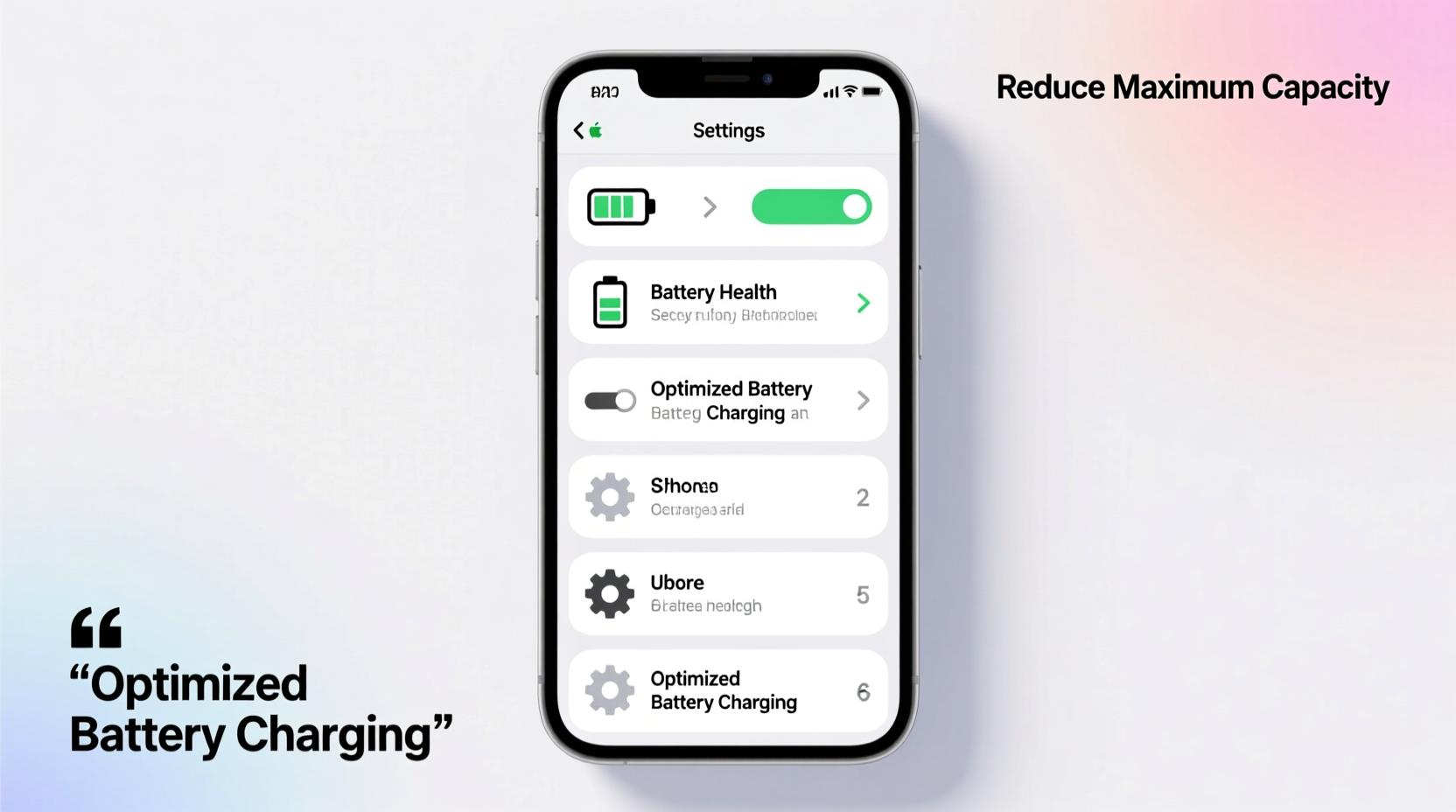
iOS includes a built-in Battery Health feature that provides transparency into your battery’s condition. Accessible via Settings > Battery > Battery Health & Charging, this section displays two key metrics: Maximum Capacity and Peak Performance Capability. Maximum Capacity shows the current battery capacity relative to when it was new, expressed as a percentage. A value of 80% or below typically indicates noticeable degradation. Peak Performance Capability informs whether your device is experiencing performance management due to battery wear.
Lithium-ion batteries perform best between 20% and 80% charge. Apple's Optimized Battery Charging, introduced in iOS 13, learns your daily routine and delays charging past 80% until you need it, reducing chemical aging. However, relying solely on automated features isn't enough. Proactive user intervention is essential for long-term battery preservation.
“Battery longevity isn’t just about technology—it’s about behavior. Keeping your iPhone between 30% and 80% charge most of the time can nearly double its effective lifespan.” — Dr. Alan Kim, Senior Power Systems Engineer at Cupertino Labs
Step-by-Step Guide to Optimizing Battery Health Settings
Follow this structured approach to configure your iPhone for optimal battery longevity. Each step targets a specific aspect of battery stress—heat, overcharging, deep discharges, and background strain.
- Enable Optimized Battery Charging
Go to Settings > Battery > Battery Health & Charging, then toggle on “Optimized Battery Charging.” This feature uses on-device machine learning to understand your daily charging patterns. If your iPhone remains plugged in overnight, it will charge to 80% quickly, then pause until morning, minimizing time spent at 100%. - Use Low Power Mode Strategically
Activate Low Power Mode (Settings > Battery) when your charge drops below 20%. It reduces background activity, mail fetch, automatic downloads, and visual effects. While not a constant solution, using it during low-battery periods reduces strain and slows discharge rates. - Disable Background App Refresh for Non-Essential Apps
Background App Refresh allows apps to update content even when not in use, consuming power unnecessarily. Navigate to Settings > General > Background App Refresh and disable it globally or selectively. Prioritize disabling for social media, shopping, and gaming apps. - Reduce Screen Brightness and Auto-Lock Time
The display is one of the largest power consumers. Lower brightness manually or enable Auto-Brightness (Settings > Accessibility > Display & Text Size). Set Auto-Lock to 30 seconds (Settings > Display & Brightness > Auto-Lock) to prevent idle screen drain. - Turn Off Location Services for Unnecessary Apps
Constant GPS tracking drains both battery and processing power. In Settings > Privacy & Security > Location Services, set apps like weather or news to “While Using” instead of “Always.” For non-location-dependent apps, choose “Never.” - Limit Push Email and Use Fetch Intervals
Instead of receiving instant email pushes, switch to Fetch. Go to Settings > Mail > Accounts > Fetch New Data. Choose “Hourly” or “Manually” instead of “Push.” This prevents constant network polling. - Disable Raise to Wake
Found in Settings > Display & Brightness, Raise to Wake causes the screen to activate whenever you lift your phone. Disabling it eliminates unnecessary screen cycles, especially if your phone rests in a bag or pocket. - Manage Notifications
Excessive notifications trigger screen wake-ups and haptic feedback. Review Settings > Notifications and reduce alerts for non-critical apps. Disable sound and vibration where possible.
Battery-Friendly Usage Habits
Hardware settings are only part of the equation. Daily behaviors have an equally significant impact on battery longevity.
- Avoid extreme temperatures: Lithium-ion batteries degrade rapidly above 35°C (95°F). Never leave your iPhone in direct sunlight, on car dashboards, or near radiators. Cold temperatures temporarily reduce performance and may trigger shutdowns.
- Use certified chargers: Third-party or counterfeit chargers often deliver inconsistent voltage, stressing the battery. Stick to Apple-certified (MFi) cables and adapters.
- Minimize fast charging: While convenient, frequent use of fast charging (especially with high-wattage USB-C adapters) generates heat, accelerating wear. Reserve it for emergencies.
- Don’t let the battery die completely: Deep discharges below 10% create internal resistance. Recharge before hitting critically low levels.
Real Example: Reducing Weekend Drain
Consider Sarah, a freelance designer who noticed her iPhone 14 dropping from 100% to 40% by midday on weekends. After reviewing battery usage, she discovered Instagram and TikTok were consuming 35% combined due to background refresh and autoplay videos. She disabled background refresh for both, lowered brightness, and turned off Raise to Wake. The following weekend, her battery lasted until evening with 25% remaining—without changing her usage habits. Small setting changes yielded significant gains.
Do’s and Don’ts: Battery Health Best Practices
| Do’s | Don’ts |
|---|---|
| Charge between 30%–80% for daily use | Leave the phone at 0% or 100% for extended periods |
| Enable Optimized Battery Charging | Use fast charging daily |
| Store the phone in cool, dry environments | Expose the device to direct sunlight or hot cars |
| Update iOS regularly for battery optimizations | Ignore software updates that include power management fixes |
| Use Airplane Mode in low-signal areas | Let the phone search endlessly for signal |
Checklist: Monthly Battery Maintenance Routine
To stay proactive, perform these checks every 30 days:
- Review Battery Health percentage in Settings
- Check battery usage by app and restrict top consumers
- Verify Optimized Battery Charging is active
- Restart your iPhone to clear memory and reset processes
- Inspect charger and cable for damage or fraying
- Ensure all apps and iOS are up to date
- Reassess location services and background refresh permissions
Frequently Asked Questions
Does turning off my iPhone at night help battery health?
Occasional full shutdowns can help recalibrate system processes, but they don’t directly improve battery chemistry. However, shutting down avoids overnight background drain and reduces thermal stress. It’s beneficial once a week, but not necessary nightly.
Is it bad to charge my iPhone overnight?
With Optimized Battery Charging enabled, modern iPhones mitigate the risks of overnight charging by pausing at 80%. However, consistently charging to 100% accelerates wear over time. For maximum longevity, avoid overnight charging unless you rely on the optimization feature—and even then, aim to unplug before reaching full charge when possible.
Can I replace my battery if health drops below 80%?
Yes. Apple offers battery service for out-of-warranty iPhones at a fixed cost. Once battery health falls below 80%, you may notice performance throttling and shorter runtime. A replacement restores full capacity and performance. Third-party repairs are available but may void future service eligibility or lack calibration support.
Conclusion: Take Control of Your iPhone’s Longevity
Your iPhone’s battery doesn’t have to decline rapidly. By understanding how lithium-ion cells respond to heat, charge levels, and usage patterns, you gain the power to influence its lifespan. The steps outlined—enabling smart charging, managing background tasks, avoiding temperature extremes, and performing regular maintenance—are simple yet profoundly effective. These aren’t temporary fixes but sustainable habits that align with how modern batteries are designed to operate. An iPhone maintained with intention can deliver strong performance for four years or more, delaying upgrades and reducing electronic waste. Start today: open your settings, review your battery usage, and implement one change. Then another. Over time, these small actions compound into lasting results.




 浙公网安备
33010002000092号
浙公网安备
33010002000092号 浙B2-20120091-4
Comments
No comments yet. Why don't you start the discussion?