
The PlayStation 5 delivers stunning performance and immersive gaming experiences—but its limited internal storage can quickly become a bottleneck. With modern AAA titles regularly exceeding 100GB, it’s easy to run out of space even after just a few downloads. The good news? You don’t have to delete your favorite games to make room for new ones. By using a combination of smart organization, external storage expansion, and strategic data management, you can optimize your PS5 storage while keeping every beloved title intact.
Understand Your Storage Options
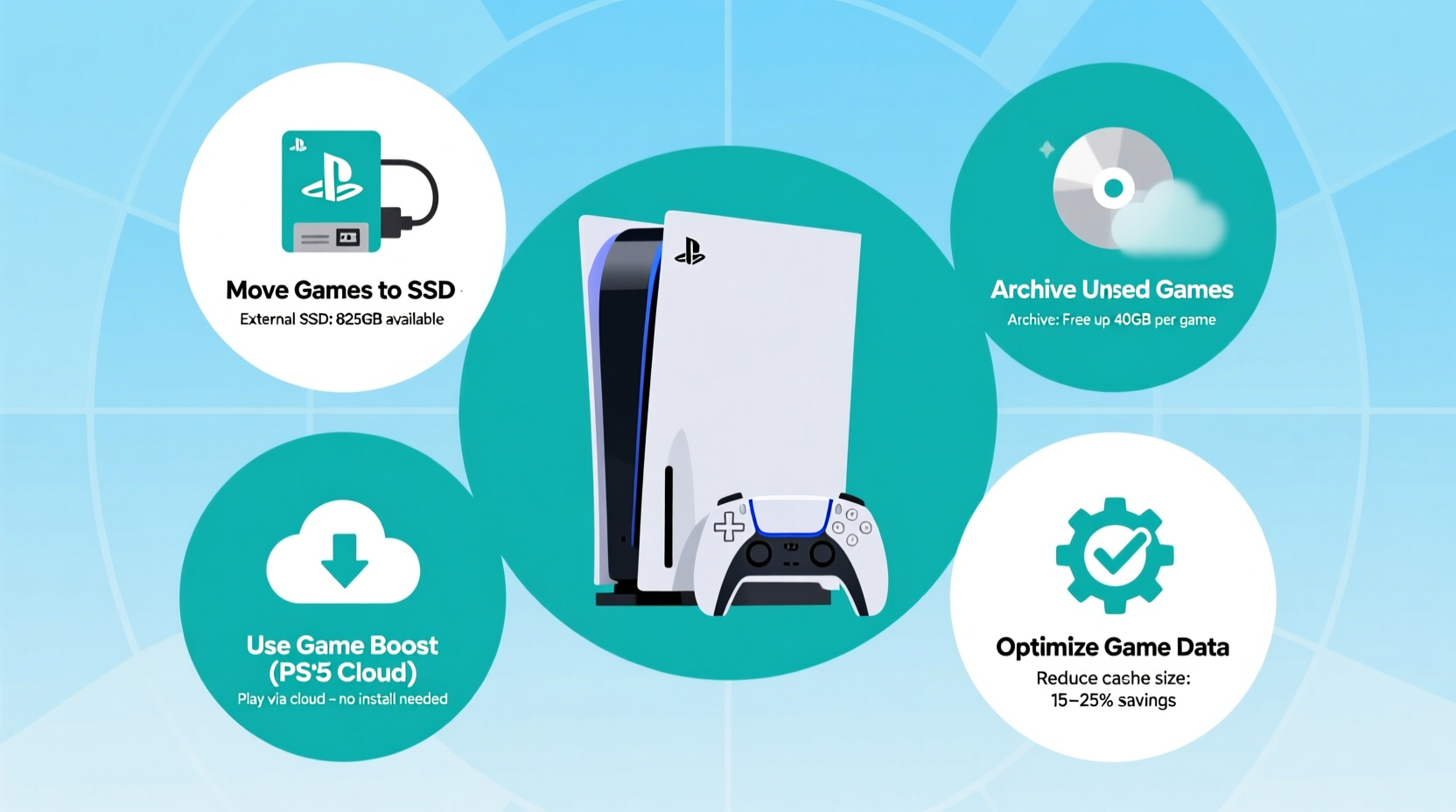
The PS5 comes with an 825GB SSD, but only about 667GB is available for user content after system files. This may seem generous at first, but large games like Call of Duty: Modern Warfare II, Final Fantasy VII Rebirth, or Hogwarts Legacy can each consume over 100GB. As your library grows, managing this finite space becomes essential.
Luckily, the PS5 supports three types of storage:
- Internal SSD: Fastest performance; required for playing PS5 games.
- External USB Drive (HDD or SSD): Slower than internal, but perfect for storing (not playing) PS5 games and running PS4 titles directly.
- M.2 NVMe SSD (Expansion Slot): Matches internal SSD speed when compatible; allows playing PS5 games directly from expanded storage.
“Expanding your PS5 storage isn’t just about capacity—it’s about maintaining flexibility without sacrificing access to your most-played titles.” — Jordan Lee, Senior Console Technician at GameFix Labs
Step-by-Step Guide to Freeing Up Space Strategically
Follow this sequence to reclaim valuable storage while preserving access to your favorite games. Each step builds on the last, ensuring maximum efficiency.
- Check Current Usage
Go to Settings > Storage > Console Storage. Review how much space is used and identify which games are taking up the most room. Sort by size to spot the largest offenders. - Move PS5 Games to External Storage
Connect a USB 3.0-compatible external hard drive (minimum 250GB, recommended 1TB+). In Storage Management, select “System Storage,” choose games you aren’t actively playing, and use “Move to USB Extended Storage.” This keeps all save data and settings intact. - Play PS4 Games Directly from External Drive
Unlike PS5 titles, PS4 games can be played directly from an external USB drive. If you still enjoy retro or smaller titles, offload these completely to free up internal space without any performance loss. - Delete Only Unnecessary Game Data
Some games store extra assets like trailers, beta versions, or unused language packs. In Manage Game Content, remove non-essential add-ons or alternate audio tracks if you only use one language. - Install M.2 NVMe SSD (Optional but Recommended)
Open the PS5’s expansion bay, insert a compatible PCIe Gen4 NVMe SSD (with heatsink), and format it via Settings > Storage > M.2 SSD Storage. Now you can install and play PS5 games directly from this high-speed drive—doubling or tripling your usable space.
Do’s and Don’ts of PS5 Storage Optimization
| Do’s | Don’ts |
|---|---|
| Use external drives to archive inactive PS5 games | Don’t assume all SSDs work in the M.2 slot—only PCIe Gen4 NVMe with proper cooling |
| Play PS4 games from USB drives to save internal space | Don’t store PS5 games on slow external HDDs expecting full performance—they can't be played from there |
| Regularly review installed games and clean unused patches | Don’t delete games instead of moving them—re-downloading takes hours and uses bandwidth |
| Back up saves to PlayStation Plus Cloud Storage | Don’t skip firmware updates that improve storage compression and management tools |
Real Example: How Sarah Doubled Her Usable Storage
Sarah, a dedicated RPG fan, hit her PS5 storage limit after installing Elden Ring, Starfield, and Baldur’s Gate 3. Instead of deleting any, she took action:
- Purchased a 2TB Seagate Expansion Hub (external SSD).
- Moved Ghost of Tsushima and Horizon Forbidden West to the external drive.
- Installed a 1TB WD Black SN850X M.2 SSD into the expansion bay.
- Transferred her current playthrough of Dragon’s Dogma 2 to the new internal M.2 drive.
Result: She reclaimed 350GB on her console SSD, kept all games accessible, and improved load times thanks to the faster M.2. No favorites were deleted, and switching between titles became seamless.
Maximize Efficiency with These Pro Tips
Beyond basic moves and expansions, advanced users can apply deeper optimization techniques:
- Use Selective Downloads: When installing large games, avoid optional content like 4K textures or language packs unless needed. You can download them later if desired.
- Clear Temporary Files: Occasionally go to Settings > Storage > Clear Cache (under System > Storage). While not always significant, it removes fragmented junk data.
- Leverage Cloud Saves: If you subscribe to PlayStation Plus, enable auto-sync. This ensures your progress is safe even when moving or reinstalling games.
- Rotate Game Library Smartly: Keep only 2–3 active games on internal storage. Archive others and rotate them weekly based on mood or new releases.
“Think of your PS5 storage like a wardrobe—store seasonal items away rather than throwing them out. Digital games should never be ‘gone forever’ with today’s tools.” — Marcus Tran, Lead UX Designer at PlayDigital Studios
Frequently Asked Questions
Can I play PS5 games from an external hard drive?
No. PS5 games cannot be played directly from a USB external drive due to speed limitations. However, you can store them there and move them back to internal or M.2 SSD storage when you want to play. The transfer process is fast and preserves all saves and settings.
What M.2 SSD should I buy for my PS5?
You need a PCIe Gen4 x4 M.2 NVMe SSD with a heatsink (either built-in or added separately). Recommended models include the Samsung 980 Pro, WD Black SN850X, and Seagate FireCuda 530. Capacity ranges from 1TB to 4TB, with 1–2TB offering the best balance of price and space.
Does moving games delete my progress?
No. Moving a game to external storage or between drives does not affect your saved data. All local saves remain on the console, and if you use PlayStation Plus, they’re also backed up to the cloud. Your trophies, achievements, and gameplay progress stay fully intact.
Complete Storage Optimization Checklist
- ✅ Check total used vs. available storage in Settings
- ✅ Connect a USB 3.0+ external drive (1TB recommended)
- ✅ Move inactive PS5 games to USB extended storage
- ✅ Transfer PS4 games to external drive and play from there
- ✅ Install a compatible M.2 NVMe SSD for expanded playable storage
- ✅ Enable PlayStation Plus cloud saves for backup security
- ✅ Regularly audit game library monthly to manage bloat
- ✅ Delete only non-critical add-ons (trailers, unused languages)
Conclusion: Keep Every Game Without Compromise
Running out of PS5 storage doesn’t mean saying goodbye to your favorite games. With thoughtful planning and the right tools, you can preserve every title in your collection while making room for new adventures. Whether you're archiving completed campaigns or expanding your hardware with a blazing-fast M.2 SSD, the power to optimize lies in your hands. The key is to treat storage not as a limitation, but as a dynamic system you control.
Start today: plug in an external drive, move two games you’re not currently playing, and feel the instant relief of reclaimed space. Your dream gaming library doesn’t need to shrink—it just needs smarter management.




 浙公网安备
33010002000092号
浙公网安备
33010002000092号 浙B2-20120091-4
Comments
No comments yet. Why don't you start the discussion?