
The i121s wireless earbuds have gained popularity for their affordability, compact design, and surprisingly solid audio performance. With support for Bluetooth 5.0 (and backward/forward compatibility), they work efficiently with newer Bluetooth 5.4-enabled smartphones, tablets, laptops, and smartwatches. However, users often face confusion during the initial pairing process—especially when switching between devices or after a reset. This comprehensive guide walks you through every detail of connecting your i121s earbuds to any Bluetooth 5.4-ready device without complications.
Understanding Your i121s Earbuds and Bluetooth Compatibility
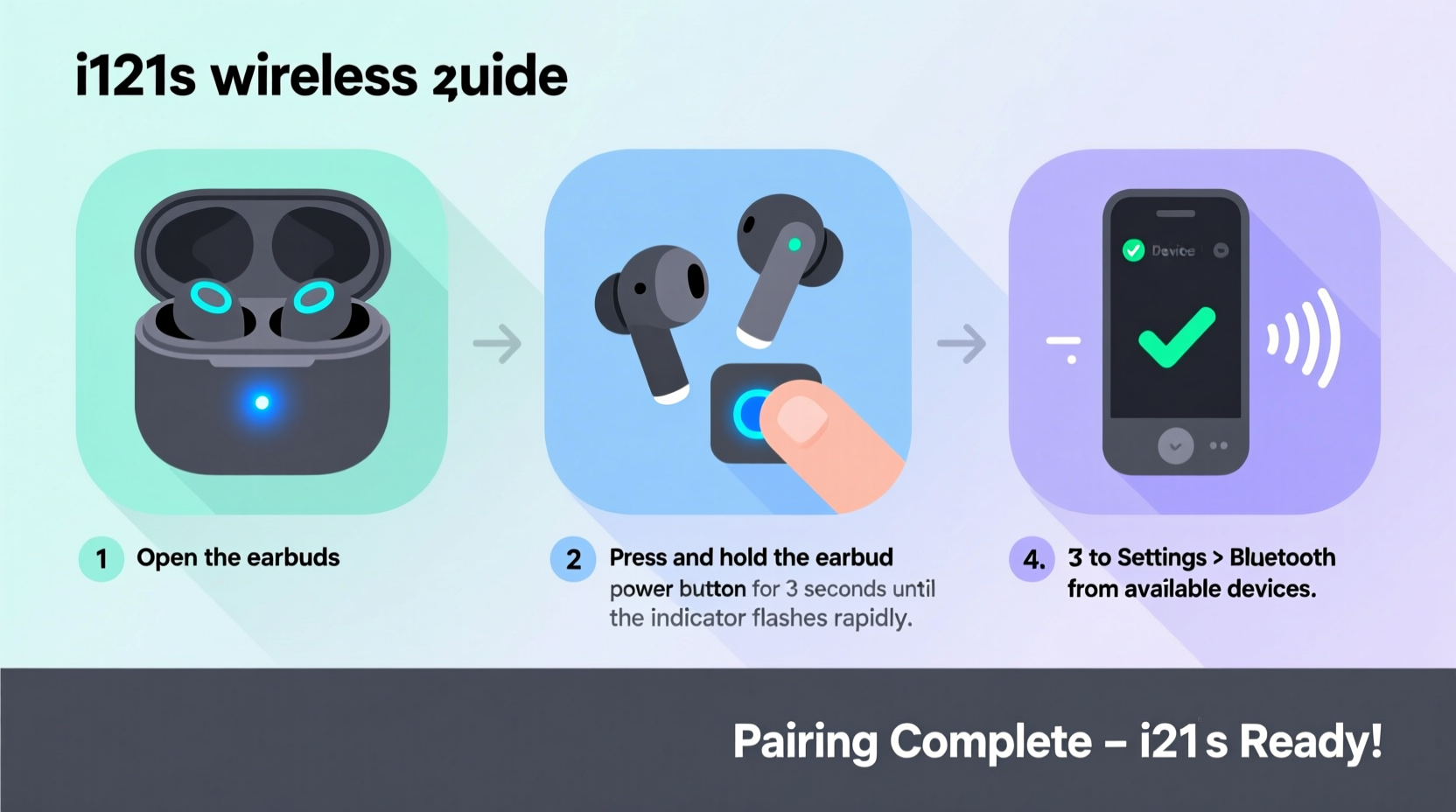
The i121s earbuds utilize Bluetooth 5.0 technology, which ensures stable signal transmission, lower latency, and reduced power consumption. While not technically Bluetooth 5.4 themselves, they are fully compatible with devices that support Bluetooth 5.4 due to the standard’s backward compatibility. This means you can enjoy seamless audio streaming on modern phones like the Samsung Galaxy S24, iPhone 15 series, Google Pixel 8, or latest Windows laptops—all of which use Bluetooth 5.2 or higher.
Bluetooth 5.4 introduces improvements in broadcast audio, enhanced security, and better coexistence with Wi-Fi signals. Although the i121s don’t leverage all these advanced features, their connection remains reliable thanks to standardized protocols across versions.
“Even older Bluetooth devices can pair effectively with modern systems as long as both ends adhere to core Bluetooth standards.” — Dr. Alan Reyes, Wireless Communication Engineer
Step-by-Step Guide to Pairing i121s with Bluetooth 5.4 Devices
Follow this clear, tested sequence to ensure successful pairing every time:
- Charge the Earbuds: Place the i121s in the charging case and connect it to a power source using the included USB cable. Allow at least 10–15 minutes of charging before first use. A full charge typically takes about 60 minutes.
- Open the Charging Case: Keep the lid open and ensure the earbuds are seated inside. You should see blinking red and blue LED lights within 3–5 seconds after opening the case—this indicates pairing mode has been activated automatically.
- Enable Bluetooth on Your Device: On your smartphone, tablet, or laptop, go to Settings > Bluetooth and turn it on. Make sure Airplane Mode is disabled.
- Search for Available Devices: Wait a few seconds for the device list to populate. Look for a device named “i121s” or “TWS-i121s.” Tap on it to initiate pairing.
- Confirm Connection: Once selected, you’ll hear a voice prompt from the earbuds saying “Connected,” and the LED will change from flashing to steady white or turn off, depending on the model variant.
- Test Audio: Play a short audio clip or video to confirm sound is coming through both earbuds and that microphone input works if making calls.
Troubleshooting Common Pairing Issues
Despite their simplicity, occasional hiccups occur. Below are frequent issues and how to resolve them:
- Device Not Showing Up: Clear old Bluetooth history. Go to Bluetooth settings, forget previous connections named “i121s,” then retry.
- Only One Earbud Working: Remove both earbuds from the case. Press and hold the touch control on each earbud for 3 seconds until they flash again. Then place them back together in the case for 10 seconds to re-sync internally.
- Intermittent Sound or Lag: Ensure no physical obstructions or other wireless devices (like microwaves or routers) are interfering. Move closer to your source device.
- No Voice Prompt After Pairing: Check volume levels on both the earbuds and connected device. Some firmware versions do not include voice prompts.
Manual Reset Procedure for i121s
If problems persist, perform a factory reset:
- Place both earbuds in the charging case with the lid open.
- Press and hold the touch sensors on both earbuds for 10–15 seconds.
- Observe the LED behavior: Flashing red and blue alternately for several cycles, then turning off.
- Close the lid, wait 10 seconds, then reopen.
- Re-pair as described earlier.
Do’s and Don’ts When Using i121s with Modern Devices
| Do’s | Don’ts |
|---|---|
| Keep your device’s Bluetooth updated via system updates. | Don’t attempt to pair while the case is closed. |
| Clean the charging contacts regularly with a dry cotton swab. | Don’t expose earbuds to moisture or extreme heat. |
| Use one earbud at a time for calls if needed (mono mode). | Don’t force software updates—i121s lack OTA update capability. |
| Store in the case when not in use to preserve battery. | Don’t rely on third-party apps claiming to enhance i121s functionality. |
Real-World Example: Pairing i121s with a New Android Phone
Sophia recently upgraded her phone to a OnePlus 11, which supports Bluetooth 5.3. She took her i121s out of storage and opened the case near her new device. The phone detected “TWS-i121s” immediately, but tapping it didn’t complete the connection. Frustrated, she checked online and realized she had previously paired the same earbuds with an old tablet. After going into Bluetooth settings and selecting “Forget Device,” she retried—and the pairing succeeded instantly. The key was clearing outdated pairing records blocking the fresh connection.
This scenario highlights why managing saved Bluetooth devices matters—even on high-end hardware, legacy connections can interfere with new setups.
Checklist: Successful i121s Pairing Preparation
- ✅ Charge the earbuds and case fully
- ✅ Enable Bluetooth on target device
- ✅ Disable Airplane Mode
- ✅ Forget previous i121s connections if applicable
- ✅ Open case lid and wait for LED blink (red/blue)
- ✅ Select “i121s” or “TWS-i121s” from available devices
- ✅ Listen for confirmation tone
- ✅ Test audio playback and microphone
Frequently Asked Questions
Can I pair i121s with two devices at once?
No, the i121s do not support multipoint connectivity. You must disconnect from one device before pairing with another. However, once paired, switching between devices is quick—you just reconnect from the second device’s Bluetooth menu.
Why won’t my i121s stay in pairing mode?
This usually happens when the earbuds are low on battery or already connected to another device. Try resetting them manually by holding both touch controls for 10+ seconds. Also, ensure the case itself has sufficient charge to power the earbuds into discovery mode.
Are i121s compatible with iPhones?
Yes. Despite lacking Apple’s H1 chip, the i121s work well with iPhones running iOS 10 or later. Simply follow the standard pairing steps. Note that features like automatic switching or spatial audio will not be available.
Maximize Your Listening Experience
Once successfully paired, take advantage of the i121s’ responsive touch controls. Single tap plays/pauses, double tap skips forward, triple tap goes back. Volume adjustment must be done on the host device. For optimal sound quality, avoid compressed audio formats and stream from high-bitrate sources whenever possible.
Maintaining a clean connection also involves regular maintenance. Wipe the earbuds gently after workouts, store them properly, and avoid dropping the case, which can damage internal circuitry.




 浙公网安备
33010002000092号
浙公网安备
33010002000092号 浙B2-20120091-4
Comments
No comments yet. Why don't you start the discussion?